"7b46a695175d8694"{"id":"1001453","slug":"ryan-picker-page","title":"Ryan Picker Page","category":"Engine Tools","engine":"5.7 - 5.8","assetVersion":"Asset Version: 1.0","engineVersion":"Engine Version: 5.7 - 5.8","tag":"Engine Tools","accent":"blue","visual":"mech","summary":"Build custom Control Rig and Actor picker pages inside Unreal Engine using Ryan Picker Page, featuring 2D sliders, toggles, and JSON sharing.","platform":"Unreal Engine","publishedAt":"2026-10-08T00:56:30.493Z","updatedAt":"2026-10-08T00:56:30.493Z","sourceNotes":[],"fileContents":[],"compatibility":["Unreal Engine","Asset Version: 1.0","Engine Version: 5.7 - 5.8"],"featuredImage":{"alt":"Ryan Picker Page","src":"/wp-content/uploads/published/2026/10/d53a858298c2-8c81313a-f1c4-4c37-8f35-464d139a0171-dfe44fa5a6.webp"},"hasDownloadLink":true,"downloads":0,"terms":[{"taxonomy":"category","slug":"engine-tools-tools-and-plugins","name":"Engine Tools"}],"galleryImages":[{"src":"/wp-content/uploads/published/2026/10/757be76e8d2c-f2dcf08e-1f94-43f4-b835-036dfb08de0f-7a90ae92e3.webp","alt":"Ryan Picker Page"},{"src":"/wp-content/uploads/published/2026/10/e1d89cbef02c-2c04cc1e-b557-466b-a134-50481f5766b0-2cb9a3c021.webp","alt":"Ryan Picker Page"}],"accessPanel":{"kind":"resource","title":"Download this resource","eyebrow":"Free Download","message":"Log in or create a free account to start your download.","fileName":"Ryan Picker Page.7z","safetyNote":"Resources are manually reviewed before listing to improve quality and reduce obvious risks.","actionLabel":"Download Free","resourceType":"Resource archive"},"contentHtml":"\u003ch2\u003eNavigating Edit Mode and Live Mode on the Editor Utility Canvas\u003c/h2\u003e\n\u003cp\u003eComplex character rigs often clutter the viewport with overlapping controls, making clean selection and posing slow during production. Ryan Picker Page addresses this friction by providing a self-contained canvas inside Unreal Engine, removing the need for external tools or hand-wired Blueprint interfaces.\u003c/p\u003e\n\u003cp\u003eAccessed directly from the Tools menu, the plugin functions as a single Editor Utility Widget divided into two distinct operational states: Edit Mode and Live Mode. In Edit Mode, artists arrange the interface layout, align elements, and configure widget behaviors. Once configured, switching to Live Mode turns the canvas into an interactive command deck for posing. Animators can pick rig controls, target level actors, and execute custom Python scripts without leaving their working view.\u003c/p\u003e \u003ch2\u003eMapping Control Rig Transforms with Sliders and Toggles\u003c/h2\u003e\n\u003cp\u003eRig interactions require varied input types, from discrete binary states to continuous positional fine-tuning.\u003c/p\u003e\n\u003cp\u003eSelection Buttons serve as the foundation of any page layout. These buttons can select individual Control Rig controls, grab Actors placed within the level, or activate other buttons to manage both single and multi-selection setups. For continuous channel manipulation, 1D Sliders map directly to a single transform channel—handling translation, rotation, or scale within a user-defined numeric range. When multi-axis adjustments are needed, 2D Sliders drive two channels simultaneously through a single draggable handle, offering an intuitive tactile method for facial rigs or eye tracking.\u003c/p\u003e\n\u003cp\u003eDiscrete controls rely on the Toggle widget, a two-state switch intended for rig attributes like Boolean Anim channels. These switches commonly govern IK and FK switching or global rig state alternations. Toggles can also synchronize visually with the rig itself by switching the visibility of specific picker widgets on the canvas so that the interface matches whatever controls are active. For mutually exclusive rig states, toggles can be organized into groups that function like radio buttons.\u003c/p\u003e \u003ch2\u003eBuilding Symmetrical Layouts with the Mirror Pose Tool\u003c/h2\u003e\n\u003cp\u003eDesigning an uncluttered, readable picker layout requires fast positioning tools and consistent spatial balance across character limbs.\u003c/p\u003e\n\u003cp\u003eThe canvas provides drag-and-drop positioning supported by dedicated alignment, distribution, and nudging tools. To accommodate intricate rig setups, widgets can be layered directly on top of each other, complete with full copy, cut, paste, undo, redo, and Z-order stacking management. An Outliner panel gives full oversight of the canvas hierarchy, allowing animators to rename widgets, reorder the stack, or filter elements by Type or Group. To handle broader organizational edits, a per-widget Attribute Editor sidebar pairs with multi-widget bulk-apply editing to modify properties across several buttons at once.\u003c/p\u003e\n\u003cp\u003eBuilding character pickers often requires identical setups for left and right extremities. The built-in Mirror Pose tool accelerates this process by constructing and preserving symmetric layouts across both sides of the canvas. Visual clarity is supported further by background image imports, which can be moved, offset, and zoomed to form anatomical guides beneath the buttons. Text areas and titles can be placed using dynamic Labels, which can automatically update their displayed text depending on the active Control Rig. When navigating large, complex templates, saved Bookmarks allow animators to jump instantly between distinct canvas views.\u003c/p\u003e \u003ch2\u003eInteractive Selection Mode and Python Scripting Hooks\u003c/h2\u003e\n\u003cp\u003eDisconnects between the viewport and an external interface can break animation flow, particularly when selecting multiple nested controls.\u003c/p\u003e\n\u003cp\u003eInteractive Selection Mode bridges this gap by establishing bidirectional synchronization between the picker widgets and the active selection inside the viewport or Control Rig. Selecting a bone or handle in the 3D viewport highlights the corresponding widget on the canvas, and clicking widgets immediately reflects the change on the rig. Beyond native selections, Selection Buttons feature an optional per-button Python scripting hook. This lets technical directors and animators attach custom script logic directly to interface clicks, triggering bespoke utility functions alongside standard control selections.\u003c/p\u003e\n\u003cp\u003eWhile the tool removes the requirement to touch Blueprints for standard animation pickers, it does not lock technical artists out of Unreal Engine's visual scripting system. Users can build their own custom picker page widgets containing dedicated Blueprint graphs, expanding the standard widget selection with project-specific logic whenever specialized interactions are required.\u003c/p\u003e \u003ch2\u003ePortability with JSON Storage and Custom Blueprint Widgets\u003c/h2\u003e\n\u003cp\u003eStudio workflows require assets and animation tools that can be shared across multiple assets and projects without project-level file lock-in.\u003c/p\u003e\n\u003cp\u003eLayouts created in Ryan Picker Page are saved directly as standalone JSON files. Because these files can be stored in any local or network directory rather than being bound to a specific project folder, animators can build modular libraries of picker configurations. These JSON files can be reloaded across different rigs or distributed among team members working on separate workstations. Direct documentation, feature request tracking, and bug reporting are accessible straight from the integrated Help Menu to support ongoing workflows.\u003c/p\u003e\n\u003cp\u003eBy streamlining pose adjustments on complex Control Rigs, the tool fits squarely into character setup and keyframing pipelines where fast, repeatable rig selection is essential.\u003c/p\u003e\n\n\u003ch2\u003eExplore Similar Assets\u003c/h2\u003e\n\u003cul\u003e\n\u003cli\u003e\u003ca href=\"https://3dcghub.com/collision-settings-debugger-2/\" title=\"Collision Settings Debugger\"\u003eCollision Settings Debugger\u003c/a\u003e\u003c/li\u003e\n\u003cli\u003e\u003ca href=\"https://3dcghub.com/blueprint-mesh-extractor/\" title=\"Blueprint Mesh Extractor\"\u003eBlueprint Mesh Extractor\u003c/a\u003e\u003c/li\u003e\n\u003cli\u003e\u003ca href=\"https://3dcghub.com/quick-merge-skeletal-mesh/\" title=\"Quick Merge Skeletal Mesh\"\u003eQuick Merge Skeletal Mesh\u003c/a\u003e\u003c/li\u003e\n\u003cli\u003e\u003ca href=\"https://3dcghub.com/externaltextureplugin/\" title=\"ExternalTexturePlugin\"\u003eExternalTexturePlugin\u003c/a\u003e\u003c/li\u003e\n\u003cli\u003e\u003ca href=\"https://3dcghub.com/collision-settings-debugger/\" title=\"Collision Settings Debugger\"\u003eCollision Settings Debugger\u003c/a\u003e\u003c/li\u003e\n\u003c/ul\u003e","contentTextLength":5839,"navigation":{"current":94,"total":3481,"previous":{"id":"1001454","slug":"school-of-magic-gothic-modular-environment","title":"School of Magic - Gothic Modular Environment","category":"Fantasy","platform":"Unreal Engine","updatedAt":"2026-10-08T00:57:08.109Z"},"next":{"id":"1001452","slug":"roman-temple-ruins-roman-temple-ruins-historical-building-building-rome","title":"Roman Temple Ruins ( Roman Temple Ruins Historical Building Building Rome )","category":"Historical","platform":"Unreal Engine","updatedAt":"2026-10-08T00:55:54.084Z"}},"relatedResources":[{"id":"1001322","slug":"collision-settings-debugger-2","title":"Collision Settings Debugger","category":"Engine Tools","engine":"5.2 - 5.8","assetVersion":"Asset Version: 1.0","engineVersion":"Engine Version: 5.2 - 5.8","tag":"Engine Tools","accent":"blue","visual":"mech","summary":"Inspect and verify primitive component collision settings in Unreal Engine using a dedicated Gameplay Debugger category and Blueprint query nodes.","platform":"Unreal Engine","publishedAt":"2026-10-02T09:47:46.569Z","updatedAt":"2026-10-02T09:47:46.569Z","sourceNotes":[],"fileContents":[],"compatibility":["Unreal Engine","Asset Version: 1.0","Engine Version: 5.2 - 5.8"],"featuredImage":{"alt":"Collision Settings Debugger","src":"/wp-content/uploads/published/2026/10/c67f33b2af27-cbdc50fb-4aa1-4656-9759-3b1f00b8d07e-1da0e85a65.webp"},"hasDownloadLink":true,"downloads":0},{"id":"1000796","slug":"blueprint-mesh-extractor","title":"Blueprint Mesh Extractor","category":"Engine Tools","engine":"5.7","assetVersion":"Asset Version: 1.0","engineVersion":"Engine Version: 5.7","tag":"Engine Tools","accent":"blue","visual":"mech","summary":"Blueprint Mesh Extractor breaks Blueprint Actors into separate Static Mesh Actors, preserving transforms, materials, and child actors, with bulk extraction from","platform":"Unreal Engine","publishedAt":"2026-07-30T14:29:11.117Z","updatedAt":"2026-07-30T14:29:11.117Z","sourceNotes":[],"fileContents":[],"compatibility":["Unreal Engine","Asset Version: 1.0","Engine Version: 5.7"],"featuredImage":{"alt":"Blueprint Mesh Extractor","src":"/wp-content/uploads/published/2026/07/4565c5f72c93-3a93b647-ac5f-43a0-8e2d-6754dccb9d34-aa8b0957a6.webp"},"hasDownloadLink":true,"downloads":2},{"id":"14379","slug":"quick-merge-skeletal-mesh","title":"Quick Merge Skeletal Mesh","category":"Engine Tools","engine":"5.4 - 5.8","assetVersion":"Asset Version:1.0","engineVersion":"Engine version: 5.4 - 5.8","tag":"Engine Tools","accent":"blue","visual":"character","summary":"Streamline your Unreal Engine 5 workflow by combining multiple skeletal meshes into a single asset. This tool ensures efficient asset management while maintaining skeleton consistency across your project.","platform":"Unreal Engine","publishedAt":"2026-03-11T17:51:53.000Z","updatedAt":"2026-09-07T14:11:56.503Z","sourceNotes":[],"fileContents":[],"compatibility":["Unreal Engine","Asset Version:1.0","Engine version: 5.4 - 5.8"],"featuredImage":{"alt":"Quick Merge Skeletal Mesh","src":"https://3dcghub.com/wp-content/uploads/2026/03/8b1e8a33-5fdf-4566-af9c-54f93949ddf6.webp"},"hasDownloadLink":true,"downloads":2}]}
Engine Tools
Ryan Picker Page
Build custom Control Rig and Actor picker pages inside Unreal Engine using Ryan Picker Page, featuring 2D sliders, toggles, and JSON sharing.
Navigating Edit Mode and Live Mode on the Editor Utility Canvas
Complex character rigs often clutter the viewport with overlapping controls, making clean selection and posing slow during production. Ryan Picker Page addresses this friction by providing a self-contained canvas inside Unreal Engine, removing the need for external tools or hand-wired Blueprint interfaces.
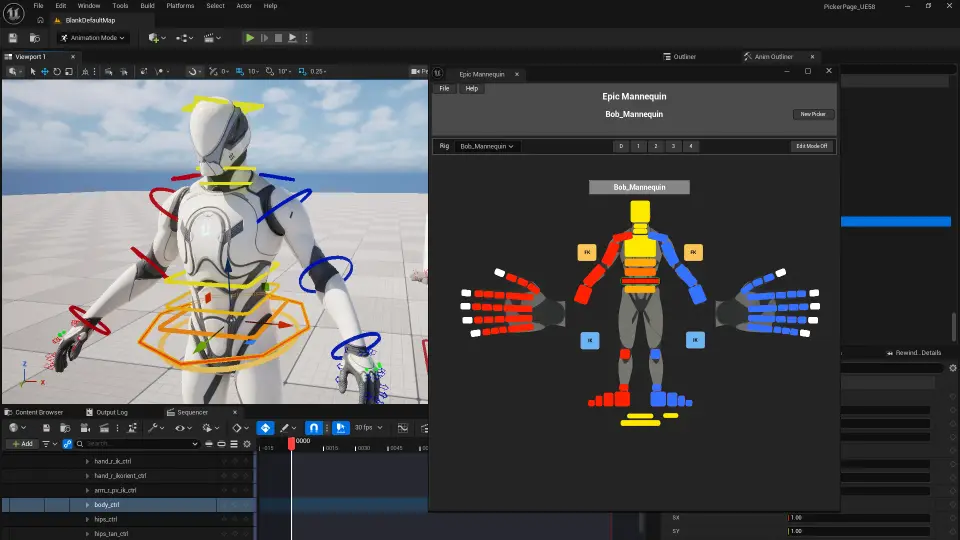
Accessed directly from the Tools menu, the plugin functions as a single Editor Utility Widget divided into two distinct operational states: Edit Mode and Live Mode. In Edit Mode, artists arrange the interface layout, align elements, and configure widget behaviors. Once configured, switching to Live Mode turns the canvas into an interactive command deck for posing. Animators can pick rig controls, target level actors, and execute custom Python scripts without leaving their working view.
Mapping Control Rig Transforms with Sliders and Toggles
Rig interactions require varied input types, from discrete binary states to continuous positional fine-tuning.
Selection Buttons serve as the foundation of any page layout. These buttons can select individual Control Rig controls, grab Actors placed within the level, or activate other buttons to manage both single and multi-selection setups. For continuous channel manipulation, 1D Sliders map directly to a single transform channel—handling translation, rotation, or scale within a user-defined numeric range. When multi-axis adjustments are needed, 2D Sliders drive two channels simultaneously through a single draggable handle, offering an intuitive tactile method for facial rigs or eye tracking.
Discrete controls rely on the Toggle widget, a two-state switch intended for rig attributes like Boolean Anim channels. These switches commonly govern IK and FK switching or global rig state alternations. Toggles can also synchronize visually with the rig itself by switching the visibility of specific picker widgets on the canvas so that the interface matches whatever controls are active. For mutually exclusive rig states, toggles can be organized into groups that function like radio buttons.
Building Symmetrical Layouts with the Mirror Pose Tool
Designing an uncluttered, readable picker layout requires fast positioning tools and consistent spatial balance across character limbs.
The canvas provides drag-and-drop positioning supported by dedicated alignment, distribution, and nudging tools. To accommodate intricate rig setups, widgets can be layered directly on top of each other, complete with full copy, cut, paste, undo, redo, and Z-order stacking management. An Outliner panel gives full oversight of the canvas hierarchy, allowing animators to rename widgets, reorder the stack, or filter elements by Type or Group. To handle broader organizational edits, a per-widget Attribute Editor sidebar pairs with multi-widget bulk-apply editing to modify properties across several buttons at once.
Building character pickers often requires identical setups for left and right extremities. The built-in Mirror Pose tool accelerates this process by constructing and preserving symmetric layouts across both sides of the canvas. Visual clarity is supported further by background image imports, which can be moved, offset, and zoomed to form anatomical guides beneath the buttons. Text areas and titles can be placed using dynamic Labels, which can automatically update their displayed text depending on the active Control Rig. When navigating large, complex templates, saved Bookmarks allow animators to jump instantly between distinct canvas views.
Interactive Selection Mode and Python Scripting Hooks
Disconnects between the viewport and an external interface can break animation flow, particularly when selecting multiple nested controls.
Interactive Selection Mode bridges this gap by establishing bidirectional synchronization between the picker widgets and the active selection inside the viewport or Control Rig. Selecting a bone or handle in the 3D viewport highlights the corresponding widget on the canvas, and clicking widgets immediately reflects the change on the rig. Beyond native selections, Selection Buttons feature an optional per-button Python scripting hook. This lets technical directors and animators attach custom script logic directly to interface clicks, triggering bespoke utility functions alongside standard control selections.
While the tool removes the requirement to touch Blueprints for standard animation pickers, it does not lock technical artists out of Unreal Engine's visual scripting system. Users can build their own custom picker page widgets containing dedicated Blueprint graphs, expanding the standard widget selection with project-specific logic whenever specialized interactions are required.
Portability with JSON Storage and Custom Blueprint Widgets
Studio workflows require assets and animation tools that can be shared across multiple assets and projects without project-level file lock-in.
Layouts created in Ryan Picker Page are saved directly as standalone JSON files. Because these files can be stored in any local or network directory rather than being bound to a specific project folder, animators can build modular libraries of picker configurations. These JSON files can be reloaded across different rigs or distributed among team members working on separate workstations. Direct documentation, feature request tracking, and bug reporting are accessible straight from the integrated Help Menu to support ongoing workflows.
By streamlining pose adjustments on complex Control Rigs, the tool fits squarely into character setup and keyframing pipelines where fast, repeatable rig selection is essential.
 Engine Tools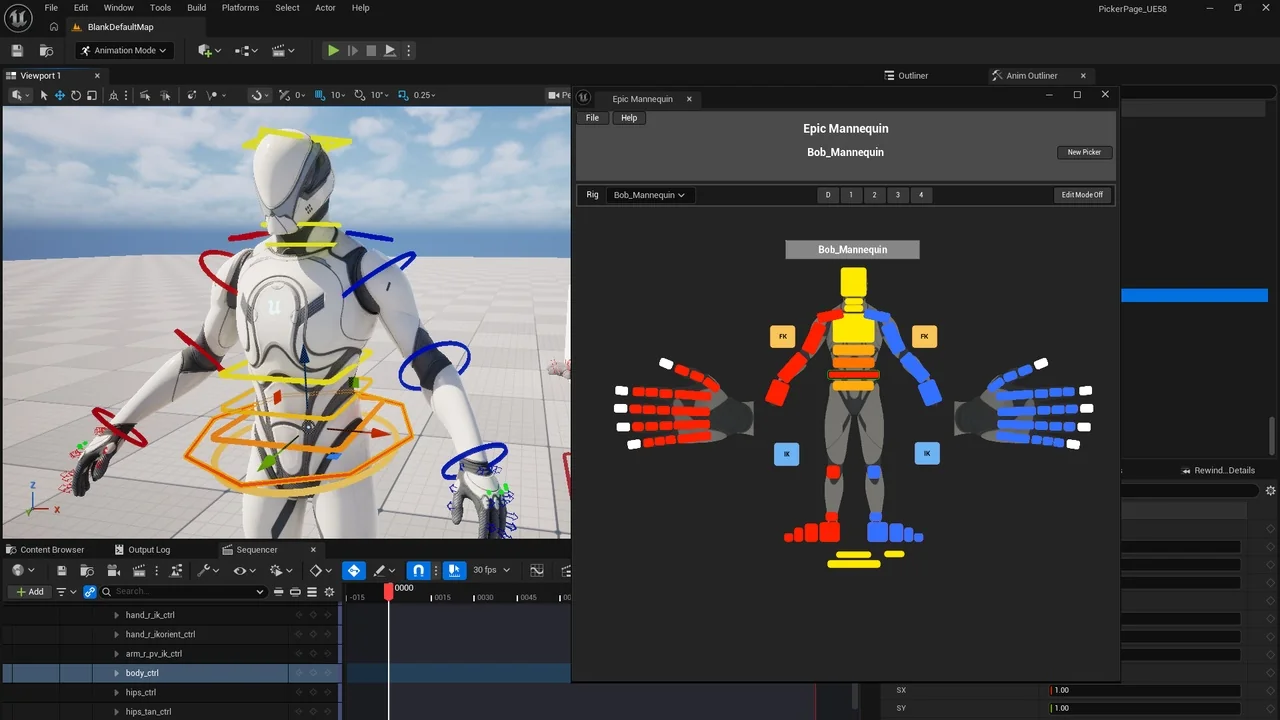
 Engine Tools
 Engine Tools
 Engine Tools