"8652e693bd7bbc55"{"id":"1002978","slug":"advanced-menu-system","title":"Advanced Menu System","category":"Widgets \u0026 Controls","engine":"4.21+,5.0+","assetVersion":"","engineVersion":"Engine Version: 4.21+,5.0+","tag":"Widgets \u0026 Controls","accent":"blue","visual":"mech","summary":"Unreal widget package with a settings menu, pause menu, and preference-saving system, plus CommonUI widgets, localization files, and input-aware icons.","platform":"Unreal Engine","indexPolicy":"index","publishedAt":"2026-11-25T09:21:19.766Z","updatedAt":"2026-11-25T09:21:19.766Z","sourceNotes":[],"fileContents":[],"compatibility":["Unreal Engine","Engine Version: 4.21+,5.0+"],"featuredImage":{"alt":"Advanced Menu System","src":"/wp-content/uploads/published/2026/11/0cb0597060fa-77664e4a-b4cf-4ded-847a-33ef4ffef99a-aedd71f024.webp"},"hasDownloadLink":true,"downloads":0,"terms":[{"taxonomy":"category","slug":"widgets-and-controls","name":"Widgets \u0026 Controls"}],"galleryImages":[{"src":"/wp-content/uploads/published/2026/11/1bdfca501189-5ec4fde0-455e-410b-aa1c-4b306fb66fd6-f17d3729ab.webp","alt":"Advanced Menu System"},{"src":"/wp-content/uploads/published/2026/11/3a67e57c7d6d-63e3b201-d3c1-4b6a-a3b6-dfce6027491b-0152c53376.webp","alt":"Advanced Menu System"},{"src":"/wp-content/uploads/published/2026/11/7033a90c192c-5647bae7-861f-41cc-9978-cef2cc0f1eb8-36600f19a9.webp","alt":"Advanced Menu System"},{"src":"/wp-content/uploads/published/2026/11/635a6c50a09d-723ceef3-1989-4b0e-baf5-8ebda94a0193-ba96343c31.webp","alt":"Advanced Menu System"},{"src":"/wp-content/uploads/published/2026/11/0aa9bd5bb8ed-1c9e799d-6792-4f42-9a5e-d92e94a0aa4d-e40fbdd97b.webp","alt":"Advanced Menu System"},{"src":"/wp-content/uploads/published/2026/11/ab03f5cb50b2-8e0a57de-9cbe-4ba4-ab1c-292b1f68b41f-43cb9c42ce.webp","alt":"Advanced Menu System"},{"src":"/wp-content/uploads/published/2026/11/8b3c2e7912a0-875f4666-dc3b-464e-9195-eb0d34ca4782-1aaa15594d.webp","alt":"Advanced Menu System"}],"accessPanel":{"kind":"resource","title":"Get this resource","safetyNote":"Resources are manually reviewed before listing to improve quality and reduce obvious risks.","fileName":"Content.7z","resourceType":"Resource archive","versions":[]},"contentHtml":"\u003cp\u003eAdvanced Menu System is a widget-based package for Unreal Engine projects that gathers three connected pieces into one front end: a settings menu, a pause menu, and a save system that automatically remembers player preferences. Settings are split across display, graphics, controls, audio, and language categories, each carrying its own options. Wrapping all of it are confirmation prompts and animated transitions, which push the package past placeholder territory and toward something that reads as shipped UI.\u003c/p\u003e \u003ch2\u003eWhat the Settings Menu Actually Contains\u003c/h2\u003e \u003cp\u003eDisplay settings handle resolution and window mode. Graphics settings expose texture quality, shadows, and shading quality, along with additional options in the same family. Controls settings provide mouse sensitivity. Language settings carry dynamic localization support.\u003c/p\u003e \u003cp\u003eAudio deserves a closer look because it is the one category structured through separation not just one control. Volume is split per channel, so different groups can be balanced independently instead of through one master slider that forces every adjustment to drag the rest along with it.\u003c/p\u003e \u003cp\u003eSplitting those five groups apart is what makes the package modular in practice. A project that only needs graphics and audio options can present those panels without reworking the rest of the structure. Each category is its own concern inside a shared menu flow rather than a separate screen, which is why the panels can be exposed or held back individually.\u003c/p\u003e \u003ch2\u003eConfirmation Messages and the Pause Menu\u003c/h2\u003e \u003cp\u003eThree moments get a prompt: applying changes, quitting, and returning to the main menu. Each is a point where an accidental click costs the player something, and the package treats them as decisions that need a second step not just one button press.\u003c/p\u003e \u003cp\u003eThat protection matters most around the pause menu, where quit sits close to resume in the same list. A confirmation step between the two keeps a mis-aimed press from ending a session that the player meant to continue.\u003c/p\u003e \u003cp\u003eResume, settings, and quit options make the pause menu fully functional, and settings living inside it changes how a play session flows. Players can correct mouse sensitivity or rebalance volume the moment something feels off, then drop straight back in without routing through a main menu first.\u003c/p\u003e \u003ch2\u003eHow the System Handles Input Devices\u003c/h2\u003e \u003cp\u003eDynamic input detection keeps the interface honest about whatever the player is holding. Icons switch automatically between keyboard and mouse sets and gamepad sets depending on the current input device, so prompts and button hints stay accurate when someone sets down a controller and reaches for a mouse, or the reverse.\u003c/p\u003e \u003cp\u003eProjects shipping to both desktop and console-style setups get a practical benefit here. Instead of committing to one icon set or building a manual toggle, the UI responds to the device in use. Mouse sensitivity living in the controls panel points the same direction: the package expects players who move between input methods rather than settling on one.\u003c/p\u003e \u003ch2\u003eWhere the Menu System Saves and Animates\u003c/h2\u003e \u003cp\u003ePreference persistence runs underneath every category. The save system automatically remembers settings, so a resolution change, a volume balance, and a language choice survive into the next session and carry forward as a group instead of resetting to defaults at launch.\u003c/p\u003e \u003cp\u003eBecause that layer covers the whole menu not just one panel, the options behave as one saved set. A language selection made in one session is still in place the next time the project starts, and a graphics tweak does not have to be repeated after every restart.\u003c/p\u003e \u003cp\u003eSmooth transitions and clean animations run through the panels, supported by modern UI visuals. Movement between screens instead of hard cuts is a small thing that separates a finished menu from a working prototype.\u003c/p\u003e \u003ch3\u003eTags That Describe the Menu\u003c/h3\u003e \u003cp\u003eThe package carries twelve tags — widget, pause, modular, display, setting, language, menu, animated, audio, control, graphics, and Blueprint — and they read as a map of the build: one tag per settings category, plus labels for the pause flow, the animation work, and the widget and Blueprint construction underneath.\u003c/p\u003e \u003ch3\u003eLocalization Files That Ship With the Menu\u003c/h3\u003e \u003cp\u003eEverything in the localization folder is real localization data used by the project:.locres files, a manifest, and an Excel file. These are working assets rather than demo leftovers, and removing them or writing them off as unused would strip the language settings of the data they depend on. Cleanup passes that sweep unused content are exactly where that mistake tends to happen.\u003c/p\u003e \u003ch3\u003eCommonUI Is Not Optional for This System\u003c/h3\u003e \u003cp\u003eCommonUI has to be enabled for the package to run. The plugin is actively used inside the menu system widgets and cannot be disabled — turning it off breaks project functionality outright. Teams integrating the package should plan on CommonUI being part of the project from the start and staying enabled through production, since the widgets depend on it directly.\u003c/p\u003e \u003ch2\u003eMenu Panels That Need a Packaged Build\u003c/h2\u003e \u003cp\u003eTwo categories behave differently outside a build. Resolution and language settings work only in standalone or packaged builds, which turns verification into a packaging task. Display and language changes should be checked late in a production cycle, once packaging is already part of the routine, rather than judged from editor playback.\u003c/p\u003e \u003ch2\u003eFitting the Advanced Menu System Into Production\u003c/h2\u003e \u003cp\u003eThis package occupies the front end of a project — the layer players touch before gameplay and between sessions. Because it is easy to integrate and ready to use, the work of building settings panels, wiring persistence, and drawing confirmation dialogs is already handled. What remains is connecting options to a game's own systems and choosing which panels to expose.\u003c/p\u003e \u003cp\u003eModular structure lets the same package serve very different scopes. An indie project can drop in the whole menu and turn attention to gameplay. A larger production can treat individual panels as starting points, extending the graphics options or adding categories alongside the existing ones. The package is fitting any type of game, from indie projects to AAA-quality experiences, and the widget-based modularity is what makes that range credible.\u003c/p\u003e \u003cp\u003eSetup comes down to a short list: enable CommonUI, leave the localization folder intact, and verify resolution and language changes in a packaged build instead of the editor. Past that, the settings, pause, and save layers are already wired to each other and only need pointing at the project's own systems.\u003c/p\u003e\n\n\u003ch2\u003eExplore Similar Assets\u003c/h2\u003e\n\u003cul\u003e\n\u003cli\u003e\u003ca href=\"https://3dcghub.com/pro-icon-pack/\" rel=\"noopener noreferrer\"\u003ePro Icon Pack\u003c/a\u003e\u003c/li\u003e\n\u003cli\u003e\u003ca href=\"https://3dcghub.com/ultimate-menu-system/\" rel=\"noopener noreferrer\"\u003eUltimate Menu System\u003c/a\u003e\u003c/li\u003e\n\u003cli\u003e\u003ca href=\"https://3dcghub.com/easy-toolbag/\" rel=\"noopener noreferrer\"\u003eEasy Toolbag\u003c/a\u003e\u003c/li\u003e\n\u003cli\u003e\u003ca href=\"https://3dcghub.com/circle-damage-indicator-component/\" rel=\"noopener noreferrer\"\u003eCircle Damage Indicator Component\u003c/a\u003e\u003c/li\u003e\n\u003cli\u003e\u003ca href=\"https://3dcghub.com/music-player-advanced/\" rel=\"noopener noreferrer\"\u003eMusic Player Advanced\u003c/a\u003e\u003c/li\u003e\n\u003c/ul\u003e","contentTextLength":6648,"navigation":{"current":13,"total":4911,"previous":{"id":"1002979","slug":"advanced-multiplayer-chat-system-v2-0","title":"Advanced Multiplayer Chat System v2.0","category":"Network \u0026 Multiplayer","platform":"Unreal Engine","updatedAt":"2026-11-25T09:36:15.296Z"},"next":{"id":"1002977","slug":"advanced-game-gui-with-multiplayer","title":"Advanced Game GUI with Multiplayer","category":"Gameplay Features","platform":"Unreal Engine","updatedAt":"2026-11-25T09:09:33.318Z"}},"relatedResources":[{"id":"1001924","slug":"pro-icon-pack","title":"Pro Icon Pack","category":"Widgets \u0026 Controls","engine":"4.26+,5.0+","assetVersion":"","engineVersion":"Engine Version: 4.26+,5.0+","tag":"Widgets \u0026 Controls","accent":"blue","visual":"mech","summary":"Explore the implementation and structural utility of Pro Icon Pack across HUD, inventory, and main menu systems in Unreal Engine interface design.","platform":"Unreal Engine","indexPolicy":"index","publishedAt":"2026-10-22T12:00:19.598Z","updatedAt":"2026-10-22T12:00:19.598Z","sourceNotes":[],"fileContents":[],"compatibility":["Unreal Engine","Engine Version: 4.26+,5.0+"],"featuredImage":{"alt":"Pro Icon Pack","src":"/wp-content/uploads/published/2026/10/eaeb4b76f65b-75923046-733b-4bd8-ba53-e45ddc9e2a36-ea737c91b8.webp"},"fileSizeBytes":681601016,"hasDownloadLink":true,"downloads":0},{"id":"15521","slug":"ultimate-menu-system","title":"Ultimate Menu System","category":"Widgets \u0026 Controls","engine":"4.27,5.0+","assetVersion":"Engine version: 4.27,5.0+","engineVersion":"4.26","tag":"Widgets \u0026 Controls","accent":"blue","visual":"animation","summary":"Ultimate Menu System provides a modular and dynamic framework for creating professional game interfaces. It supports multiple input methods and includes pre-built systems for settings and multiplayer hosting.","platform":"Unreal Engine","indexPolicy":"noindex","publishedAt":"2026-03-12T09:12:56.000Z","updatedAt":"2026-04-19T15:44:45.000Z","sourceNotes":[],"fileContents":[],"compatibility":["Unreal Engine","Engine version: 4.27,5.0+"],"featuredImage":{"alt":"Ultimate Menu System","src":"https://3dcghub.com/wp-content/uploads/2026/03/f49ca1b4-975f-44a0-a17f-9f3cca8ab40c.webp"},"fileSizeBytes":321864012,"hasDownloadLink":true,"downloads":1},{"id":"1000592","slug":"easy-toolbag","title":"Easy Toolbag","category":"Widgets \u0026 Controls","engine":"5.6+","assetVersion":"","engineVersion":"Engine Version: 5.6+","tag":"Widgets \u0026 Controls","accent":"blue","visual":"mech","summary":"An Unreal Engine 5 built-in menu tool offering one-click viewport helpers, post process volumes, sequences, and EasySuite integration for faster scene workflows","platform":"Unreal Engine","indexPolicy":"index","publishedAt":"2026-07-17T00:43:08.420Z","updatedAt":"2026-07-17T00:43:08.420Z","sourceNotes":[],"fileContents":[],"compatibility":["Unreal Engine","Engine Version: 5.6+"],"featuredImage":{"alt":"Easy Toolbag","src":"/wp-content/uploads/published/2026/07/ada51d7c6ef6-2aac9f70-50b5-42a4-8208-df003eb50455-3d7c42ae4d.webp"},"fileSizeBytes":1033323,"hasDownloadLink":true,"downloads":3}]}[{"id":4225,"sourceId":4225,"taxonomyId":4225,"taxonomy":"category","slug":"asset-library","name":"Asset Library","parentId":null,"count":4765,"hasChildren":true,"href":"/","seoTitle":"Free Game Assets Library | 3DCGHUB","seoDescription":"Browse free Unreal Engine, Unity, Blender assets and game development tutorials on 3DCGHUB with previews, compatibility notes, and secure downloads.","sitemapEnabled":true,"children":[{"id":4227,"sourceId":4227,"taxonomyId":4227,"taxonomy":"category","slug":"blender-add-ons-plugins","name":"Blender Add-ons \u0026 Plugins","parentId":4225,"count":10,"hasChildren":false,"href":"/category/blender-add-ons-plugins/","seoTitle":"Free Blender Add-ons \u0026 Plugins | 3DCGHUB","seoDescription":"Browse free Blender Add-ons \u0026 Plugins tools for Blender on 3DCGHUB: curated downloads with preview images, compatibility notes and secure download access.","sitemapEnabled":true},{"id":514,"sourceId":514,"taxonomyId":514,"taxonomy":"category","slug":"unity-2","name":"Unity","parentId":4225,"count":453,"hasChildren":true,"href":"/category/unity-2/","seoTitle":"Free Unity Assets | 3DCGHUB","seoDescription":"Browse free Unity resources on 3DCGHUB: curated downloads with preview images, compatibility notes and secure download access.","sitemapEnabled":true,"children":[{"id":523,"sourceId":523,"taxonomyId":523,"taxonomy":"category","slug":"2d","name":"2D","parentId":514,"count":1,"hasChildren":true,"href":"/category/2d/","seoTitle":"Free Unity 2D | 3DCGHUB","seoDescription":"Browse free 2D assets for Unity on 3DCGHUB: curated downloads with preview images, compatibility notes and secure download access.","sitemapEnabled":true},{"id":515,"sourceId":515,"taxonomyId":515,"taxonomy":"category","slug":"3d-unity-2","name":"3D","parentId":514,"count":162,"hasChildren":true,"href":"/category/3d-unity-2/","seoTitle":"Free Unity 3D Assets | 3DCGHUB","seoDescription":"Browse free 3D assets for Unity on 3DCGHUB: curated downloads with preview images, compatibility notes and secure download access.","sitemapEnabled":true},{"id":565,"sourceId":565,"taxonomyId":565,"taxonomy":"category","slug":"add-ons","name":"Add-Ons","parentId":514,"count":2,"hasChildren":false,"href":"/category/add-ons/","seoTitle":"Free Unity Add-Ons | 3DCGHUB","seoDescription":"Browse free Add-Ons assets for Unity on 3DCGHUB: curated downloads with preview images, compatibility notes and secure download access.","sitemapEnabled":true},{"id":529,"sourceId":529,"taxonomyId":529,"taxonomy":"category","slug":"audio-unity-2","name":"Audio","parentId":514,"count":1,"hasChildren":true,"href":"/category/audio-unity-2/","seoTitle":"Free Unity Audio | 3DCGHUB","seoDescription":"Browse free Audio for Unity on 3DCGHUB: curated downloads with preview images, compatibility notes and secure download access.","sitemapEnabled":true},{"id":557,"sourceId":557,"taxonomyId":557,"taxonomy":"category","slug":"templates","name":"Templates","parentId":514,"count":36,"hasChildren":true,"href":"/category/templates/","seoTitle":"Free Unity Templates | 3DCGHUB","seoDescription":"Browse free Unity project templates on 3DCGHUB. Starter kits with previews, compatibility notes, and secure download access.","sitemapEnabled":true},{"id":533,"sourceId":533,"taxonomyId":533,"taxonomy":"category","slug":"tools-unity-2","name":"Tools","parentId":514,"count":0,"hasChildren":true,"href":"/category/tools-unity-2/","sitemapEnabled":true},{"id":554,"sourceId":554,"taxonomyId":554,"taxonomy":"category","slug":"vfx-unity-2","name":"VFX","parentId":514,"count":4,"hasChildren":true,"href":"/category/vfx-unity-2/","seoTitle":"Free Unity VFX | 3DCGHUB","seoDescription":"Browse free VFX for Unity on 3DCGHUB: curated downloads with preview images, compatibility notes and secure download access.","sitemapEnabled":true}]},{"id":511,"sourceId":511,"taxonomyId":511,"taxonomy":"category","slug":"unreal-engine-2","name":"Unreal Engine","parentId":4225,"count":4303,"hasChildren":true,"href":"/category/unreal-engine-2/","seoTitle":"Free Unreal Engine Assets | 3DCGHUB","seoDescription":"Browse free Unreal Engine resources on 3DCGHUB: curated downloads with preview images, compatibility notes and secure download access.","sitemapEnabled":true,"children":[{"id":54,"sourceId":54,"taxonomyId":54,"taxonomy":"category","slug":"3d","name":"3D","parentId":511,"count":2434,"hasChildren":true,"href":"/category/3d/","seoTitle":"Free Unreal Engine 3D | 3DCGHUB","seoDescription":"Browse free 3D assets for Unreal Engine on 3DCGHUB: curated downloads with preview images, compatibility notes and secure download access.","sitemapEnabled":true},{"id":441,"sourceId":441,"taxonomyId":441,"taxonomy":"category","slug":"animations","name":"Animations","parentId":511,"count":245,"hasChildren":true,"href":"/category/animations/","seoTitle":"Free Unreal Engine Animations | 3DCGHUB","seoDescription":"Browse free Animations for Unreal Engine on 3DCGHUB: curated downloads with preview images, compatibility notes and secure download access.","sitemapEnabled":true},{"id":446,"sourceId":446,"taxonomyId":446,"taxonomy":"category","slug":"audio","name":"Audio","parentId":511,"count":63,"hasChildren":true,"href":"/category/audio/","seoTitle":"Free Unreal Engine Audio Resources | 3DCGHUB","seoDescription":"Browse free Unreal Engine audio resources including sound effects, voices, dialogue, and ambient sounds. Curated free downloads on 3DCGHUB.","sitemapEnabled":true},{"id":466,"sourceId":466,"taxonomyId":466,"taxonomy":"category","slug":"game-systems","name":"Game Systems","parentId":511,"count":366,"hasChildren":true,"href":"/category/game-systems/","seoTitle":"Free Unreal Engine Game Systems | 3DCGHUB","seoDescription":"Browse free Game Systems tools for Unreal Engine on 3DCGHUB: curated downloads with preview images, compatibility notes and secure download access.","sitemapEnabled":true},{"id":478,"sourceId":478,"taxonomyId":478,"taxonomy":"category","slug":"game-templates","name":"Game Templates","parentId":511,"count":151,"hasChildren":true,"href":"/category/game-templates/","seoTitle":"Free Unreal Engine Game Templates | 3DCGHUB","seoDescription":"Browse free Game Templates for Unreal Engine on 3DCGHUB: curated downloads with preview images, compatibility notes and secure download access.","sitemapEnabled":true},{"id":432,"sourceId":432,"taxonomyId":432,"taxonomy":"category","slug":"hdri","name":"HDRI","parentId":511,"count":6,"hasChildren":true,"href":"/category/hdri/","seoTitle":"Free Unreal Engine HDRI | 3DCGHUB","seoDescription":"Browse free Unreal Engine HDRI skies and lighting maps on 3DCGHUB. Environment lighting with previews and secure downloads.","sitemapEnabled":true},{"id":228,"sourceId":228,"taxonomyId":228,"taxonomy":"category","slug":"material-and-textures","name":"Material \u0026 Textures","parentId":511,"count":172,"hasChildren":true,"href":"/category/material-and-textures/","seoTitle":"Free Unreal Engine Material \u0026 Textures | 3DCGHUB","seoDescription":"Browse free Material \u0026 Textures for Unreal Engine on 3DCGHUB: curated downloads with preview images, compatibility notes and secure download access.","sitemapEnabled":true},{"id":298,"sourceId":298,"taxonomyId":298,"taxonomy":"category","slug":"sprites-and-flipbooks","name":"Sprites \u0026 Flipbooks","parentId":511,"count":18,"hasChildren":true,"href":"/category/sprites-and-flipbooks/","seoTitle":"Free Unreal Engine Sprites \u0026 Flipbooks | 3DCGHUB","seoDescription":"Browse free Sprites \u0026 Flipbooks assets for Unreal Engine on 3DCGHUB: curated downloads with preview images, compatibility notes and secure download access.","sitemapEnabled":true},{"id":489,"sourceId":489,"taxonomyId":489,"taxonomy":"category","slug":"tools-and-plugins","name":"Tools \u0026 Plugins","parentId":511,"count":390,"hasChildren":true,"href":"/category/tools-and-plugins/","seoTitle":"Free Unreal Engine Tools \u0026 Plugins | 3DCGHUB","seoDescription":"Browse free Tools \u0026 Plugins for Unreal Engine on 3DCGHUB: curated downloads with preview images, compatibility notes and secure download access.","sitemapEnabled":true},{"id":459,"sourceId":459,"taxonomyId":459,"taxonomy":"category","slug":"ui","name":"UI","parentId":511,"count":45,"hasChildren":true,"href":"/category/ui/","seoTitle":"Free Unreal Engine UI | 3DCGHUB","seoDescription":"Browse free UI for Unreal Engine on 3DCGHUB: curated downloads with preview images, compatibility notes and secure download access.","sitemapEnabled":true},{"id":450,"sourceId":450,"taxonomyId":450,"taxonomy":"category","slug":"vfx","name":"VFX","parentId":511,"count":413,"hasChildren":true,"href":"/category/vfx/","seoTitle":"Free Unreal Engine VFX | 3DCGHUB","seoDescription":"Browse free VFX for Unreal Engine on 3DCGHUB: curated downloads with preview images, compatibility notes and secure download access.","sitemapEnabled":true}]}]},{"id":4222,"sourceId":4222,"taxonomyId":4222,"taxonomy":"category","slug":"tutorial-library","name":"Tutorial Library","parentId":null,"count":117,"hasChildren":false,"href":"/tutorials/","seoTitle":"Free Game Development Tutorial Library | 3DCGHUB","seoDescription":"Browse free game development tutorials for Unreal Engine, Unity, Blender, and more on 3DCGHUB with practical workflows and secure downloads.","sitemapEnabled":true}]
Resource screenshots
1 / 7
Asset drops
Daily Asset Drops
Follow 3DCGHUB on Telegram for daily Unreal, Unity & Blender drops and curated CC0 releases.
Resources are manually reviewed before listing to improve quality and reduce obvious risks.
Reviewed archive
Widgets & Controls
Advanced Menu System
Unreal widget package with a settings menu, pause menu, and preference-saving system, plus CommonUI widgets, localization files, and input-aware icons.
Advanced Menu System is a widget-based package for Unreal Engine projects that gathers three connected pieces into one front end: a settings menu, a pause menu, and a save system that automatically remembers player preferences. Settings are split across display, graphics, controls, audio, and language categories, each carrying its own options. Wrapping all of it are confirmation prompts and animated transitions, which push the package past placeholder territory and toward something that reads as shipped UI.
What the Settings Menu Actually Contains
Display settings handle resolution and window mode. Graphics settings expose texture quality, shadows, and shading quality, along with additional options in the same family. Controls settings provide mouse sensitivity. Language settings carry dynamic localization support.
Audio deserves a closer look because it is the one category structured through separation not just one control. Volume is split per channel, so different groups can be balanced independently instead of through one master slider that forces every adjustment to drag the rest along with it.
Splitting those five groups apart is what makes the package modular in practice. A project that only needs graphics and audio options can present those panels without reworking the rest of the structure. Each category is its own concern inside a shared menu flow rather than a separate screen, which is why the panels can be exposed or held back individually.
Confirmation Messages and the Pause Menu
Three moments get a prompt: applying changes, quitting, and returning to the main menu. Each is a point where an accidental click costs the player something, and the package treats them as decisions that need a second step not just one button press.
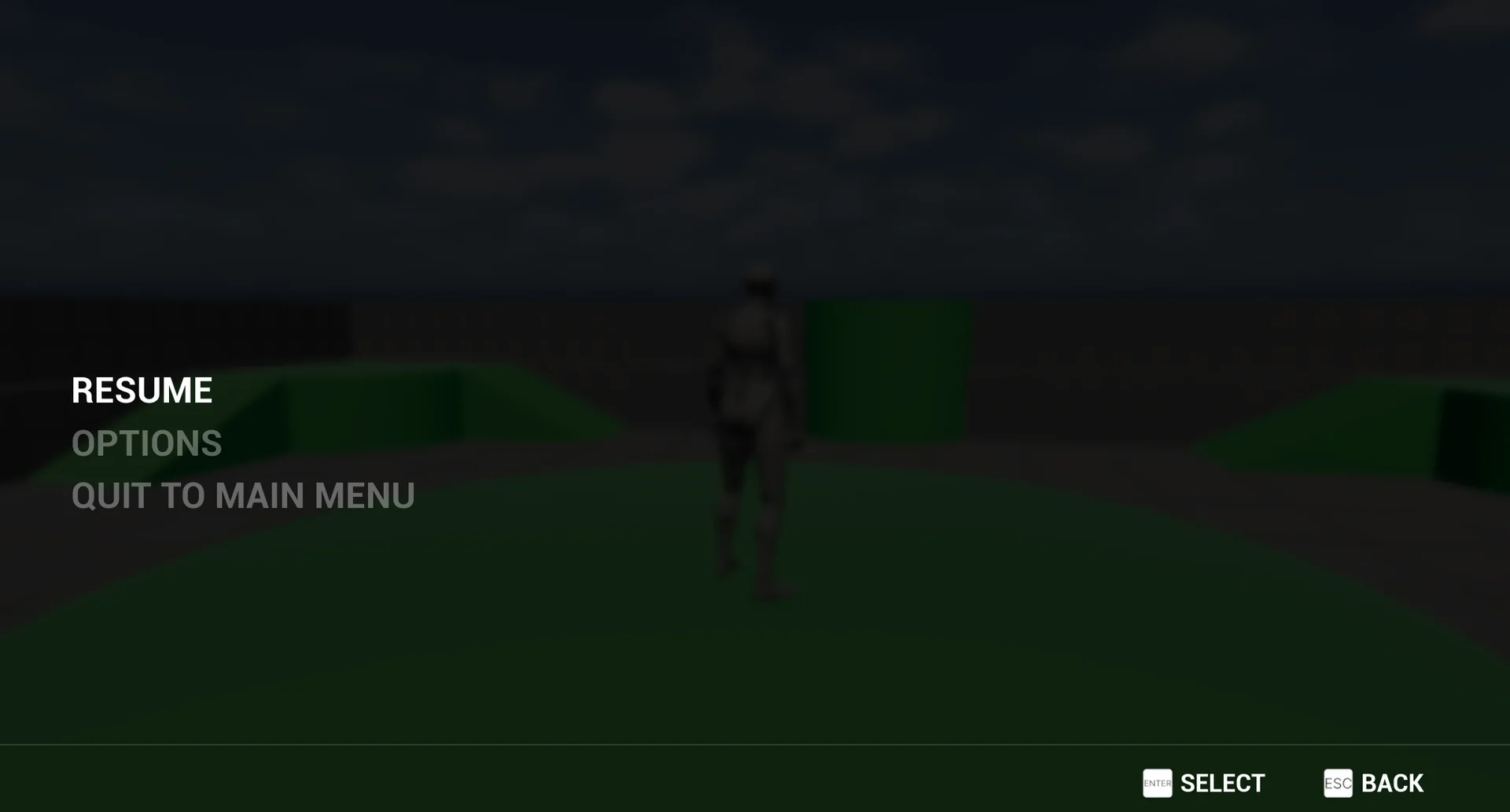
That protection matters most around the pause menu, where quit sits close to resume in the same list. A confirmation step between the two keeps a mis-aimed press from ending a session that the player meant to continue.
Resume, settings, and quit options make the pause menu fully functional, and settings living inside it changes how a play session flows. Players can correct mouse sensitivity or rebalance volume the moment something feels off, then drop straight back in without routing through a main menu first.
How the System Handles Input Devices
Dynamic input detection keeps the interface honest about whatever the player is holding. Icons switch automatically between keyboard and mouse sets and gamepad sets depending on the current input device, so prompts and button hints stay accurate when someone sets down a controller and reaches for a mouse, or the reverse.
Projects shipping to both desktop and console-style setups get a practical benefit here. Instead of committing to one icon set or building a manual toggle, the UI responds to the device in use. Mouse sensitivity living in the controls panel points the same direction: the package expects players who move between input methods rather than settling on one.
Where the Menu System Saves and Animates
Preference persistence runs underneath every category. The save system automatically remembers settings, so a resolution change, a volume balance, and a language choice survive into the next session and carry forward as a group instead of resetting to defaults at launch.
Because that layer covers the whole menu not just one panel, the options behave as one saved set. A language selection made in one session is still in place the next time the project starts, and a graphics tweak does not have to be repeated after every restart.
Smooth transitions and clean animations run through the panels, supported by modern UI visuals. Movement between screens instead of hard cuts is a small thing that separates a finished menu from a working prototype.
Tags That Describe the Menu
The package carries twelve tags — widget, pause, modular, display, setting, language, menu, animated, audio, control, graphics, and Blueprint — and they read as a map of the build: one tag per settings category, plus labels for the pause flow, the animation work, and the widget and Blueprint construction underneath.
Localization Files That Ship With the Menu
Everything in the localization folder is real localization data used by the project:.locres files, a manifest, and an Excel file. These are working assets rather than demo leftovers, and removing them or writing them off as unused would strip the language settings of the data they depend on. Cleanup passes that sweep unused content are exactly where that mistake tends to happen.
CommonUI Is Not Optional for This System
CommonUI has to be enabled for the package to run. The plugin is actively used inside the menu system widgets and cannot be disabled — turning it off breaks project functionality outright. Teams integrating the package should plan on CommonUI being part of the project from the start and staying enabled through production, since the widgets depend on it directly.
Menu Panels That Need a Packaged Build
Two categories behave differently outside a build. Resolution and language settings work only in standalone or packaged builds, which turns verification into a packaging task. Display and language changes should be checked late in a production cycle, once packaging is already part of the routine, rather than judged from editor playback.
Fitting the Advanced Menu System Into Production
This package occupies the front end of a project — the layer players touch before gameplay and between sessions. Because it is easy to integrate and ready to use, the work of building settings panels, wiring persistence, and drawing confirmation dialogs is already handled. What remains is connecting options to a game's own systems and choosing which panels to expose.
Modular structure lets the same package serve very different scopes. An indie project can drop in the whole menu and turn attention to gameplay. A larger production can treat individual panels as starting points, extending the graphics options or adding categories alongside the existing ones. The package is fitting any type of game, from indie projects to AAA-quality experiences, and the widget-based modularity is what makes that range credible.
Setup comes down to a short list: enable CommonUI, leave the localization folder intact, and verify resolution and language changes in a packaged build instead of the editor. Past that, the settings, pause, and save layers are already wired to each other and only need pointing at the project's own systems.
 Widgets & Controls
 Widgets & Controls
 Widgets & Controls