"6c6413bef81af556"{"id":"1000852","slug":"modular-snap-system-2","title":"Modular Snap System","category":"Engine Tools","engine":"5.2 - 5.8","assetVersion":"Asset Version: 1.5.1 - 1.5.3","engineVersion":"Engine Version: 5.2 - 5.8","tag":"Engine Tools","accent":"blue","visual":"mech","summary":"Editor plugin that snaps and aligns Actors socket-to-socket. Works with static meshes, skeletal meshes, splines, and multi-selection groups without code.","platform":"Unreal Engine","publishedAt":"2026-08-04T16:44:42.350Z","updatedAt":"2026-08-04T16:44:42.350Z","sourceNotes":[],"fileContents":[],"compatibility":["Unreal Engine","Asset Version: 1.5.1 - 1.5.3","Engine Version: 5.2 - 5.8"],"featuredImage":{"alt":"Modular Snap System","src":"/wp-content/uploads/published/2026/08/d60b77652ae7-6ce783a8-7877-47fe-817d-44f4be825a7f-dd7134fc99.webp"},"hasDownloadLink":true,"downloads":0,"terms":[{"taxonomy":"category","slug":"engine-tools-tools-and-plugins","name":"Engine Tools"}],"galleryImages":[{"src":"/wp-content/uploads/published/2026/08/3f129c54b049-e3bdc65e-a769-43a9-80b4-9fd3d69713c9-cfa9ddec30.webp","alt":"Modular Snap System"},{"src":"/wp-content/uploads/published/2026/08/1937401eac35-f338d616-e9c7-49d4-ae98-36ac3c5ba44a-36de2a91d9.webp","alt":"Modular Snap System"},{"src":"/wp-content/uploads/published/2026/08/b5d56c548b41-63f6bb4d-3cd7-45c9-84b5-af6e039aa803-9c94126b9e.webp","alt":"Modular Snap System"},{"src":"/wp-content/uploads/published/2026/08/1cbfd5dfb31d-ca3b1f03-4eb2-464c-861e-5ec3a86dcacf-79e3a05c12.webp","alt":"Modular Snap System"},{"src":"/wp-content/uploads/published/2026/08/02fe6fbc4e49-4c5415dc-f3b9-4c3d-b69f-6effb5d742e5-32f7993c15.webp","alt":"Modular Snap System"},{"src":"/wp-content/uploads/published/2026/08/5139a7613f5e-42dbf082-f52a-4361-b8f6-04ada061adc5-164cbac9bb.webp","alt":"Modular Snap System"},{"src":"/wp-content/uploads/published/2026/08/3a0217f4e70f-f0a690f9-8fbf-41ad-8b02-d5aa3d095265-b5f82dc620.webp","alt":"Modular Snap System"},{"src":"/wp-content/uploads/published/2026/08/a4c6efb28681-8e3f0468-ab96-401f-9895-ebc8ebd8f575-1d37f917ea.webp","alt":"Modular Snap System"},{"src":"/wp-content/uploads/published/2026/08/f5f5f8bb282a-dac321c1-32a3-48b1-aad6-8f7c43cd3d77-d7a9eaaa5d.webp","alt":"Modular Snap System"}],"accessPanel":{"kind":"resource","title":"Download this resource","eyebrow":"Free Download","message":"Log in or create a free account to start your download.","fileName":"Modular Snap System.7z","safetyNote":"Resources are manually reviewed before listing to improve quality and reduce obvious risks.","actionLabel":"Download Free","resourceType":"Resource archive"},"contentHtml":"\u003cp\u003e\u003cem\u003eModular Snap System (MSS)\u003c/em\u003e is an Unreal Editor Plugin that removes most of the manual alignment work from modular assembly. The rule is simple: bring 2 Actors close to each other and the plugin snaps them into position. Grid settings, Pivot placement, and fine rotation no longer need to be perfect before placement.\u003c/p\u003e\n\n\u003cp\u003eThe system is built on a Socket-to-Socket concept. Each Mesh carries Sockets at its connection points, and \u003cem\u003eMSS\u003c/em\u003e matches those Sockets when an Actor moves within range. Preparing existing assets does not require coding or Blueprint modification. If a Mesh has the Sockets, the plugin can use it.\u003c/p\u003e\n\n\u003cp\u003eBecause the system responds to proximity, the placement motion is the same motion used for any normal Actor move: slide the piece toward its neighbor, and the alignment happens when the Socket pair comes within range. That is the core interaction, and it stays consistent whether the asset is part of a house kit, a scaffold system, or a fence line.\u003c/p\u003e\n\n\u003ch2\u003eSnap Socket to Socket: The Core Rule\u003c/h2\u003e\n\n\u003cp\u003eSockets are what make object Pivot positions irrelevant. When an Actor with Sockets is moved close enough to another Actor, \u003cem\u003eMSS\u003c/em\u003e aligns the connection. The rule applies to any Actor class or Blueprint containing Sockets, so the plugin does not care whether the asset came from the same studio or from a 3rd-party pack.\u003c/p\u003e\n\n\u003cp\u003eThe Socket-first approach also changes how placement errors show up. If pieces do not meet cleanly, the fault is usually a Socket setup issue rather than a Pivot problem. That is a different debugging workflow from grid-aligned construction, and it pushes attention toward the connection points themselves.\u003c/p\u003e\n\n\u003ch2\u003eStatic Meshes, Skeletal Meshes, and Splines Without Extra Work\u003c/h2\u003e\n\n\u003cp\u003e\u003cem\u003eMSS\u003c/em\u003e works with any Actor that has a \u003ccode\u003eStatic Mesh Component\u003c/code\u003e, \u003ccode\u003eSkeletal Mesh Component\u003c/code\u003e, or \u003ccode\u003eSpline Component\u003c/code\u003e. That list covers a large share of environmental and architectural assets. Walls, floors, staircases, scaffold frames, fences, and spline-driven objects fit inside the same snapping workflow. The project tags reflect that range directly: \u003cem\u003eHouse\u003c/em\u003e, \u003cem\u003eBuilding\u003c/em\u003e, \u003cem\u003eSpline\u003c/em\u003e, and \u003cem\u003eFence\u003c/em\u003e are all named. Skeletal Meshes open the door for character and creature pieces, while Splines keep the same workflow for fences and other stretched assemblies.\u003c/p\u003e\n\n\u003cp\u003eBroad component support matters for existing content libraries. A developer with a mature modular set does not have to rebuild it from scratch. They add Sockets to the Meshes that need to connect, and the system handles the rest. 3rd-party modular packs can be prepared the same way, as long as their Actors contain Sockets.\u003c/p\u003e\n\n\u003ch2\u003eGroup Snapping and Component-Level Placement\u003c/h2\u003e\n\n\u003cp\u003eLarge assemblies become easier when the plugin handles multiple selections and groups. All selected Actors snap as 1 unit, so a facade segment made of several panels can be built away from the main structure and then placed as a whole. The group behaves like a single object during the snap, which cuts down the number of individual corrections.\u003c/p\u003e\n\n\u003cp\u003eSnapping also works on the Component level, not just on the full Actor. Individual Components inside an Actor can take part in a snap operation. Combined with the Socket requirement, this gives the user precise control over which part of an Actor connects to which point in the scene.\u003c/p\u003e\n\n\u003ch2\u003eAlign by Default, Attach on Demand\u003c/h2\u003e\n\n\u003cp\u003eThe default behavior is simple alignment. 2 Actors line up at their matching Sockets and stay independent afterward. That fits quick blockouts and repeated placements where Actors do not need to keep any relationship after being set down.\u003c/p\u003e\n\n\u003cp\u003eWhen Actors should stay connected, \u003cem\u003eMSS\u003c/em\u003e supports attaching the moved Actor to the Snap Target Component, turning the snap into a lasting attachment rather than a 1-time alignment. The Attach Mode is useful for assemblies that will be moved around as a whole later. Another option moves the Selection Pivot to the Snap Point. The placement handle then sits exactly at the connection instead of somewhere arbitrary inside the Mesh, which helps when the same Actor is placed multiple times in a row.\u003c/p\u003e\n\n\u003ch2\u003eEditor Adjustments: Snap Distance, Angle, and Rotation Snap\u003c/h2\u003e\n\n\u003cp\u003eModular kits vary in density, so the snap behavior has to be tunable. \u003cem\u003eMSS\u003c/em\u003e exposes settings in \u003ccode\u003eEditor Preferences\u003c/code\u003e, including Minimal Snap Distance, Angle, Rotation Snap, and others. A dense kit can use a short Snap Distance; larger architectural pieces can take a broader one.\u003c/p\u003e\n\n\u003cp\u003eThe plugin also adds a Viewport Button near the Snap-to-Grid Button. From there, the user can enable or disable the plugin, change the Snap Distance, and access other options. The controls stay inside the Viewport instead of being buried in a menu.\u003c/p\u003e\n\n\u003ch2\u003eReady for Modular Kits and 3rd-Party Assets\u003c/h2\u003e\n\n\u003cp\u003e\u003cem\u003eMSS\u003c/em\u003e is ready to use with the \u003cem\u003eModular Japanese Town House Pack\u003c/em\u003e and \u003cem\u003eModular Scaffold\u003c/em\u003e, and it also works with some 3rd-party assets. Those kits make practical testing grounds because they include connection points across wall, roof, scaffold, and structural parts.\u003c/p\u003e\n\n\u003cp\u003eTutorial videos cover a V1.3 overview, the basic workflow, and a specific example of using \u003cem\u003eMSS\u003c/em\u003e with 3rd-party modular assets. The 3rd-party tutorial is especially relevant to teams who already own modular kits from other sources and want to fold them into the same snapping setup. Documentation, a support thread, and an example project accompany the plugin. This version is an Editor Plugin; the separate \u003cem\u003eMSS Runtime Plugin\u003c/em\u003e targets in-game snapping needs.\u003c/p\u003e\n\n\u003cp\u003eFor a typical modular scene, the workflow comes down to this: prepare Sockets 1 time, then place pieces by proximity instead of by number. No grid math, no Pivot surgery, and no Blueprint edits stand between the Socket pair and the finished wall, fence, or scaffold run.\u003c/p\u003e\n\n\u003ch2\u003eMore From The Same Workflow\u003c/h2\u003e\n\u003cul\u003e\n\u003cli\u003e\u003ca href=\"https://3dcghub.com/modular-snap-system/\" title=\"Modular Snap System\"\u003eModular Snap System\u003c/a\u003e\u003c/li\u003e\n\u003cli\u003e\u003ca href=\"https://3dcghub.com/ultimate-difficulty-scaling-uds/\" title=\"Ultimate Difficulty Scaling (UDS)\"\u003eUltimate Difficulty Scaling (UDS)\u003c/a\u003e\u003c/li\u003e\n\u003cli\u003e\u003ca href=\"https://3dcghub.com/rdlodtools-rd-tools-pro/\" title=\"rdLODtools (rd Tools Pro)\"\u003erdLODtools (rd Tools Pro)\u003c/a\u003e\u003c/li\u003e\n\u003cli\u003e\u003ca href=\"https://3dcghub.com/world-spawner-global-spawning-system/\" title=\"World Spawner - Global Spawning System\"\u003eWorld Spawner - Global Spawning System\u003c/a\u003e\u003c/li\u003e\n\u003cli\u003e\u003ca href=\"https://3dcghub.com/clouds-lighting-system/\" title=\"Clouds Lighting System\"\u003eClouds Lighting System\u003c/a\u003e\u003c/li\u003e\n\u003c/ul\u003e","contentTextLength":5789,"navigation":{"current":371,"total":3140,"previous":{"id":"1000853","slug":"multiplayer-ready-wallrunning-third-person-template","title":"Multiplayer ready wallrunning Third person Template","category":"Characters \u0026 Creatures","platform":"Unreal Engine","updatedAt":"2026-08-04T16:50:53.294Z"},"next":{"id":"1000851","slug":"mining-animation","title":"Mining Animation","category":"Variety","platform":"Unreal Engine","updatedAt":"2026-08-04T16:39:26.490Z"}},"relatedResources":[{"id":"14215","slug":"modular-snap-system","title":"Modular Snap System","category":"Engine Tools","engine":"4.26 - 5.3","assetVersion":"Engine version: 4.26 - 5.3","engineVersion":"4.23","tag":"Engine Tools","accent":"blue","visual":"animation","summary":"Simplify your level design workflow with the Modular Snap System. This Editor Plugin uses a socket-to-socket concept to align meshes, splines, and actors instantly without manual grid adjustments.","platform":"Unreal Engine","publishedAt":"2026-03-11T16:17:51.000Z","updatedAt":"2026-04-19T15:45:51.000Z","sourceNotes":[],"fileContents":[],"compatibility":["Unreal Engine","Engine version: 4.26 - 5.3"],"featuredImage":{"alt":"Modular Snap System","src":"https://3dcghub.com/wp-content/uploads/2026/03/70a3c32f-f27e-4e90-93ea-0cadd2355ae2.webp"},"hasDownloadLink":true,"downloads":0},{"id":"13825","slug":"combo-graph","title":"Combo Graph","category":"Engine Tools","engine":"5.1 - 5.8","assetVersion":"Asset Version:1.4.0 - 1.6.1","engineVersion":"Engine version: 5.1 - 5.8","tag":"Engine Tools","accent":"blue","visual":"luts","summary":"Streamline your combat design with Combo Graph, a GAS-based Unreal Engine plugin. Use its node-based editor to create complex melee strings with multiplayer support and rapid prototyping tools.","platform":"Unreal Engine","publishedAt":"2026-03-11T10:10:59.000Z","updatedAt":"2026-08-24T05:32:39.634Z","sourceNotes":[],"fileContents":[],"compatibility":["Unreal Engine","Asset Version:1.4.0 - 1.6.1","Engine version: 5.1 - 5.8"],"featuredImage":{"alt":"Combo Graph","src":"https://3dcghub.com/wp-content/uploads/2026/03/11f09f07-e4bd-4cc8-9924-40b122bd6f3a.webp"},"hasDownloadLink":true,"downloads":1},{"id":"14379","slug":"quick-merge-skeletal-mesh","title":"Quick Merge Skeletal Mesh","category":"Engine Tools","engine":"5.4 - 5.8","assetVersion":"Asset Version:1.0","engineVersion":"Engine version: 5.4 - 5.8","tag":"Engine Tools","accent":"blue","visual":"character","summary":"Streamline your Unreal Engine 5 workflow by combining multiple skeletal meshes into a single asset. This tool ensures efficient asset management while maintaining skeleton consistency across your project.","platform":"Unreal Engine","publishedAt":"2026-03-11T17:51:53.000Z","updatedAt":"2026-09-07T14:11:56.503Z","sourceNotes":[],"fileContents":[],"compatibility":["Unreal Engine","Asset Version:1.0","Engine version: 5.4 - 5.8"],"featuredImage":{"alt":"Quick Merge Skeletal Mesh","src":"https://3dcghub.com/wp-content/uploads/2026/03/8b1e8a33-5fdf-4566-af9c-54f93949ddf6.webp"},"hasDownloadLink":true,"downloads":1}]}
Engine Tools
Modular Snap System
Editor plugin that snaps and aligns Actors socket-to-socket. Works with static meshes, skeletal meshes, splines, and multi-selection groups without code.
Modular Snap System (MSS) is an Unreal Editor Plugin that removes most of the manual alignment work from modular assembly. The rule is simple: bring 2 Actors close to each other and the plugin snaps them into position. Grid settings, Pivot placement, and fine rotation no longer need to be perfect before placement.
The system is built on a Socket-to-Socket concept. Each Mesh carries Sockets at its connection points, and MSS matches those Sockets when an Actor moves within range. Preparing existing assets does not require coding or Blueprint modification. If a Mesh has the Sockets, the plugin can use it.
Because the system responds to proximity, the placement motion is the same motion used for any normal Actor move: slide the piece toward its neighbor, and the alignment happens when the Socket pair comes within range. That is the core interaction, and it stays consistent whether the asset is part of a house kit, a scaffold system, or a fence line.
Snap Socket to Socket: The Core Rule
Sockets are what make object Pivot positions irrelevant. When an Actor with Sockets is moved close enough to another Actor, MSS aligns the connection. The rule applies to any Actor class or Blueprint containing Sockets, so the plugin does not care whether the asset came from the same studio or from a 3rd-party pack.
The Socket-first approach also changes how placement errors show up. If pieces do not meet cleanly, the fault is usually a Socket setup issue rather than a Pivot problem. That is a different debugging workflow from grid-aligned construction, and it pushes attention toward the connection points themselves.
Static Meshes, Skeletal Meshes, and Splines Without Extra Work
MSS works with any Actor that has a Static Mesh Component, Skeletal Mesh Component, or Spline Component. That list covers a large share of environmental and architectural assets. Walls, floors, staircases, scaffold frames, fences, and spline-driven objects fit inside the same snapping workflow. The project tags reflect that range directly: House, Building, Spline, and Fence are all named. Skeletal Meshes open the door for character and creature pieces, while Splines keep the same workflow for fences and other stretched assemblies.
Broad component support matters for existing content libraries. A developer with a mature modular set does not have to rebuild it from scratch. They add Sockets to the Meshes that need to connect, and the system handles the rest. 3rd-party modular packs can be prepared the same way, as long as their Actors contain Sockets.
Group Snapping and Component-Level Placement
Large assemblies become easier when the plugin handles multiple selections and groups. All selected Actors snap as 1 unit, so a facade segment made of several panels can be built away from the main structure and then placed as a whole. The group behaves like a single object during the snap, which cuts down the number of individual corrections.
Snapping also works on the Component level, not just on the full Actor. Individual Components inside an Actor can take part in a snap operation. Combined with the Socket requirement, this gives the user precise control over which part of an Actor connects to which point in the scene.
Align by Default, Attach on Demand
The default behavior is simple alignment. 2 Actors line up at their matching Sockets and stay independent afterward. That fits quick blockouts and repeated placements where Actors do not need to keep any relationship after being set down.
When Actors should stay connected, MSS supports attaching the moved Actor to the Snap Target Component, turning the snap into a lasting attachment rather than a 1-time alignment. The Attach Mode is useful for assemblies that will be moved around as a whole later. Another option moves the Selection Pivot to the Snap Point. The placement handle then sits exactly at the connection instead of somewhere arbitrary inside the Mesh, which helps when the same Actor is placed multiple times in a row.
Editor Adjustments: Snap Distance, Angle, and Rotation Snap
Modular kits vary in density, so the snap behavior has to be tunable. MSS exposes settings in Editor Preferences, including Minimal Snap Distance, Angle, Rotation Snap, and others. A dense kit can use a short Snap Distance; larger architectural pieces can take a broader one.
The plugin also adds a Viewport Button near the Snap-to-Grid Button. From there, the user can enable or disable the plugin, change the Snap Distance, and access other options. The controls stay inside the Viewport instead of being buried in a menu.
Ready for Modular Kits and 3rd-Party Assets
MSS is ready to use with the Modular Japanese Town House Pack and Modular Scaffold, and it also works with some 3rd-party assets. Those kits make practical testing grounds because they include connection points across wall, roof, scaffold, and structural parts.
Tutorial videos cover a V1.3 overview, the basic workflow, and a specific example of using MSS with 3rd-party modular assets. The 3rd-party tutorial is especially relevant to teams who already own modular kits from other sources and want to fold them into the same snapping setup. Documentation, a support thread, and an example project accompany the plugin. This version is an Editor Plugin; the separate MSS Runtime Plugin targets in-game snapping needs.
For a typical modular scene, the workflow comes down to this: prepare Sockets 1 time, then place pieces by proximity instead of by number. No grid math, no Pivot surgery, and no Blueprint edits stand between the Socket pair and the finished wall, fence, or scaffold run.
 Engine Tools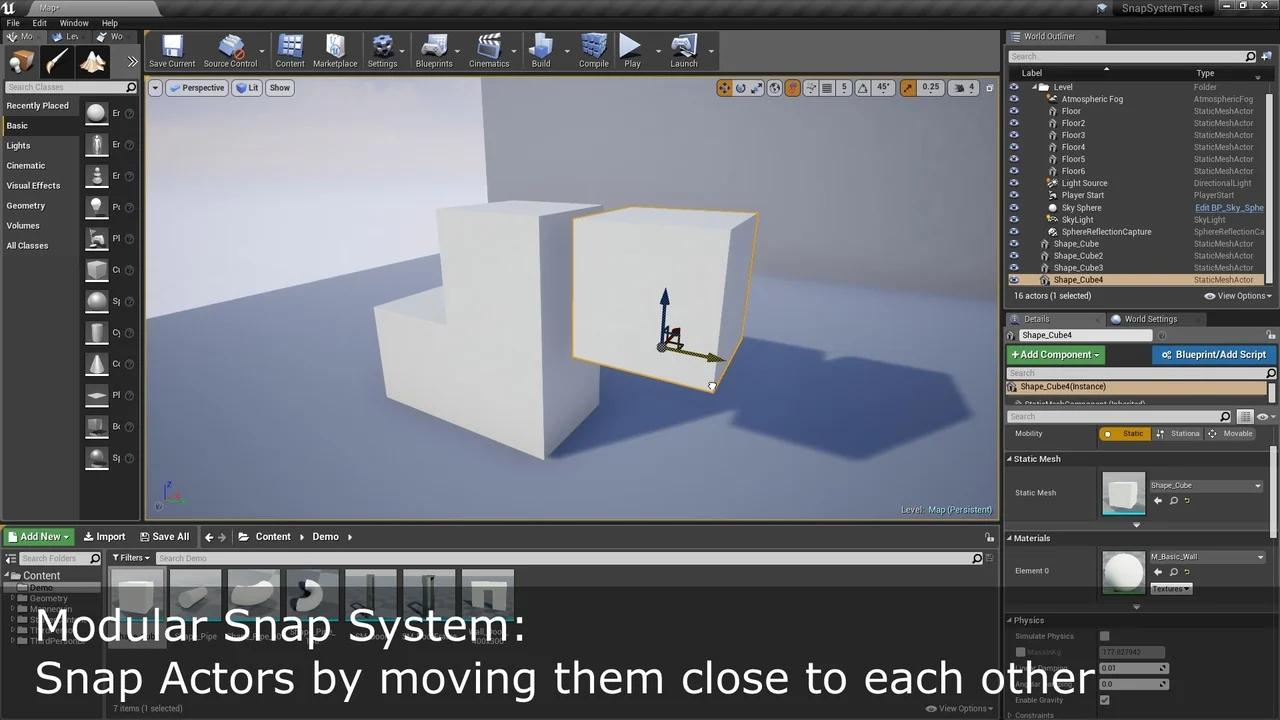
 Engine Tools
 Engine Tools
 Engine Tools