"ae2217ad8e73450c"{"id":"1003002","slug":"bulk-icon-generator-fast-customizable-icon-export-from-your-meshes","title":"Bulk Icon Generator — Fast, Customizable Icon Export from Your Meshes","category":"Automations","engine":"4.22+,5.0+","assetVersion":"","engineVersion":"Engine Version: 4.22+,5.0+","tag":"Automations","accent":"blue","visual":"mech","summary":"Bulk Icon Generator automates mesh-to-PNG icon export with transparent backgrounds, outlines, custom resolutions, skeletal poses, and batch capture.","platform":"Unreal Engine","indexPolicy":"index","publishedAt":"2026-11-25T16:06:25.515Z","updatedAt":"2026-11-25T16:06:25.515Z","sourceNotes":[],"fileContents":[],"compatibility":["Unreal Engine","Engine Version: 4.22+,5.0+"],"featuredImage":{"alt":"Bulk Icon Generator — Fast, Customizable Icon Export from Your Meshes","src":"/wp-content/uploads/published/2026/11/a13f0231d864-913829a2-93b2-4039-9795-f905ff2321cd-b9df7a7e2a.webp"},"hasDownloadLink":true,"downloads":0,"terms":[{"taxonomy":"category","slug":"automations","name":"Automations"}],"galleryImages":[{"src":"/wp-content/uploads/published/2026/11/e8ad2f7f2488-c4a7704e-b3ff-499e-8e11-58dbc010afd5-c375575784.webp","alt":"Bulk Icon Generator — Fast, Customizable Icon Export from Your Meshes"},{"src":"/wp-content/uploads/published/2026/11/d9c7e3e2f85a-0702490d-541a-4821-bedb-78ade345cf9c-e29c4efde2.webp","alt":"Bulk Icon Generator — Fast, Customizable Icon Export from Your Meshes"},{"src":"/wp-content/uploads/published/2026/11/02078158693a-3dd3bea7-1535-41b9-af0c-ce11f3ba588d-12f5ab2f0e.webp","alt":"Bulk Icon Generator — Fast, Customizable Icon Export from Your Meshes"},{"src":"/wp-content/uploads/published/2026/11/0e1fb4d65ec2-3ccd9ebb-1931-45fe-9535-57809b513d71-55477ab378.webp","alt":"Bulk Icon Generator — Fast, Customizable Icon Export from Your Meshes"},{"src":"/wp-content/uploads/published/2026/11/663aecddeaac-e9d401f6-d151-496e-a5ba-13c95f17611a-385a5ba554.webp","alt":"Bulk Icon Generator — Fast, Customizable Icon Export from Your Meshes"},{"src":"/wp-content/uploads/published/2026/11/c34220600592-bc8eed39-2aca-4ca4-ad2d-b3e807e96d66-84bc07e910.webp","alt":"Bulk Icon Generator — Fast, Customizable Icon Export from Your Meshes"}],"accessPanel":{"kind":"resource","title":"Get this resource","safetyNote":"Resources are manually reviewed before listing to improve quality and reduce obvious risks.","fileName":"Content.7z","resourceType":"Resource archive","versions":[]},"contentHtml":"\u003cp\u003eBulk Icon Generator turns meshes into UI icons without the usual round of manual posing, lighting, and rendering. A dedicated Generation Level is the working space: meshes are dragged in, the project is played, options are configured, and an export is triggered. The resulting PNGs land in the GeneratedIcons folder and are imported into the Content Browser automatically. That loop is the core of the tool, and most of its controls exist to keep that loop fast while still giving each icon a deliberate look.\u003c/p\u003e \u003ch2\u003eBulk Icon Generator's Generation Level\u003c/h2\u003e\n\u003cp\u003eThe Generation Level is the starting point for the capture. The sequence is direct: open the level, drag in the meshes that need icons, hit play, configure the options, and click export. Because the output is written to the GeneratedIcons folder and then brought into the Content Browser automatically, the end of a batch does not turn into a separate file-management chore.\u003c/p\u003e\n\u003cp\u003eThat structure suits repeated capture. A user can stage a group of meshes, run the generation pass, and collect a set of images from one session. The bulk side is literal: the tool can capture dozens of icons in one click. Keeping every mesh and every setting in the same level makes a large icon set easier to handle than treating each image as an isolated render.\u003c/p\u003e \u003ch2\u003eTransparent PNG Icon Export and Outline Effects\u003c/h2\u003e\n\u003cp\u003eTransparent PNG export works out of the box. No material setup and no post-editing are required to get an icon with a clear background, which keeps the process focused on the mesh and its framing rather than on alpha channels. When transparency is not the right fit, custom background colors are available as optional solid fills, so an icon can sit on a chosen color without a separate compositing step.\u003c/p\u003e\n\u003cp\u003eOutline and post-processing support add another layer of control. The tool includes edge outlines and visual effects, which can give an icon a more defined border or a specific visual treatment during generation. The important part is where that work happens: it is part of the export process rather than a later pass in an image editor. The output is a PNG that is ready to use, and the files import directly into the project.\u003c/p\u003e \u003ch2\u003eIcon Resolution, Automatic Framing, and Per-Mesh Offsets\u003c/h2\u003e\n\u003cp\u003eResolution is adjustable from 32x32 up to 4K, with square presets included. That range covers the small, dense images used in compact interface slots as well as larger icons where more detail needs to survive. The size is selected during generation, so a batch can be matched to the interface slot it is meant for.\u003c/p\u003e\n\u003cp\u003eAutomatic framing handles the camera side of the problem. The tool calculates distance and FOV so the icon stays in view, removing the need to position a camera by eye for every mesh. Individual offsets then fine-tune position, scale, and rotation per mesh. Those offsets are useful when a set of meshes has different proportions or when one object needs to sit slightly higher, larger, or turned differently inside the frame. Center of mass rotation is an optional mode for accurate rotation around the mesh pivot, which keeps the turn focused on the object rather than on an arbitrary point.\u003c/p\u003e \u003ch2\u003eSkeletal Mesh Poses and Background Choices\u003c/h2\u003e\n\u003cp\u003eSkeletal mesh support extends the same workflow to animated assets. Animation poses can be used for character and item icons, giving posed skeletal meshes a direct route into the icon set while still using the same Generation Level and export path. A character icon or an item icon can therefore come from a posed mesh rather than from a separate static setup.\u003c/p\u003e\n\u003cp\u003eBackground choice is independent of that. Transparent PNG is the standard output, while a custom solid background color is available when a filled tile is a better fit for the interface. The setting is optional, so a batch can stay transparent or move to solid fills without changing the rest of the capture setup. Because the PNG files import directly, the background decision is settled at generation time rather than in a later editing pass.\u003c/p\u003e \u003ch2\u003eWhere Bulk Icon Generator Fits in a Project\u003c/h2\u003e\n\u003cp\u003eThe tool is aimed at interface imagery: inventory systems, skill icons, and shop assets are the named cases. Those are all situations where a project needs a repeatable way to produce many small images with a consistent treatment. Style, resolution, and layout remain under control during generation, and zero post-processing is required. For a project building out an item catalog or a set of ability icons, that combination replaces a long sequence of individual renders with a batch process that still allows per-mesh adjustments.\u003c/p\u003e\n\u003cp\u003eIts fit is clearest when the icon set is large enough that manual posing and lighting would become the bottleneck. A single mesh can be captured quickly, but the workflow is shaped for groups: dozens of icons in one click, automatic framing for each mesh, offsets for the exceptions, and an export that lands in the project without a separate import step. Skeletal poses add character and item coverage to the same process. The output is a set of sharp PNG icons in seconds, with the Generation Level acting as the place where meshes arrive and finished UI images leave.\u003c/p\u003e\n\n\u003ch2\u003eMore From The Same Workflow\u003c/h2\u003e\n\u003cul\u003e\n\u003cli\u003e\u003ca href=\"https://3dcghub.com/fade-anything/\" rel=\"noopener noreferrer\"\u003eFade Anything\u003c/a\u003e\u003c/li\u003e\n\u003cli\u003e\u003ca href=\"https://3dcghub.com/liquid-bottle-simulation-vfx/\" rel=\"noopener noreferrer\"\u003eLiquid Bottle Simulation VFX\u003c/a\u003e\u003c/li\u003e\n\u003cli\u003e\u003ca href=\"https://3dcghub.com/automatic-coral-generator/\" rel=\"noopener noreferrer\"\u003eAutomatic Coral Generator\u003c/a\u003e\u003c/li\u003e\n\u003cli\u003e\u003ca href=\"https://3dcghub.com/good-fx-ui-icon-trail/\" rel=\"noopener noreferrer\"\u003eGood FX : UI Icon Trail\u003c/a\u003e\u003c/li\u003e\n\u003cli\u003e\u003ca href=\"https://3dcghub.com/fast-food-restaurant/\" rel=\"noopener noreferrer\"\u003eFast Food Restaurant\u003c/a\u003e\u003c/li\u003e\n\u003c/ul\u003e","contentTextLength":5276,"navigation":{"current":42,"total":4964,"previous":{"id":"1003003","slug":"cableway-template","title":"Cableway Template","category":"Vehicles \u0026 Transportation","platform":"Unreal Engine","updatedAt":"2026-11-25T16:08:01.952Z"},"next":{"id":"1003001","slug":"brutal-double-axe-animset","title":"Brutal Double Axe AnimSet","category":"Game Development Resource","platform":"Unreal Engine","updatedAt":"2026-11-25T16:05:33.693Z"}},"relatedResources":[{"id":"10320","slug":"fade-anything","title":"Fade Anything","category":"Automations","engine":"5.3+","assetVersion":"Engine version: 5.3+","engineVersion":"4.26","tag":"Automations","accent":"blue","visual":"luts","summary":"Fade Anything offers a complete solution for managing object visibility and camera clipping. This system supports Nanite, foliage, and skeletal meshes with highly customizable parameters.","platform":"Unreal Engine","indexPolicy":"noindex","publishedAt":"2026-03-03T15:03:43.000Z","updatedAt":"2026-04-19T15:50:04.000Z","sourceNotes":[],"fileContents":[],"compatibility":["Unreal Engine","Engine version: 5.3+"],"featuredImage":{"alt":"Fade Anything","src":"https://3dcghub.com/wp-content/uploads/2026/03/6512ab26-a625-4276-a449-6f44d93ae89e.webp"},"fileSizeBytes":312408469,"hasDownloadLink":true,"downloads":1},{"id":"10337","slug":"liquid-bottle-simulation-vfx","title":"Liquid Bottle Simulation VFX","category":"Automations","engine":"4.26+,5.0+","assetVersion":"Engine version: 4.26+,5.0+","engineVersion":"4.25","tag":"Automations","accent":"blue","visual":"mech","summary":"Enhance your project's realism with a liquid simulation system that reacts to movement and velocity. This customizable asset is designed for easy implementation on custom 3D models.","platform":"Unreal Engine","indexPolicy":"noindex","publishedAt":"2026-03-03T15:07:02.000Z","updatedAt":"2026-04-19T15:50:04.000Z","sourceNotes":[],"fileContents":[],"compatibility":["Unreal Engine","Engine version: 4.26+,5.0+"],"featuredImage":{"alt":"Liquid Bottle Simulation VFX","src":"https://3dcghub.com/wp-content/uploads/2026/03/238a989d-14ef-4207-b1f4-f981e6595e80.webp"},"fileSizeBytes":9308604,"hasDownloadLink":true,"downloads":1},{"id":"1002993","slug":"automatic-coral-generator","title":"Automatic Coral Generator","category":"Procedural Systems","engine":"4.15+,5.0+","assetVersion":"","engineVersion":"Engine Version: 4.15+,5.0+","tag":"Procedural Systems","accent":"blue","visual":"mech","summary":"A drag-and-drop reef tool with 13 coral meshes, per-mesh frequency and scale controls, runtime randomization, seeded streams, cull distances, and test maps.","platform":"Unreal Engine","indexPolicy":"index","publishedAt":"2026-11-25T15:55:50.854Z","updatedAt":"2026-11-25T15:55:50.854Z","sourceNotes":[],"fileContents":[],"compatibility":["Unreal Engine","Engine Version: 4.15+,5.0+"],"featuredImage":{"alt":"Automatic Coral Generator","src":"/wp-content/uploads/published/2026/11/b2269eec6806-b87eb665-14fe-411f-80c5-e1f3adbcf88a-5f664e5d87.webp"},"hasDownloadLink":true,"downloads":0}]}[{"id":4225,"sourceId":4225,"taxonomyId":4225,"taxonomy":"category","slug":"asset-library","name":"Asset Library","parentId":null,"count":4817,"hasChildren":true,"href":"/","seoTitle":"Free Game Assets Library | 3DCGHUB","seoDescription":"Browse free Unreal Engine, Unity, Blender assets and game development tutorials on 3DCGHUB with previews, compatibility notes, and secure downloads.","sitemapEnabled":true,"children":[{"id":4227,"sourceId":4227,"taxonomyId":4227,"taxonomy":"category","slug":"blender-add-ons-plugins","name":"Blender Add-ons \u0026 Plugins","parentId":4225,"count":10,"hasChildren":false,"href":"/category/blender-add-ons-plugins/","seoTitle":"Free Blender Add-ons \u0026 Plugins | 3DCGHUB","seoDescription":"Browse free Blender Add-ons \u0026 Plugins tools for Blender on 3DCGHUB: curated downloads with preview images, compatibility notes and secure download access.","sitemapEnabled":true},{"id":514,"sourceId":514,"taxonomyId":514,"taxonomy":"category","slug":"unity-2","name":"Unity","parentId":4225,"count":453,"hasChildren":true,"href":"/category/unity-2/","seoTitle":"Free Unity Assets | 3DCGHUB","seoDescription":"Browse free Unity resources on 3DCGHUB: curated downloads with preview images, compatibility notes and secure download access.","sitemapEnabled":true,"children":[{"id":523,"sourceId":523,"taxonomyId":523,"taxonomy":"category","slug":"2d","name":"2D","parentId":514,"count":1,"hasChildren":true,"href":"/category/2d/","seoTitle":"Free Unity 2D | 3DCGHUB","seoDescription":"Browse free 2D assets for Unity on 3DCGHUB: curated downloads with preview images, compatibility notes and secure download access.","sitemapEnabled":true},{"id":515,"sourceId":515,"taxonomyId":515,"taxonomy":"category","slug":"3d-unity-2","name":"3D","parentId":514,"count":162,"hasChildren":true,"href":"/category/3d-unity-2/","seoTitle":"Free Unity 3D Assets | 3DCGHUB","seoDescription":"Browse free 3D assets for Unity on 3DCGHUB: curated downloads with preview images, compatibility notes and secure download access.","sitemapEnabled":true},{"id":565,"sourceId":565,"taxonomyId":565,"taxonomy":"category","slug":"add-ons","name":"Add-Ons","parentId":514,"count":2,"hasChildren":false,"href":"/category/add-ons/","seoTitle":"Free Unity Add-Ons | 3DCGHUB","seoDescription":"Browse free Add-Ons assets for Unity on 3DCGHUB: curated downloads with preview images, compatibility notes and secure download access.","sitemapEnabled":true},{"id":529,"sourceId":529,"taxonomyId":529,"taxonomy":"category","slug":"audio-unity-2","name":"Audio","parentId":514,"count":1,"hasChildren":true,"href":"/category/audio-unity-2/","seoTitle":"Free Unity Audio | 3DCGHUB","seoDescription":"Browse free Audio for Unity on 3DCGHUB: curated downloads with preview images, compatibility notes and secure download access.","sitemapEnabled":true},{"id":557,"sourceId":557,"taxonomyId":557,"taxonomy":"category","slug":"templates","name":"Templates","parentId":514,"count":36,"hasChildren":true,"href":"/category/templates/","seoTitle":"Free Unity Templates | 3DCGHUB","seoDescription":"Browse free Unity project templates on 3DCGHUB. Starter kits with previews, compatibility notes, and secure download access.","sitemapEnabled":true},{"id":533,"sourceId":533,"taxonomyId":533,"taxonomy":"category","slug":"tools-unity-2","name":"Tools","parentId":514,"count":0,"hasChildren":true,"href":"/category/tools-unity-2/","sitemapEnabled":true},{"id":554,"sourceId":554,"taxonomyId":554,"taxonomy":"category","slug":"vfx-unity-2","name":"VFX","parentId":514,"count":4,"hasChildren":true,"href":"/category/vfx-unity-2/","seoTitle":"Free Unity VFX | 3DCGHUB","seoDescription":"Browse free VFX for Unity on 3DCGHUB: curated downloads with preview images, compatibility notes and secure download access.","sitemapEnabled":true}]},{"id":511,"sourceId":511,"taxonomyId":511,"taxonomy":"category","slug":"unreal-engine-2","name":"Unreal Engine","parentId":4225,"count":4355,"hasChildren":true,"href":"/category/unreal-engine-2/","seoTitle":"Free Unreal Engine Assets | 3DCGHUB","seoDescription":"Browse free Unreal Engine resources on 3DCGHUB: curated downloads with preview images, compatibility notes and secure download access.","sitemapEnabled":true,"children":[{"id":54,"sourceId":54,"taxonomyId":54,"taxonomy":"category","slug":"3d","name":"3D","parentId":511,"count":2441,"hasChildren":true,"href":"/category/3d/","seoTitle":"Free Unreal Engine 3D | 3DCGHUB","seoDescription":"Browse free 3D assets for Unreal Engine on 3DCGHUB: curated downloads with preview images, compatibility notes and secure download access.","sitemapEnabled":true},{"id":441,"sourceId":441,"taxonomyId":441,"taxonomy":"category","slug":"animations","name":"Animations","parentId":511,"count":269,"hasChildren":true,"href":"/category/animations/","seoTitle":"Free Unreal Engine Animations | 3DCGHUB","seoDescription":"Browse free Animations for Unreal Engine on 3DCGHUB: curated downloads with preview images, compatibility notes and secure download access.","sitemapEnabled":true},{"id":446,"sourceId":446,"taxonomyId":446,"taxonomy":"category","slug":"audio","name":"Audio","parentId":511,"count":63,"hasChildren":true,"href":"/category/audio/","seoTitle":"Free Unreal Engine Audio Resources | 3DCGHUB","seoDescription":"Browse free Unreal Engine audio resources including sound effects, voices, dialogue, and ambient sounds. Curated free downloads on 3DCGHUB.","sitemapEnabled":true},{"id":466,"sourceId":466,"taxonomyId":466,"taxonomy":"category","slug":"game-systems","name":"Game Systems","parentId":511,"count":381,"hasChildren":true,"href":"/category/game-systems/","seoTitle":"Free Unreal Engine Game Systems | 3DCGHUB","seoDescription":"Browse free Game Systems tools for Unreal Engine on 3DCGHUB: curated downloads with preview images, compatibility notes and secure download access.","sitemapEnabled":true},{"id":478,"sourceId":478,"taxonomyId":478,"taxonomy":"category","slug":"game-templates","name":"Game Templates","parentId":511,"count":155,"hasChildren":true,"href":"/category/game-templates/","seoTitle":"Free Unreal Engine Game Templates | 3DCGHUB","seoDescription":"Browse free Game Templates for Unreal Engine on 3DCGHUB: curated downloads with preview images, compatibility notes and secure download access.","sitemapEnabled":true},{"id":432,"sourceId":432,"taxonomyId":432,"taxonomy":"category","slug":"hdri","name":"HDRI","parentId":511,"count":6,"hasChildren":true,"href":"/category/hdri/","seoTitle":"Free Unreal Engine HDRI | 3DCGHUB","seoDescription":"Browse free Unreal Engine HDRI skies and lighting maps on 3DCGHUB. Environment lighting with previews and secure downloads.","sitemapEnabled":true},{"id":228,"sourceId":228,"taxonomyId":228,"taxonomy":"category","slug":"material-and-textures","name":"Material \u0026 Textures","parentId":511,"count":172,"hasChildren":true,"href":"/category/material-and-textures/","seoTitle":"Free Unreal Engine Material \u0026 Textures | 3DCGHUB","seoDescription":"Browse free Material \u0026 Textures for Unreal Engine on 3DCGHUB: curated downloads with preview images, compatibility notes and secure download access.","sitemapEnabled":true},{"id":298,"sourceId":298,"taxonomyId":298,"taxonomy":"category","slug":"sprites-and-flipbooks","name":"Sprites \u0026 Flipbooks","parentId":511,"count":18,"hasChildren":true,"href":"/category/sprites-and-flipbooks/","seoTitle":"Free Unreal Engine Sprites \u0026 Flipbooks | 3DCGHUB","seoDescription":"Browse free Sprites \u0026 Flipbooks assets for Unreal Engine on 3DCGHUB: curated downloads with preview images, compatibility notes and secure download access.","sitemapEnabled":true},{"id":489,"sourceId":489,"taxonomyId":489,"taxonomy":"category","slug":"tools-and-plugins","name":"Tools \u0026 Plugins","parentId":511,"count":390,"hasChildren":true,"href":"/category/tools-and-plugins/","seoTitle":"Free Unreal Engine Tools \u0026 Plugins | 3DCGHUB","seoDescription":"Browse free Tools \u0026 Plugins for Unreal Engine on 3DCGHUB: curated downloads with preview images, compatibility notes and secure download access.","sitemapEnabled":true},{"id":459,"sourceId":459,"taxonomyId":459,"taxonomy":"category","slug":"ui","name":"UI","parentId":511,"count":47,"hasChildren":true,"href":"/category/ui/","seoTitle":"Free Unreal Engine UI | 3DCGHUB","seoDescription":"Browse free UI for Unreal Engine on 3DCGHUB: curated downloads with preview images, compatibility notes and secure download access.","sitemapEnabled":true},{"id":450,"sourceId":450,"taxonomyId":450,"taxonomy":"category","slug":"vfx","name":"VFX","parentId":511,"count":413,"hasChildren":true,"href":"/category/vfx/","seoTitle":"Free Unreal Engine VFX | 3DCGHUB","seoDescription":"Browse free VFX for Unreal Engine on 3DCGHUB: curated downloads with preview images, compatibility notes and secure download access.","sitemapEnabled":true}]}]},{"id":4222,"sourceId":4222,"taxonomyId":4222,"taxonomy":"category","slug":"tutorial-library","name":"Tutorial Library","parentId":null,"count":117,"hasChildren":false,"href":"/tutorials/","seoTitle":"Free Game Development Tutorial Library | 3DCGHUB","seoDescription":"Browse free game development tutorials for Unreal Engine, Unity, Blender, and more on 3DCGHUB with practical workflows and secure downloads.","sitemapEnabled":true}]
Resource screenshots
1 / 6
Asset drops
Daily Asset Drops
Follow 3DCGHUB on Telegram for daily Unreal, Unity & Blender drops and curated CC0 releases.
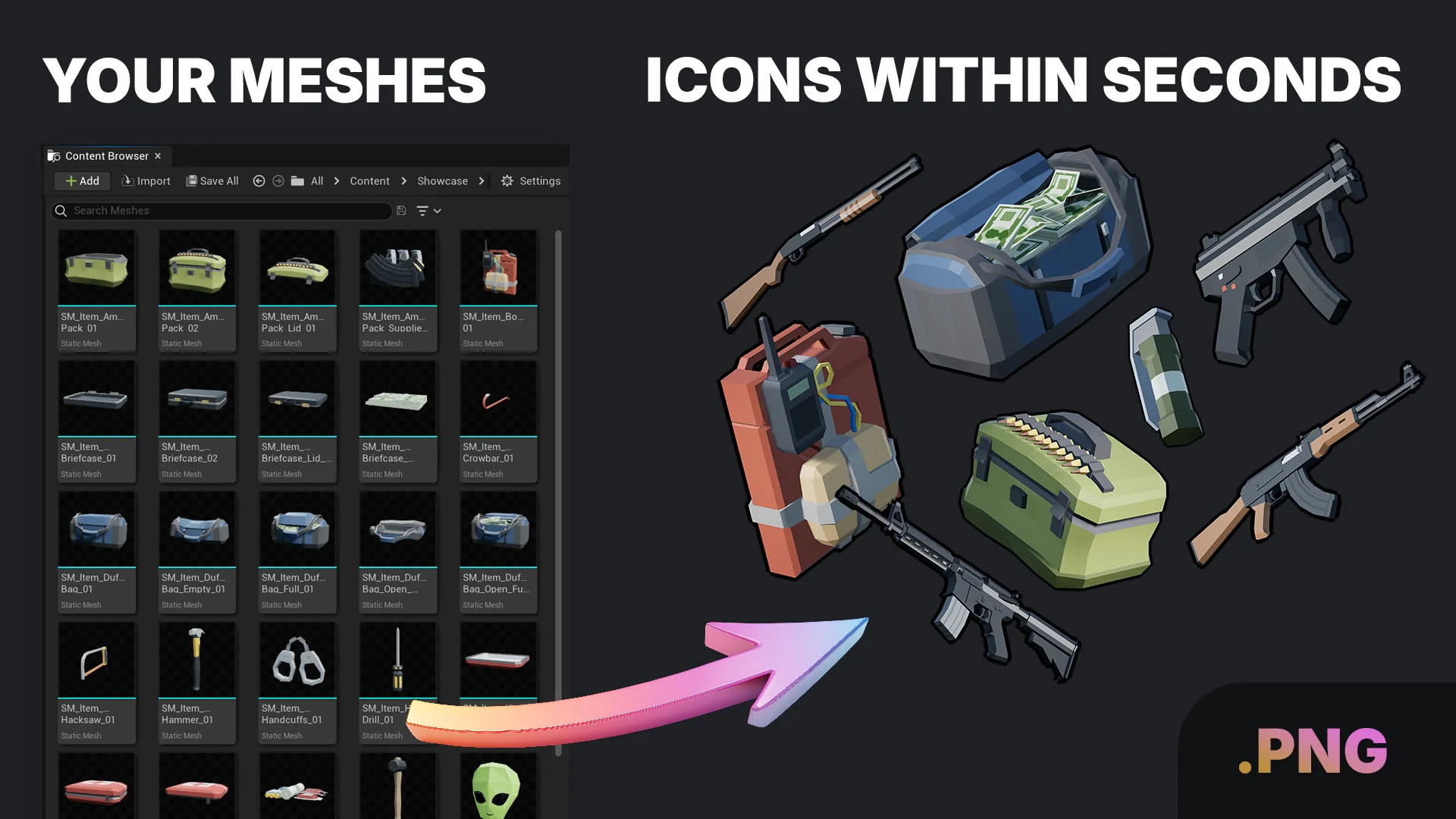
Bulk Icon Generator turns meshes into UI icons without the usual round of manual posing, lighting, and rendering. A dedicated Generation Level is the working space: meshes are dragged in, the project is played, options are configured, and an export is triggered. The resulting PNGs land in the GeneratedIcons folder and are imported into the Content Browser automatically. That loop is the core of the tool, and most of its controls exist to keep that loop fast while still giving each icon a deliberate look.
Bulk Icon Generator's Generation Level
The Generation Level is the starting point for the capture. The sequence is direct: open the level, drag in the meshes that need icons, hit play, configure the options, and click export. Because the output is written to the GeneratedIcons folder and then brought into the Content Browser automatically, the end of a batch does not turn into a separate file-management chore.
That structure suits repeated capture. A user can stage a group of meshes, run the generation pass, and collect a set of images from one session. The bulk side is literal: the tool can capture dozens of icons in one click. Keeping every mesh and every setting in the same level makes a large icon set easier to handle than treating each image as an isolated render.
Transparent PNG Icon Export and Outline Effects
Transparent PNG export works out of the box. No material setup and no post-editing are required to get an icon with a clear background, which keeps the process focused on the mesh and its framing rather than on alpha channels. When transparency is not the right fit, custom background colors are available as optional solid fills, so an icon can sit on a chosen color without a separate compositing step.
Outline and post-processing support add another layer of control. The tool includes edge outlines and visual effects, which can give an icon a more defined border or a specific visual treatment during generation. The important part is where that work happens: it is part of the export process rather than a later pass in an image editor. The output is a PNG that is ready to use, and the files import directly into the project.
Icon Resolution, Automatic Framing, and Per-Mesh Offsets
Resolution is adjustable from 32x32 up to 4K, with square presets included. That range covers the small, dense images used in compact interface slots as well as larger icons where more detail needs to survive. The size is selected during generation, so a batch can be matched to the interface slot it is meant for.
Automatic framing handles the camera side of the problem. The tool calculates distance and FOV so the icon stays in view, removing the need to position a camera by eye for every mesh. Individual offsets then fine-tune position, scale, and rotation per mesh. Those offsets are useful when a set of meshes has different proportions or when one object needs to sit slightly higher, larger, or turned differently inside the frame. Center of mass rotation is an optional mode for accurate rotation around the mesh pivot, which keeps the turn focused on the object rather than on an arbitrary point.
Skeletal Mesh Poses and Background Choices
Skeletal mesh support extends the same workflow to animated assets. Animation poses can be used for character and item icons, giving posed skeletal meshes a direct route into the icon set while still using the same Generation Level and export path. A character icon or an item icon can therefore come from a posed mesh rather than from a separate static setup.
Background choice is independent of that. Transparent PNG is the standard output, while a custom solid background color is available when a filled tile is a better fit for the interface. The setting is optional, so a batch can stay transparent or move to solid fills without changing the rest of the capture setup. Because the PNG files import directly, the background decision is settled at generation time rather than in a later editing pass.
Where Bulk Icon Generator Fits in a Project
The tool is aimed at interface imagery: inventory systems, skill icons, and shop assets are the named cases. Those are all situations where a project needs a repeatable way to produce many small images with a consistent treatment. Style, resolution, and layout remain under control during generation, and zero post-processing is required. For a project building out an item catalog or a set of ability icons, that combination replaces a long sequence of individual renders with a batch process that still allows per-mesh adjustments.
Its fit is clearest when the icon set is large enough that manual posing and lighting would become the bottleneck. A single mesh can be captured quickly, but the workflow is shaped for groups: dozens of icons in one click, automatic framing for each mesh, offsets for the exceptions, and an export that lands in the project without a separate import step. Skeletal poses add character and item coverage to the same process. The output is a set of sharp PNG icons in seconds, with the Generation Level acting as the place where meshes arrive and finished UI images leave.
 Automations
 Automations
 Procedural Systems