"95fdaf16012263fa"{"id":"1002346","slug":"scalability-settings-umg-widget","title":"Scalability Settings UMG Widget","category":"Procedural Systems","engine":"4.25+,5.0+","assetVersion":"","engineVersion":"Engine Version: 4.25+,5.0+","tag":"Procedural Systems","accent":"blue","visual":"mech","summary":"A UMG widget that mirrors the editor's scalability UI, with Quality Auto, Resolution Scale percentage, GI and Reflections settings, and auto saving to GameUserS","platform":"Unreal Engine","indexPolicy":"index","publishedAt":"2026-11-06T06:53:24.102Z","updatedAt":"2026-11-06T06:53:24.102Z","sourceNotes":[],"fileContents":[],"compatibility":["Unreal Engine","Engine Version: 4.25+,5.0+"],"featuredImage":{"alt":"Scalability Settings UMG Widget","src":"/wp-content/uploads/published/2026/11/6bf6271bad6d-ec50fdc2-3f74-4400-8860-e28c8b184994-d6dd24e5f6.webp"},"hasDownloadLink":true,"downloads":0,"terms":[{"taxonomy":"category","slug":"procedural-systems","name":"Procedural Systems"}],"galleryImages":[{"src":"/wp-content/uploads/published/2026/11/58fd068c0358-057ac2e9-546e-46d1-a3f7-9c0763b74a85-12e8bc0b12.webp","alt":"Scalability Settings UMG Widget"},{"src":"/wp-content/uploads/published/2026/11/54ee4753e421-db671355-d31f-4e57-8413-cf5264cc0c46-bb604f66af.webp","alt":"Scalability Settings UMG Widget"},{"src":"/wp-content/uploads/published/2026/11/773fd58666c9-9fa6581b-85bb-4d1a-a904-1eee8f4832e8-70ae63e90a.webp","alt":"Scalability Settings UMG Widget"},{"src":"/wp-content/uploads/published/2026/11/b6e5c43473e2-2887da7a-e55e-4bb2-935a-28c48c6f3736-d154677915.webp","alt":"Scalability Settings UMG Widget"},{"src":"/wp-content/uploads/published/2026/11/a6c00a790141-da8eb79b-7981-4db6-9fa4-4f8e75035d08-4508855175.webp","alt":"Scalability Settings UMG Widget"},{"src":"/wp-content/uploads/published/2026/11/b27ba3fb125a-236b8e8f-0956-4f5f-a2a7-6c7b4578ac69-0103bceed6.webp","alt":"Scalability Settings UMG Widget"}],"accessPanel":{"kind":"resource","title":"Get this resource","eyebrow":"Free resource","message":"3DCGHUB is the service provider for this listing. Access is fulfilled through the official publisher channel.","fileName":"Content.7z","safetyNote":"Resources are manually reviewed before listing to improve quality and reduce obvious risks.","actionLabel":"Get this resource","resourceType":"Resource archive","versions":[]},"contentHtml":"\u003cp\u003eGraphics menus often stop at a few presets while the editor exposes a deeper set of scalability controls. A packaged build can feel disconnected from those controls. Scalability Settings UMG Widget is a simple UMG widget that brings an editor-style scalability panel into the game, with quality and resolution controls that can be adjusted on the spot.\u003c/p\u003e\u003ch2\u003eA UMG Widget That Mirrors the Editor's Scalability UI\u003c/h2\u003e\u003cp\u003eThe widget's appearance matches the editor's own scalability interface. That visual familiarity matters: players and testers see a layout that already resembles the place where quality settings are tuned, rather than a one-off menu built from scratch. The widget is tagged Script and Blueprint, so it fits into a Blueprint-driven UI workflow.\u003c/p\u003e\u003cp\u003eIts purpose is narrow and practical. It edits scalability settings, and it presents those settings in a UMG container that can be opened from a menu or a diagnostic screen. The controls are not abstract sliders with arbitrary labels; the parameters come from the Scalability Reference and BaseScalability.ini. That origin keeps the widget's options tied to the same scalability concepts used elsewhere in a project.\u003c/p\u003e\u003ch2\u003eQuality, Resolution Scale, and the Auto Setting\u003c/h2\u003e\u003cp\u003eQuality includes an Auto option. Resolution Scale adds a percentage display, so the current scale is readable as a number rather than only as a slider position. That readout helps when comparing configurations or checking a performance change.\u003c/p\u003e\u003cp\u003eResolution Scale has a lower limit that depends on ResolutionSize. In settings terms, the lower bound of ResolutionQuality is not a fixed percentage in every situation; it is tied to the resolution size. Anyone using the widget should expect the available range to respond to that value. The percentage display makes the bound easier to see during tuning, especially when moving between different resolution sizes.\u003c/p\u003e\u003ch2\u003eGlobal Illumination and Reflections in the Same Panel\u003c/h2\u003e\u003cp\u003eGlobal Illumination and Reflections settings were added to the widget in the 2022.6.3 update. Those two lighting-related controls now sit with the rest of the scalability options, which means a tester can change them without leaving the widget for a separate console command or settings file. For a performance pass, having GI and reflection controls in the same panel as quality and resolution scale shortens the loop between changing a value and seeing the result.\u003c/p\u003e\u003cp\u003eThe widget does not turn those settings into a general lighting tool; it exposes them as scalability parameters. That distinction keeps the panel focused. A developer can use the widget to check how a scene responds when Global Illumination or Reflections are adjusted, then move on to the next quality level.\u003c/p\u003e\u003ch2\u003eHow Auto Saving Writes to GameUserSettings.ini\u003c/h2\u003e\u003cp\u003eWhen a parameter changes, the widget can save it automatically to GameUserSettings.ini. The save behavior works only after packaging, which is an important pipeline note. In the editor, the automatic write does not behave the same way; in a packaged build, the widget updates the file at \\Saved\\Config\\WindowsNoEditor\\GameUserSettings.ini. That path is specific to the packaged WindowsNoEditor layout.\u003c/p\u003e\u003cp\u003eAutomatic saving removes a separate Apply or Save step from the interaction. A player changes a setting, and the value is written to GameUserSettings.ini without an extra confirmation. For a test build, the same behavior makes it easier to hand the project to someone else and have their choices persist. The packaging requirement should be part of the test plan: verify the save path in a packaged build, not only in the editor.\u003c/p\u003e\u003ch2\u003eFront-End Menus and Performance Test Builds\u003c/h2\u003e\u003cp\u003eThe widget can serve as the graphics section of a front-end menu. Its editor-style appearance gives the options screen a familiar structure, and the UMG format means it can be opened from a pause menu, a start screen, or a dedicated settings area. Because it includes Quality, Resolution Scale, Global Illumination, and Reflections, it covers several of the controls a player or tester is likely to look for in one place.\u003c/p\u003e\u003cp\u003eIt also fits performance test builds. A developer can open the widget during a review, change scalability values, and let the automatic save record the result in GameUserSettings.ini. The percentage readout on Resolution Scale and the Auto entry under Quality make the panel useful for quick comparisons. This is not a full settings framework with every graphics option; it is a focused scalability widget that mirrors the editor's UI and stays close to the parameters defined in the Scalability Reference and BaseScalability.ini.\u003c/p\u003e\u003cp\u003eFor production, the widget works best where a project needs an in-game scalability panel without building one from scratch. It slots into a menu or diagnostic flow, exposes the core quality controls, and writes changes to GameUserSettings.ini once packaged. Teams that want an editor-like interface for scalability tuning have a direct starting point.\u003c/p\u003e\n\n\u003ch2\u003eMore From The Same Workflow\u003c/h2\u003e\n\u003cul\u003e\n\u003cli\u003e\u003ca href=\"https://3dcghub.com/hqui-progress-bars/\" rel=\"noopener noreferrer\"\u003eHQUI: Progress Bars\u003c/a\u003e\u003c/li\u003e\n\u003cli\u003e\u003ca href=\"https://3dcghub.com/ultimate-menu-system/\" rel=\"noopener noreferrer\"\u003eUltimate Menu System\u003c/a\u003e\u003c/li\u003e\n\u003cli\u003e\u003ca href=\"https://3dcghub.com/ui-umg-pack-clara/\" rel=\"noopener noreferrer\"\u003eUI (UMG) Pack - Clara\u003c/a\u003e\u003c/li\u003e\n\u003cli\u003e\u003ca href=\"https://3dcghub.com/suspension-bridge/\" rel=\"noopener noreferrer\"\u003eSuspension Bridge\u003c/a\u003e\u003c/li\u003e\n\u003cli\u003e\u003ca href=\"https://3dcghub.com/archvis-vr/\" rel=\"noopener noreferrer\"\u003eArchVis VR\u003c/a\u003e\u003c/li\u003e\n\u003c/ul\u003e","contentTextLength":5051,"navigation":{"current":22,"total":4291,"previous":{"id":"1002347","slug":"sci-fi-user-interface-sounds","title":"Sci-Fi User Interface Sounds","category":"Sound Effects","platform":"Unreal Engine","updatedAt":"2026-11-06T06:54:11.003Z"},"next":{"id":"1002345","slug":"rusty-beams","title":"Rusty Beams","category":"Bridges","platform":"Unreal Engine","updatedAt":"2026-11-06T06:52:24.913Z"}},"relatedResources":[{"id":"15480","slug":"hqui-progress-bars","title":"HQUI: Progress Bars","category":"Widgets \u0026 Controls","engine":"4.26+,5.0+","assetVersion":"Engine version: 4.26+,5.0+","engineVersion":"4.19","tag":"Widgets \u0026 Controls","accent":"blue","visual":"animation","summary":"HQUI: Progress Bars offers a robust set of highly customizable UMG components for developers. This pack features advanced settings, gradients, and automated interpolation to elevate your game's user interface.","platform":"Unreal Engine","indexPolicy":"index","publishedAt":"2026-03-12T09:09:48.000Z","updatedAt":"2026-04-19T15:44:46.000Z","sourceNotes":[],"fileContents":[],"compatibility":["Unreal Engine","Engine version: 4.26+,5.0+"],"featuredImage":{"alt":"HQUI: Progress Bars","src":"https://3dcghub.com/wp-content/uploads/2026/03/327a22db-0f44-410f-93b6-73bd636562cb.webp"},"hasDownloadLink":true,"downloads":2},{"id":"15521","slug":"ultimate-menu-system","title":"Ultimate Menu System","category":"Widgets \u0026 Controls","engine":"4.27,5.0+","assetVersion":"Engine version: 4.27,5.0+","engineVersion":"4.26","tag":"Widgets \u0026 Controls","accent":"blue","visual":"animation","summary":"Ultimate Menu System provides a modular and dynamic framework for creating professional game interfaces. It supports multiple input methods and includes pre-built systems for settings and multiplayer hosting.","platform":"Unreal Engine","indexPolicy":"index","publishedAt":"2026-03-12T09:12:56.000Z","updatedAt":"2026-04-19T15:44:45.000Z","sourceNotes":[],"fileContents":[],"compatibility":["Unreal Engine","Engine version: 4.27,5.0+"],"featuredImage":{"alt":"Ultimate Menu System","src":"https://3dcghub.com/wp-content/uploads/2026/03/f49ca1b4-975f-44a0-a17f-9f3cca8ab40c.webp"},"hasDownloadLink":true,"downloads":1},{"id":"1000210","slug":"ui-umg-pack-clara","title":"UI (UMG) Pack - Clara","category":"Game Mechanics","engine":"5.0+","assetVersion":"","engineVersion":"Engine Version: 5.0+","tag":"Game Mechanics","accent":"blue","visual":"mech","summary":"A fully functional futuristic UMG interface package featuring 104 UI images and 11 example widgets, including leaderboards, 3D widgets, and store layouts.","platform":"Unreal Engine","indexPolicy":"noindex","publishedAt":"2026-06-25T17:07:23.481Z","updatedAt":"2026-06-25T17:07:23.481Z","sourceNotes":[],"fileContents":[],"compatibility":["Unreal Engine","Engine Version: 5.0+"],"featuredImage":{"alt":"UI (UMG) Pack - Clara","src":"/wp-content/uploads/published/2026/06/1bfe9418bad5-db249731-1083-49f5-86d9-ce188403dedd-166eeb1db5.webp"},"hasDownloadLink":true,"downloads":0}]}
Procedural Systems
Scalability Settings UMG Widget
A UMG widget that mirrors the editor's scalability UI, with Quality Auto, Resolution Scale percentage, GI and Reflections settings, and auto saving to GameUserS
Graphics menus often stop at a few presets while the editor exposes a deeper set of scalability controls. A packaged build can feel disconnected from those controls. Scalability Settings UMG Widget is a simple UMG widget that brings an editor-style scalability panel into the game, with quality and resolution controls that can be adjusted on the spot.
A UMG Widget That Mirrors the Editor's Scalability UI
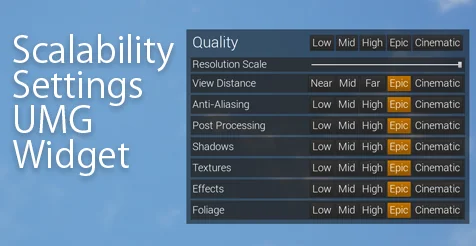
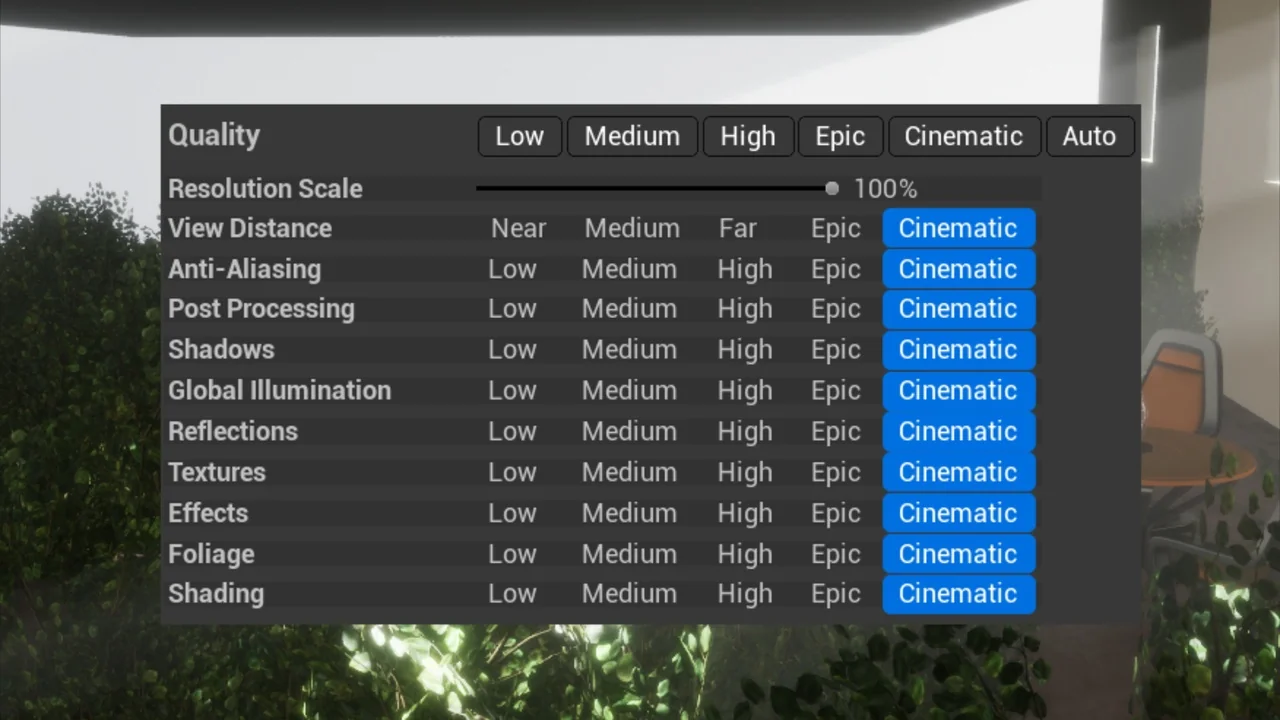
The widget's appearance matches the editor's own scalability interface. That visual familiarity matters: players and testers see a layout that already resembles the place where quality settings are tuned, rather than a one-off menu built from scratch. The widget is tagged Script and Blueprint, so it fits into a Blueprint-driven UI workflow.
Its purpose is narrow and practical. It edits scalability settings, and it presents those settings in a UMG container that can be opened from a menu or a diagnostic screen. The controls are not abstract sliders with arbitrary labels; the parameters come from the Scalability Reference and BaseScalability.ini. That origin keeps the widget's options tied to the same scalability concepts used elsewhere in a project.
Quality, Resolution Scale, and the Auto Setting
Quality includes an Auto option. Resolution Scale adds a percentage display, so the current scale is readable as a number rather than only as a slider position. That readout helps when comparing configurations or checking a performance change.
Resolution Scale has a lower limit that depends on ResolutionSize. In settings terms, the lower bound of ResolutionQuality is not a fixed percentage in every situation; it is tied to the resolution size. Anyone using the widget should expect the available range to respond to that value. The percentage display makes the bound easier to see during tuning, especially when moving between different resolution sizes.
Global Illumination and Reflections in the Same Panel
Global Illumination and Reflections settings were added to the widget in the 2022.6.3 update. Those two lighting-related controls now sit with the rest of the scalability options, which means a tester can change them without leaving the widget for a separate console command or settings file. For a performance pass, having GI and reflection controls in the same panel as quality and resolution scale shortens the loop between changing a value and seeing the result.
The widget does not turn those settings into a general lighting tool; it exposes them as scalability parameters. That distinction keeps the panel focused. A developer can use the widget to check how a scene responds when Global Illumination or Reflections are adjusted, then move on to the next quality level.
How Auto Saving Writes to GameUserSettings.ini
When a parameter changes, the widget can save it automatically to GameUserSettings.ini. The save behavior works only after packaging, which is an important pipeline note. In the editor, the automatic write does not behave the same way; in a packaged build, the widget updates the file at \Saved\Config\WindowsNoEditor\GameUserSettings.ini. That path is specific to the packaged WindowsNoEditor layout.
Automatic saving removes a separate Apply or Save step from the interaction. A player changes a setting, and the value is written to GameUserSettings.ini without an extra confirmation. For a test build, the same behavior makes it easier to hand the project to someone else and have their choices persist. The packaging requirement should be part of the test plan: verify the save path in a packaged build, not only in the editor.
Front-End Menus and Performance Test Builds
The widget can serve as the graphics section of a front-end menu. Its editor-style appearance gives the options screen a familiar structure, and the UMG format means it can be opened from a pause menu, a start screen, or a dedicated settings area. Because it includes Quality, Resolution Scale, Global Illumination, and Reflections, it covers several of the controls a player or tester is likely to look for in one place.
It also fits performance test builds. A developer can open the widget during a review, change scalability values, and let the automatic save record the result in GameUserSettings.ini. The percentage readout on Resolution Scale and the Auto entry under Quality make the panel useful for quick comparisons. This is not a full settings framework with every graphics option; it is a focused scalability widget that mirrors the editor's UI and stays close to the parameters defined in the Scalability Reference and BaseScalability.ini.
For production, the widget works best where a project needs an in-game scalability panel without building one from scratch. It slots into a menu or diagnostic flow, exposes the core quality controls, and writes changes to GameUserSettings.ini once packaged. Teams that want an editor-like interface for scalability tuning have a direct starting point.
 Procedural Systems
 Widgets & Controls
 Widgets & Controls
 Game Mechanics