"c68a05d5e51405b3"{"id":"1001114","slug":"multi-color-masking","title":"Multi Color Masking","category":"Variety","engine":"5.2+","assetVersion":"","engineVersion":"Engine Version: 5.2+","tag":"Variety","accent":"blue","visual":"mech","summary":"Material functions that extract yellow, magenta, cyan, and custom color masks from a texture, taking channel masking beyond standard RGBA extraction.","platform":"Unreal Engine","publishedAt":"2026-09-07T12:03:13.869Z","updatedAt":"2026-09-07T12:03:13.869Z","sourceNotes":[],"fileContents":[],"compatibility":["Unreal Engine","Engine Version: 5.2+"],"featuredImage":{"alt":"Multi Color Masking","src":"/wp-content/uploads/published/2026/09/bf3923171977-2ae000e2-c402-4a16-9fa4-bc31620a4e2e-016cbaac7b.webp"},"hasDownloadLink":true,"downloads":0,"terms":[{"taxonomy":"category","slug":"variety","name":"Variety"}],"galleryImages":[{"src":"/wp-content/uploads/published/2026/09/879bb8f34431-9c475496-d1ac-4bb7-8cce-e26e2b4de70c-182a01374e.webp","alt":"Multi Color Masking"},{"src":"/wp-content/uploads/published/2026/09/1e504baada07-8670fada-2d00-492a-825c-077e78870859-5da9701f0f.webp","alt":"Multi Color Masking"},{"src":"/wp-content/uploads/published/2026/09/8d2378c8b078-2bef70ea-6d4b-4de8-b6f6-62a16755526e-78e1c349ef.webp","alt":"Multi Color Masking"},{"src":"/wp-content/uploads/published/2026/09/8811c7b6506a-2d7d7cec-d089-45b2-b45c-970614ac8310-df28051e66.webp","alt":"Multi Color Masking"},{"src":"/wp-content/uploads/published/2026/09/ab66d080e6a7-debb2ee1-50fe-46db-bfa4-ca469cf1b601-397abfc13f.webp","alt":"Multi Color Masking"},{"src":"/wp-content/uploads/published/2026/09/6d96906d8e0e-6f4a7ae3-4cf8-4aab-95d3-9007c4fff5d0-1177b67088.webp","alt":"Multi Color Masking"}],"accessPanel":{"kind":"resource","title":"Download this resource","eyebrow":"Free Download","message":"Log in or create a free account to start your download.","fileName":"Multi Color Masking UE5.2.7z","safetyNote":"Resources are manually reviewed before listing to improve quality and reduce obvious risks.","actionLabel":"Download Free","resourceType":"Resource archive"},"contentHtml":"\u003cp\u003eA material graph often treats a single color texture as a storage device. The red channel might feed one type of roughness variation, green might drive a second paint layer, and alpha could hold a cavity mask. But the texture you are reading is rarely set up with that kind of channel discipline. More often, the colors you care about are right there in the image: a yellow stripe on a machine panel, a cyan emission section, a magenta decal. Multi Color Masking flips the process around. Instead of asking what you can pull out of individual channels, it asks what colors are actually present in the texture and converts those pixels into editable masks.\u003c/p\u003e \u003cp\u003eThe pack is built from material functions, so each piece of logic slots into a larger shader network and works alongside your existing material setup. You point a function at a texture, specify the color range you need to mask, and it returns a mask that can then be manipulated with curves, blends, or other operations. The underlying idea is simple, but it changes how you prepare textures for masking.\u003c/p\u003e \u003ch2\u003eChannel Extraction, Revisited\u003c/h2\u003e\n\u003cp\u003eTraditional masking starts with the red, green, blue, and alpha channels of a texture. This is a longstanding technique. Artists bake different grayscale data into each channel and read them back in the shader. The problem is that those channels are preassigned. A texture that came from a scan, a stock library, or a teammate’s earlier project will not always have the information organized the way you need. You might need roughness data where the green channel carries a dirt blend, or you might want a mask for a color that is split across multiple channels.\u003c/p\u003e\n\u003cp\u003eMulti Color Masking takes the conventional RGBA extrapolation and then goes beyond it. The material functions still understand channel extraction, but the main value is in the expanded palette. Yellow, magenta, and cyan pixels can be pulled out directly from the texture. Since these colors are not tied to a single primary channel in the same way that red, green, or blue are, they require different logic to detect and separate. That logic is packed into the functions, giving you a clean mask without the need to build a complicated node tree yourself.\u003c/p\u003e \u003ch2\u003ePulling Yellow, Magenta, Cyan—and One Precise Value\u003c/h2\u003e\n\u003cp\u003eThe most straightforward use for this tool is isolating a range of colored pixels from a scanned or hand-painted texture. Consider a reference photo imported directly into a material graph. Grass areas are green, dirt trails are brown, and rust spots are orange. With only RGBA channels, you could not easily separate those based on their visible color. Multi Color Masking zeroes in on cyan, magenta, and yellow as distinct color families, which are often the very colors used in technical illustration, edge highlighting, and stylized texturing.\u003c/p\u003e\n\u003cp\u003eThis goes a step further with the ability to isolate one very specific color value. You are not limited to primary or secondary color groupings. If a wall texture contains a particular shade of orange from a wear decal, or a UI texture uses a signature green, the function can isolate that exact color and turn it into a controllable mask. Because you can set a target value yourself, you are free to adapt the same function to any type of art asset. That direct selection is what adds a level of customizability that a simple color picker or channel mask does not always provide.\u003c/p\u003e \u003ch2\u003eModularity in the Shader Graph\u003c/h2\u003e\n\u003cp\u003eMaterial functions exist to be reused. This pack groups the color masking logic into modular functions that can be dropped into a project and connected to different inputs. The workflow becomes a matter of choosing a texture, selecting a color, and feeding the output mask into a blending node, a multiply, or a lerp. Because the functions themselves are isolated, you can stack them. Create one mask for yellow pixels, another for cyan, and a third for a custom orange, then combine the results to build more complex material transitions.\u003c/p\u003e\n\u003cp\u003eThis modular nature is one of the reasons the pack carries tags like Customizable and Modular. Rather than being a single large node that only works with a certain kind of texture, it is a collection of smaller utilities that stay out of the way until you connect them. If you are building a layered material, you can insert a function as a mask between layers without rewriting the rest of the graph. That kind of clean integration makes a masking system easier to maintain.\u003c/p\u003e \u003ch2\u003ePerformance, Utility, and the End of Headaches\u003c/h2\u003e\n\u003cp\u003eAmong the tags associated with Multi Color Masking are Performance and Utility. Those words point to a function set that is meant to stay lightweight while doing a specialized job. Color detection in a material function can be expensive if written inefficiently, but the explicit performance focus on this pack suggests it has been optimized to fit into real-time and GPU-based render contexts without straining the graph.\u003c/p\u003e\n\u003cp\u003eThe utility angle is just as important. Most technical artists have a memory of wrestling with a material that needed a mask for a color that was painted directly onto an albedo map. The usual solution involved trial-and-error with channel math, contrast adjustments, or repainting the source image. Multi Color Masking addresses that class of problem at the shader level. You keep the original artwork unchanged and let the material function perform the extraction.\u003c/p\u003e \u003ch2\u003eWhere It Fits in a Production Workflow\u003c/h2\u003e\n\u003cp\u003eTexture sets that rely on color-coded masks are everywhere. Terrain materials can use a low-resolution color map where each color represents a ground condition—rock, grass, sand, snow. Product visualization often uses label textures with bright accent colors that need to become worn edges or decal layers. Any of these workflows could benefit from a function that reads the visible color and turns it into a mask that can be modified inside the material graph. Instead of revisiting your Photoshop or Substance file to add a dedicated mask, you can define the mask with a few connections in the shader.\u003c/p\u003e\n\u003cp\u003eBecause individual colors can be isolated and manipulated, the same texture can serve multiple purposes in different materials. That base color might act as a source for tinting in one asset, a wear mask in another, and a specular variation in a third—all with the same underlying functions but different target colors. Less texture pulling, fewer separate files, and a smaller chance of mismatched UVs.\u003c/p\u003e\n\u003cp\u003eThe practical takeaway from Multi Color Masking is this: if your material work frequently involves finding one specific color in an image and letting that define a mask, this function pack gives you a direct, flexible route. It extends what a single texture can tell you, making your material setup more adaptable without forcing you to repaint or repackage your source art. For a team or an individual technical artist, that reduces a whole category of headaches before they start.\u003c/p\u003e\n\n\u003ch2\u003eRelated Resources Worth Checking\u003c/h2\u003e\n\u003cul\u003e\n\u003cli\u003e\u003ca href=\"https://3dcghub.com/grid-material/\" title=\"Grid material\"\u003eGrid material\u003c/a\u003e\u003c/li\u003e\n\u003cli\u003e\u003ca href=\"https://3dcghub.com/color-grade-50-luts/\" title=\"Color Grade - 50 LUTs\"\u003eColor Grade - 50 LUTs\u003c/a\u003e\u003c/li\u003e\n\u003cli\u003e\u003ca href=\"https://3dcghub.com/dynamic-sketch-post-process-material/\" title=\"Dynamic Sketch Post-Process Material\"\u003eDynamic Sketch Post-Process Material\u003c/a\u003e\u003c/li\u003e\n\u003cli\u003e\u003ca href=\"https://3dcghub.com/elias-wick-advanced-fog/\" title=\"Elias Wick – Advanced Fog\"\u003eElias Wick – Advanced Fog\u003c/a\u003e\u003c/li\u003e\n\u003cli\u003e\u003ca href=\"https://3dcghub.com/preload-materials/\" title=\"Preload materials\"\u003ePreload materials\u003c/a\u003e\u003c/li\u003e\n\u003c/ul\u003e","contentTextLength":7054,"navigation":{"current":861,"total":3860,"previous":{"id":"1001115","slug":"multiworld","title":"MultiWorld","category":"Engine Tools","platform":"Unreal Engine","updatedAt":"2026-09-07T12:23:26.726Z"},"next":{"id":"1001113","slug":"science-fiction-valley-town","title":"Science Fiction Valley Town","category":"Sci-Fi","platform":"Unreal Engine","updatedAt":"2026-09-07T11:59:23.919Z"}},"relatedResources":[{"id":"28235","slug":"grid-material","title":"Grid material","category":"Variety","engine":"5.0+","assetVersion":"Engine version: 5.0+","engineVersion":"","tag":"Variety","accent":"blue","visual":"luts","summary":"Grid Material Preview Pack focuses on one job: helping game environments read clearly before final assets are in place. Its 14 stylized grid materials support lighting tests, color palette checks, scale validation, and faster iteration during blockouts and...","platform":"Unreal Engine","publishedAt":"2026-05-06T15:32:01.000Z","updatedAt":"2026-05-06T15:32:02.000Z","sourceNotes":[],"fileContents":[],"compatibility":["Unreal Engine","Engine version: 5.0+"],"featuredImage":{"alt":"Grid material","src":"https://3dcghub.com/wp-content/uploads/2026/05/6141b6da334e_291611a5-2bf7-4a6e-87aa-8d9a7a2945f2.webp"},"hasDownloadLink":true,"downloads":0},{"id":"1001854","slug":"09-cloth-materials","title":"09 Cloth Materials","category":"Variety","engine":"4.26+,5.0+","assetVersion":"","engineVersion":"Engine Version: 4.26+,5.0+","tag":"Variety","accent":"blue","visual":"luts","summary":"A focused pack of 09 ready-to-use cloth materials with instanced controls for diffuse color, roughness, specular, occlusion, UV tiling, and displacement.","platform":"Unreal Engine","publishedAt":"2026-10-22T10:34:49.927Z","updatedAt":"2026-10-22T10:34:49.927Z","sourceNotes":[],"fileContents":[],"compatibility":["Unreal Engine","Engine Version: 4.26+,5.0+"],"featuredImage":{"alt":"09 Cloth Materials","src":"/wp-content/uploads/published/2026/10/7b5e95f3f164-b93dcd3f-92ed-44e7-8b01-b34b2778087d-89c4520378.webp"},"hasDownloadLink":true,"downloads":0},{"id":"1000805","slug":"color-grade-50-luts","title":"Color Grade - 50 LUTs","category":"Variety","engine":"4.26+,5.0+","assetVersion":"","engineVersion":"Engine Version: 4.26+,5.0+","tag":"Variety","accent":"blue","visual":"luts","summary":"A professionally handcrafted pack of 50 LUTs for elevating lighting and post-process workflows, adding cinematic, realistic, and stylized atmosphere to environm","platform":"Unreal Engine","publishedAt":"2026-07-31T03:35:22.549Z","updatedAt":"2026-07-31T03:35:22.549Z","sourceNotes":[],"fileContents":[],"compatibility":["Unreal Engine","Engine Version: 4.26+,5.0+"],"featuredImage":{"alt":"Color Grade - 50 LUTs","src":"/wp-content/uploads/published/2026/07/b52c3f1c055e-4f6a72a8-3a42-49db-ab88-7dabfe104570-d8237b49d5.webp"},"hasDownloadLink":true,"downloads":1}]}
Variety
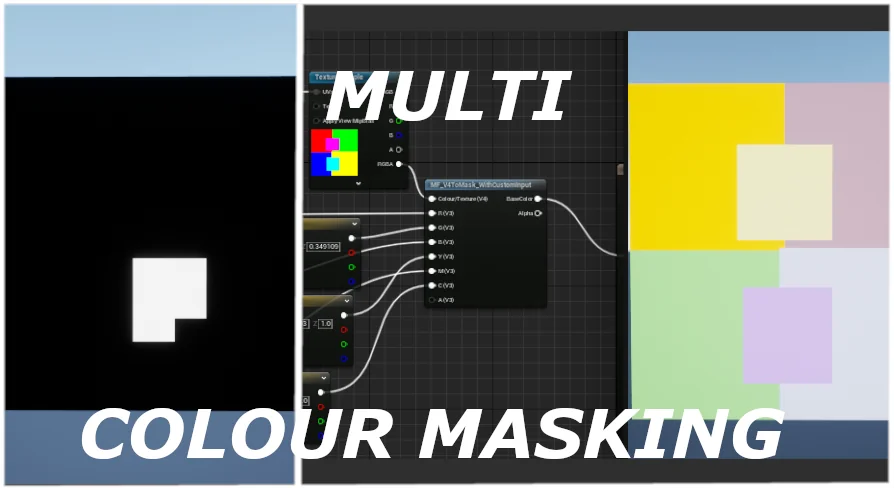
Multi Color Masking
Material functions that extract yellow, magenta, cyan, and custom color masks from a texture, taking channel masking beyond standard RGBA extraction.
A material graph often treats a single color texture as a storage device. The red channel might feed one type of roughness variation, green might drive a second paint layer, and alpha could hold a cavity mask. But the texture you are reading is rarely set up with that kind of channel discipline. More often, the colors you care about are right there in the image: a yellow stripe on a machine panel, a cyan emission section, a magenta decal. Multi Color Masking flips the process around. Instead of asking what you can pull out of individual channels, it asks what colors are actually present in the texture and converts those pixels into editable masks.
The pack is built from material functions, so each piece of logic slots into a larger shader network and works alongside your existing material setup. You point a function at a texture, specify the color range you need to mask, and it returns a mask that can then be manipulated with curves, blends, or other operations. The underlying idea is simple, but it changes how you prepare textures for masking.
Channel Extraction, Revisited
Traditional masking starts with the red, green, blue, and alpha channels of a texture. This is a longstanding technique. Artists bake different grayscale data into each channel and read them back in the shader. The problem is that those channels are preassigned. A texture that came from a scan, a stock library, or a teammate’s earlier project will not always have the information organized the way you need. You might need roughness data where the green channel carries a dirt blend, or you might want a mask for a color that is split across multiple channels.
Multi Color Masking takes the conventional RGBA extrapolation and then goes beyond it. The material functions still understand channel extraction, but the main value is in the expanded palette. Yellow, magenta, and cyan pixels can be pulled out directly from the texture. Since these colors are not tied to a single primary channel in the same way that red, green, or blue are, they require different logic to detect and separate. That logic is packed into the functions, giving you a clean mask without the need to build a complicated node tree yourself.
Pulling Yellow, Magenta, Cyan—and One Precise Value
The most straightforward use for this tool is isolating a range of colored pixels from a scanned or hand-painted texture. Consider a reference photo imported directly into a material graph. Grass areas are green, dirt trails are brown, and rust spots are orange. With only RGBA channels, you could not easily separate those based on their visible color. Multi Color Masking zeroes in on cyan, magenta, and yellow as distinct color families, which are often the very colors used in technical illustration, edge highlighting, and stylized texturing.
This goes a step further with the ability to isolate one very specific color value. You are not limited to primary or secondary color groupings. If a wall texture contains a particular shade of orange from a wear decal, or a UI texture uses a signature green, the function can isolate that exact color and turn it into a controllable mask. Because you can set a target value yourself, you are free to adapt the same function to any type of art asset. That direct selection is what adds a level of customizability that a simple color picker or channel mask does not always provide.
Modularity in the Shader Graph
Material functions exist to be reused. This pack groups the color masking logic into modular functions that can be dropped into a project and connected to different inputs. The workflow becomes a matter of choosing a texture, selecting a color, and feeding the output mask into a blending node, a multiply, or a lerp. Because the functions themselves are isolated, you can stack them. Create one mask for yellow pixels, another for cyan, and a third for a custom orange, then combine the results to build more complex material transitions.
This modular nature is one of the reasons the pack carries tags like Customizable and Modular. Rather than being a single large node that only works with a certain kind of texture, it is a collection of smaller utilities that stay out of the way until you connect them. If you are building a layered material, you can insert a function as a mask between layers without rewriting the rest of the graph. That kind of clean integration makes a masking system easier to maintain.
Performance, Utility, and the End of Headaches
Among the tags associated with Multi Color Masking are Performance and Utility. Those words point to a function set that is meant to stay lightweight while doing a specialized job. Color detection in a material function can be expensive if written inefficiently, but the explicit performance focus on this pack suggests it has been optimized to fit into real-time and GPU-based render contexts without straining the graph.
The utility angle is just as important. Most technical artists have a memory of wrestling with a material that needed a mask for a color that was painted directly onto an albedo map. The usual solution involved trial-and-error with channel math, contrast adjustments, or repainting the source image. Multi Color Masking addresses that class of problem at the shader level. You keep the original artwork unchanged and let the material function perform the extraction.
Where It Fits in a Production Workflow
Texture sets that rely on color-coded masks are everywhere. Terrain materials can use a low-resolution color map where each color represents a ground condition—rock, grass, sand, snow. Product visualization often uses label textures with bright accent colors that need to become worn edges or decal layers. Any of these workflows could benefit from a function that reads the visible color and turns it into a mask that can be modified inside the material graph. Instead of revisiting your Photoshop or Substance file to add a dedicated mask, you can define the mask with a few connections in the shader.
Because individual colors can be isolated and manipulated, the same texture can serve multiple purposes in different materials. That base color might act as a source for tinting in one asset, a wear mask in another, and a specular variation in a third—all with the same underlying functions but different target colors. Less texture pulling, fewer separate files, and a smaller chance of mismatched UVs.
The practical takeaway from Multi Color Masking is this: if your material work frequently involves finding one specific color in an image and letting that define a mask, this function pack gives you a direct, flexible route. It extends what a single texture can tell you, making your material setup more adaptable without forcing you to repaint or repackage your source art. For a team or an individual technical artist, that reduces a whole category of headaches before they start.
 Variety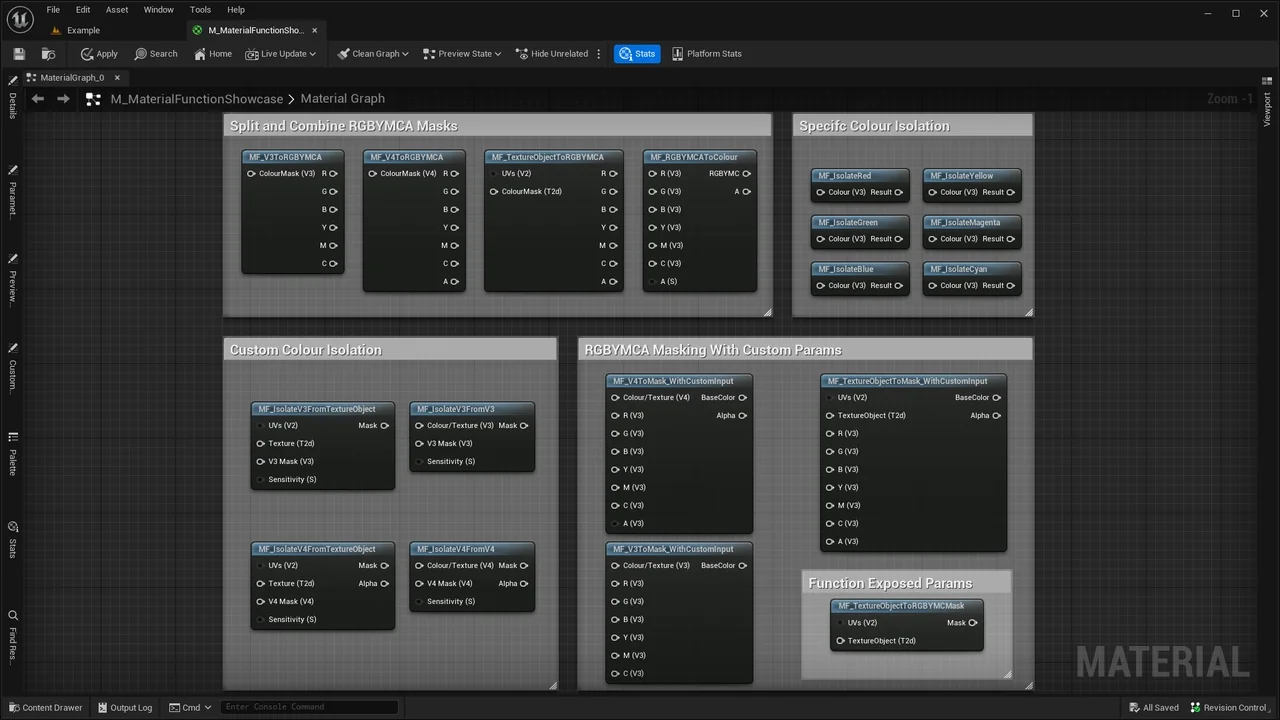
 Variety
 Variety
 Variety