"031373f479d9561a"{"id":"28498","slug":"ascent-ui-tools-gamepad-navigation-ui-framework","title":"Ascent UI Tools - Gamepad Navigation \u0026 UI Framework","category":"Engine Tools","engine":"5.4 - 5.5","assetVersion":"Engine version: 5.4 - 5.5","engineVersion":"Asset Version:2.1 - 2.2","tag":"Engine Tools","accent":"blue","visual":"mech","summary":"Ascent UI Tools - Gamepad Navigation \u0026 UI Framework targets one of the slower parts of interface work: getting menus and widgets functional across gamepad-driven flows without heavy setup. It combines automatic navigation, sample menu structures, map-relate...","platform":"Unreal Engine","publishedAt":"2026-05-16T07:36:07.000Z","updatedAt":"2026-05-16T07:36:08.000Z","sourceNotes":[],"fileContents":[],"compatibility":["Unreal Engine","Engine version: 5.4 - 5.5","Asset Version: 2.1 - 2.2"],"featuredImage":{"alt":"Ascent UI Tools - Gamepad Navigation \u0026 UI Framework","src":"https://3dcghub.com/wp-content/uploads/2026/05/afa2df11869c_886c04f5-3515-4d43-a22c-ca4bd799f76f.webp"},"hasDownloadLink":true,"downloads":1,"terms":[{"taxonomy":"category","slug":"engine-tools-tools-and-plugins","name":"Engine Tools"},{"taxonomy":"post_tag","slug":"tools","name":"Tools"},{"taxonomy":"post_tag","slug":"ui","name":"UI"},{"taxonomy":"post_tag","slug":"unreal-engine-5","name":"Unreal Engine 5"}],"galleryImages":[{"src":"https://3dcghub.com/wp-content/uploads/2026/05/0b9b0648f3f9_62c832a8-b4cf-4538-82a0-174d70e7e738.webp","alt":"Ascent UI Tools - Gamepad Navigation \u0026 UI Framework"},{"src":"https://3dcghub.com/wp-content/uploads/2026/05/4519be8db03b_2003cea6-7d3f-4356-95ab-1514c384e86d.webp","alt":"Ascent UI Tools - Gamepad Navigation \u0026 UI Framework"},{"src":"https://3dcghub.com/wp-content/uploads/2026/05/7a3a0444f0a3_2bb5f30c-2b07-45f9-b995-567d59e9f657.webp","alt":"Ascent UI Tools - Gamepad Navigation \u0026 UI Framework"},{"src":"https://3dcghub.com/wp-content/uploads/2026/05/ff04d4fc6ae4_011bcd6f-c0b4-4996-b7ac-78af0f7317e2.webp","alt":"Ascent UI Tools - Gamepad Navigation \u0026 UI Framework"},{"src":"https://3dcghub.com/wp-content/uploads/2026/05/537f73d556cf_fdab2ac5-bafa-472d-968f-ef8c317fe9fd.webp","alt":"Ascent UI Tools - Gamepad Navigation \u0026 UI Framework"},{"src":"https://3dcghub.com/wp-content/uploads/2026/05/d6b497700cfe_25ffa994-7be6-4ace-98c6-2ca1f193ae23.webp","alt":"Ascent UI Tools - Gamepad Navigation \u0026 UI Framework"},{"src":"https://3dcghub.com/wp-content/uploads/2026/05/3d55f9b8ab81_01205dfe-f538-4386-a401-ad0934ee0ecc.webp","alt":"Ascent UI Tools - Gamepad Navigation \u0026 UI Framework"},{"src":"https://3dcghub.com/wp-content/uploads/2026/05/106af0fa9ca8_c9d3d3cd-ce2d-44df-bf0a-7490e74ffddd.webp","alt":"Ascent UI Tools - Gamepad Navigation \u0026 UI Framework"},{"src":"https://3dcghub.com/wp-content/uploads/2026/05/edbb2b3ba994_02799729-45a1-485e-bd89-9aa71b63a68c.webp","alt":"Ascent UI Tools - Gamepad Navigation \u0026 UI Framework"},{"src":"https://3dcghub.com/wp-content/uploads/2026/05/ccb2fd103de6_78529070-ea45-44ab-9752-426c628af2f5.webp","alt":"Ascent UI Tools - Gamepad Navigation \u0026 UI Framework"}],"accessPanel":{"kind":"resource","title":"Access this resource","eyebrow":"Free Download","message":"Log in or create a free account to start your download.","fileName":"Ascent UI Tools - Gamepad Navigation \u0026 UI Framework.7z","safetyNote":"All resources are 100% manually reviewed to eliminate all risks.","actionLabel":"Download Free","resourceType":"Resource archive"},"contentHtml":"\u003cp\u003eUI work often slows down once menus need to function smoothly on a gamepad, especially when navigation logic has to be added across different widget layouts. Ascent UI Tools - Gamepad Navigation \u0026amp; UI Framework focuses on that bottleneck with a set of tools intended to significantly accelerate UI creation while staying fully game-agnostic and easily integrable into any project.\u003c/p\u003e\n\u003cp\u003eIts core pitch is practical rather than abstract. The framework brings together automatic gamepad navigation, ready-to-go menu examples, map creation and map display tools, a loading screen system that works directly with the viewport, and a style manager for broad UI reskinning. It is also integrated in ACF Ultimate, where it extends further with a large set of UI integration blueprints.\u003c/p\u003e \u003ch2\u003eAutomatic Gamepad Navigation without long setup chains\u003c/h2\u003e\n\u003cp\u003eThe strongest implementation detail here is the automatic gamepad navigation system. Instead of treating controller support as a separate layer that has to be manually wired into each menu, the framework automatically allows gamepad navigation in any kind of widget, in any direction, and does so without long and complex setups.\u003c/p\u003e\n\u003cp\u003eThat changes the setup flow in a very direct way. A project that uses different widget types, varied menu structures, or screens with unusual navigation paths can lean on a system that is meant to work broadly rather than only in tightly predefined cases. The inclusion of a complete navigation system with a map widget and compass expands that idea beyond standard menu buttons. There is also a Navbar Widget and a Gamepad Ready Widget Switcher, both aimed at enhancing gamepad navigation rather than leaving it as a basic directional pass-through.\u003c/p\u003e\n\u003cp\u003eFor teams or solo developers building interface-heavy projects, the practical value is in reducing how much custom effort needs to go into making separate widgets feel coherent under controller input. The framework is described as fully game-agnostic, so the navigation layer is not framed around a single genre or a fixed project structure.\u003c/p\u003e \u003ch2\u003eSample menus that cover Main Menu, Pause Menu, and Settings\u003c/h2\u003e\n\u003cp\u003eSetup speed is also supported by the inclusion of ready-to-go sample menus. These cover a Main Menu, a Pause Menu, and a Settings widget with save and load of settings options.\u003c/p\u003e\n\u003cp\u003eThis is relevant because those screens usually form the recurring baseline of a game interface. A main menu establishes the first layer of interaction, a pause menu handles in-session access to options and flow control, and a settings screen becomes one of the most repeatedly revisited parts of a project. Having those menu types already prepared gives the framework a more implementation-minded shape than a tool that only offers navigation logic in isolation.\u003c/p\u003e\n\u003cp\u003eThe settings widget is the most concrete of the group because it is not only named as a menu example but also noted to include save and load of settings options. That indicates a workflow where interface setup is not limited to button layouts or navigation focus, but extends into how settings behavior is handled inside the UI. The resource does not present these menus as abstract templates alone; they are sample menus ready to go, which places them closer to production scaffolding than to rough mockups.\u003c/p\u003e \u003ch2\u003eMap Widget, compass, and the Map Creator Editor Widget\u003c/h2\u003e\n\u003cp\u003eOne of the more distinct parts of the framework is how much attention it gives to map-related interface work. This is not just a generic UI kit with controller support attached. It includes a complete navigation system with a map widget and compass, a Map Creator Editor Widget to create and/or export map textures, and a Map Widget with gamepad navigation and support for markers.\u003c/p\u003e\n\u003cp\u003eTaken together, those details describe a chain that starts in setup and continues into actual in-game use. The Map Creator Editor Widget handles map texture creation or export, which points to an authoring step inside the broader UI workflow. The Map Widget then carries that into the player-facing side, where controller navigation remains part of the experience and markers are supported. The compass rounds out that navigational layer with another interface element tied to orientation and movement.\u003c/p\u003e\n\u003cp\u003eThis makes the framework especially notable for projects where the map is not a disconnected screen but a navigable UI component that needs to work cleanly with a gamepad. The resource does not describe deep world-system behavior beyond these interface elements, so the safe reading is that it provides the UI-side tools needed to build and navigate map-focused screens more quickly.\u003c/p\u003e \u003ch2\u003eLoading Screens System and viewport-based map opening\u003c/h2\u003e\n\u003cp\u003eAnother part of implementation is the loading screen system. It works directly with the viewport to avoid freezing during map opening.\u003c/p\u003e\n\u003cp\u003eThat is a concise feature description, but it speaks to a very specific production problem. Opening a map can interrupt the visual flow of the interface if the loading process is not handled in a controlled way. By working directly with the viewport, this system is positioned as a practical answer to that issue rather than a decorative screen layer added after the fact. It sits in the same category as the navigation tools: solving a common interaction problem at the framework level instead of leaving it to be rebuilt in each project.\u003c/p\u003e\n\u003cp\u003eIn a UI pipeline, this feature complements the menu and map systems well. Menus handle structured interaction, maps handle spatial information and navigation, and loading screens cover a transition point where the interface still has to remain readable and stable. That leaves a broader workflow package for front-end and in-game UI tasks instead of a single-purpose widget collection.\u003c/p\u003e \u003ch2\u003eStyle Manager and ACF Ultimate integrations\u003c/h2\u003e\n\u003cp\u003eNot every interface task is about interaction logic. Visual consistency and iteration speed matter just as much once a project moves past first-pass prototypes. The framework includes a style manager intended to easily reskin an entire UI in a few clicks.\u003c/p\u003e\n\u003cp\u003eThat detail gives the package a second layer beyond navigation and structure. A project can establish working menus and widgets, then adjust the visual identity of the interface through a centralized styling approach. The description does not break down how that manager is structured internally, so the grounded takeaway is simply that it exists to reskin the whole UI quickly rather than requiring each element to be restyled one by one.\u003c/p\u003e\n\u003cp\u003eThere is also a separate branch of functionality for ACF Ultimate users. In that context, the framework includes over 70 UI integration blueprints covering areas such as inventory, dialogue widgets, quest journal, chests, crafting, world map, stats info, and more. This does not change the fact that the tool is framed as fully game-agnostic and easily integrable into any project, but it does show a deeper integration path for users already working inside ACF Ultimate.\u003c/p\u003e\n\u003cp\u003eThe framework is noted as being integrated in ACF Ultimate, which places these blueprints as an extension of an already connected workflow rather than an unrelated add-on. The named examples also help clarify the kinds of game-facing systems the UI layer can touch when used in that environment: inventory management, dialogue presentation, quest tracking, chest interaction, crafting interfaces, world map access, and stat display.\u003c/p\u003e \u003ch2\u003eWhere Ascent UI Tools fits in production\u003c/h2\u003e\n\u003cp\u003eAscent UI Tools - Gamepad Navigation \u0026amp; UI Framework fits best in the stage where an interface has to stop being a loose collection of widgets and start behaving like a connected system. Its most concrete strengths are in automatic gamepad navigation across widgets, prepared menu structures, map-oriented UI elements, viewport-aware loading screens, and fast reskinning through the style manager.\u003c/p\u003e\n\u003cp\u003eFor teams using ACF Ultimate, the extra layer of over 70 UI integration blueprints pushes it further into game-specific interface workflows. For projects outside that setup, the game-agnostic positioning and broad widget navigation support remain the central draw. In production terms, it sits between prototyping and final interface assembly: a framework for getting menus, maps, navigation, and UI transitions into a usable state without turning each of those tasks into a separate system-building exercise.\u003c/p\u003e\n\n\u003ch2\u003eMore From The Same Workflow\u003c/h2\u003e\n\u003cul\u003e\n\u003cli\u003e\u003ca href=\"https://3dcghub.com/fluid-ninja-vfx-tools/\" title=\"Fluid Ninja VFX Tools\"\u003eFluid Ninja VFX Tools\u003c/a\u003e\u003c/li\u003e\n\u003cli\u003e\u003ca href=\"https://3dcghub.com/ultimate-level-art-tool-ulat-tools-plugin-plugins/\" title=\"Ultimate Level Art Tool – ULAT ( Tools / Plugin / Plugins )\"\u003eUltimate Level Art Tool – ULAT ( Tools / Plugin / Plugins )\u003c/a\u003e\u003c/li\u003e\n\u003c/ul\u003e","contentTextLength":8443,"navigation":{"current":1366,"total":3223,"previous":{"id":"28510","slug":"atmospheric-modular-underground-car-park-hallways","title":"Atmospheric Modular Underground Car Park \u0026 Hallways","category":"Horror","platform":"Unreal Engine","updatedAt":"2026-05-16T07:51:40.000Z"},"next":{"id":"28484","slug":"arctic-aurora-landscape","title":"Arctic Aurora Landscape","category":"Mountain","platform":"Unreal Engine","updatedAt":"2026-05-15T17:17:39.000Z"}},"relatedResources":[{"id":"14259","slug":"narrative-navigator-maps-compasses-waypoints","title":"Narrative Navigator - Maps, Compasses, Waypoints","category":"Engine Tools","engine":"5.4 - 5.5","assetVersion":"Engine version: 5.4 - 5.5","engineVersion":"Asset Version:1.1 - 1.1.2","tag":"Engine Tools","accent":"blue","visual":"luts","summary":"Narrative Navigator is a professional navigation system now available for free. It features world maps, compasses, and 3D markers designed for easy integration into any project.","platform":"Unreal Engine","publishedAt":"2026-03-11T17:10:23.000Z","updatedAt":"2026-04-19T15:45:50.000Z","sourceNotes":[],"fileContents":[],"compatibility":["Unreal Engine","Engine version: 5.4 - 5.5","Asset Version: 1.1 - 1.1.2"],"featuredImage":{"alt":"Narrative Navigator - Maps, Compasses, Waypoints","src":"https://3dcghub.com/wp-content/uploads/2026/03/76f10091-ac35-4cf1-8096-6187252a1a76.webp"},"hasDownloadLink":true,"downloads":0},{"id":"14084","slug":"journeymans-minimap","title":"Journeyman's Minimap","category":"Engine Tools","engine":"4.15 - 5.8","assetVersion":"Asset Version: 1.2","engineVersion":"Engine version: 4.15 - 5.8","tag":"Engine Tools","accent":"blue","visual":"luts","summary":"Journeyman's Minimap offers a robust and flexible solution for creating professional navigation systems in Unreal Engine. It features deep icon customization, dynamic background rendering, and a versatile Fog of War system.","platform":"Unreal Engine","publishedAt":"2026-03-11T15:41:11.000Z","updatedAt":"2026-09-29T09:16:18.015Z","sourceNotes":[],"fileContents":[],"compatibility":["Unreal Engine","Asset Version: 1.2","Engine version: 4.15 - 5.8"],"featuredImage":{"alt":"Journeyman's Minimap","src":"https://3dcghub.com/wp-content/uploads/2026/03/15004687-fa86-47a7-8b1e-a6b4374fbeec.webp"},"hasDownloadLink":true,"downloads":2},{"id":"14147","slug":"make-modular-skeletal-mesh","title":"Make Modular Skeletal Mesh","category":"Engine Tools","engine":"5.3 - 5.4","assetVersion":"Engine version: 5.3 - 5.4","engineVersion":"5.3","tag":"Engine Tools","accent":"blue","visual":"mech","summary":"Enhance your asset creation process with the Make Modular Skeletal Mesh subsystem. This tool enables developers to modify and combine skeletal mesh parts directly within the UE editor.","platform":"Unreal Engine","publishedAt":"2026-03-11T16:00:04.000Z","updatedAt":"2026-04-19T15:45:52.000Z","sourceNotes":[],"fileContents":[],"compatibility":["Unreal Engine","Engine version: 5.3 - 5.4"],"featuredImage":{"alt":"Make Modular Skeletal Mesh","src":"https://3dcghub.com/wp-content/uploads/2026/03/8090ef9f-f5d3-428e-940c-ad1f4ed77720.webp"},"hasDownloadLink":true,"downloads":1}]}
Ascent UI Tools - Gamepad Navigation & UI Framework targets one of the slower parts of interface work: getting menus and widgets functional across gamepad-driven flows without heavy setup. It combines automatic navigation, sample menu structures, map-relate...
UI work often slows down once menus need to function smoothly on a gamepad, especially when navigation logic has to be added across different widget layouts. Ascent UI Tools - Gamepad Navigation & UI Framework focuses on that bottleneck with a set of tools intended to significantly accelerate UI creation while staying fully game-agnostic and easily integrable into any project.
Its core pitch is practical rather than abstract. The framework brings together automatic gamepad navigation, ready-to-go menu examples, map creation and map display tools, a loading screen system that works directly with the viewport, and a style manager for broad UI reskinning. It is also integrated in ACF Ultimate, where it extends further with a large set of UI integration blueprints.
Automatic Gamepad Navigation without long setup chains
The strongest implementation detail here is the automatic gamepad navigation system. Instead of treating controller support as a separate layer that has to be manually wired into each menu, the framework automatically allows gamepad navigation in any kind of widget, in any direction, and does so without long and complex setups.
That changes the setup flow in a very direct way. A project that uses different widget types, varied menu structures, or screens with unusual navigation paths can lean on a system that is meant to work broadly rather than only in tightly predefined cases. The inclusion of a complete navigation system with a map widget and compass expands that idea beyond standard menu buttons. There is also a Navbar Widget and a Gamepad Ready Widget Switcher, both aimed at enhancing gamepad navigation rather than leaving it as a basic directional pass-through.
For teams or solo developers building interface-heavy projects, the practical value is in reducing how much custom effort needs to go into making separate widgets feel coherent under controller input. The framework is described as fully game-agnostic, so the navigation layer is not framed around a single genre or a fixed project structure.
Sample menus that cover Main Menu, Pause Menu, and Settings
Setup speed is also supported by the inclusion of ready-to-go sample menus. These cover a Main Menu, a Pause Menu, and a Settings widget with save and load of settings options.
This is relevant because those screens usually form the recurring baseline of a game interface. A main menu establishes the first layer of interaction, a pause menu handles in-session access to options and flow control, and a settings screen becomes one of the most repeatedly revisited parts of a project. Having those menu types already prepared gives the framework a more implementation-minded shape than a tool that only offers navigation logic in isolation.
The settings widget is the most concrete of the group because it is not only named as a menu example but also noted to include save and load of settings options. That indicates a workflow where interface setup is not limited to button layouts or navigation focus, but extends into how settings behavior is handled inside the UI. The resource does not present these menus as abstract templates alone; they are sample menus ready to go, which places them closer to production scaffolding than to rough mockups.
Map Widget, compass, and the Map Creator Editor Widget
One of the more distinct parts of the framework is how much attention it gives to map-related interface work. This is not just a generic UI kit with controller support attached. It includes a complete navigation system with a map widget and compass, a Map Creator Editor Widget to create and/or export map textures, and a Map Widget with gamepad navigation and support for markers.
Taken together, those details describe a chain that starts in setup and continues into actual in-game use. The Map Creator Editor Widget handles map texture creation or export, which points to an authoring step inside the broader UI workflow. The Map Widget then carries that into the player-facing side, where controller navigation remains part of the experience and markers are supported. The compass rounds out that navigational layer with another interface element tied to orientation and movement.
This makes the framework especially notable for projects where the map is not a disconnected screen but a navigable UI component that needs to work cleanly with a gamepad. The resource does not describe deep world-system behavior beyond these interface elements, so the safe reading is that it provides the UI-side tools needed to build and navigate map-focused screens more quickly.
Loading Screens System and viewport-based map opening
Another part of implementation is the loading screen system. It works directly with the viewport to avoid freezing during map opening.
That is a concise feature description, but it speaks to a very specific production problem. Opening a map can interrupt the visual flow of the interface if the loading process is not handled in a controlled way. By working directly with the viewport, this system is positioned as a practical answer to that issue rather than a decorative screen layer added after the fact. It sits in the same category as the navigation tools: solving a common interaction problem at the framework level instead of leaving it to be rebuilt in each project.
In a UI pipeline, this feature complements the menu and map systems well. Menus handle structured interaction, maps handle spatial information and navigation, and loading screens cover a transition point where the interface still has to remain readable and stable. That leaves a broader workflow package for front-end and in-game UI tasks instead of a single-purpose widget collection.
Style Manager and ACF Ultimate integrations
Not every interface task is about interaction logic. Visual consistency and iteration speed matter just as much once a project moves past first-pass prototypes. The framework includes a style manager intended to easily reskin an entire UI in a few clicks.
That detail gives the package a second layer beyond navigation and structure. A project can establish working menus and widgets, then adjust the visual identity of the interface through a centralized styling approach. The description does not break down how that manager is structured internally, so the grounded takeaway is simply that it exists to reskin the whole UI quickly rather than requiring each element to be restyled one by one.
There is also a separate branch of functionality for ACF Ultimate users. In that context, the framework includes over 70 UI integration blueprints covering areas such as inventory, dialogue widgets, quest journal, chests, crafting, world map, stats info, and more. This does not change the fact that the tool is framed as fully game-agnostic and easily integrable into any project, but it does show a deeper integration path for users already working inside ACF Ultimate.
The framework is noted as being integrated in ACF Ultimate, which places these blueprints as an extension of an already connected workflow rather than an unrelated add-on. The named examples also help clarify the kinds of game-facing systems the UI layer can touch when used in that environment: inventory management, dialogue presentation, quest tracking, chest interaction, crafting interfaces, world map access, and stat display.
Where Ascent UI Tools fits in production
Ascent UI Tools - Gamepad Navigation & UI Framework fits best in the stage where an interface has to stop being a loose collection of widgets and start behaving like a connected system. Its most concrete strengths are in automatic gamepad navigation across widgets, prepared menu structures, map-oriented UI elements, viewport-aware loading screens, and fast reskinning through the style manager.
For teams using ACF Ultimate, the extra layer of over 70 UI integration blueprints pushes it further into game-specific interface workflows. For projects outside that setup, the game-agnostic positioning and broad widget navigation support remain the central draw. In production terms, it sits between prototyping and final interface assembly: a framework for getting menus, maps, navigation, and UI transitions into a usable state without turning each of those tasks into a separate system-building exercise.
 Engine Tools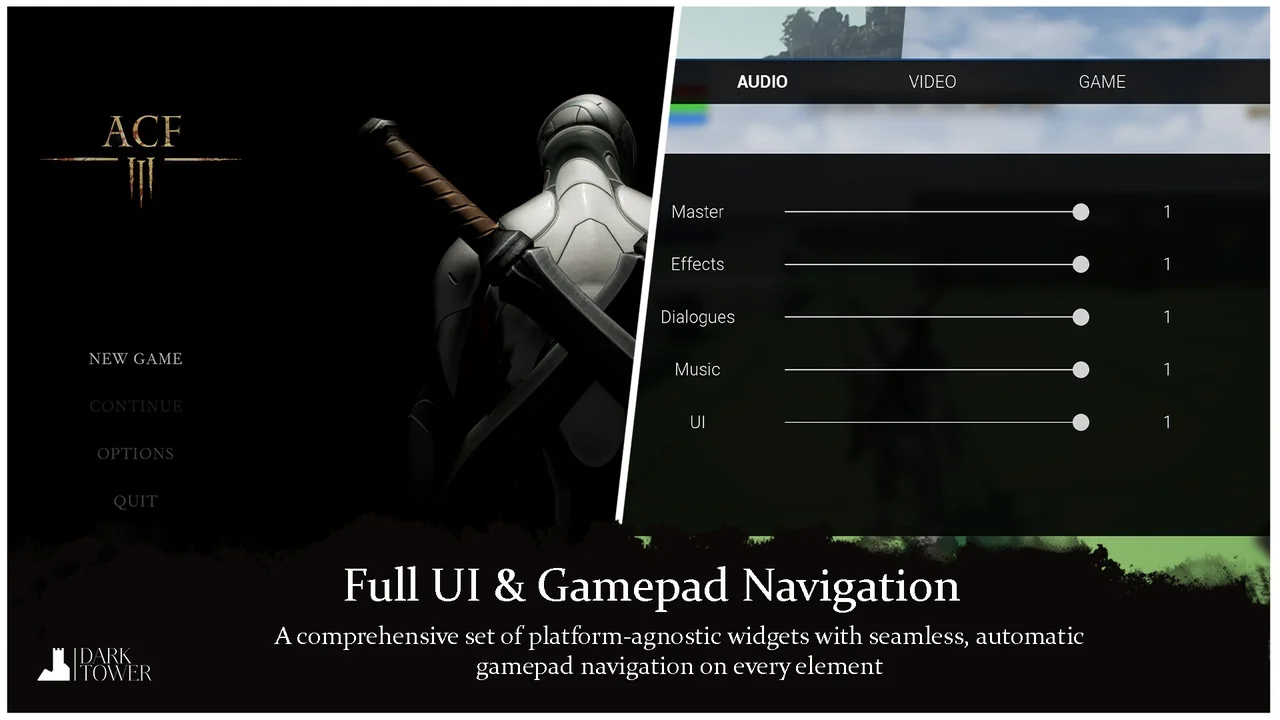
 Engine Tools
 Engine Tools
 Engine Tools