"efaa631e936fd3ee"{"id":"1002266","slug":"widget-group-button","title":"Widget Group Button","category":"Engine Tools","engine":"5.0","assetVersion":"Asset Version: 1.0","engineVersion":"Engine Version: 5.0","tag":"Engine Tools","accent":"blue","visual":"mech","summary":"Configure the Widget Group Button plugin in Unreal Engine, exploring directory setup, mutual selection logic, workflow ordering, and asset footprint reduction.","platform":"Unreal Engine","publishedAt":"2026-10-29T16:27:57.852Z","updatedAt":"2026-10-29T16:27:57.852Z","sourceNotes":[],"fileContents":[],"compatibility":["Unreal Engine","Asset Version: 1.0","Engine Version: 5.0"],"featuredImage":{"alt":"Widget Group Button","src":"/wp-content/uploads/published/2026/10/9f0d1b823e80-b637edab-9949-4836-9495-c8a463f8c0bd-eb79160bd2.webp"},"hasDownloadLink":true,"downloads":0,"terms":[{"taxonomy":"category","slug":"engine-tools-tools-and-plugins","name":"Engine Tools"}],"galleryImages":[{"src":"/wp-content/uploads/published/2026/10/0647710f8414-00c9ecb3-e0d0-47ec-a086-5528be7ee223-f3b91b11ce.webp","alt":"Widget Group Button"},{"src":"/wp-content/uploads/published/2026/10/f6a934f17b9c-b2fc5446-39a2-45a1-b36d-b27905960f51-ee8c705d01.webp","alt":"Widget Group Button"},{"src":"/wp-content/uploads/published/2026/10/bc72c0764b6d-43100048-0166-4b5a-9129-c24cc6cf91d4-ee502724a0.webp","alt":"Widget Group Button"},{"src":"/wp-content/uploads/published/2026/10/70539b16c397-82c0501b-1f04-42f3-bd01-1137ecbeffbd-8ced112fdc.webp","alt":"Widget Group Button"},{"src":"/wp-content/uploads/published/2026/10/cdc921760ce0-1cd2a8fd-bc90-4e65-97b9-94489774fc99-8486fccece.webp","alt":"Widget Group Button"}],"accessPanel":{"kind":"resource","title":"Download this resource","eyebrow":"Free Download","message":"Log in or create a free account to start your download.","fileName":"Widget Group Button.7z","safetyNote":"Resources are manually reviewed before listing to improve quality and reduce obvious risks.","actionLabel":"Download Free","resourceType":"Resource archive"},"contentHtml":"\u003ch2\u003eAccessing the Widget Group Button Directory in Content Browser\u003c/h2\u003e\n\u003cp\u003eWorking with the Widget Group Button begins directly inside the Unreal Engine interface hierarchy. To explore the assets provided with the package, the engine's Content Browser must first be configured to display non-standard internal directories. By default, engine views hide content packages associated directly with installed plugins to keep project trees uncluttered.\u003c/p\u003e\n\u003cp\u003eOpen the Content Browser window and locate the Settings button positioned in the upper right corner of the panel. Clicking this button opens a context menu that controls display behaviors and visibility preferences for the active Content Browser instance. Within this menu, find the View category and look for the Show Plugin Content option. Checking this box immediately refreshes the navigation tree on the left side of the Content Browser, revealing the root folders for all active plugins installed in the engine or project.\u003c/p\u003e\n\u003cp\u003eOnce plugin content is visible, navigate through the folder structure to find the Widget Group Button directory, follow the path into Content, and select the nested Widget Group Button subfolder. Within this specific directory, users can inspect sample levels and related project assets designed to demonstrate how the widgets are structured and wired into interactive scenes. Reviewing these bundled assets provides a clear, practical reference point for how the button elements function together before you wire them into existing project menus or custom HUD interfaces.\u003c/p\u003e \u003ch2\u003eGroup Button Selected States and Event Triggering\u003c/h2\u003e\n\u003cp\u003eAt its foundation, the widget provided by this plugin operates similarly to a standard button component within the widget hierarchy. It receives standard input events and interacts with mouse or touch presses in familiar ways. However, it introduces an integrated selected state alongside dedicated event dispatches that standard buttons do not natively handle on their own.\u003c/p\u003e\n\u003cp\u003eThe primary utility of the group button lies in how it coordinates state changes across collections of buttons. Under default interface paradigms, setting up a group of mutually exclusive options—such as tab selectors, inventory filtering categories, or gameplay mode toggles—requires custom scripting. Developers often have to manually store references to every button in an array, loop through each reference on a click, clear the previous active states, and then highlight the newly clicked item.\u003c/p\u003e\n\u003cp\u003eThe group button eliminates this repetitive logic. When a specific group button is selected, the widget dispatches a dedicated selected event. At the exact moment this event triggers, the system automatically evaluates other group buttons sharing the same group assignment and shifts them into an unselected state. This automated mutual exclusivity simplifies interface code, ensuring that only one active choice persists in a designated group without requiring manual reference loops or external tracker variables across your interface blueprints.\u003c/p\u003e \u003ch2\u003eExecution Workflow: Canceling Selection Prior to New States\u003c/h2\u003e\n\u003cp\u003ePredictable state transitions are critical in interface programming, particularly when visual animations, sound cues, or game parameters are tied to button states. A key refinement made to the plugin workflow focused directly on how state handoffs occur between grouped elements.\u003c/p\u003e\n\u003cp\u003eThe internal execution pipeline was restructured to guarantee that any existing selection is fully canceled before the new selection logic is executed. In complex user interfaces, executing a new selection before clearing an outgoing one can create transient frames where two buttons simultaneously register as selected. That temporary overlap can cause audio effects to double-fire, visual style shaders to glitch, or downstream gameplay logic to receive contradictory state data.\u003c/p\u003e\n\u003cp\u003eBy enforcing an execution sequence where the prior button is actively unselected first, the interface guarantees a clean break. Downstream blueprints and listeners can safely respond to the deselection of the outgoing button before handling the activation signal of the incoming button. This strict ordering prevents race conditions and makes event-driven UI scripting significantly more reliable across custom HUD designs and complex multi-layered menus.\u003c/p\u003e \u003ch2\u003eMaintenance History: Audio Fixes and Asset Optimization to 150K\u003c/h2\u003e\n\u003cp\u003eThe maintenance history of the Widget Group Button highlights significant improvements to both runtime reliability and asset footprint. An earlier update addressed audio functionality by resolving a sound problem that prevented button feedback from operating correctly during interaction states. Ensuring UI sounds play reliably in response to state changes is essential for maintaining tactile feedback during interface navigation.\u003c/p\u003e\n\u003cp\u003eA later optimization focused on distribution size and asset bloat. Early iterations of the plugin had a package size of approximately 30M. By removing the bundled font files that were originally included in the distribution, the total size of the plugin dropped drastically to around 150K. Stripping out redundant font dependencies allows projects to supply their own typography while keeping project repositories lean and avoiding unnecessary package overhead during packaging.\u003c/p\u003e\n\u003cp\u003eIn addition to performance and footprint adjustments, the plugin has an established history of platform maintenance, including verified support added for engine version 4.26, and fits cleanly alongside systems like the Ultimate UMG Widget Kit for extended HUD development.\u003c/p\u003e\n\n\u003ch2\u003eExplore Similar Assets\u003c/h2\u003e\n\u003cul\u003e\n\u003cli\u003e\u003ca href=\"https://3dcghub.com/radar-chart-widget/\" title=\"Radar Chart Widget\"\u003eRadar Chart Widget\u003c/a\u003e\u003c/li\u003e\n\u003cli\u003e\u003ca href=\"https://3dcghub.com/multiscreen/\" title=\"MultiScreen\"\u003eMultiScreen\u003c/a\u003e\u003c/li\u003e\n\u003cli\u003e\u003ca href=\"https://3dcghub.com/custom-details-sections/\" title=\"Custom Details Sections\"\u003eCustom Details Sections\u003c/a\u003e\u003c/li\u003e\n\u003cli\u003e\u003ca href=\"https://3dcghub.com/ascent-ui-tools-gamepad-navigation-ui-framework/\" title=\"Ascent UI Tools - Gamepad Navigation \u0026amp; UI Framework\"\u003eAscent UI Tools - Gamepad Navigation \u0026amp; UI Framework\u003c/a\u003e\u003c/li\u003e\n\u003cli\u003e\u003ca href=\"https://3dcghub.com/chat-groups-guilds/\" title=\"Chat Groups Guilds\"\u003eChat Groups Guilds\u003c/a\u003e\u003c/li\u003e\n\u003c/ul\u003e","contentTextLength":5691,"navigation":{"current":19,"total":4209,"previous":{"id":"1002267","slug":"wild-boar-male","title":"Wild Boar - Male","category":"Animals","platform":"Unreal Engine","updatedAt":"2026-10-29T16:28:20.261Z"},"next":{"id":"1002265","slug":"warrior-hero","title":"Warrior Hero","category":"Characters \u0026 Creatures","platform":"Unreal Engine","updatedAt":"2026-10-29T16:27:35.145Z"}},"relatedResources":[{"id":"14415","slug":"radar-chart-widget","title":"Radar Chart Widget","category":"Engine Tools","engine":"4.26 - 5.4","assetVersion":"Engine version: 4.26 - 5.4","engineVersion":"4.24","tag":"Engine Tools","accent":"blue","visual":"animation","summary":"Enhance your game's user interface with the Radar Chart Widget, a tool designed for clear data comparison. This interactive asset supports mouse input and fits various genres from RPGs to simulations.","platform":"Unreal Engine","publishedAt":"2026-03-11T18:00:22.000Z","updatedAt":"2026-04-19T15:45:46.000Z","sourceNotes":[],"fileContents":[],"compatibility":["Unreal Engine","Engine version: 4.26 - 5.4"],"featuredImage":{"alt":"Radar Chart Widget","src":"https://3dcghub.com/wp-content/uploads/2026/03/eb10402c-0b17-4798-8362-faacfeac8e7e.webp"},"hasDownloadLink":true,"downloads":0},{"id":"14251","slug":"multiscreen","title":"MultiScreen","category":"Engine Tools","engine":"4.27,5.0 - 5.3","assetVersion":"Engine version: 4.27,5.0 - 5.3","engineVersion":"4.23","tag":"Engine Tools","accent":"blue","visual":"animation","summary":"MultiScreen is a versatile tool for managing multiple visual outputs. It converts camera feeds and actor data into customizable widgets during runtime.","platform":"Unreal Engine","publishedAt":"2026-03-11T17:09:50.000Z","updatedAt":"2026-04-19T15:45:50.000Z","sourceNotes":[],"fileContents":[],"compatibility":["Unreal Engine","Engine version: 4.27,5.0 - 5.3"],"featuredImage":{"alt":"MultiScreen","src":"https://3dcghub.com/wp-content/uploads/2026/03/f25398ca-a0ed-4f56-bb29-3d7b1e153051.webp"},"hasDownloadLink":true,"downloads":1},{"id":"1001323","slug":"custom-details-sections","title":"Custom Details Sections","category":"Engine Tools","engine":"5.2 - 5.4","assetVersion":"Asset Version: 1.0.2","engineVersion":"Engine Version: 5.2 - 5.4","tag":"Engine Tools","accent":"blue","visual":"mech","summary":"Organize Unreal Engine actor details panels with Custom Details Sections, adding filtering buttons across Blueprint and code classes to cut errors.","platform":"Unreal Engine","publishedAt":"2026-10-02T09:50:11.134Z","updatedAt":"2026-10-02T09:50:11.134Z","sourceNotes":[],"fileContents":[],"compatibility":["Unreal Engine","Asset Version: 1.0.2","Engine Version: 5.2 - 5.4"],"featuredImage":{"alt":"Custom Details Sections","src":"/wp-content/uploads/published/2026/10/fbdd5327640d-e6a32522-b79d-4846-8a5b-2907c26f9eef-255b65c707.webp"},"hasDownloadLink":true,"downloads":0}]}
Engine Tools
Widget Group Button
Configure the Widget Group Button plugin in Unreal Engine, exploring directory setup, mutual selection logic, workflow ordering, and asset footprint reduction.
Accessing the Widget Group Button Directory in Content Browser
Working with the Widget Group Button begins directly inside the Unreal Engine interface hierarchy. To explore the assets provided with the package, the engine's Content Browser must first be configured to display non-standard internal directories. By default, engine views hide content packages associated directly with installed plugins to keep project trees uncluttered.
Open the Content Browser window and locate the Settings button positioned in the upper right corner of the panel. Clicking this button opens a context menu that controls display behaviors and visibility preferences for the active Content Browser instance. Within this menu, find the View category and look for the Show Plugin Content option. Checking this box immediately refreshes the navigation tree on the left side of the Content Browser, revealing the root folders for all active plugins installed in the engine or project.
Once plugin content is visible, navigate through the folder structure to find the Widget Group Button directory, follow the path into Content, and select the nested Widget Group Button subfolder. Within this specific directory, users can inspect sample levels and related project assets designed to demonstrate how the widgets are structured and wired into interactive scenes. Reviewing these bundled assets provides a clear, practical reference point for how the button elements function together before you wire them into existing project menus or custom HUD interfaces.
Group Button Selected States and Event Triggering
At its foundation, the widget provided by this plugin operates similarly to a standard button component within the widget hierarchy. It receives standard input events and interacts with mouse or touch presses in familiar ways. However, it introduces an integrated selected state alongside dedicated event dispatches that standard buttons do not natively handle on their own.
The primary utility of the group button lies in how it coordinates state changes across collections of buttons. Under default interface paradigms, setting up a group of mutually exclusive options—such as tab selectors, inventory filtering categories, or gameplay mode toggles—requires custom scripting. Developers often have to manually store references to every button in an array, loop through each reference on a click, clear the previous active states, and then highlight the newly clicked item.
The group button eliminates this repetitive logic. When a specific group button is selected, the widget dispatches a dedicated selected event. At the exact moment this event triggers, the system automatically evaluates other group buttons sharing the same group assignment and shifts them into an unselected state. This automated mutual exclusivity simplifies interface code, ensuring that only one active choice persists in a designated group without requiring manual reference loops or external tracker variables across your interface blueprints.
Execution Workflow: Canceling Selection Prior to New States
Predictable state transitions are critical in interface programming, particularly when visual animations, sound cues, or game parameters are tied to button states. A key refinement made to the plugin workflow focused directly on how state handoffs occur between grouped elements.
The internal execution pipeline was restructured to guarantee that any existing selection is fully canceled before the new selection logic is executed. In complex user interfaces, executing a new selection before clearing an outgoing one can create transient frames where two buttons simultaneously register as selected. That temporary overlap can cause audio effects to double-fire, visual style shaders to glitch, or downstream gameplay logic to receive contradictory state data.
By enforcing an execution sequence where the prior button is actively unselected first, the interface guarantees a clean break. Downstream blueprints and listeners can safely respond to the deselection of the outgoing button before handling the activation signal of the incoming button. This strict ordering prevents race conditions and makes event-driven UI scripting significantly more reliable across custom HUD designs and complex multi-layered menus.
Maintenance History: Audio Fixes and Asset Optimization to 150K
The maintenance history of the Widget Group Button highlights significant improvements to both runtime reliability and asset footprint. An earlier update addressed audio functionality by resolving a sound problem that prevented button feedback from operating correctly during interaction states. Ensuring UI sounds play reliably in response to state changes is essential for maintaining tactile feedback during interface navigation.
A later optimization focused on distribution size and asset bloat. Early iterations of the plugin had a package size of approximately 30M. By removing the bundled font files that were originally included in the distribution, the total size of the plugin dropped drastically to around 150K. Stripping out redundant font dependencies allows projects to supply their own typography while keeping project repositories lean and avoiding unnecessary package overhead during packaging.
In addition to performance and footprint adjustments, the plugin has an established history of platform maintenance, including verified support added for engine version 4.26, and fits cleanly alongside systems like the Ultimate UMG Widget Kit for extended HUD development.
 Engine Tools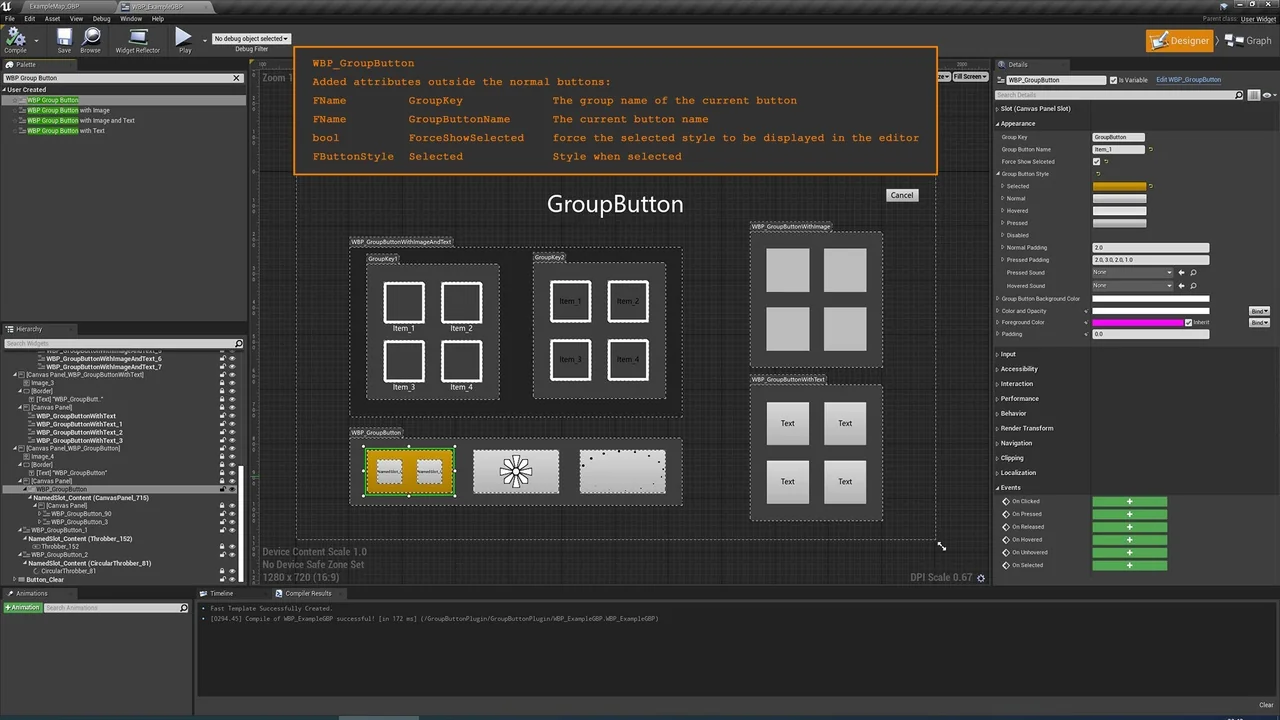
 Engine Tools
 Engine Tools
 Engine Tools