"c68a05d5e51405b3"{"id":"22694","slug":"transitions-plus","title":"Transitions Plus","category":"Camera","engine":"Original Unity version: 2022.3.24","assetVersion":"Original Unity version: 2022.3.24","engineVersion":"Asset Version:5.0 - 5.0.1","tag":"Camera","accent":"cyan","visual":"animation","summary":"Transitions Plus provides a procedural, shader-based system for managing scene and camera shifts in Unity. With support for all major render pipelines and over 100 presets, it allows for deep visual customization without leaving the Editor.","platform":"Unity","publishedAt":"2026-04-06T13:49:57.000Z","updatedAt":"2026-04-19T15:37:04.000Z","sourceNotes":[],"fileContents":[],"compatibility":["Unity","Original Unity version: 2022.3.24","Asset Version: 5.0 - 5.0.1"],"featuredImage":{"alt":"Transitions Plus","src":"https://3dcghub.com/wp-content/uploads/2026/04/8b9138742e35_2365a91d-ff9a-4ce9-91ba-fd36d2d30916_1280x720_stretch.webp"},"hasDownloadLink":true,"downloads":0,"terms":[{"taxonomy":"category","slug":"camera","name":"Camera"},{"taxonomy":"post_tag","slug":"materials","name":"Materials"},{"taxonomy":"post_tag","slug":"unity","name":"Unity"},{"taxonomy":"post_tag","slug":"vfx","name":"VFX"}],"galleryImages":[{"src":"https://3dcghub.com/wp-content/uploads/2026/04/1c95f0a27305_e01f6318-5620-466e-88c8-45d4352fb795_scaled.webp","alt":"Transitions Plus"},{"src":"https://3dcghub.com/wp-content/uploads/2026/04/7a08ea8e5d6b_b9eeed6b-c4e0-4403-9fad-c8a23adaec4f_scaled.webp","alt":"Transitions Plus"},{"src":"https://3dcghub.com/wp-content/uploads/2026/04/a3efe3c45bcf_831639aa-18e0-4922-81ca-c31174ebd473_scaled.webp","alt":"Transitions Plus"},{"src":"https://3dcghub.com/wp-content/uploads/2026/04/c9505c188e51_612d11b2-6a58-4abd-8c5c-43c71c26e6a6_scaled.webp","alt":"Transitions Plus"},{"src":"https://3dcghub.com/wp-content/uploads/2026/04/33f55f8e6a29_81949be9-ab56-46eb-95c6-806b21fd0b9c_scaled.webp","alt":"Transitions Plus"}],"accessPanel":{"kind":"resource","title":"Access this resource","eyebrow":"Free Download","message":"Log in or create a free account to start your download.","fileName":"Transitions Plus v5.0-5.0.1 (04 Sep 2025).7z","safetyNote":"All resources are 100% manually reviewed to eliminate all risks.","actionLabel":"Download Free","resourceType":"Resource archive"},"contentHtml":"\u003ch2\u003eDynamic Scene and Camera Transitions\u003c/h2\u003e\n\u003cp\u003eTransitions Plus offers a procedural approach to managing visual shifts between scenes and cameras within Unity projects. Rather than relying on static overlays, the system utilizes shader-based effects to create smooth, customizable transitions. The developer has included 25 distinct effect styles that serve as the foundation for various visual directions, ranging from simple fades to complex distortions. To speed up the implementation process, the package comes with over 100 drag-and-drop presets that are ready for immediate use, though these can be modified to fit specific project aesthetics.\u003c/p\u003e\n\n\u003ch2\u003eShader-Driven Customization Options\u003c/h2\u003e\n\u003cp\u003eBecause the transitions are procedural and shader-based, they offer a high degree of control through the integrated inspector. Artists can manipulate a wide array of parameters to define the look and feel of a transition. Customization options include colors, gradients, and textures, as well as more complex behaviors like distortions, rotations, and banding. For projects utilizing a specific art style, a toon effect can be applied to the transitions. Developers can also adjust the duration of the effect to control the pacing of scene changes.\u003c/p\u003e\n\u003cp\u003eThe system is profile-based, allowing users to save their specific configurations as presets. This makes it easier to maintain visual consistency across multiple scenes or to reuse complex distortion setups in different parts of a project. Recent updates have expanded these controls by adding \"Progress From\" and \"Progress To\" options, which allow for remapping the animation range of a transition for finer timing adjustments.\u003c/p\u003e\n\n\u003ch2\u003eEditor Workflow and Real-Time Previewing\u003c/h2\u003e\n\u003cp\u003eIntegration into the Unity workflow is handled through the hierarchy, where the effect manager can be added by selecting Effects and then Transitions Plus. This adds a Transition Animator component to the scene, which can be managed directly through the inspector. One of the primary workflow features is the in-editor preview capability. This allows developers to see how an effect will look and behave without having to enter Play mode, significantly reducing the time spent on iterative adjustments.\u003c/p\u003e\n\u003cp\u003eThe system also supports an option to show transitions in Edit Mode, which helps in visualizing the final frame of a transition while still designing the scene. These effects are not limited to full-screen overlays; they can also be rendered within the UI, providing flexibility for how transitions are presented to the player.\u003c/p\u003e\n\n\u003ch2\u003ePipeline Compatibility and Performance Support\u003c/h2\u003e\n\u003cp\u003eTransitions Plus is designed to work across the various rendering configurations available in modern Unity versions. It is compatible with Unity 2022.3 and Unity 6, including support for the Render Graph. It functions across the Built-in, Universal Render Pipeline (URP), and High Definition Render Pipeline (HDRP). This cross-pipeline support ensures that visual effects remain consistent even if a project’s rendering path changes during development.\u003c/p\u003e\n\u003cp\u003eFrom a platform perspective, the asset has been tested for use on mobile devices, Mac, Windows, and WebGL. It also includes VR support, specifically tested on the Quest 2 hardware. The file size is kept relatively small at 8.8 MB, making it a lightweight addition to the project hierarchy despite the variety of presets included.\u003c/p\u003e\n\n\u003ch2\u003ePractical Implementation Scenarios\u003c/h2\u003e\n\u003cp\u003eThe asset includes three demo scenes that illustrate different ways to trigger and manage transitions. One scenario demonstrates how to run transitions on demand using a single line of code, which is useful for developers who prefer scripting their scene flow. Another demo focuses on camera-to-camera transitions, showing how the effects can be used to shift the player's perspective within a single environment. The third demo covers the transition from a loading screen into a new scene, providing a template for handling the standard flow of a game's level progression.\u003c/p\u003e\n\u003cp\u003eBy utilizing the scripting support, transitions can be integrated into existing gameplay systems with minimal overhead. Whether it is a quick wipe for a camera swap or a slow, textured distortion for a scene change, the procedural nature of the shaders allows these effects to scale across different resolutions and aspect ratios automatically.\u003c/p\u003e\n\n\u003ch2\u003eMore From The Same Workflow\u003c/h2\u003e\n\u003cul\u003e\n\u003cli\u003e\u003ca href=\"https://3dcghub.com/dialogue-system-for-unity/\" title=\"Dialogue System for Unity\"\u003eDialogue System for Unity\u003c/a\u003e\u003c/li\u003e\n\u003cli\u003e\u003ca href=\"https://3dcghub.com/ambient-sounds-interactive-soundscapes-for-unity-6/\" title=\"Ambient Sounds – Interactive Soundscapes for Unity 6\"\u003eAmbient Sounds – Interactive Soundscapes for Unity 6\u003c/a\u003e\u003c/li\u003e\n\u003cli\u003e\u003ca href=\"https://3dcghub.com/pegasus-flythroughs-for-unity-6/\" title=\"Pegasus – Flythroughs for Unity 6\"\u003ePegasus – Flythroughs for Unity 6\u003c/a\u003e\u003c/li\u003e\n\u003cli\u003e\u003ca href=\"https://3dcghub.com/motion-matching-for-unity/\" title=\"Motion Matching for Unity\"\u003eMotion Matching for Unity\u003c/a\u003e\u003c/li\u003e\n\u003cli\u003e\u003ca href=\"https://3dcghub.com/spaceship-ai/\" title=\"Spaceship AI\"\u003eSpaceship AI\u003c/a\u003e\u003c/li\u003e\n\u003c/ul\u003e","contentTextLength":4525,"navigation":{"current":3707,"total":3860,"previous":{"id":"22705","slug":"abilities-game-creator-2","title":"Abilities | Game Creator 2","category":"Game Toolkits","platform":"Unity","updatedAt":"2026-04-19T15:37:04.000Z"},"next":{"id":"22756","slug":"lighting-box-2-next-gen-lighting-solution","title":"Lighting Box 2 Next-Gen Lighting Solution","category":"Game Toolkits","platform":"Unity","updatedAt":"2026-04-19T15:37:03.000Z"}},"relatedResources":[{"id":"22673","slug":"imagine-webar-image-tracker","title":"Imagine WebAR - Image Tracker","category":"Camera","engine":"Original Unity version: 2022.3.12","assetVersion":"Original Unity version: 2022.3.12","engineVersion":"Asset Version:1.7.1","tag":"Camera","accent":"cyan","visual":"audio","summary":"Imagine WebAR - Image Tracker enables markerless augmented reality within web browsers using Unity WebGL. It supports natural-feature tracking, texture extraction, and self-hosted deployment.","platform":"Unity","publishedAt":"2026-04-06T13:48:52.000Z","updatedAt":"2026-04-19T15:37:05.000Z","sourceNotes":[],"fileContents":[],"compatibility":["Unity","Original Unity version: 2022.3.12","Asset Version: 1.7.1"],"featuredImage":{"alt":"Imagine WebAR - Image Tracker","src":"https://3dcghub.com/wp-content/uploads/2026/04/54961fe8a9f1_c1602e84-41e6-4dc3-a47e-ba172ed3ff4c_1280x720_stretch.webp"},"hasDownloadLink":true,"downloads":2},{"id":"24259","slug":"highlight-plus-2-all-in-one-outline-selection-effects","title":"Highlight Plus 2 - All in One Outline \u0026 Selection Effects","category":"Shaders","engine":"Original Unity version: 2022.3.24","assetVersion":"Original Unity version: 2022.3.24","engineVersion":"Asset Version:22.0.1","tag":"Shaders","accent":"cyan","visual":"luts","summary":"Highlight Plus 2 adds a single workflow for outlining, glowing, overlaying, and marking objects inside Unity scenes. It works across objects, characters, sprites, and several other scene elements while keeping the original materials and meshes intact.","platform":"Unity","publishedAt":"2026-04-12T10:26:01.000Z","updatedAt":"2026-04-19T15:34:55.000Z","sourceNotes":[],"fileContents":[],"compatibility":["Unity","Original Unity version: 2022.3.24","Asset Version: 22.0.1"],"featuredImage":{"alt":"Highlight Plus 2 - All in One Outline \u0026 Selection Effects","src":"https://3dcghub.com/wp-content/uploads/2026/04/48ad2b2744b8_03106861-a5bb-414a-bb34-8ea70794f46f_1280x720_stretch.webp"},"hasDownloadLink":true,"downloads":2},{"id":"24077","slug":"anime-shading-plus","title":"Anime Shading Plus","category":"Shaders","engine":"Original Unity version: 2022.3.62","assetVersion":"Original Unity version: 2022.3.62","engineVersion":"Asset Version:1.3","tag":"Shaders","accent":"cyan","visual":"city","summary":"Anime Shading Plus focuses on one specific problem: getting anime-style character rendering into Unity without building the lighting and pass logic from scratch. It combines shader work, outline options, shadow handling, and a few workflow tools for charact...","platform":"Unity","publishedAt":"2026-04-12T09:39:40.000Z","updatedAt":"2026-04-19T15:35:00.000Z","sourceNotes":[],"fileContents":[],"compatibility":["Unity","Original Unity version: 2022.3.62","Asset Version: 1.3"],"featuredImage":{"alt":"Anime Shading Plus","src":"https://3dcghub.com/wp-content/uploads/2026/04/8bdfd2b243d4_f619d888-b308-400e-ba5c-7573e82f327b_1280x720_stretch.webp"},"hasDownloadLink":true,"downloads":1}]}
Camera
Transitions Plus
Transitions Plus provides a procedural, shader-based system for managing scene and camera shifts in Unity. With support for all major render pipelines and over 100 presets, it allows for deep visual customization without leaving the Editor.
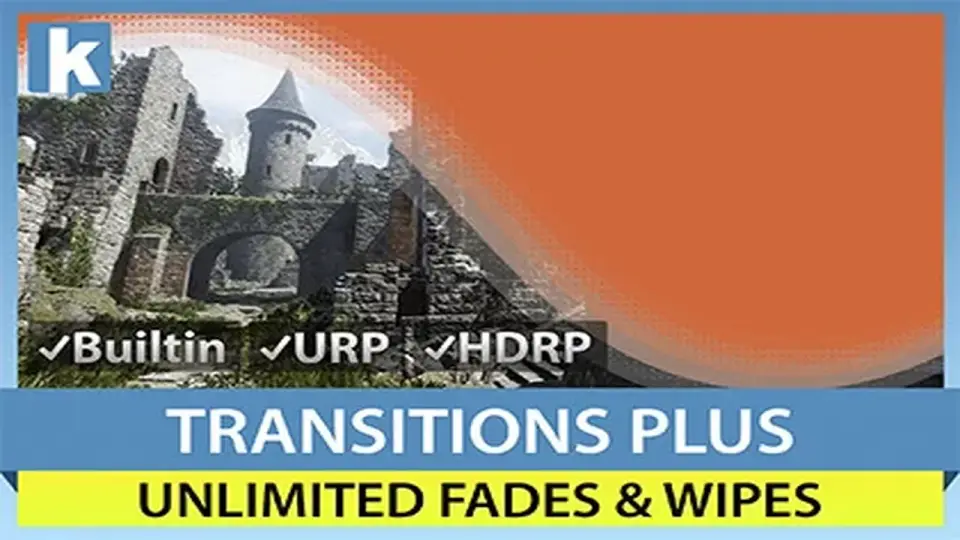
Transitions Plus offers a procedural approach to managing visual shifts between scenes and cameras within Unity projects. Rather than relying on static overlays, the system utilizes shader-based effects to create smooth, customizable transitions. The developer has included 25 distinct effect styles that serve as the foundation for various visual directions, ranging from simple fades to complex distortions. To speed up the implementation process, the package comes with over 100 drag-and-drop presets that are ready for immediate use, though these can be modified to fit specific project aesthetics.
Shader-Driven Customization Options
Because the transitions are procedural and shader-based, they offer a high degree of control through the integrated inspector. Artists can manipulate a wide array of parameters to define the look and feel of a transition. Customization options include colors, gradients, and textures, as well as more complex behaviors like distortions, rotations, and banding. For projects utilizing a specific art style, a toon effect can be applied to the transitions. Developers can also adjust the duration of the effect to control the pacing of scene changes.
The system is profile-based, allowing users to save their specific configurations as presets. This makes it easier to maintain visual consistency across multiple scenes or to reuse complex distortion setups in different parts of a project. Recent updates have expanded these controls by adding "Progress From" and "Progress To" options, which allow for remapping the animation range of a transition for finer timing adjustments.
Editor Workflow and Real-Time Previewing
Integration into the Unity workflow is handled through the hierarchy, where the effect manager can be added by selecting Effects and then Transitions Plus. This adds a Transition Animator component to the scene, which can be managed directly through the inspector. One of the primary workflow features is the in-editor preview capability. This allows developers to see how an effect will look and behave without having to enter Play mode, significantly reducing the time spent on iterative adjustments.
The system also supports an option to show transitions in Edit Mode, which helps in visualizing the final frame of a transition while still designing the scene. These effects are not limited to full-screen overlays; they can also be rendered within the UI, providing flexibility for how transitions are presented to the player.
Pipeline Compatibility and Performance Support
Transitions Plus is designed to work across the various rendering configurations available in modern Unity versions. It is compatible with Unity 2022.3 and Unity 6, including support for the Render Graph. It functions across the Built-in, Universal Render Pipeline (URP), and High Definition Render Pipeline (HDRP). This cross-pipeline support ensures that visual effects remain consistent even if a project’s rendering path changes during development.
From a platform perspective, the asset has been tested for use on mobile devices, Mac, Windows, and WebGL. It also includes VR support, specifically tested on the Quest 2 hardware. The file size is kept relatively small at 8.8 MB, making it a lightweight addition to the project hierarchy despite the variety of presets included.
Practical Implementation Scenarios
The asset includes three demo scenes that illustrate different ways to trigger and manage transitions. One scenario demonstrates how to run transitions on demand using a single line of code, which is useful for developers who prefer scripting their scene flow. Another demo focuses on camera-to-camera transitions, showing how the effects can be used to shift the player's perspective within a single environment. The third demo covers the transition from a loading screen into a new scene, providing a template for handling the standard flow of a game's level progression.
By utilizing the scripting support, transitions can be integrated into existing gameplay systems with minimal overhead. Whether it is a quick wipe for a camera swap or a slow, textured distortion for a scene change, the procedural nature of the shaders allows these effects to scale across different resolutions and aspect ratios automatically.
 Camera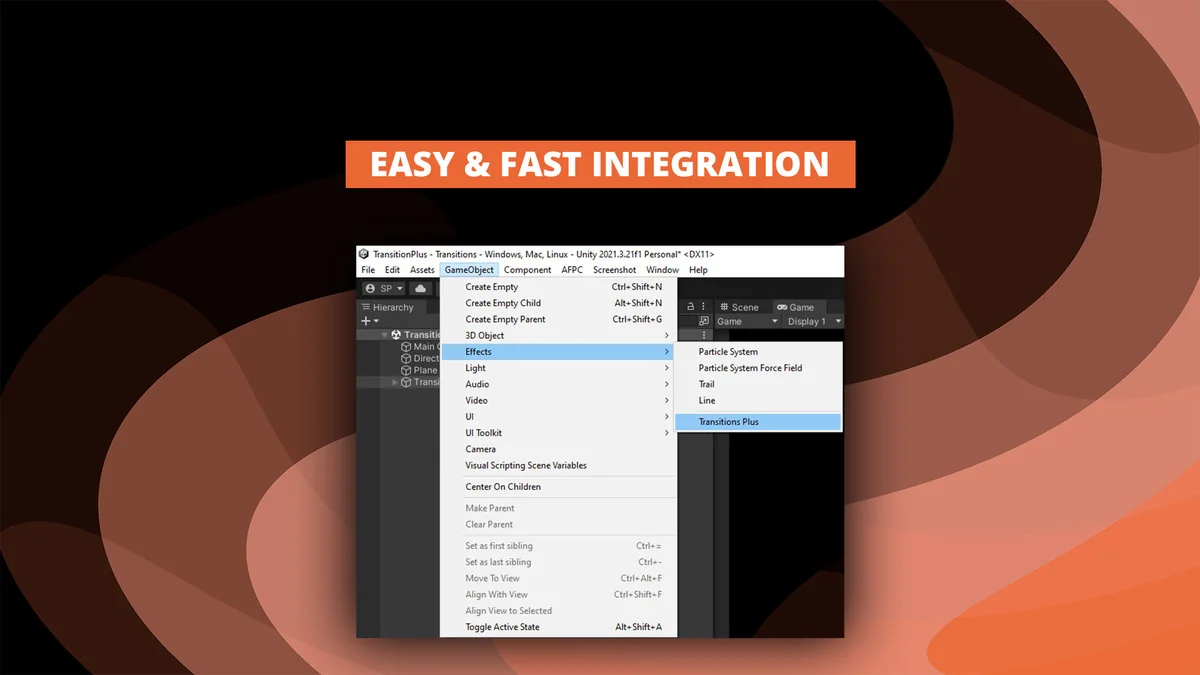
 Camera
 Shaders
 Shaders