"c14ff6bd758dadb1"{"id":"24665","slug":"node-pie","title":"Node Pie","category":"Blender Add-ons \u0026 Plugins","engine":"1.2.50","assetVersion":"","engineVersion":"Asset Version:1.2.50","tag":"Blender Add","accent":"amber","visual":"audio","summary":"Node Pie adds a pie menu to Blenderâs node editor so nodes can be added faster and with fewer interruptions. Its shortcuts also support auto-connection, link insertion, and node groups. The extension focuses on discoverability, muscle memory, and a more d...","platform":"Blender","publishedAt":"2026-04-16T12:31:39.000Z","updatedAt":"2026-04-20T06:12:39.000Z","sourceNotes":[],"fileContents":[],"compatibility":["Blender","Asset Version: 1.2.50"],"featuredImage":{"alt":"Node Pie","src":"https://3dcghub.com/wp-content/uploads/2026/04/dde925bee02f_7b6e1544a9b797b075d9f77330e5ee1a23ab94509d2be8a35c.webp"},"hasDownloadLink":true,"downloads":0,"terms":[{"taxonomy":"category","slug":"blender-add-ons-plugins","name":"Blender Add-ons \u0026 Plugins"},{"taxonomy":"post_tag","slug":"blender","name":"Blender"},{"taxonomy":"post_tag","slug":"tools","name":"Tools"},{"taxonomy":"post_tag","slug":"ui","name":"UI"}],"galleryImages":[],"accessPanel":{"kind":"resource","title":"Access this resource","eyebrow":"Free Download","message":"Log in or create a free account to start your download.","fileName":"Node Pie v1.2.50.7z","safetyNote":"All resources are 100% manually reviewed to eliminate all risks.","actionLabel":"Download Free","resourceType":"Resource archive"},"contentHtml":"\u003cp\u003eShader and compositing setups with repeated node edits are where Node Pie makes the most immediate difference. It adds a pie menu to Blenderâs node editor so adding a node takes fewer steps and keeps attention on the graph itself. The setup is aimed at faster input, better discoverability, and the kind of repetition that helps muscle memory settle in.\u003c/p\u003e \u003ch2\u003eGetting to the next node without breaking focus\u003c/h2\u003e\n\u003cp\u003eNode Pie places the node picker in a pie-menu format inside the editor. That changes the experience from searching through long menus to triggering a small, direct interface right where the work is happening. The result is less time spent navigating and more time spent placing the next node exactly where it belongs.\u003c/p\u003e\n\u003cp\u003eThe underlying goal is practical: make common node actions easier to remember and quicker to repeat. When the same node commands come up again and again, a predictable menu layout becomes easier to learn. That is where discoverability and muscle memory start working together.\u003c/p\u003e\n\u003cp\u003eBecause the menu lives in the node editor, it stays close to the graph instead of sending the user away from it. That matters most in node-heavy sessions where even small interruptions can slow down the flow of work.\u003c/p\u003e \u003ch2\u003eThree shortcut paths into the same menu\u003c/h2\u003e\n\u003cp\u003eThe extension offers three different ways to open the pie menu, and each one matches a different part of node editing.\u003c/p\u003e\n\u003cul\u003e \u003cli\u003e\u003cstrong\u003eCtrl + click anywhere\u003c/strong\u003e Opens the pie menu.\u003c/li\u003e \u003cli\u003e\u003cstrong\u003eCtrl + drag from a socket\u003c/strong\u003e Opens the pie menu and auto-connects the node that is selected.\u003c/li\u003e \u003cli\u003e\u003cstrong\u003eCtrl + Alt + drag over a link\u003c/strong\u003e Opens the pie menu and inserts the selected node into the link.\u003c/li\u003e\n\u003c/ul\u003e\n\u003cp\u003eThese options cover more than one workflow without adding extra steps. Starting from empty space is useful when the next node is not connected yet. Dragging from a socket is the direct path when a new node should attach immediately. Dragging across an existing link is the fastest way to drop a node into the middle of a chain without rebuilding the connection by hand.\u003c/p\u003e\n\u003cp\u003eThat flexibility keeps the same menu useful in several moments of the same task. Instead of changing the way the user thinks about the graph, it gives a different shortcut for the exact point where the next action is needed.\u003c/p\u003e \u003ch2\u003eLink-heavy edits and node groups\u003c/h2\u003e\n\u003cp\u003eNode Pie adds a few details that matter once the graph becomes more complex. When using link dragging, incompatible socket types are automatically dimmed. That gives visual feedback before a selection is made and helps avoid choices that do not fit the current connection.\u003c/p\u003e\n\u003cp\u003eThe extension also works with node groups, so the same shortcut behavior remains available when nodes are organized into grouped structures. That keeps the menu useful in setups that rely on repeated subgraphs rather than isolated nodes. The workflow stays consistent even when the node tree is broken into smaller sections.\u003c/p\u003e\n\u003cp\u003eAn optional UI behavior also makes frequent nodes easier to notice. The more often a node is used, the larger its button becomes in the interface. That does not change the node itself, but it can make familiar entries stand out more clearly when the same commands are used often.\u003c/p\u003e\n\u003cp\u003eThose small choices point in the same direction: reduce the time spent scanning, reduce the time spent correcting, and keep the next node action obvious enough to repeat without hesitation.\u003c/p\u003e \u003ch2\u003eCustomization without changing the core idea\u003c/h2\u003e\n\u003cp\u003eNode Pie includes customizable key binds and extensive customization. That matters because not every user moves through the node editor in the same way. A shortcut set that feels natural for one workflow may need adjustment in another, and the extension leaves room for that.\u003c/p\u003e\n\u003cp\u003eThe structure still stays simple: one pie menu, a few repeatable ways to open it, and a consistent path to adding or inserting nodes. The customization layer sits around that structure rather than replacing it. In practice, that means the extension can be adjusted while keeping the main interaction recognizable.\u003c/p\u003e\n\u003cp\u003eFor people who work in node editors often, that balance is useful. The workflow can be tuned, but the motions remain compact and learnable. That is especially relevant when the aim is to build faster habits instead of introducing more interface clutter.\u003c/p\u003e \u003ch2\u003eRecent update details and practical fit\u003c/h2\u003e\n\u003cp\u003eVersion 1.2.53 added new nodes present in Blender 5.1 and added missing icons to the shader and compositing node pies. Those changes keep the menu content in step with newer node additions while also filling in visual gaps for the two main pies mentioned by the extension.\u003c/p\u003e\n\u003cp\u003eThe extension is compatible with Blender 4.2 LTS and newer. It also requests permission for files, specifically for reading and writing config files. That fits with a tool that stores settings and shortcut preferences as part of its setup.\u003c/p\u003e\n\u003cp\u003eFor users working in shader or compositing node trees, the fit is straightforward: add nodes faster, connect them with less friction, and keep the menu close enough to the graph that the next action feels immediate.\u003c/p\u003e \u003ch2\u003eWho will get the most from it\u003c/h2\u003e\n\u003cp\u003eNode Pie is most useful for Blender users who spend a lot of time in the node editor and want a quicker way to add, connect, or insert nodes. It also makes sense in workflows that rely on node groups, where repeated graph edits can benefit from the same shortcuts and visual cues.\u003c/p\u003e\n\u003cp\u003eIf a setup depends on frequent node additions and the same commands keep coming back, the pie menu format gives those actions a simpler path. The most practical benefit is not a dramatic change in the editor itself, but a tighter way to move through the same work with fewer interruptions.\u003c/p\u003e\n\n\u003ch2\u003eRelated Resources Worth Checking\u003c/h2\u003e\n\u003cul\u003e\n\u003cli\u003e\u003ca href=\"https://3dcghub.com/auto-rig-pro-quick-rig/\" title=\"Auto-Rig Pro: Quick Rig\"\u003eAuto-Rig Pro: Quick Rig\u003c/a\u003e\u003c/li\u003e\n\u003cli\u003e\u003ca href=\"https://3dcghub.com/build-a-poker-game-in-unity-complete-development-course/\" title=\"Build a Poker Game in Unity: Complete Development Course\"\u003eBuild a Poker Game in Unity: Complete Development Course\u003c/a\u003e\u003c/li\u003e\n\u003cli\u003e\u003ca href=\"https://3dcghub.com/the-complete-guide-to-unity-2d-platformer-development/\" title=\"The Complete Guide to Unity 2D : Platformer Development\"\u003eThe Complete Guide to Unity 2D : Platformer Development\u003c/a\u003e\u003c/li\u003e\n\u003cli\u003e\u003ca href=\"https://3dcghub.com/unity-visual-scripting-build-2d-and-3d-games-in-unity-with-no-coding/\" title=\"Unity Visual Scripting: Build 2D and 3D games in Unity with no coding.\"\u003eUnity Visual Scripting: Build 2D and 3D games in Unity with no coding.\u003c/a\u003e\u003c/li\u003e\n\u003cli\u003e\u003ca href=\"https://3dcghub.com/ui-shader-effects-edge-effects/\" title=\"UI Shader Effects – Edge Effects\"\u003eUI Shader Effects – Edge Effects\u003c/a\u003e\u003c/li\u003e\n\u003c/ul\u003e","contentTextLength":5848,"navigation":{"current":2047,"total":3719,"previous":{"id":"24677","slug":"rbc-a-physics-based-vehicle-rigging-addon","title":"Rbc | A Physics-Based Vehicle Rigging Addon","category":"Blender Add-ons \u0026 Plugins","platform":"Blender","updatedAt":"2026-04-20T06:12:39.000Z"},"next":{"id":"24789","slug":"swordswoman","title":"Swordswoman","category":"Characters \u0026 Creatures","platform":"Unreal Engine","updatedAt":"2026-04-20T06:12:38.000Z"}},"relatedResources":[{"id":"24662","slug":"lodmod","title":"Lodmod","category":"Blender Add-ons \u0026 Plugins","engine":"1.0","assetVersion":"","engineVersion":"Asset Version:1.0","tag":"Blender Add","accent":"amber","visual":"animation","summary":"Lodmod brings LOD creation into a Blender workflow that starts from selected meshes and turns a repetitive reduction task into a single operation. It also gives room to inspect, adjust, and organize the generated versions before they stay in the scene.","platform":"Blender","publishedAt":"2026-04-16T12:29:56.000Z","updatedAt":"2026-04-20T06:12:40.000Z","sourceNotes":[],"fileContents":[],"compatibility":["Blender","Asset Version: 1.0"],"featuredImage":{"alt":"Lodmod","src":"https://3dcghub.com/wp-content/uploads/2026/04/d5093940382b_ebdfc3b3c291de8e6f1b081fcf9927f3.webp"},"hasDownloadLink":true,"downloads":0},{"id":"24677","slug":"rbc-a-physics-based-vehicle-rigging-addon","title":"Rbc | A Physics-Based Vehicle Rigging Addon","category":"Blender Add-ons \u0026 Plugins","engine":"1.4.8","assetVersion":"","engineVersion":"Asset Version:1.4.8","tag":"Blender Add","accent":"amber","visual":"character","summary":"Rbc gives Blender users a faster way to set up physics-based vehicle rigs without starting from scratch. It focuses on realistic behavior, quick setup, and enough customization to tune the rig until it responds the way a scene needs.","platform":"Blender","publishedAt":"2026-04-16T12:35:28.000Z","updatedAt":"2026-04-20T06:12:39.000Z","sourceNotes":[],"fileContents":[],"compatibility":["Blender","Asset Version: 1.4.8"],"featuredImage":{"alt":"Rbc | A Physics-Based Vehicle Rigging Addon","src":"https://3dcghub.com/wp-content/uploads/2026/04/6b83a05edc2b_xlarge-55653f94cf7d419b079f34ad6a7d2f25.webp"},"hasDownloadLink":true,"downloads":1},{"id":"24614","slug":"animated-render-border","title":"Animated Render Border","category":"Blender Add-ons \u0026 Plugins","engine":"3.0.7","assetVersion":"","engineVersion":"Asset Version:3.0.7","tag":"Blender Add","accent":"amber","visual":"mech","summary":"Animated Render Border keeps Blenderâs render region moving with the subject, so the frame stays centered on selected objects or collections during animation. It also includes manual keyframing, margin control, and two tracking modes for different levels...","platform":"Blender","publishedAt":"2026-04-15T14:56:56.000Z","updatedAt":"2026-04-20T06:12:41.000Z","sourceNotes":[],"fileContents":[],"compatibility":["Blender","Asset Version: 3.0.7"],"featuredImage":{"alt":"Animated Render Border","src":"https://3dcghub.com/wp-content/uploads/2026/04/bf6d42b81598_xlarge-66de896c1d0d99e18245c16ff5fcd30c.webp"},"hasDownloadLink":true,"downloads":0}]}
Blender Add
Node Pie
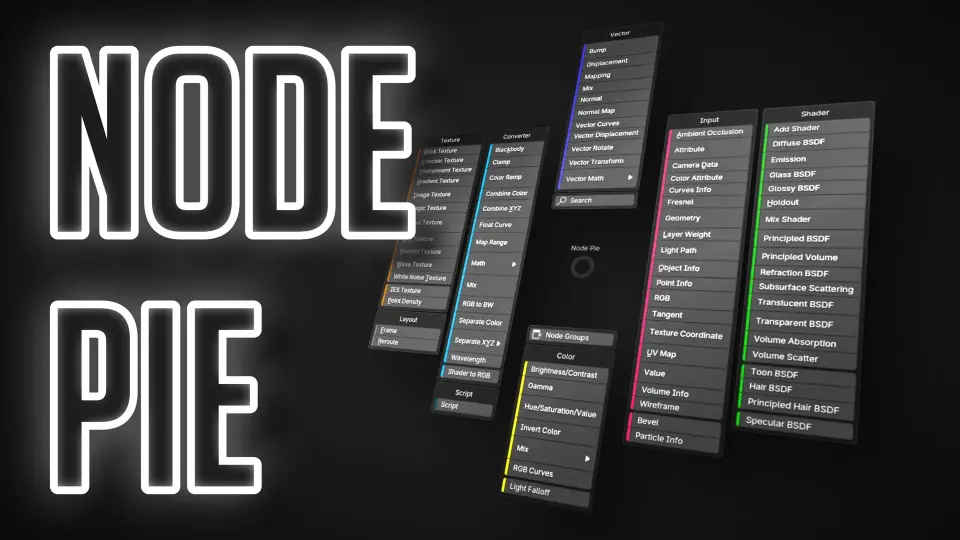
Node Pie adds a pie menu to Blenderâs node editor so nodes can be added faster and with fewer interruptions. Its shortcuts also support auto-connection, link insertion, and node groups. The extension focuses on discoverability, muscle memory, and a more d...
Shader and compositing setups with repeated node edits are where Node Pie makes the most immediate difference. It adds a pie menu to Blenderâs node editor so adding a node takes fewer steps and keeps attention on the graph itself. The setup is aimed at faster input, better discoverability, and the kind of repetition that helps muscle memory settle in.
Getting to the next node without breaking focus
Node Pie places the node picker in a pie-menu format inside the editor. That changes the experience from searching through long menus to triggering a small, direct interface right where the work is happening. The result is less time spent navigating and more time spent placing the next node exactly where it belongs.
The underlying goal is practical: make common node actions easier to remember and quicker to repeat. When the same node commands come up again and again, a predictable menu layout becomes easier to learn. That is where discoverability and muscle memory start working together.
Because the menu lives in the node editor, it stays close to the graph instead of sending the user away from it. That matters most in node-heavy sessions where even small interruptions can slow down the flow of work.
Three shortcut paths into the same menu
The extension offers three different ways to open the pie menu, and each one matches a different part of node editing.
Ctrl + click anywhere Opens the pie menu.
Ctrl + drag from a socket Opens the pie menu and auto-connects the node that is selected.
Ctrl + Alt + drag over a link Opens the pie menu and inserts the selected node into the link.
These options cover more than one workflow without adding extra steps. Starting from empty space is useful when the next node is not connected yet. Dragging from a socket is the direct path when a new node should attach immediately. Dragging across an existing link is the fastest way to drop a node into the middle of a chain without rebuilding the connection by hand.
That flexibility keeps the same menu useful in several moments of the same task. Instead of changing the way the user thinks about the graph, it gives a different shortcut for the exact point where the next action is needed.
Link-heavy edits and node groups
Node Pie adds a few details that matter once the graph becomes more complex. When using link dragging, incompatible socket types are automatically dimmed. That gives visual feedback before a selection is made and helps avoid choices that do not fit the current connection.
The extension also works with node groups, so the same shortcut behavior remains available when nodes are organized into grouped structures. That keeps the menu useful in setups that rely on repeated subgraphs rather than isolated nodes. The workflow stays consistent even when the node tree is broken into smaller sections.
An optional UI behavior also makes frequent nodes easier to notice. The more often a node is used, the larger its button becomes in the interface. That does not change the node itself, but it can make familiar entries stand out more clearly when the same commands are used often.
Those small choices point in the same direction: reduce the time spent scanning, reduce the time spent correcting, and keep the next node action obvious enough to repeat without hesitation.
Customization without changing the core idea
Node Pie includes customizable key binds and extensive customization. That matters because not every user moves through the node editor in the same way. A shortcut set that feels natural for one workflow may need adjustment in another, and the extension leaves room for that.
The structure still stays simple: one pie menu, a few repeatable ways to open it, and a consistent path to adding or inserting nodes. The customization layer sits around that structure rather than replacing it. In practice, that means the extension can be adjusted while keeping the main interaction recognizable.
For people who work in node editors often, that balance is useful. The workflow can be tuned, but the motions remain compact and learnable. That is especially relevant when the aim is to build faster habits instead of introducing more interface clutter.
Recent update details and practical fit
Version 1.2.53 added new nodes present in Blender 5.1 and added missing icons to the shader and compositing node pies. Those changes keep the menu content in step with newer node additions while also filling in visual gaps for the two main pies mentioned by the extension.
The extension is compatible with Blender 4.2 LTS and newer. It also requests permission for files, specifically for reading and writing config files. That fits with a tool that stores settings and shortcut preferences as part of its setup.
For users working in shader or compositing node trees, the fit is straightforward: add nodes faster, connect them with less friction, and keep the menu close enough to the graph that the next action feels immediate.
Who will get the most from it
Node Pie is most useful for Blender users who spend a lot of time in the node editor and want a quicker way to add, connect, or insert nodes. It also makes sense in workflows that rely on node groups, where repeated graph edits can benefit from the same shortcuts and visual cues.
If a setup depends on frequent node additions and the same commands keep coming back, the pie menu format gives those actions a simpler path. The most practical benefit is not a dramatic change in the editor itself, but a tighter way to move through the same work with fewer interruptions.
 Blender Add
 Blender Add
 Blender Add
 Blender Add