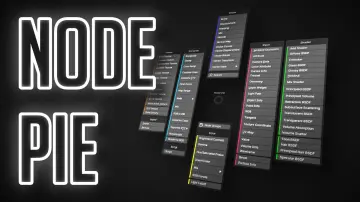
"f813c18d2170b1f6"{"id":"24627","slug":"auto-upscale-addon","title":"Auto Upscale Addon","category":"Blender Add-ons \u0026 Plugins","engine":"3.0.7","assetVersion":"","engineVersion":"Asset Version:3.0.7","tag":"Blender Add","accent":"amber","visual":"audio","summary":"Auto Upscale Add-on for Blender gives rendered images a higher-resolution finish without adding friction to the workflow. It supports automatic and manual control, scale factors from 2x to 8x, and a choice between speed and quality priorities.","platform":"Blender","publishedAt":"2026-04-15T15:13:26.000Z","updatedAt":"2026-04-20T06:12:41.000Z","sourceNotes":[],"fileContents":[],"compatibility":["Blender","Asset Version: 3.0.7"],"featuredImage":{"alt":"Auto Upscale Addon","src":"https://3dcghub.com/wp-content/uploads/2026/04/f9189afbb669_0a812f61763544e6f8be11d3259f9b21.webp"},"hasDownloadLink":true,"downloads":0,"terms":[{"taxonomy":"category","slug":"blender-add-ons-plugins","name":"Blender Add-ons \u0026 Plugins"},{"taxonomy":"post_tag","slug":"blender","name":"Blender"},{"taxonomy":"post_tag","slug":"environment","name":"Environment"},{"taxonomy":"post_tag","slug":"tools","name":"Tools"}],"galleryImages":[{"src":"https://3dcghub.com/wp-content/uploads/2026/04/eb30b9c1f26e_2eab7f4a21fdc23e28e59d9e9808d62d.webp","alt":"Auto Upscale Addon"},{"src":"https://3dcghub.com/wp-content/uploads/2026/04/be4629f80733_9faa6349dfe828a74108a85311c84c5d.webp","alt":"Auto Upscale Addon"},{"src":"https://3dcghub.com/wp-content/uploads/2026/04/13ed727c83b1_af51df55bed2648d02823d9f98667560.webp","alt":"Auto Upscale Addon"},{"src":"https://3dcghub.com/wp-content/uploads/2026/04/5669171874ba_ac814c450e256bd7b89c41b1c97d2ae1.webp","alt":"Auto Upscale Addon"},{"src":"https://3dcghub.com/wp-content/uploads/2026/04/00e9d50faca0_6afd50677f0ebab4f70a1b5945f4880d.webp","alt":"Auto Upscale Addon"},{"src":"https://3dcghub.com/wp-content/uploads/2026/04/6037ca1110b5_a48de64abe963e180065dffe26f0fc4f.webp","alt":"Auto Upscale Addon"},{"src":"https://3dcghub.com/wp-content/uploads/2026/04/db1cda9665c4_253d0eea7bf85259f855c27abcc44983.webp","alt":"Auto Upscale Addon"},{"src":"https://3dcghub.com/wp-content/uploads/2026/04/37bcf33eece7_06e0218c18c260be58ad605bca628436.webp","alt":"Auto Upscale Addon"},{"src":"https://3dcghub.com/wp-content/uploads/2026/04/07487fb5e2ae_5f82dbd61c3972c172ff73ed8879d210.webp","alt":"Auto Upscale Addon"}],"accessPanel":{"kind":"resource","title":"Access this resource","eyebrow":"Free Download","message":"Log in or create a free account to start your download.","fileName":"Animated Render Border v3.0.7.7z","safetyNote":"All resources are 100% manually reviewed to eliminate all risks.","actionLabel":"Download Free","resourceType":"Resource archive"},"contentHtml":"\u003ch2\u003eRendered images that need a cleaner finish\u003c/h2\u003e \u003cp\u003eAuto Upscale Add-on fits naturally into Blender projects where the render itself is only part of the process and the final image still needs extra polish. It focuses on upscaling rendered images rather than changing the scene, which makes it useful when the goal is to keep iteration moving quickly while still reaching a sharper final result. The add-on is especially relevant when working at a lower render resolution to speed up the back-and-forth of testing, then pushing the output higher once the image is ready for refinement.\u003c/p\u003e \u003cp\u003eThat makes it a practical companion for artists who want to spend less time waiting on full-resolution renders and more time evaluating composition, lighting, and overall visual clarity. Instead of treating the upscale step as a separate, manual chore, it brings the process into Blender and keeps the workflow in one place.\u003c/p\u003e \u003ch2\u003eAutomatic mode or hands-on control\u003c/h2\u003e \u003cp\u003eThe add-on offers two ways to approach the same task. Automatic upscaling supports a hands-free workflow, while manual control gives room to fine-tune the output. That flexibility matters when different scenes call for different levels of oversight. A quick draft render may only need a straightforward pass, while a more polished image can benefit from closer control over the upscale settings.\u003c/p\u003e \u003cp\u003eBecause both approaches are available inside the Blender interface, the add-on can stay out of the way when speed matters and step in more actively when precision matters. The result is a workflow that can shift with the stage of the project instead of forcing one fixed method on every render.\u003c/p\u003e \u003ch2\u003eScale factors that match the task\u003c/h2\u003e \u003cp\u003eOne of the most concrete controls in Auto Upscale Add-on is the set of scale factor options. The available choices are 2x, 3x, 4x, and 8x, which makes it easy to match the upscale level to the demands of a project. A smaller increase can be enough for one image, while a larger jump gives more room when a stronger resolution boost is needed.\u003c/p\u003e \u003cp\u003eThose options keep the add-on focused on practical output rather than abstract settings. Instead of relying on a single fixed enlargement step, the user can pick the scale factor that fits the render and the intended result.\u003c/p\u003e \u003cul\u003e \u003cli\u003e2x for a modest increase\u003c/li\u003e \u003cli\u003e3x for a middle step\u003c/li\u003e \u003cli\u003e4x for a stronger upscale\u003c/li\u003e \u003cli\u003e8x for the largest available jump\u003c/li\u003e \u003c/ul\u003e \u003cp\u003eThe add-on also includes an option for prioritizing speed or quality in the upscaling model. That gives another layer of control over the final output, since some jobs need faster turnaround while others call for a more careful pass. Paired with the scale choices, it creates a workflow where the user can balance time and visual quality without leaving Blender.\u003c/p\u003e \u003ch2\u003eResolution sync for cleaner output\u003c/h2\u003e \u003cp\u003eResolution sync is another useful part of the process. The add-on can automatically synchronize the render resolution with the selected upscale factor, which helps keep the output consistent. That reduces the chance of mismatched settings and makes the upscale step feel more connected to the original render settings.\u003c/p\u003e \u003cp\u003eThis is a small detail, but it has a practical effect on workflow. When the render resolution and the upscale factor stay aligned, the setup is easier to manage and the output is easier to predict. For artists who move through many iterations, that kind of consistency saves time and keeps the process less cluttered.\u003c/p\u003e \u003cp\u003eThe add-on is also presented as a time-saving solution. It allows rendered images to be improved without compromising efficiency, which suits projects where a fast render pass is useful during development and a stronger final image is needed afterward.\u003c/p\u003e \u003ch2\u003eChanges, fixes, and a restart note\u003c/h2\u003e \u003cp\u003eThe current update history shows a short, steady progression. Version v0.0.1 was the initial release, followed by minor bug fixes in v0.0.2 and v0.0.5, a dependency-install fix in v0.0.3, and a change in v0.0.4 that replaced the priority option with a method selection option and added methods for upscaling. Version v0.0.6 continued with minor bug fixes.\u003c/p\u003e \u003cp\u003eThere is also a known issue worth keeping in mind: after installing dependencies, Blender sometimes needs a restart before the add-on is fully enabled. That does not change the purpose of the tool, but it does matter for setup and first use. Once active, the add-on is meant to sit directly in the Blender workflow and support the same task repeatedly without extra friction.\u003c/p\u003e \u003cp\u003eFor Blender artists who want a straightforward way to upscale rendered images, the add-on makes the most sense in projects where iteration speed and image quality both matter. It suits users who want to render at a lower resolution during development, then move to a higher-resolution result with automatic or manual control once the image is ready.\u003c/p\u003e\n\n\u003ch2\u003eRelated Resources Worth Checking\u003c/h2\u003e\n\u003cul\u003e\n\u003cli\u003e\u003ca href=\"https://3dcghub.com/animated-render-border/\" title=\"Animated Render Border\"\u003eAnimated Render Border\u003c/a\u003e\u003c/li\u003e\n\u003cli\u003e\u003ca href=\"https://3dcghub.com/geppetto-ai-powered-lip-sync-animation/\" title=\"Geppetto – AI-Powered Lip Sync Animation\"\u003eGeppetto – AI-Powered Lip Sync Animation\u003c/a\u003e\u003c/li\u003e\n\u003cli\u003e\u003ca href=\"https://3dcghub.com/tropical-forest-pack/\" title=\"Tropical Forest Pack\"\u003eTropical Forest Pack\u003c/a\u003e\u003c/li\u003e\n\u003cli\u003e\u003ca href=\"https://3dcghub.com/beach-bundle-boys-and-girls/\" title=\"Beach Bundle: Boys and Girls\"\u003eBeach Bundle: Boys and Girls\u003c/a\u003e\u003c/li\u003e\n\u003cli\u003e\u003ca href=\"https://3dcghub.com/elf-arden-stylized-medieval-elven-warrior-animated-rpg-character-hero-56/\" title=\"Elf Arden – Stylized Medieval Elven Warrior – Animated RPG Character Hero – #56\"\u003eElf Arden – Stylized Medieval Elven Warrior – Animated RPG Character Hero – #56\u003c/a\u003e\u003c/li\u003e\n\u003c/ul\u003e","contentTextLength":5003,"navigation":{"current":1966,"total":3651,"previous":{"id":"24584","slug":"main-menus-beginner-class-unreal-engine-5","title":"Main Menus Beginner Class - Unreal Engine 5","category":"Unreal Engine","platform":"Unreal Engine","updatedAt":"2026-04-20T06:12:42.000Z"},"next":{"id":"24614","slug":"animated-render-border","title":"Animated Render Border","category":"Blender Add-ons \u0026 Plugins","platform":"Blender","updatedAt":"2026-04-20T06:12:41.000Z"}},"relatedResources":[{"id":"24677","slug":"rbc-a-physics-based-vehicle-rigging-addon","title":"Rbc | A Physics-Based Vehicle Rigging Addon","category":"Blender Add-ons \u0026 Plugins","engine":"1.4.8","assetVersion":"","engineVersion":"Asset Version:1.4.8","tag":"Blender Add","accent":"amber","visual":"character","summary":"Rbc gives Blender users a faster way to set up physics-based vehicle rigs without starting from scratch. It focuses on realistic behavior, quick setup, and enough customization to tune the rig until it responds the way a scene needs.","platform":"Blender","publishedAt":"2026-04-16T12:35:28.000Z","updatedAt":"2026-04-20T06:12:39.000Z","sourceNotes":[],"fileContents":[],"compatibility":["Blender","Asset Version: 1.4.8"],"featuredImage":{"alt":"Rbc | A Physics-Based Vehicle Rigging Addon","src":"https://3dcghub.com/wp-content/uploads/2026/04/6b83a05edc2b_xlarge-55653f94cf7d419b079f34ad6a7d2f25.webp"},"hasDownloadLink":true,"downloads":1},{"id":"24638","slug":"command-box-addon-for-blender","title":"Command Box Addon For Blender","category":"Blender Add-ons \u0026 Plugins","engine":"2025.11.14.Beta1","assetVersion":"","engineVersion":"Asset Version:2025.11.14.Beta1","tag":"Blender Add","accent":"amber","visual":"audio","summary":"CommandBox brings hundreds of Blender commands into a fast text-entry workflow with popup access, panel browsing, and on-demand loading. It also supports startup scripts, custom command files, and quick recall for repeated tasks.","platform":"Blender","publishedAt":"2026-04-15T15:25:11.000Z","updatedAt":"2026-04-20T06:12:40.000Z","sourceNotes":[],"fileContents":[],"compatibility":["Blender","Asset Version: 2025.11.14.Beta1"],"featuredImage":{"alt":"Command Box Addon For Blender","src":"https://3dcghub.com/wp-content/uploads/2026/04/616eee67b45a_xlarge-56a43a82f7cf3fa853a61fb8642c47f5.webp"},"hasDownloadLink":true,"downloads":0},{"id":"24665","slug":"node-pie","title":"Node Pie","category":"Blender Add-ons \u0026 Plugins","engine":"1.2.50","assetVersion":"","engineVersion":"Asset Version:1.2.50","tag":"Blender Add","accent":"amber","visual":"audio","summary":"Node Pie adds a pie menu to Blenderâs node editor so nodes can be added faster and with fewer interruptions. Its shortcuts also support auto-connection, link insertion, and node groups. The extension focuses on discoverability, muscle memory, and a more d...","platform":"Blender","publishedAt":"2026-04-16T12:31:39.000Z","updatedAt":"2026-04-20T06:12:39.000Z","sourceNotes":[],"fileContents":[],"compatibility":["Blender","Asset Version: 1.2.50"],"featuredImage":{"alt":"Node Pie","src":"https://3dcghub.com/wp-content/uploads/2026/04/dde925bee02f_7b6e1544a9b797b075d9f77330e5ee1a23ab94509d2be8a35c.webp"},"hasDownloadLink":true,"downloads":0}]}
Blender Add
Auto Upscale Addon
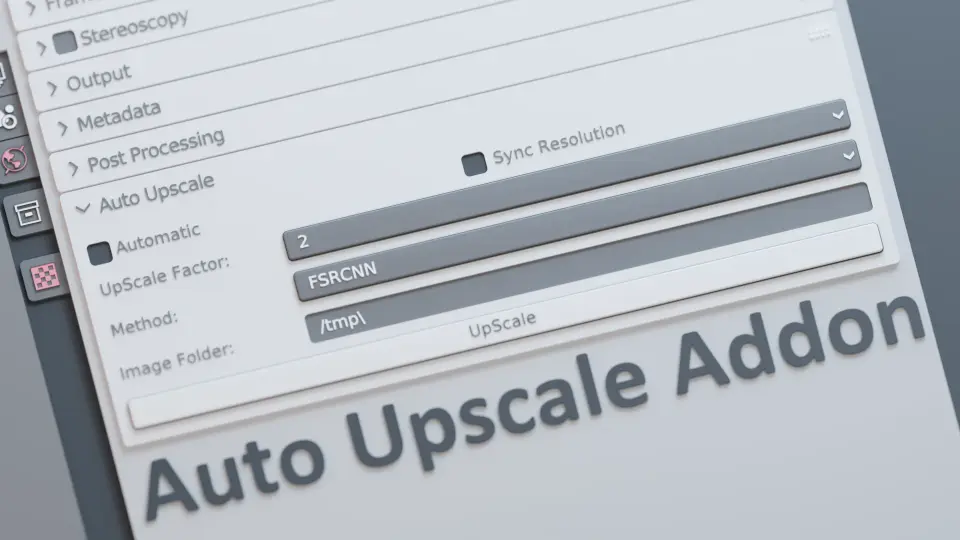
Auto Upscale Add-on for Blender gives rendered images a higher-resolution finish without adding friction to the workflow. It supports automatic and manual control, scale factors from 2x to 8x, and a choice between speed and quality priorities.
Auto Upscale Add-on fits naturally into Blender projects where the render itself is only part of the process and the final image still needs extra polish. It focuses on upscaling rendered images rather than changing the scene, which makes it useful when the goal is to keep iteration moving quickly while still reaching a sharper final result. The add-on is especially relevant when working at a lower render resolution to speed up the back-and-forth of testing, then pushing the output higher once the image is ready for refinement.
That makes it a practical companion for artists who want to spend less time waiting on full-resolution renders and more time evaluating composition, lighting, and overall visual clarity. Instead of treating the upscale step as a separate, manual chore, it brings the process into Blender and keeps the workflow in one place.
Automatic mode or hands-on control
The add-on offers two ways to approach the same task. Automatic upscaling supports a hands-free workflow, while manual control gives room to fine-tune the output. That flexibility matters when different scenes call for different levels of oversight. A quick draft render may only need a straightforward pass, while a more polished image can benefit from closer control over the upscale settings.
Because both approaches are available inside the Blender interface, the add-on can stay out of the way when speed matters and step in more actively when precision matters. The result is a workflow that can shift with the stage of the project instead of forcing one fixed method on every render.
Scale factors that match the task
One of the most concrete controls in Auto Upscale Add-on is the set of scale factor options. The available choices are 2x, 3x, 4x, and 8x, which makes it easy to match the upscale level to the demands of a project. A smaller increase can be enough for one image, while a larger jump gives more room when a stronger resolution boost is needed.
Those options keep the add-on focused on practical output rather than abstract settings. Instead of relying on a single fixed enlargement step, the user can pick the scale factor that fits the render and the intended result.
2x for a modest increase
3x for a middle step
4x for a stronger upscale
8x for the largest available jump
The add-on also includes an option for prioritizing speed or quality in the upscaling model. That gives another layer of control over the final output, since some jobs need faster turnaround while others call for a more careful pass. Paired with the scale choices, it creates a workflow where the user can balance time and visual quality without leaving Blender.
Resolution sync for cleaner output
Resolution sync is another useful part of the process. The add-on can automatically synchronize the render resolution with the selected upscale factor, which helps keep the output consistent. That reduces the chance of mismatched settings and makes the upscale step feel more connected to the original render settings.
This is a small detail, but it has a practical effect on workflow. When the render resolution and the upscale factor stay aligned, the setup is easier to manage and the output is easier to predict. For artists who move through many iterations, that kind of consistency saves time and keeps the process less cluttered.
The add-on is also presented as a time-saving solution. It allows rendered images to be improved without compromising efficiency, which suits projects where a fast render pass is useful during development and a stronger final image is needed afterward.
Changes, fixes, and a restart note
The current update history shows a short, steady progression. Version v0.0.1 was the initial release, followed by minor bug fixes in v0.0.2 and v0.0.5, a dependency-install fix in v0.0.3, and a change in v0.0.4 that replaced the priority option with a method selection option and added methods for upscaling. Version v0.0.6 continued with minor bug fixes.
There is also a known issue worth keeping in mind: after installing dependencies, Blender sometimes needs a restart before the add-on is fully enabled. That does not change the purpose of the tool, but it does matter for setup and first use. Once active, the add-on is meant to sit directly in the Blender workflow and support the same task repeatedly without extra friction.
For Blender artists who want a straightforward way to upscale rendered images, the add-on makes the most sense in projects where iteration speed and image quality both matter. It suits users who want to render at a lower resolution during development, then move to a higher-resolution result with automatic or manual control once the image is ready.
 Blender Add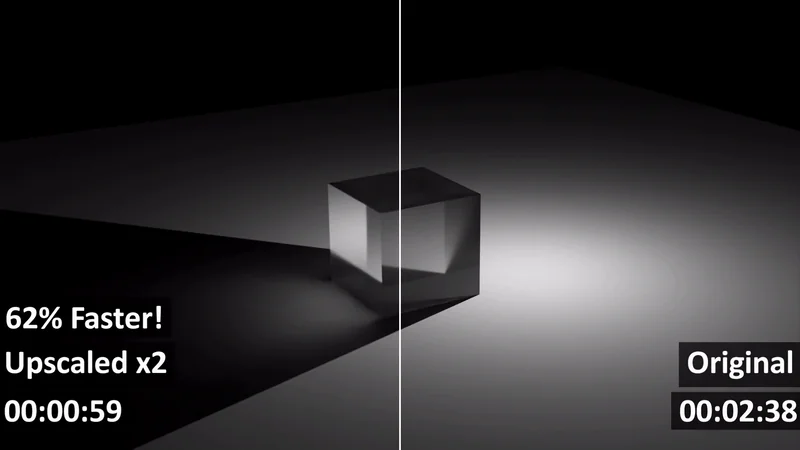
 Blender Add
 Blender Add
 Blender Add