"e9c335e082208b17"{"id":"1002890","slug":"discord-rich-presence","title":"Discord Rich Presence","category":"Engine Tools","engine":"4.26 - 5.0","assetVersion":"Asset Version: 1.5 - 2.0.1","engineVersion":"Engine Version: 4.26 - 5.0","tag":"Engine Tools","accent":"blue","visual":"mech","summary":"Integrate Discord Rich Presence in Unreal Engine via Blueprints. Configure OAuth2, initialize your Client ID, and broadcast maps, modes, and player counts.","platform":"Unreal Engine","indexPolicy":"index","publishedAt":"2026-11-21T01:59:27.383Z","updatedAt":"2026-11-21T01:59:27.383Z","sourceNotes":[],"fileContents":[],"compatibility":["Unreal Engine","Asset Version: 1.5 - 2.0.1","Engine Version: 4.26 - 5.0"],"featuredImage":{"alt":"Discord Rich Presence","src":"/wp-content/uploads/published/2026/11/33d4c058973e-12ab25e5-8218-4050-a8eb-b6b50e51c3d9-086d53dc7a.webp"},"fileSizeBytes":20717789,"hasDownloadLink":true,"downloads":0,"terms":[{"taxonomy":"category","slug":"engine-tools-tools-and-plugins","name":"Engine Tools"}],"galleryImages":[{"src":"/wp-content/uploads/published/2026/11/df7995971c39-b899c197-dcf3-4b09-9614-f25856033c05-a77847569c.webp","alt":"Discord Rich Presence"},{"src":"/wp-content/uploads/published/2026/11/282d48d7ad59-57b140f0-49b0-4971-b967-0c55e47b808f-dce7707729.webp","alt":"Discord Rich Presence"},{"src":"/wp-content/uploads/published/2026/11/8f96d3d58851-29df09c0-9b89-4205-9c51-f4337851a2ff-ae230a1894.webp","alt":"Discord Rich Presence"}],"contentHtml":"\u003ch2\u003eBroadcasting Match Data with Discord Rich Presence\u003c/h2\u003e\u003cp\u003eWhen players launch an Unreal Engine project, standard desktop chat clients often display nothing more than a static application title. Discord Rich Presence changes this baseline behavior by establishing a real-time data link between an active game session and a user's Discord profile card. Rather than leaving friends and community members guessing about what is happening in a session, the integration broadcasts granular, live game information directly to their friends list. Through this interface, an active project can communicate essential gameplay context, specifically the active map name, the current player count participating in the match, and the selected game mode.\u003c/p\u003e\u003cp\u003eFor titles featuring multiplayer modes, cooperative campaigns, or competitive arenas, exposing live session parameters serves a functional social purpose. When prospective teammates glance at a player's profile, they can immediately evaluate whether a match is currently in progress, how many player slots are occupied, which battlefield is currently active, and what specific ruleset or game mode is being played. By transmitting the map, game mode, and current player count, the game provides immediate situational awareness to external communities. The plugin makes this continuous status broadcast accessible inside Unreal Engine by exposing a straightforward Blueprint interface designed to control Discord Presence without complex custom network programming.\u003c/p\u003e\u003ch2\u003eConfiguring the Discord Developer Application and OAuth2 Redirect\u003c/h2\u003e\u003cp\u003eBefore any logic can be executed inside Unreal Engine's visual scripting graphs, developers must establish the application's profile within the Discord ecosystem. This process begins on the Discord Developer portal, where the creator creates a new Discord Developer App. The creation process is straightforward and consists of completing the standard developer registration form to register the project as an official application. Generating this application yields a unique Client ID, which acts as the foundational identifier required by the engine to associate running game sessions with the specific Discord application profile.\u003c/p\u003e\u003cp\u003eFollowing the creation of the application profile, developers must configure its network authorization settings to allow local client communication. Navigating to the OAuth2 settings tab within the newly generated app's configuration dashboard reveals the Redirects configuration area. Here, developers must input a specific local loopback address as an authorized redirect:\u003c/p\u003e\u003cpre\u003e\u003ccode\u003eHttp://127.0.0.1\u003c/code\u003e\u003c/pre\u003e\u003cp\u003eEntering this specific address ensures that local authorization requests properly resolve back to the host machine running the game client. Once this redirect URL is saved within the OAuth2 dashboard, the external platform setup is complete, and the application is fully prepared to communicate with Unreal Engine instances using the assigned Client ID.\u003c/p\u003e\u003ch2\u003eInitializing the Discord Connection on Game Startup\u003c/h2\u003e\u003cp\u003eWith the developer application configured and the redirect established, the Unreal Engine integration begins at the entry point of the project's execution flow. To establish the bridge between the running game instance and the user's local Discord desktop client, developers place the Initialize Discord Blueprint node early in their startup logic. Common integration locations include the Game Instance initialization event, project startup routines, or early splash and loading screen sequences that run as the game launches.\u003c/p\u003e\u003cp\u003eThe Initialize Discord node takes the Client ID generated in the developer portal as its primary input parameter. When called on game startup, the node establishes the underlying handshake with the local Discord process running on the user's operating system. Executing this node ensures that subsequent presence commands are recognized and accepted by the client. If the initialization node is not executed at launch with a valid Client ID, any downstream attempts to broadcast or modify activity data will fail to update the player's Discord profile.\u003c/p\u003e\u003ch2\u003eManaging Runtime Presence with Set Activity and Clear Activity\u003c/h2\u003e\u003cp\u003eOnce the initialization handshake is established at startup, developers manage the continuous lifecycle of the player's status through two dedicated Blueprint nodes: Set Activity and Clear Activity. These nodes provide complete control over what information is shown on the profile card and when that information should be removed or reset.\u003c/p\u003e\u003cp\u003eThe Set Activity node functions as the primary vehicle for updating social telemetry during active gameplay. Whenever a player enters a new environment, a server registers incoming or outgoing participants, or the match phase changes, calling Set Activity pushes the latest session parameters outward. Developers pass the relevant variables into this node—such as the name of the current map, the live player count, and the active game mode—allowing the profile card to reflect changing conditions in real time. For example, when a match transitions from a pre-game lobby to an active round, or when a new player joins an open slot, firing Set Activity with updated parameters keeps external observers fully informed.\u003c/p\u003e\u003cp\u003eComplementing the update node is Clear Activity, which acts as a dedicated wipe command for active status data. While Set Activity populates the Discord profile with granular match specifics, Clear Activity strips those custom variables away. This node is typically called when a match concludes, when a player disconnects from an active server, or when the player returns to an idle state such as a main menu. Calling Clear Activity ensures that obsolete data, such as a previous map name or an old match player count, does not linger on the player's profile once the gameplay session has officially ended.\u003c/p\u003e\u003ch2\u003eIntegrating Discord SDK Binaries in the 2.0 Update\u003c/h2\u003e\u003cp\u003eDevelopers implementing this integration should take note of significant structural updates introduced in version 2.0 of the plugin. With the release of the 2.0 update, the required Discord SDK binaries are no longer packaged directly within the plugin download. Instead, developers are required to acquire the official Discord SDK binaries independently.\u003c/p\u003e\u003cp\u003eTo facilitate this requirement, comprehensive documentation is provided that guides creators through sourcing and placing the necessary binary files into their project directory. The documentation outlines the exact steps needed to properly locate, download, and position the binaries so that Unreal Engine can locate them during compilation and packaging. In addition to standard documentation, a dedicated German tutorial is also available for German-speaking developers, offering step-by-step visual and procedural explanations of the setup workflow and binary management process.\u003c/p\u003e\u003ch2\u003eVisual Scripting Architecture and Workflow Implementation\u003c/h2\u003e\u003cp\u003eThe core advantage of this plugin lies in its user-friendly Blueprint interface. Rather than forcing gameplay programmers to construct custom C++ network sockets or manage local inter-process communication threads with Discord, all interaction is handled through native visual scripting nodes. This allows solitary game creators, technical designers, and gameplay scripters to wire status updates directly into existing Game Mode Blueprints, Level Blueprints, or custom player state managers.\u003c/p\u003e\u003cp\u003eBecause the system relies on simple execution pins and standard data inputs, setting up a reactive presence pipeline can be accomplished with minimal overhead. Developers can bind Set Activity triggers to map transition events, round start delegates, and player connection events, while tying Clear Activity to session teardown functions. For developers who encounter edge cases, need setup clarification, or have questions regarding binary placement or node execution, community assistance and direct guidance are accessible through the creator's dedicated Discord server.\u003c/p\u003e\n\n\u003ch2\u003eRelated Resources Worth Checking\u003c/h2\u003e\n\u003cul\u003e\n\u003cli\u003e\u003ca href=\"https://3dcghub.com/ios-native-goodies/\" rel=\"noopener noreferrer\"\u003eiOS Native Goodies\u003c/a\u003e\u003c/li\u003e\n\u003cli\u003e\u003ca href=\"https://3dcghub.com/magic-spline-plugin/\" rel=\"noopener noreferrer\"\u003eMagic Spline Plugin\u003c/a\u003e\u003c/li\u003e\n\u003cli\u003e\u003ca href=\"https://3dcghub.com/web-socket-client/\" rel=\"noopener noreferrer\"\u003eWeb Socket Client\u003c/a\u003e\u003c/li\u003e\n\u003cli\u003e\u003ca href=\"https://3dcghub.com/udp-socket-server-and-client/\" rel=\"noopener noreferrer\"\u003eUDP Socket Server And Client\u003c/a\u003e\u003c/li\u003e\n\u003cli\u003e\u003ca href=\"https://3dcghub.com/did-it-hit-trace-detection-plugin/\" rel=\"noopener noreferrer\"\u003eDid it hit - Trace Detection Plugin\u003c/a\u003e\u003c/li\u003e\n\u003c/ul\u003e","contentTextLength":8076,"navigation":{"current":45,"total":4839,"previous":{"id":"1002891","slug":"dynamic-surface-navigation","title":"Dynamic Surface Navigation","category":"Game Mechanics","platform":"Unreal Engine","updatedAt":"2026-11-21T02:00:38.202Z"},"next":{"id":"1002889","slug":"augmented-reality-ar-toolkit","title":"Augmented Reality AR Toolkit","category":"Simulation","platform":"Unreal Engine","updatedAt":"2026-11-21T01:59:04.129Z"}},"relatedResources":[{"id":"1002886","slug":"ios-native-goodies","title":"iOS Native Goodies","category":"Engine Tools","engine":"4.26","assetVersion":"Asset Version: 1.5.1","engineVersion":"Engine Version: 4.26","tag":"Engine Tools","accent":"blue","visual":"mech","summary":"Integrate native iOS UI, camera capture, MessageUI email, haptic feedback, and system pickers into Unreal Engine projects via Blueprints.","platform":"Unreal Engine","indexPolicy":"index","publishedAt":"2026-11-21T01:54:21.877Z","updatedAt":"2026-11-21T01:54:21.877Z","sourceNotes":[],"fileContents":[],"compatibility":["Unreal Engine","Asset Version: 1.5.1","Engine Version: 4.26"],"featuredImage":{"alt":"iOS Native Goodies","src":"/wp-content/uploads/published/2026/11/c432793c5950-c3dd9e78-9a46-413f-8c8b-babb9656a56f-48a93dc759.webp"},"fileSizeBytes":20199127,"hasDownloadLink":true,"downloads":0},{"id":"14127","slug":"magic-spline-plugin","title":"Magic Spline Plugin","category":"Engine Tools","engine":"4.26 - 5.8","assetVersion":"Asset Version: 1.5","engineVersion":"Engine Version: 4.26 - 5.8","tag":"Engine Tools","accent":"blue","visual":"city","summary":"The Magic Spline Plugin is a powerful level design tool for creating and editing meshes along splines. It offers an optimized C++ workflow for building roads, walls, and pipes without needing programming knowledge.","platform":"Unreal Engine","indexPolicy":"index","publishedAt":"2026-03-11T15:56:30.000Z","updatedAt":"2026-11-14T06:59:28.212Z","sourceNotes":[],"fileContents":[],"compatibility":["Unreal Engine","Asset Version: 1.5","Engine Version: 4.26 - 5.8"],"featuredImage":{"alt":"Magic Spline Plugin","src":"https://3dcghub.com/wp-content/uploads/2026/03/a8f83706-0f29-452e-8704-4ad78733a2e4.webp"},"fileSizeBytes":561683099,"hasDownloadLink":true,"downloads":1},{"id":"1002895","slug":"root-motion-guide","title":"Root Motion Guide","category":"Engine Tools","engine":"4.26 - 5.6","assetVersion":"Asset Version: 1.0","engineVersion":"Engine Version: 4.26 - 5.6","tag":"Engine Tools","accent":"blue","visual":"mech","summary":"Integrate Mixamo animations smoothly using Root Motion Guide, shifting complex traversal logic to maps while enabling multiplayer and hanging mechanics.","platform":"Unreal Engine","indexPolicy":"index","publishedAt":"2026-11-21T02:08:26.554Z","updatedAt":"2026-11-21T02:08:26.554Z","sourceNotes":[],"fileContents":[],"compatibility":["Unreal Engine","Asset Version: 1.0","Engine Version: 4.26 - 5.6"],"featuredImage":{"alt":"Root Motion Guide","src":"/wp-content/uploads/published/2026/11/a36eacd7a420-a1263599-e1a4-497e-821b-7e826ea4ddf6-1379e14630.webp"},"fileSizeBytes":179374771,"hasDownloadLink":true,"downloads":0}]}
Resource screenshots
1 / 3
Join our channel
Follow 3DCGHUB on Telegram for new resource drops, migration updates, and community notices.
Integrate Discord Rich Presence in Unreal Engine via Blueprints. Configure OAuth2, initialize your Client ID, and broadcast maps, modes, and player counts.
Broadcasting Match Data with Discord Rich Presence
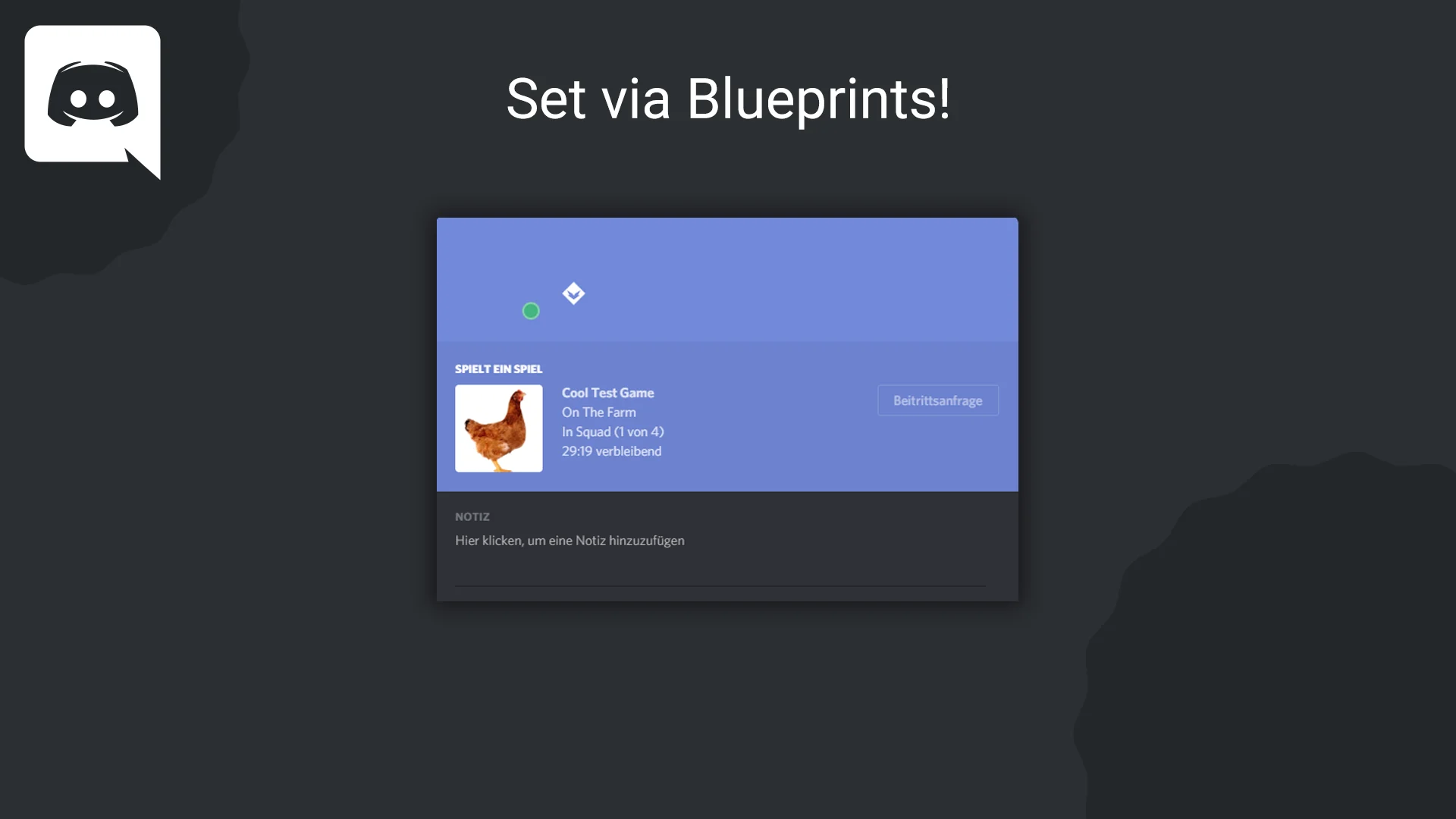
When players launch an Unreal Engine project, standard desktop chat clients often display nothing more than a static application title. Discord Rich Presence changes this baseline behavior by establishing a real-time data link between an active game session and a user's Discord profile card. Rather than leaving friends and community members guessing about what is happening in a session, the integration broadcasts granular, live game information directly to their friends list. Through this interface, an active project can communicate essential gameplay context, specifically the active map name, the current player count participating in the match, and the selected game mode.
For titles featuring multiplayer modes, cooperative campaigns, or competitive arenas, exposing live session parameters serves a functional social purpose. When prospective teammates glance at a player's profile, they can immediately evaluate whether a match is currently in progress, how many player slots are occupied, which battlefield is currently active, and what specific ruleset or game mode is being played. By transmitting the map, game mode, and current player count, the game provides immediate situational awareness to external communities. The plugin makes this continuous status broadcast accessible inside Unreal Engine by exposing a straightforward Blueprint interface designed to control Discord Presence without complex custom network programming.
Configuring the Discord Developer Application and OAuth2 Redirect
Before any logic can be executed inside Unreal Engine's visual scripting graphs, developers must establish the application's profile within the Discord ecosystem. This process begins on the Discord Developer portal, where the creator creates a new Discord Developer App. The creation process is straightforward and consists of completing the standard developer registration form to register the project as an official application. Generating this application yields a unique Client ID, which acts as the foundational identifier required by the engine to associate running game sessions with the specific Discord application profile.
Following the creation of the application profile, developers must configure its network authorization settings to allow local client communication. Navigating to the OAuth2 settings tab within the newly generated app's configuration dashboard reveals the Redirects configuration area. Here, developers must input a specific local loopback address as an authorized redirect:
Http://127.0.0.1
Entering this specific address ensures that local authorization requests properly resolve back to the host machine running the game client. Once this redirect URL is saved within the OAuth2 dashboard, the external platform setup is complete, and the application is fully prepared to communicate with Unreal Engine instances using the assigned Client ID.
Initializing the Discord Connection on Game Startup
With the developer application configured and the redirect established, the Unreal Engine integration begins at the entry point of the project's execution flow. To establish the bridge between the running game instance and the user's local Discord desktop client, developers place the Initialize Discord Blueprint node early in their startup logic. Common integration locations include the Game Instance initialization event, project startup routines, or early splash and loading screen sequences that run as the game launches.
The Initialize Discord node takes the Client ID generated in the developer portal as its primary input parameter. When called on game startup, the node establishes the underlying handshake with the local Discord process running on the user's operating system. Executing this node ensures that subsequent presence commands are recognized and accepted by the client. If the initialization node is not executed at launch with a valid Client ID, any downstream attempts to broadcast or modify activity data will fail to update the player's Discord profile.
Managing Runtime Presence with Set Activity and Clear Activity
Once the initialization handshake is established at startup, developers manage the continuous lifecycle of the player's status through two dedicated Blueprint nodes: Set Activity and Clear Activity. These nodes provide complete control over what information is shown on the profile card and when that information should be removed or reset.
The Set Activity node functions as the primary vehicle for updating social telemetry during active gameplay. Whenever a player enters a new environment, a server registers incoming or outgoing participants, or the match phase changes, calling Set Activity pushes the latest session parameters outward. Developers pass the relevant variables into this node—such as the name of the current map, the live player count, and the active game mode—allowing the profile card to reflect changing conditions in real time. For example, when a match transitions from a pre-game lobby to an active round, or when a new player joins an open slot, firing Set Activity with updated parameters keeps external observers fully informed.
Complementing the update node is Clear Activity, which acts as a dedicated wipe command for active status data. While Set Activity populates the Discord profile with granular match specifics, Clear Activity strips those custom variables away. This node is typically called when a match concludes, when a player disconnects from an active server, or when the player returns to an idle state such as a main menu. Calling Clear Activity ensures that obsolete data, such as a previous map name or an old match player count, does not linger on the player's profile once the gameplay session has officially ended.
Integrating Discord SDK Binaries in the 2.0 Update
Developers implementing this integration should take note of significant structural updates introduced in version 2.0 of the plugin. With the release of the 2.0 update, the required Discord SDK binaries are no longer packaged directly within the plugin download. Instead, developers are required to acquire the official Discord SDK binaries independently.
To facilitate this requirement, comprehensive documentation is provided that guides creators through sourcing and placing the necessary binary files into their project directory. The documentation outlines the exact steps needed to properly locate, download, and position the binaries so that Unreal Engine can locate them during compilation and packaging. In addition to standard documentation, a dedicated German tutorial is also available for German-speaking developers, offering step-by-step visual and procedural explanations of the setup workflow and binary management process.
Visual Scripting Architecture and Workflow Implementation
The core advantage of this plugin lies in its user-friendly Blueprint interface. Rather than forcing gameplay programmers to construct custom C++ network sockets or manage local inter-process communication threads with Discord, all interaction is handled through native visual scripting nodes. This allows solitary game creators, technical designers, and gameplay scripters to wire status updates directly into existing Game Mode Blueprints, Level Blueprints, or custom player state managers.
Because the system relies on simple execution pins and standard data inputs, setting up a reactive presence pipeline can be accomplished with minimal overhead. Developers can bind Set Activity triggers to map transition events, round start delegates, and player connection events, while tying Clear Activity to session teardown functions. For developers who encounter edge cases, need setup clarification, or have questions regarding binary placement or node execution, community assistance and direct guidance are accessible through the creator's dedicated Discord server.
 Engine Tools
 Engine Tools
 Engine Tools