"7066dd76da796369"{"id":"1000757","slug":"ui-deformer","title":"UI Deformer","category":"Gameplay Features","engine":"5.4","assetVersion":"Asset Version: 1.0","engineVersion":"Engine Version: 5.4","tag":"Gameplay Features","accent":"blue","visual":"mech","summary":"Custom UMG Retainer Box plugin that deforms child widgets during gameplay, with a designer-preview toggle introduced in Unreal Engine 5.3.","platform":"Unreal Engine","publishedAt":"2026-07-27T15:31:31.432Z","updatedAt":"2026-07-27T15:31:31.432Z","sourceNotes":[],"fileContents":[],"compatibility":["Unreal Engine","Asset Version: 1.0","Engine Version: 5.4"],"featuredImage":{"alt":"UI Deformer","src":"/wp-content/uploads/published/2026/07/51c744746b3f-cd2c7e8e-bb07-49cc-960f-899e29242b86-c65770a29e.webp"},"hasDownloadLink":true,"downloads":1,"terms":[{"taxonomy":"category","slug":"gameplay-features-tools-and-plugins","name":"Gameplay Features"}],"galleryImages":[{"src":"/wp-content/uploads/published/2026/07/47ae570acedd-05a3a402-3587-44d5-acd0-9adda52c348f-e1658b7114.webp","alt":"UI Deformer"},{"src":"/wp-content/uploads/published/2026/07/1e864652ea20-bafabf68-7b45-437b-bdc0-2a2d8a4ba07d-c882e93d44.webp","alt":"UI Deformer"},{"src":"/wp-content/uploads/published/2026/07/6311e49b8aec-ec1a949d-9431-422f-bb9f-3ef89581fa60-df437ac5db.webp","alt":"UI Deformer"},{"src":"/wp-content/uploads/published/2026/07/472824aee074-1668d37c-4593-4591-88a4-7c54914ba804-79580607fc.webp","alt":"UI Deformer"},{"src":"/wp-content/uploads/published/2026/07/46701202fd0b-00df7817-c13d-45ca-b85b-df9ceaa7326a-9a957c18c1.webp","alt":"UI Deformer"}],"accessPanel":{"kind":"resource","title":"Download this resource","eyebrow":"Free Download","message":"Log in or create a free account to start your download.","fileName":"5.4.7z","safetyNote":"Resources are manually reviewed before listing to improve quality and reduce obvious risks.","actionLabel":"Download Free","resourceType":"Resource archive"},"contentHtml":"\u003cp\u003eStylized HUDs and user interfaces in Unreal Engine projects often demand more than static rectangular panels. Health bars that curve along a character's silhouette, circular inventories, radial command wheels, and animated menu cards all benefit from a system that can bend and reshape widgets beyond their default bounds. \u003cem\u003eUI Deformer\u003c/em\u003e fits directly into this kind of production, offering a way to distort UMG widgets without writing custom Slate code or importing pre-rendered textures to fake the effect.\u003c/p\u003e\n\n\u003ch2\u003eWhat the Deformer Retainer Box Actually Does\u003c/h2\u003e\n\u003cp\u003eAt its core, \u003cem\u003eUI Deformer\u003c/em\u003e adds a specialized container widget called the Deformer Retainer Box. It behaves similarly to Unreal Engine's built-in Retainer Box: you place it inside a UMG Widget Blueprint, then parent other widgets underneath it. Any widget that becomes a child of the Deformer Retainer Box inherits the deformation settings applied by the container. The workflow is deliberately minimal—drag the box into your widget hierarchy, drop the widgets you want to affect beneath it, and then adjust the box's settings to shape the result.\u003c/p\u003e\n\n\u003cp\u003eThe tag set associated with the plugin—\u003cem\u003eDeformation\u003c/em\u003e, \u003cem\u003eUser\u003c/em\u003e, \u003cem\u003eHUD\u003c/em\u003e, \u003cem\u003eStylized\u003c/em\u003e, and \u003cem\u003eInterface\u003c/em\u003e—gives a clear picture of the intended use cases. It is aimed at stylized games and applications where the interface itself carries a strong visual identity. A project with a hand-painted or fantasy aesthetic can use the deformer to make UI panels that slant, warp, or ripple. A sci-fi or holographic HUD can leverage it to skew readable text and icons so they appear projected onto curved surfaces within the game world.\u003c/p\u003e\n\n\u003ch2\u003eRuntime Evaluation and the UMG Designer Gap\u003c/h2\u003e\n\u003cp\u003eOne of the most critical details to understand about the Deformer Retainer Box is that it does not render its deformation effects inside the UMG Editor viewport by default. This is a direct parallel to Unreal Engine's native Retainer Box behavior. A standard Retainer Box in Unreal Engine works by rendering its child widgets to a Render Target, then drawing that target—this process only occurs during gameplay, not while editing in the Designer tab. Because the Deformer Retainer Box takes the same approach to apply its visual distortion, you will not see the deformation applied to your widgets simply by looking at them in the UMG Editor.\u003c/p\u003e\n\n\u003cp\u003eThis means that iterating on the look of your deformed UI requires a specific loop. You set the parameters on the Deformer Retainer Box, compile the widget if necessary, launch the game, observe how the deformation looks in the running viewport, and then return to the editor to make adjustments. The Designer panel shows the widgets in their undeformed layout state, which can still be useful for positioning child elements, but you have to mentally translate how those positions will change once the deformation is applied at runtime.\u003c/p\u003e\n\n\u003ch3\u003eThe Unreal Engine 5.3 Designer Preview Update\u003c/h3\u003e\n\u003cp\u003eFor projects running on Unreal Engine 5.3 or later, this iteration gap is significantly reduced. The plugin introduced a boolean property called \u003ccode\u003eShow Effects in Designer\u003c/code\u003e. As the name suggests, enabling this property allows the deformation effects to be visualized directly within the UMG Editor without needing to run the game. The property defaults to \u003ccode\u003etrue\u003c/code\u003e, meaning that out of the box, users on Unreal Engine 5.3 can immediately see how their settings impact the widget layout in the Designer viewport. This dramatically speeds up the tuning process, as the trial-and-error loop of adjusting settings, playing the game, and stopping to make changes is replaced with near-instant visual feedback.\u003c/p\u003e\n\n\u003cp\u003eDifferent versions of the engine, therefore, offer different experiences. On versions prior to Unreal Engine 5.3, the playground is the runtime viewport. On 5.3 and beyond, the UMG Designer itself becomes the primary workspace for dialing in the deformation. Designers switching between engine versions should be aware of this difference so they know where to look for their results.\u003c/p\u003e\n\n\u003ch2\u003ePlacing UI Deformer in a Production Pipeline\u003c/h2\u003e\n\u003cp\u003eIn a practical UI pipeline, the Deformer Retainer Box functions as a presentation-layer wrapper. A UI artist or designer builds the internal layout of a widget—placing text blocks, images, buttons, and borders within a standard container, such as a Canvas Panel or a Border. That entire structure is then moved to sit underneath the Deformer Retainer Box.\u003c/p\u003e\n\n\u003cp\u003eThis separation between content and presentation is valuable for team workflows. The structural layout of a menu can be assembled and tested for logic and functionality before any visual distortion is applied. Once the base UI is working, the Deformer Retainer Box is introduced as a parent or wrapping container. Because any widget can be placed under it, there is no limitation to specific widget types. Complex composites of multiple panels can all be deformed together as a single group. This flexibility means the tool can be dropped into an existing UI system late in development without forcing changes to the underlying widget structure.\u003c/p\u003e\n\n\u003cp\u003eThe settings on the box itself become the control panel for the visual style. Rather than adjusting individual widgets to achieve a combined skewed or curved look, the settings on the container handle the math for the entire group. Changes to the settings propagate down to all child widgets automatically, which is how the deformation is achieved uniformly.\u003c/p\u003e\n\n\u003ch2\u003eA Few Points to Keep in Mind During Setup\u003c/h2\u003e\n\u003cp\u003eBecause the core mechanism mirrors the native Retainer Box, performance and behavior patterns are analogous. A Retainer Box handles rendering by taking a snapshot of its children and drawing them to a texture, which has implications for how often the child widgets update. If the child widgets are changing rapidly—such as a progress bar that depletes in real time or a scrolling text ticker—the frequency at which the Retainer Box updates its Render Target becomes a factor. Users familiar with how Unreal Engine's standard Retainer Box handles these updates will find the Deformer Retainer Box behaves in the same manner, meaning you need to be mindful of update rates to ensure smooth animation within the deformed layout.\u003c/p\u003e\n\n\u003cp\u003eWhen building the widget hierarchy, the placement order is straightforward but important. The Deformer Retainer Box must be positioned as the parent of the widgets it is intended to affect. If a widget is placed as a sibling rather than a child, it will not be subject to the deformation settings. Following the simple instruction to add any widget under the box and set its needs is the entire setup process, but ensuring the hierarchy is correct is the foundation of getting the desired visual result.\u003c/p\u003e\n\n\u003cp\u003eIf a project requires an interface that breaks away from rigid rectangular panels to deliver a more stylized or kinetic user experience, the Deformer Retainer Box provides a direct route to that visual style. The ability to toggle the Designer preview in Unreal Engine 5.3 makes this tool especially useful for teams currently working on the latest engine versions, allowing them to iterate quickly and see the exact deformation shape without leaving the UMG Editor.\u003c/p\u003e\n\n\u003ch2\u003eContinue Browsing Similar Packs\u003c/h2\u003e\n\u003cul\u003e\n\u003cli\u003e\u003ca href=\"https://3dcghub.com/tempest-inventory-system/\" title=\"Tempest Inventory System\"\u003eTempest Inventory System\u003c/a\u003e\u003c/li\u003e\n\u003cli\u003e\u003ca href=\"https://3dcghub.com/tile-based-minimap/\" title=\"Tile Based Minimap\"\u003eTile Based Minimap\u003c/a\u003e\u003c/li\u003e\n\u003cli\u003e\u003ca href=\"https://3dcghub.com/customizable-interaction-plugin/\" title=\"Customizable Interaction Plugin\"\u003eCustomizable Interaction Plugin\u003c/a\u003e\u003c/li\u003e\n\u003cli\u003e\u003ca href=\"https://3dcghub.com/path-follow/\" title=\"Path Follow\"\u003ePath Follow\u003c/a\u003e\u003c/li\u003e\n\u003cli\u003e\u003ca href=\"https://3dcghub.com/map-system-worldmap-minimap/\" title=\"Map System – WorldMap \u0026amp; Minimap\"\u003eMap System – WorldMap \u0026amp; Minimap\u003c/a\u003e\u003c/li\u003e\n\u003c/ul\u003e","contentTextLength":7266,"navigation":{"current":1407,"total":4016,"previous":{"id":"1000758","slug":"voxy-a-voxel-plugin","title":"Voxy - A Voxel Plugin","category":"Engine Tools","platform":"Unreal Engine","updatedAt":"2026-07-27T15:51:03.349Z"},"next":{"id":"1000756","slug":"snow-forest","title":"Snow Forest","category":"Mountain","platform":"Unreal Engine","updatedAt":"2026-07-27T15:25:49.662Z"}},"relatedResources":[{"id":"15092","slug":"tile-based-minimap","title":"Tile Based Minimap","category":"Gameplay Features","engine":"5.3 - 5.5","assetVersion":"Asset Version: 1.2.2 - 2.1.1","engineVersion":"Engine Version: 5.3 - 5.5","tag":"Gameplay Features","accent":"blue","visual":"mech","summary":"The Tile Based Minimap system provides a robust solution for creating tiled in-game maps using pre-rendered level images. It features GPS-style routing, multi-grid support, and full Blueprint extensibility.","platform":"Unreal Engine","publishedAt":"2026-03-12T07:51:23.000Z","updatedAt":"2026-10-08T12:57:55.645Z","sourceNotes":[],"fileContents":[],"compatibility":["Unreal Engine","Asset Version: 1.2.2 - 2.1.1","Engine Version: 5.3 - 5.5"],"featuredImage":{"alt":"Tile Based Minimap","src":"https://3dcghub.com/wp-content/uploads/2026/03/768cc7d5-0ca5-439b-b02a-f4807a2c39bd.webp"},"hasDownloadLink":true,"downloads":5},{"id":"14999","slug":"customizable-interaction-plugin","title":"Customizable Interaction Plugin","category":"Gameplay Features","engine":"5.2 - 5.7","assetVersion":"Asset Version:1.0.1 - 2.0.4","engineVersion":"Engine version: 5.2 - 5.7","tag":"Gameplay Features","accent":"blue","visual":"character","summary":"The Customizable Interaction Plugin is a high-performance C++ tool designed for easy implementation. It features various interaction modes, detection settings, and full network replication.","platform":"Unreal Engine","publishedAt":"2026-03-12T07:22:15.000Z","updatedAt":"2026-09-30T04:21:56.258Z","sourceNotes":[],"fileContents":[],"compatibility":["Unreal Engine","Asset Version:1.0.1 - 2.0.4","Engine version: 5.2 - 5.7"],"featuredImage":{"alt":"Customizable Interaction Plugin","src":"https://3dcghub.com/wp-content/uploads/2026/03/61633308-c75d-4c5d-99bd-54efe2e0d535.webp"},"hasDownloadLink":true,"downloads":4},{"id":"1001785","slug":"advance-interactive-story","title":"Advance Interactive Story","category":"Gameplay Features","engine":"5.4 - 5.5","assetVersion":"Asset Version: 3.2","engineVersion":"Engine Version: 5.4 - 5.5","tag":"Gameplay Features","accent":"blue","visual":"mech","summary":"Explore Advance Interactive Story, featuring a custom graph editor, Level Sequencer QTE tracks, diverse interaction archetypes, and dynamic UI widgets.","platform":"Unreal Engine","publishedAt":"2026-10-21T07:39:02.745Z","updatedAt":"2026-10-21T07:39:02.745Z","sourceNotes":[],"fileContents":[],"compatibility":["Unreal Engine","Asset Version: 3.2","Engine Version: 5.4 - 5.5"],"featuredImage":{"alt":"Advance Interactive Story","src":"/wp-content/uploads/published/2026/10/3645516ec547-921aee0c-cce1-4fa4-939a-ae846687693b-e9e31d80cf.webp"},"hasDownloadLink":true,"downloads":0}]}
Gameplay Features
UI Deformer
Custom UMG Retainer Box plugin that deforms child widgets during gameplay, with a designer-preview toggle introduced in Unreal Engine 5.3.
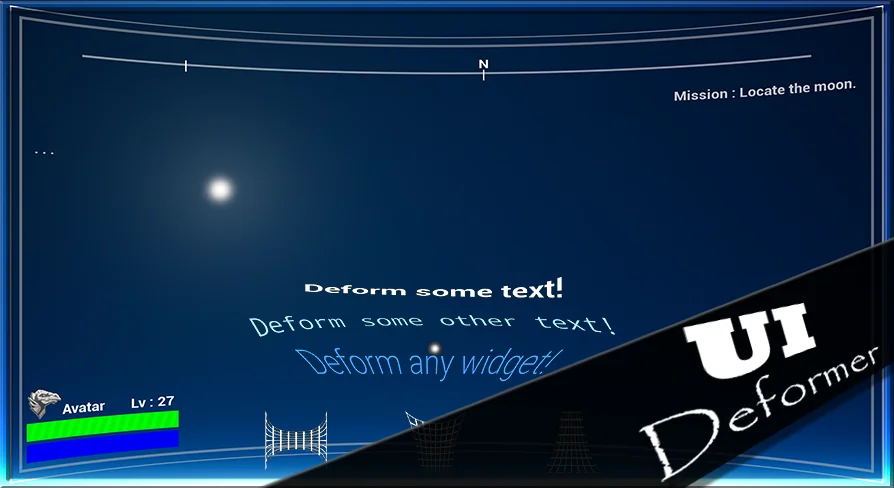
Stylized HUDs and user interfaces in Unreal Engine projects often demand more than static rectangular panels. Health bars that curve along a character's silhouette, circular inventories, radial command wheels, and animated menu cards all benefit from a system that can bend and reshape widgets beyond their default bounds. UI Deformer fits directly into this kind of production, offering a way to distort UMG widgets without writing custom Slate code or importing pre-rendered textures to fake the effect.
What the Deformer Retainer Box Actually Does
At its core, UI Deformer adds a specialized container widget called the Deformer Retainer Box. It behaves similarly to Unreal Engine's built-in Retainer Box: you place it inside a UMG Widget Blueprint, then parent other widgets underneath it. Any widget that becomes a child of the Deformer Retainer Box inherits the deformation settings applied by the container. The workflow is deliberately minimal—drag the box into your widget hierarchy, drop the widgets you want to affect beneath it, and then adjust the box's settings to shape the result.
The tag set associated with the plugin—Deformation, User, HUD, Stylized, and Interface—gives a clear picture of the intended use cases. It is aimed at stylized games and applications where the interface itself carries a strong visual identity. A project with a hand-painted or fantasy aesthetic can use the deformer to make UI panels that slant, warp, or ripple. A sci-fi or holographic HUD can leverage it to skew readable text and icons so they appear projected onto curved surfaces within the game world.
Runtime Evaluation and the UMG Designer Gap
One of the most critical details to understand about the Deformer Retainer Box is that it does not render its deformation effects inside the UMG Editor viewport by default. This is a direct parallel to Unreal Engine's native Retainer Box behavior. A standard Retainer Box in Unreal Engine works by rendering its child widgets to a Render Target, then drawing that target—this process only occurs during gameplay, not while editing in the Designer tab. Because the Deformer Retainer Box takes the same approach to apply its visual distortion, you will not see the deformation applied to your widgets simply by looking at them in the UMG Editor.
This means that iterating on the look of your deformed UI requires a specific loop. You set the parameters on the Deformer Retainer Box, compile the widget if necessary, launch the game, observe how the deformation looks in the running viewport, and then return to the editor to make adjustments. The Designer panel shows the widgets in their undeformed layout state, which can still be useful for positioning child elements, but you have to mentally translate how those positions will change once the deformation is applied at runtime.
The Unreal Engine 5.3 Designer Preview Update
For projects running on Unreal Engine 5.3 or later, this iteration gap is significantly reduced. The plugin introduced a boolean property called Show Effects in Designer. As the name suggests, enabling this property allows the deformation effects to be visualized directly within the UMG Editor without needing to run the game. The property defaults to true, meaning that out of the box, users on Unreal Engine 5.3 can immediately see how their settings impact the widget layout in the Designer viewport. This dramatically speeds up the tuning process, as the trial-and-error loop of adjusting settings, playing the game, and stopping to make changes is replaced with near-instant visual feedback.
Different versions of the engine, therefore, offer different experiences. On versions prior to Unreal Engine 5.3, the playground is the runtime viewport. On 5.3 and beyond, the UMG Designer itself becomes the primary workspace for dialing in the deformation. Designers switching between engine versions should be aware of this difference so they know where to look for their results.
Placing UI Deformer in a Production Pipeline
In a practical UI pipeline, the Deformer Retainer Box functions as a presentation-layer wrapper. A UI artist or designer builds the internal layout of a widget—placing text blocks, images, buttons, and borders within a standard container, such as a Canvas Panel or a Border. That entire structure is then moved to sit underneath the Deformer Retainer Box.
This separation between content and presentation is valuable for team workflows. The structural layout of a menu can be assembled and tested for logic and functionality before any visual distortion is applied. Once the base UI is working, the Deformer Retainer Box is introduced as a parent or wrapping container. Because any widget can be placed under it, there is no limitation to specific widget types. Complex composites of multiple panels can all be deformed together as a single group. This flexibility means the tool can be dropped into an existing UI system late in development without forcing changes to the underlying widget structure.
The settings on the box itself become the control panel for the visual style. Rather than adjusting individual widgets to achieve a combined skewed or curved look, the settings on the container handle the math for the entire group. Changes to the settings propagate down to all child widgets automatically, which is how the deformation is achieved uniformly.
A Few Points to Keep in Mind During Setup
Because the core mechanism mirrors the native Retainer Box, performance and behavior patterns are analogous. A Retainer Box handles rendering by taking a snapshot of its children and drawing them to a texture, which has implications for how often the child widgets update. If the child widgets are changing rapidly—such as a progress bar that depletes in real time or a scrolling text ticker—the frequency at which the Retainer Box updates its Render Target becomes a factor. Users familiar with how Unreal Engine's standard Retainer Box handles these updates will find the Deformer Retainer Box behaves in the same manner, meaning you need to be mindful of update rates to ensure smooth animation within the deformed layout.
When building the widget hierarchy, the placement order is straightforward but important. The Deformer Retainer Box must be positioned as the parent of the widgets it is intended to affect. If a widget is placed as a sibling rather than a child, it will not be subject to the deformation settings. Following the simple instruction to add any widget under the box and set its needs is the entire setup process, but ensuring the hierarchy is correct is the foundation of getting the desired visual result.
If a project requires an interface that breaks away from rigid rectangular panels to deliver a more stylized or kinetic user experience, the Deformer Retainer Box provides a direct route to that visual style. The ability to toggle the Designer preview in Unreal Engine 5.3 makes this tool especially useful for teams currently working on the latest engine versions, allowing them to iterate quickly and see the exact deformation shape without leaving the UMG Editor.
 Gameplay Features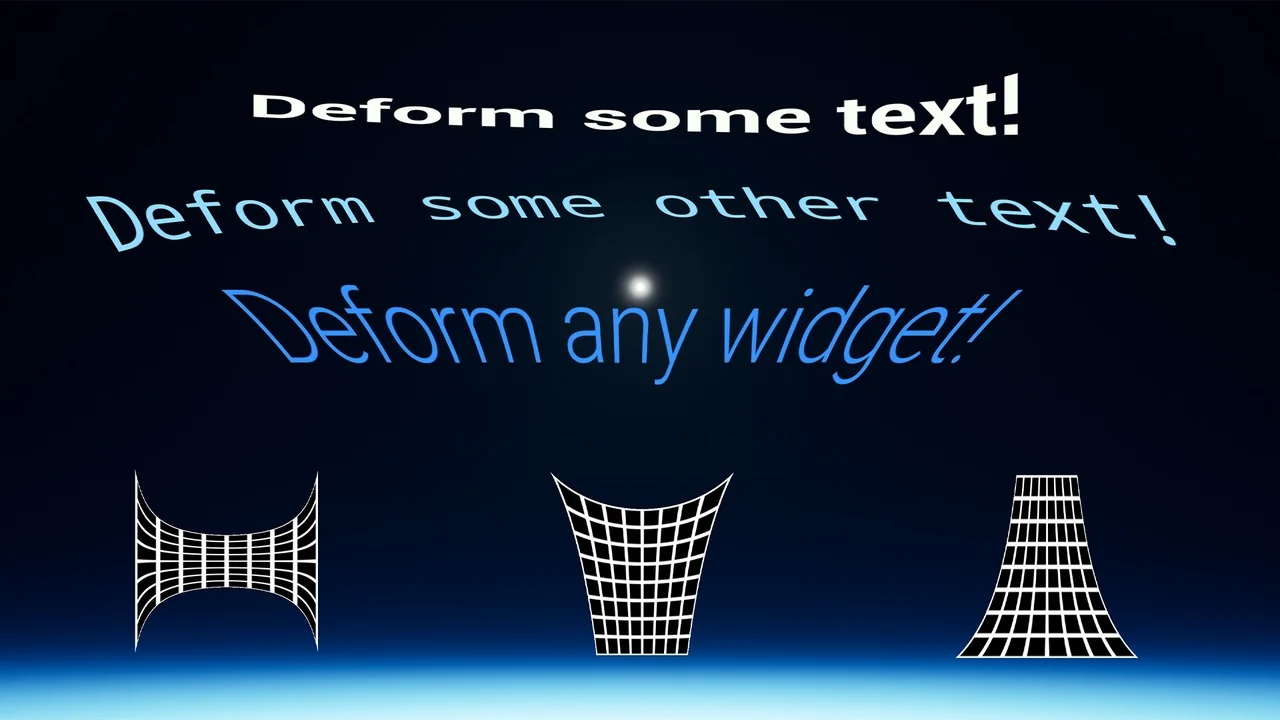
 Gameplay Features
 Gameplay Features
 Gameplay Features