"0341a2901a4ae9aa"{"id":"14467","slug":"rdtextools-rd-tools-pro","title":"rdTexTools (rd Tools Pro)","category":"Engine Tools","engine":"4.26 - 5.8","assetVersion":"Asset Version: 1.0.3 - 1.4.0","engineVersion":"Engine version: 4.26 - 5.8","tag":"Engine Tools","accent":"blue","visual":"mech","summary":"rdTexTools (rd Tools Pro) is a powerful C++ plugin for Unreal Engine that simplifies texture analysis and optimization through a streamlined, integrated interface.","platform":"Unreal Engine","publishedAt":"2026-03-11T18:07:25.000Z","updatedAt":"2026-08-05T17:10:19.438Z","sourceNotes":[],"fileContents":[],"compatibility":["Unreal Engine","Asset Version: 1.0.3 - 1.4.0","Engine version: 4.26 - 5.8"],"featuredImage":{"alt":"rdTexTools (rd Tools Pro)","src":"https://3dcghub.com/wp-content/uploads/2026/03/ce4c6b29-272d-46de-b3e4-9f7b6457de50.webp"},"hasDownloadLink":true,"downloads":2,"terms":[{"taxonomy":"category","slug":"engine-tools-tools-and-plugins","name":"Engine Tools"},{"taxonomy":"post_tag","slug":"materials","name":"Materials"},{"taxonomy":"post_tag","slug":"plugins","name":"Plugins"},{"taxonomy":"post_tag","slug":"textures","name":"Textures"},{"taxonomy":"post_tag","slug":"tools","name":"Tools"},{"taxonomy":"post_tag","slug":"ui","name":"UI"},{"taxonomy":"post_tag","slug":"unreal-engine-5","name":"Unreal Engine 5"}],"galleryImages":[{"src":"https://3dcghub.com/wp-content/uploads/2026/03/97762372d3d1_5b3f6a1f-d65b-4cda-a0cd-c9f12262ceb6.webp","alt":"rdTexTools (rd Tools Pro)"},{"src":"https://3dcghub.com/wp-content/uploads/2026/03/058ec490ff5e_ba21489b-5612-4c3b-b57b-4ba6038d0da9.webp","alt":"rdTexTools (rd Tools Pro)"},{"src":"https://3dcghub.com/wp-content/uploads/2026/03/18f9187df618_0b9a50ce-9736-4293-8fee-70cc141fcd94.webp","alt":"rdTexTools (rd Tools Pro)"},{"src":"https://3dcghub.com/wp-content/uploads/2026/03/d13aa7bf311c_4a7a60c3-8e13-46c4-9aa1-b91f253e0c96.webp","alt":"rdTexTools (rd Tools Pro)"},{"src":"https://3dcghub.com/wp-content/uploads/2026/03/a94f69f6a252_f004c77c-ef7d-4ae5-a113-917089f03df4.webp","alt":"rdTexTools (rd Tools Pro)"},{"src":"https://3dcghub.com/wp-content/uploads/2026/03/109c7b50e9aa_50c88632-5aeb-4660-9546-e56ff9b54e76.webp","alt":"rdTexTools (rd Tools Pro)"},{"src":"https://3dcghub.com/wp-content/uploads/2026/03/a598d67bd83d_134561b0-63f7-415f-9b29-5b9c29a15f51.webp","alt":"rdTexTools (rd Tools Pro)"},{"src":"https://3dcghub.com/wp-content/uploads/2026/03/09e3aaf5be12_6e28a0cc-518c-4f92-a56d-f55cc028cf1d.webp","alt":"rdTexTools (rd Tools Pro)"},{"src":"https://3dcghub.com/wp-content/uploads/2026/03/53fcb2a5c045_5d583b8f-ee2a-4101-b857-072ed977da61.webp","alt":"rdTexTools (rd Tools Pro)"},{"src":"https://3dcghub.com/wp-content/uploads/2026/03/c73969c335bd_854f01e1-96b9-4f04-a7fd-0c6b5b376819.webp","alt":"rdTexTools (rd Tools Pro)"},{"src":"https://3dcghub.com/wp-content/uploads/2026/03/77790387f839_e57a0a1c-c141-43d7-a211-a7c94f9f1c03.webp","alt":"rdTexTools (rd Tools Pro)"},{"src":"https://3dcghub.com/wp-content/uploads/2026/03/57a7e53af53f_3657f107-39e7-4387-89ff-6bca0c3339b7.webp","alt":"rdTexTools (rd Tools Pro)"},{"src":"https://3dcghub.com/wp-content/uploads/2026/03/3b19dbc40f51_de62dd9b-6055-4182-9638-b3d3a6e31b17.webp","alt":"rdTexTools (rd Tools Pro)"},{"src":"https://3dcghub.com/wp-content/uploads/2026/03/36d282b6d259_9c0325bc-8375-4147-8e03-30b32f020c78.webp","alt":"rdTexTools (rd Tools Pro)"}],"accessPanel":{"kind":"resource","title":"Download this resource","eyebrow":"Free Download","message":"Log in or create a free account to start your download.","fileName":"rdTexTools.7z","safetyNote":"Resources are manually reviewed before listing to improve quality and reduce obvious risks.","actionLabel":"Download Free","resourceType":"Resource archive"},"contentHtml":"\u003cp\u003eTexture memory in Unreal Engine projects fills up faster than most people expect. The usual fix is to resize or recompress maps, but that often happens blindly, without knowing exactly what visual cost comes with each change. \u003cem\u003erdTexTools\u003c/em\u003e tries to replace that guesswork with a set of utilities that live inside the Editor, letting you analyze, compare, and modify Textures in ways that fit into a practical art or Technical Art workflow.\u003c/p\u003e\n\n\u003ch2\u003eWhere \u003cem\u003erdTexTools\u003c/em\u003e Sits in the Unreal Editor\u003c/h2\u003e\n\n\u003cp\u003e\u003cem\u003erdTexTools\u003c/em\u003e is a C++ plugin that is tightly integrated into the Unreal Engine User Interface (UI). That means you do not need to open a separate window or switch to a standalone application. The plugin adds context menu options for bulk editing of Textures and a toolbar menu inside the Texture Editor. For someone managing large Texture sets, those 2 integration points are what make the tool feel native rather than bolted on.\u003c/p\u003e\n\n\u003cp\u003eThe plugin is not needed for the packaged project. It works on the Editor side, so it does not bloat the final game or application. That is a relief for teams who want to use it during development without carrying any extra runtime overhead.\u003c/p\u003e\n\n\u003cp\u003eWorkflow speed is a clear focus. Many operations take as little as 2 mouse clicks. That kind of streamlining matters when you are iterating on dozens of Texture assets in a single sitting.\u003c/p\u003e\n\n\u003ch2\u003eThe \u003ccode\u003eDifference Tool\u003c/code\u003e: Seeing Optimization Impact Before You Commit\u003c/h2\u003e\n\n\u003cp\u003e1 of the most useful features is the \u003ccode\u003eDifference Tool\u003c/code\u003e, which lets you compare 2 Textures both graphically and numerically. Instead of relying on a side-by-side look or a crude overlay, you get an actual readout of how different 1 Texture is from another. That is especially valuable when you are testing how much Graphics Processing Unit (GPU) memory you can save by swapping in a lower-resolution or compressed version of a map. You can see, in concrete numbers, whether the change is negligible or severe.\u003c/p\u003e\n\n\u003cp\u003eThe \u003ccode\u003eDifference Tool\u003c/code\u003e is not only for checking optimization results. The same comparison mechanism can be used to create hard or soft masks. You can ramp pixel values up or down, zoom into specific value ranges, and apply changes only to masked areas. This turns a simple comparison feature into a flexible image-processing utility.\u003c/p\u003e\n\n\u003cp\u003eThe tool also supports pre-multiplying combinations of maps. For example, you can apply a cavity map to a specular map by combining them into 1 single output. That is a common Material-editing task that usually would require a separate compositing package, but it happens directly inside the Unreal Engine Texture pipeline here.\u003c/p\u003e\n\n\u003ch2\u003eNoise Generation, Signed Distance Fields (SDFs), and Custom Material Passes\u003c/h2\u003e\n\n\u003cp\u003e\u003cem\u003erdTexTools\u003c/em\u003e extends beyond resizing and combining Textures. V1.1 introduced the \u003ccode\u003eNoise Tool\u003c/code\u003e, which can generate several noise types: \u003ccode\u003ePerlin\u003c/code\u003e, \u003ccode\u003eSimplex\u003c/code\u003e, \u003ccode\u003eWorley\u003c/code\u003e, \u003ccode\u003eVoronoi\u003c/code\u003e, \u003ccode\u003eRandomWalk\u003c/code\u003e, \u003ccode\u003eBlobs\u003c/code\u003e, \u003ccode\u003eBlocks\u003c/code\u003e, and \u003ccode\u003eBricks\u003c/code\u003e. That range covers both organic and structural patterns, so you can create procedural-looking base maps or masks without leaving the engine.\u003c/p\u003e\n\n\u003cp\u003eV1.1 also added a tool to convert Textures into Signed Distance Fields (SDFs). SDFs are useful for things like decals, text, or masks that need to be scaled or sampled smoothly. Having this conversion built into the plugin means you do not need to round-trip assets through an external image editor.\u003c/p\u003e\n\n\u003cp\u003eV1.2 took the idea further with the \u003ccode\u003eRender with Material\u003c/code\u003e tool. This lets you create your own Materials and use them to process Textures. Instead of being limited to the plugin’s presets, you can set up a Material network, then render that result back into a Texture. This opens the door for custom processing chains that fit your specific project needs.\u003c/p\u003e\n\n\u003ch2\u003eLicensing and Version Notes for Studio Use\u003c/h2\u003e\n\n\u003cp\u003eThe current release is V1.30, dated 14 July 2024. A notable licensing detail is that unlike most professional versions, \u003cem\u003erdTools Pro\u003c/em\u003e licenses allow unlimited seats within your company or studio. That is a relevant factor for teams where every artist needs access to the tooling without tracking per-seat allocations.\u003c/p\u003e\n\n\u003cp\u003eGiven that the plugin is Editor-facing and designed to save time on Texture optimization, it is useful for Environment Artists, Material Artists, and Technical Artists who deal with Texture memory budgets on a regular basis. The combination of bulk editing, comparison analysis, noise generation, SDF conversion, and Material-based processing makes it a utility that covers a wide range of common tasks in 1 place.\u003c/p\u003e\n\n\u003cp\u003eFor anyone whose daily work involves juggling Texture resolution, file size, or visual fidelity, the \u003ccode\u003eDifference Tool\u003c/code\u003e alone is worth the setup. Being able to quantify exactly how much an optimization changes a Texture takes the guesswork out of the process, and the rest of the plugin fills in the gaps around that core capability.\u003c/p\u003e","contentTextLength":4761,"navigation":{"current":1273,"total":4017,"previous":{"id":"1000886","slug":"smart-traffic-light","title":"Smart Traffic Light","category":"Gameplay Features","platform":"Unreal Engine","updatedAt":"2026-08-05T18:00:25.092Z"},"next":{"id":"1000885","slug":"slime-and-puke-fx","title":"Slime \u0026 Puke FX","category":"Liquid","platform":"Unreal Engine","updatedAt":"2026-08-05T16:28:32.004Z"}},"relatedResources":[{"id":"14433","slug":"rdlodtools-rd-tools-pro","title":"rdLODtools (rd Tools Pro)","category":"Engine Tools","engine":"4.27 - 5.8","assetVersion":"Asset Version: 1.4.0 - 1.5.1","engineVersion":"Engine version: 4.27 - 5.8","tag":"Engine Tools","accent":"blue","visual":"luts","summary":"rdLODtools (rd Tools Pro) is a powerful Unreal Engine plugin that simplifies the creation of Billboard, Planar, Cubic, and Impostor LODs directly within the Static Mesh Editor.","platform":"Unreal Engine","publishedAt":"2026-03-11T18:04:48.000Z","updatedAt":"2026-07-24T02:13:03.808Z","sourceNotes":[],"fileContents":[],"compatibility":["Unreal Engine","Asset Version: 1.4.0 - 1.5.1","Engine version: 4.27 - 5.8"],"featuredImage":{"alt":"rdLODtools (rd Tools Pro)","src":"https://3dcghub.com/wp-content/uploads/2026/03/970ae304-82e9-45bf-b173-3ffeb82a1413.webp"},"hasDownloadLink":true,"downloads":2},{"id":"13732","slug":"blend-file-importer","title":"Blend File Importer","category":"Engine Tools","engine":"4.27 - 5.8","assetVersion":"Asset Version: 1.5 - 1.9.4","engineVersion":"Engine version: 4.27 - 5.8","tag":"Engine Tools","accent":"blue","visual":"animation","summary":"The Blend File Importer plugin enables a seamless connection between Blender and Unreal Engine. By allowing direct .blend file imports and automatic re-importing, it significantly speeds up the 3D asset pipeline.","platform":"Unreal Engine","publishedAt":"2026-03-11T09:51:51.000Z","updatedAt":"2026-07-30T10:55:24.261Z","sourceNotes":[],"fileContents":[],"compatibility":["Unreal Engine","Asset Version: 1.5 - 1.9.4","Engine version: 4.27 - 5.8"],"featuredImage":{"alt":"Blend File Importer","src":"https://3dcghub.com/wp-content/uploads/2026/03/800a0491-1743-4f2e-bd98-be5a1b0d2cae.webp"},"hasDownloadLink":true,"downloads":2},{"id":"13742","slug":"blockout-tools-plugin","title":"Blockout Tools Plugin","category":"Engine Tools","engine":"1.51 - 4.5.3","assetVersion":"Engine version: 4.26 - 5.7","engineVersion":"Asset Version:1.51 - 4.5.3","tag":"Engine Tools","accent":"blue","visual":"luts","summary":"Streamline your environment design with the Blockout Tools Plugin. This lightweight toolset features 15 primitive elements and triplanar grid materials for rapid level prototyping in Unreal Engine.","platform":"Unreal Engine","publishedAt":"2026-03-11T09:52:02.000Z","updatedAt":"2026-07-29T16:09:39.794Z","sourceNotes":[],"fileContents":[],"compatibility":["Unreal Engine","Engine version: 4.26 - 5.7","Asset Version:1.51 - 4.5.3"],"featuredImage":{"alt":"Blockout Tools Plugin","src":"https://3dcghub.com/wp-content/uploads/2026/03/2e655f33-dfec-4888-9b31-c0aaa5b72ba1.webp"},"hasDownloadLink":true,"downloads":2}]}
Engine Tools
rdTexTools (rd Tools Pro)
rdTexTools (rd Tools Pro) is a powerful C++ plugin for Unreal Engine that simplifies texture analysis and optimization through a streamlined, integrated interface.
Category:Unreal Engine,Engine ToolsPlatform: Unreal EngineAsset Version: 1.0.3 - 1.4.0Engine version: 4.26 - 5.8Published: Mar 11, 2026Updated: Aug 5, 2026
Engine Tools
Resource overview
Texture memory in Unreal Engine projects fills up faster than most people expect. The usual fix is to resize or recompress maps, but that often happens blindly, without knowing exactly what visual cost comes with each change. rdTexTools tries to replace that guesswork with a set of utilities that live inside the Editor, letting you analyze, compare, and modify Textures in ways that fit into a practical art or Technical Art workflow.
Where rdTexTools Sits in the Unreal Editor
rdTexTools is a C++ plugin that is tightly integrated into the Unreal Engine User Interface (UI). That means you do not need to open a separate window or switch to a standalone application. The plugin adds context menu options for bulk editing of Textures and a toolbar menu inside the Texture Editor. For someone managing large Texture sets, those 2 integration points are what make the tool feel native rather than bolted on.
The plugin is not needed for the packaged project. It works on the Editor side, so it does not bloat the final game or application. That is a relief for teams who want to use it during development without carrying any extra runtime overhead.
Workflow speed is a clear focus. Many operations take as little as 2 mouse clicks. That kind of streamlining matters when you are iterating on dozens of Texture assets in a single sitting.
The Difference Tool: Seeing Optimization Impact Before You Commit
1 of the most useful features is the Difference Tool, which lets you compare 2 Textures both graphically and numerically. Instead of relying on a side-by-side look or a crude overlay, you get an actual readout of how different 1 Texture is from another. That is especially valuable when you are testing how much Graphics Processing Unit (GPU) memory you can save by swapping in a lower-resolution or compressed version of a map. You can see, in concrete numbers, whether the change is negligible or severe.
The Difference Tool is not only for checking optimization results. The same comparison mechanism can be used to create hard or soft masks. You can ramp pixel values up or down, zoom into specific value ranges, and apply changes only to masked areas. This turns a simple comparison feature into a flexible image-processing utility.
The tool also supports pre-multiplying combinations of maps. For example, you can apply a cavity map to a specular map by combining them into 1 single output. That is a common Material-editing task that usually would require a separate compositing package, but it happens directly inside the Unreal Engine Texture pipeline here.
Noise Generation, Signed Distance Fields (SDFs), and Custom Material Passes
rdTexTools extends beyond resizing and combining Textures. V1.1 introduced the Noise Tool, which can generate several noise types: Perlin, Simplex, Worley, Voronoi, RandomWalk, Blobs, Blocks, and Bricks. That range covers both organic and structural patterns, so you can create procedural-looking base maps or masks without leaving the engine.
V1.1 also added a tool to convert Textures into Signed Distance Fields (SDFs). SDFs are useful for things like decals, text, or masks that need to be scaled or sampled smoothly. Having this conversion built into the plugin means you do not need to round-trip assets through an external image editor.
V1.2 took the idea further with the Render with Material tool. This lets you create your own Materials and use them to process Textures. Instead of being limited to the plugin’s presets, you can set up a Material network, then render that result back into a Texture. This opens the door for custom processing chains that fit your specific project needs.
Licensing and Version Notes for Studio Use
The current release is V1.30, dated 14 July 2024. A notable licensing detail is that unlike most professional versions, rdTools Pro licenses allow unlimited seats within your company or studio. That is a relevant factor for teams where every artist needs access to the tooling without tracking per-seat allocations.
Given that the plugin is Editor-facing and designed to save time on Texture optimization, it is useful for Environment Artists, Material Artists, and Technical Artists who deal with Texture memory budgets on a regular basis. The combination of bulk editing, comparison analysis, noise generation, SDF conversion, and Material-based processing makes it a utility that covers a wide range of common tasks in 1 place.
For anyone whose daily work involves juggling Texture resolution, file size, or visual fidelity, the Difference Tool alone is worth the setup. Being able to quantify exactly how much an optimization changes a Texture takes the guesswork out of the process, and the rest of the plugin fills in the gaps around that core capability.
Preview Gallery
Resource screenshots
14 curated preview images
1 / 14
Free Download
Download this resource
Log in or create a free account to start your download.
Resources are manually reviewed before listing to improve quality and reduce obvious risks.
 Engine Tools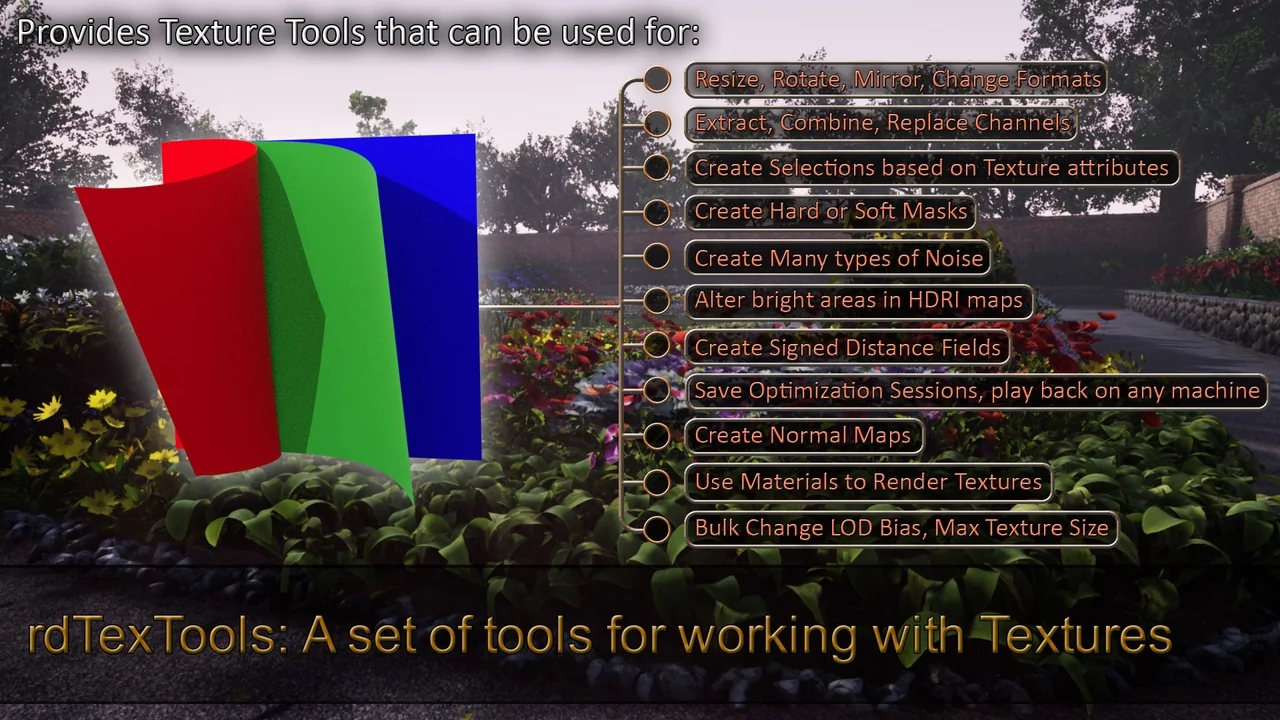
 Engine Tools
 Engine Tools
 Engine Tools