"0341a2901a4ae9aa"{"id":"10359","slug":"master-console-commands","title":"Master Console Commands","category":"Automations","engine":"5.3+","assetVersion":"Engine version: 5.3+","engineVersion":"4.25","tag":"Automations","accent":"blue","visual":"animation","summary":"Master Console Commands is a comprehensive Editor Utility Tool designed for efficient and visual execution of console commands. It streamlines debugging and scene optimization by providing easy access to statistics, rendering features, and visualization modes.","platform":"Unreal Engine","publishedAt":"2026-03-03T15:09:41.000Z","updatedAt":"2026-04-19T15:50:03.000Z","sourceNotes":[],"fileContents":[],"compatibility":["Unreal Engine","Engine version: 5.3+"],"featuredImage":{"alt":"Master Console Commands","src":"https://3dcghub.com/wp-content/uploads/2026/03/f60abf0a-e01d-4a81-97ef-77162889a7fe.webp"},"hasDownloadLink":true,"downloads":0,"terms":[{"taxonomy":"category","slug":"automations","name":"Automations"},{"taxonomy":"post_tag","slug":"console-command-manager","name":"console command manager"},{"taxonomy":"post_tag","slug":"editor-utility-tool","name":"Editor Utility Tool"},{"taxonomy":"post_tag","slug":"master-console-commands","name":"Master Console Commands"},{"taxonomy":"post_tag","slug":"rendering-optimization","name":"rendering optimization"},{"taxonomy":"post_tag","slug":"unreal-engine-debugging","name":"Unreal Engine debugging"}],"galleryImages":[{"src":"https://3dcghub.com/wp-content/uploads/2026/03/3a5028b47069_027f3dde-e7d0-423f-ac98-d07a13108d49.webp","alt":"Master Console Commands"},{"src":"https://3dcghub.com/wp-content/uploads/2026/03/72b113b26db5_b843ae7f-f34a-4c85-9768-dc935bddcfb5.webp","alt":"Master Console Commands"},{"src":"https://3dcghub.com/wp-content/uploads/2026/03/d00fda341619_42db02a3-6fe8-4e31-9391-357e6425e6be.webp","alt":"Master Console Commands"},{"src":"https://3dcghub.com/wp-content/uploads/2026/03/130a072d6b9c_962e4578-5dca-4e37-b876-a884de8e5c1a.webp","alt":"Master Console Commands"},{"src":"https://3dcghub.com/wp-content/uploads/2026/03/0b9c48b7e2bb_4662de12-2799-4ece-99e1-53c72175c1ce.webp","alt":"Master Console Commands"},{"src":"https://3dcghub.com/wp-content/uploads/2026/03/3fc151ff0380_3403be9d-a3ab-4a59-a4c1-4c5dd76f00a0.webp","alt":"Master Console Commands"},{"src":"https://3dcghub.com/wp-content/uploads/2026/03/9a010e8d32c4_ae701ea3-1ca6-4a6a-a89b-1fd88a96009c.webp","alt":"Master Console Commands"},{"src":"https://3dcghub.com/wp-content/uploads/2026/03/8b1536024bd9_cc8fe4b6-d35c-4bd4-a510-e7492e928580.webp","alt":"Master Console Commands"},{"src":"https://3dcghub.com/wp-content/uploads/2026/03/3df3d6a86ef3_4d06ca52-501c-4d66-a076-d597db8590cf.webp","alt":"Master Console Commands"},{"src":"https://3dcghub.com/wp-content/uploads/2026/03/7eb718edd87d_a3cde207-d6d2-4508-951e-92a14fffb113.webp","alt":"Master Console Commands"},{"src":"https://3dcghub.com/wp-content/uploads/2026/03/65c651e89184_0cb025ca-b783-4892-8d99-ad93f0c7f118.webp","alt":"Master Console Commands"},{"src":"https://3dcghub.com/wp-content/uploads/2026/03/ec00eb226677_9f41371b-924d-41e5-ba1f-6773a7428cdb.webp","alt":"Master Console Commands"},{"src":"https://3dcghub.com/wp-content/uploads/2026/03/8c6d19bd1842_0f53a6fc-1fdb-414d-ac98-43b04a8724e7.webp","alt":"Master Console Commands"},{"src":"https://3dcghub.com/wp-content/uploads/2026/03/366d9c13ccdd_df677a7a-05f6-4d0f-b88b-3cc49fbf28fa.webp","alt":"Master Console Commands"},{"src":"https://3dcghub.com/wp-content/uploads/2026/03/2c4016fd15ce_0dc89270-2f33-4b6b-b89c-854617f8ca09.webp","alt":"Master Console Commands"},{"src":"https://3dcghub.com/wp-content/uploads/2026/03/1f4e56f849a2_a56d66ee-e61e-45c6-ae43-113e61354169.webp","alt":"Master Console Commands"},{"src":"https://3dcghub.com/wp-content/uploads/2026/03/67798cbb8adb_6a03c85d-d065-411f-81f4-6d055d5c7430.webp","alt":"Master Console Commands"},{"src":"https://3dcghub.com/wp-content/uploads/2026/03/5458f0327514_d661e214-5d85-4970-a486-4c0f71ca1ee9.webp","alt":"Master Console Commands"},{"src":"https://3dcghub.com/wp-content/uploads/2026/03/f938df965a66_dee72d71-ab65-4167-ba97-25a55e138796.webp","alt":"Master Console Commands"}],"accessPanel":{"kind":"resource","title":"Access this resource","eyebrow":"Free Download","message":"Log in or create a free account to start your download.","fileName":"Content.7z","safetyNote":"All resources are 100% manually reviewed to eliminate all risks.","actionLabel":"Download Free","resourceType":"Resource archive"},"contentHtml":"\u003ch2\u003eEfficient Visual Debugging with Master Console Commands\u003c/h2\u003e\n\u003cp\u003eMaster Console Commands is a powerful Editor Utility Tool designed to help developers execute console commands in a highly efficient and visual manner. This resource is particularly useful for debugging, optimizing, and testing complex projects. Consequently, users can easily inspect the type of data being processed in a scene while diagnosing unexpected results or errors.\u003c/p\u003e\n\u003cp\u003eThe tool provides a dynamic interface that grants access to the most commonly used console commands. Furthermore, the developer has included functionality for users to add their own custom commands as needed. To accommodate different workflows, the tool features both Basic and Advanced modes. Switching between these modes reveals additional options depending on how much depth the user requires.\u003c/p\u003e\n\n\u003ch2\u003eComprehensive Command Categories\u003c/h2\u003e\n\u003cp\u003eThe developer has organized the commands into several useful categories for better navigation. Statistics commands cover essentials like FPS, GPU performance, and SceneRendering. Additionally, more specific systems like Niagara and audio are included, alongside various hidden commands that are often undocumented.\u003c/p\u003e\n\u003cp\u003eRendering commands are grouped by specific features such as Lumen, TSR, and Virtual Shadow Maps. These selections represent some of the most interesting and practical rendering-related commands available. Moreover, the tool includes dedicated visualization commands. These are helpful for debugging common issues within Lumen or Virtual Shadow Maps by revealing hidden engine modes.\u003c/p\u003e\n\n\u003ch2\u003eEnhanced Viewport Control and Show Flags\u003c/h2\u003e\n\u003cp\u003eShow Flags allow users to toggle the visibility of specific items within the viewport. For instance, you can hide all spot lights or point lights with a single click. Furthermore, you can control advanced post-processing effects like bloom, local exposure, and volumetric fog. This level of control makes it much easier to isolate specific elements during the optimization process.\u003c/p\u003e\n\n\u003ch2\u003eIntegrated Screenshot and Camera Tools\u003c/h2\u003e\n\u003cp\u003eCapturing high-resolution screenshots is straightforward with this tool. Users can choose from preset resolutions like 16:9, 9:16, or 4:3. Alternatively, you can enter a custom size before pressing the “Take Screenshot” button. To assist with framing, the tool includes Next Camera and Previous Camera buttons. Therefore, you can cycle through different perspectives effortlessly to find the perfect shot.\u003c/p\u003e\n\n\u003ch2\u003eTechnical Requirements and Usage\u003c/h2\u003e\n\u003cp\u003eTo ensure ease of use, the developer included tooltips for many buttons and parameters. These descriptions appear when you hover your mouse over an element and disappear when you move away. It is important to note that this tool functions only within the editor. It will not operate in Play mode, PIE, or packaged builds.\u003c/p\u003e\n\u003cp\u003eFor those using Unreal Engine 4, the Editor Scripting Utilities plugin must be enabled manually. However, this plugin is typically enabled by default in Unreal Engine 5. By streamlining the execution of console commands, Master Console Commands serves as an essential utility for any developer focused on scene diagnosis and performance tuning.\u003c/p\u003e\n\n\u003ch2\u003eMore From The Same Workflow\u003c/h2\u003e\n\u003cul\u003e\n\u003cli\u003e\u003ca href=\"https://3dcghub.com/soa-cloudsmaker/\" title=\"SOA CloudsMaker\"\u003eSOA CloudsMaker\u003c/a\u003e\u003c/li\u003e\n\u003cli\u003e\u003ca href=\"https://3dcghub.com/fps-booster-static-mesh-optimizer/\" title=\"FPS Booster: Static Mesh Optimizer\"\u003eFPS Booster: Static Mesh Optimizer\u003c/a\u003e\u003c/li\u003e\n\u003cli\u003e\u003ca href=\"https://3dcghub.com/wooden-bridges-optimized/\" title=\"Wooden Bridges Optimized\"\u003eWooden Bridges Optimized\u003c/a\u003e\u003c/li\u003e\n\u003cli\u003e\u003ca href=\"https://3dcghub.com/town-buildings-vol-1-mooses-dockhouse/\" title=\"Town Buildings VOL.1 – Moose’s Dockhouse\"\u003eTown Buildings VOL.1 – Moose’s Dockhouse\u003c/a\u003e\u003c/li\u003e\n\u003cli\u003e\u003ca href=\"https://3dcghub.com/modular-night-market-market-environment-food-market-bazaar-grocery-market/\" title=\"Modular Night Market (Market Environment, Food Market, Bazaar, Grocery Market)\"\u003eModular Night Market (Market Environment, Food Market, Bazaar, Grocery Market)\u003c/a\u003e\u003c/li\u003e\n\u003c/ul\u003e\n\n\u003ch2\u003eAsset Gallery\u003c/h2\u003e","contentTextLength":3385,"navigation":{"current":3137,"total":4017,"previous":{"id":"10366","slug":"multiplayer-world-origin-rebase-tool","title":"Multiplayer World Origin Rebase Tool","category":"Automations","platform":"Unreal Engine","updatedAt":"2026-04-19T15:50:03.000Z"},"next":{"id":"10442","slug":"rpg-soulslike-stats-system","title":"RPG/Soulslike Stats System","category":"Game Mechanics","platform":"Unreal Engine","updatedAt":"2026-04-19T15:50:02.000Z"}},"relatedResources":[{"id":"1001264","slug":"blueprint-cheat-manager-pro","title":"Blueprint Cheat Manager Pro","category":"Engine Tools","engine":"5.0 - 5.5","assetVersion":"Asset Version: 1.0 - 1.0.3","engineVersion":"Engine Version: 5.0 - 5.5","tag":"Engine Tools","accent":"blue","visual":"mech","summary":"Blueprint Cheat Manager Pro replaces C++ requirements with direct Blueprint console commands in Unreal Engine 4.25 through 4.27 for faster testing.","platform":"Unreal Engine","publishedAt":"2026-09-30T05:42:15.265Z","updatedAt":"2026-09-30T05:42:15.265Z","sourceNotes":[],"fileContents":[],"compatibility":["Unreal Engine","Asset Version: 1.0 - 1.0.3","Engine Version: 5.0 - 5.5"],"featuredImage":{"alt":"Blueprint Cheat Manager Pro","src":"/wp-content/uploads/published/2026/09/e652aae19521-9278f853-a3a3-4859-8fcf-b3df15837fdb-4de192570c.webp"},"hasDownloadLink":true,"downloads":0},{"id":"10320","slug":"fade-anything","title":"Fade Anything","category":"Automations","engine":"5.3+","assetVersion":"Engine version: 5.3+","engineVersion":"4.26","tag":"Automations","accent":"blue","visual":"luts","summary":"Fade Anything offers a complete solution for managing object visibility and camera clipping. This system supports Nanite, foliage, and skeletal meshes with highly customizable parameters.","platform":"Unreal Engine","publishedAt":"2026-03-03T15:03:43.000Z","updatedAt":"2026-04-19T15:50:04.000Z","sourceNotes":[],"fileContents":[],"compatibility":["Unreal Engine","Engine version: 5.3+"],"featuredImage":{"alt":"Fade Anything","src":"https://3dcghub.com/wp-content/uploads/2026/03/6512ab26-a625-4276-a449-6f44d93ae89e.webp"},"hasDownloadLink":true,"downloads":1},{"id":"10277","slug":"234-advanced-light-function","title":"234 Advanced Light Function","category":"Automations","engine":"5.1+","assetVersion":"Engine version: 5.1+","engineVersion":"4.26","tag":"Automations","accent":"blue","visual":"mech","summary":"The 234 Advanced Light Function pack offers a comprehensive solution for game-ready lighting and sound effects. It features 234 materials and over 170 sound cue systems for total immersion.","platform":"Unreal Engine","publishedAt":"2026-03-03T14:54:31.000Z","updatedAt":"2026-04-19T15:50:05.000Z","sourceNotes":[],"fileContents":[],"compatibility":["Unreal Engine","Engine version: 5.1+"],"featuredImage":{"alt":"234 Advanced Light Function","src":"https://3dcghub.com/wp-content/uploads/2026/03/e34c31a9-64b0-45bb-9a54-a83939e404eb.webp"},"hasDownloadLink":true,"downloads":0}]}
Automations
Master Console Commands
Master Console Commands is a comprehensive Editor Utility Tool designed for efficient and visual execution of console commands. It streamlines debugging and scene optimization by providing easy access to statistics, rendering features, and visualization modes.
Efficient Visual Debugging with Master Console Commands
Master Console Commands is a powerful Editor Utility Tool designed to help developers execute console commands in a highly efficient and visual manner. This resource is particularly useful for debugging, optimizing, and testing complex projects. Consequently, users can easily inspect the type of data being processed in a scene while diagnosing unexpected results or errors.
The tool provides a dynamic interface that grants access to the most commonly used console commands. Furthermore, the developer has included functionality for users to add their own custom commands as needed. To accommodate different workflows, the tool features both Basic and Advanced modes. Switching between these modes reveals additional options depending on how much depth the user requires.
Comprehensive Command Categories
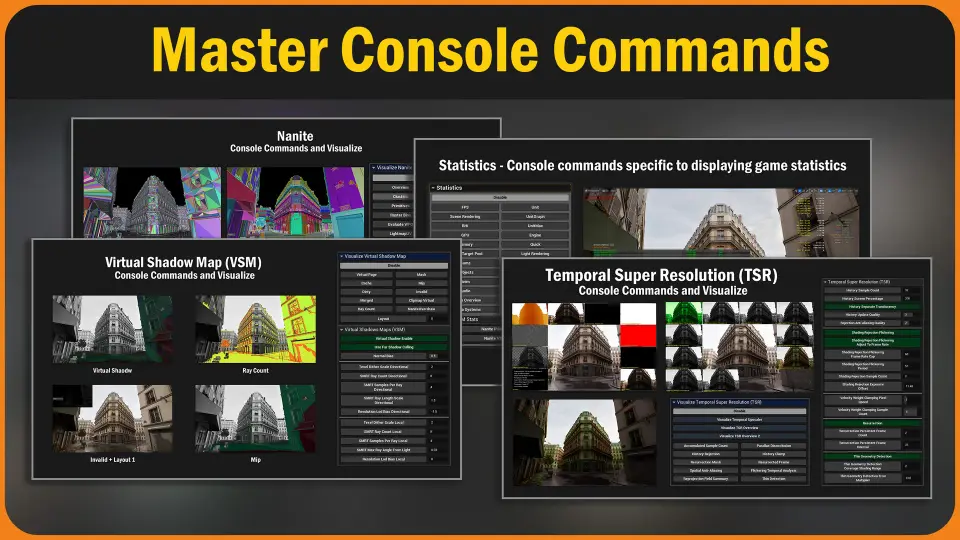
The developer has organized the commands into several useful categories for better navigation. Statistics commands cover essentials like FPS, GPU performance, and SceneRendering. Additionally, more specific systems like Niagara and audio are included, alongside various hidden commands that are often undocumented.
Rendering commands are grouped by specific features such as Lumen, TSR, and Virtual Shadow Maps. These selections represent some of the most interesting and practical rendering-related commands available. Moreover, the tool includes dedicated visualization commands. These are helpful for debugging common issues within Lumen or Virtual Shadow Maps by revealing hidden engine modes.
Enhanced Viewport Control and Show Flags
Show Flags allow users to toggle the visibility of specific items within the viewport. For instance, you can hide all spot lights or point lights with a single click. Furthermore, you can control advanced post-processing effects like bloom, local exposure, and volumetric fog. This level of control makes it much easier to isolate specific elements during the optimization process.
Integrated Screenshot and Camera Tools
Capturing high-resolution screenshots is straightforward with this tool. Users can choose from preset resolutions like 16:9, 9:16, or 4:3. Alternatively, you can enter a custom size before pressing the “Take Screenshot” button. To assist with framing, the tool includes Next Camera and Previous Camera buttons. Therefore, you can cycle through different perspectives effortlessly to find the perfect shot.
Technical Requirements and Usage
To ensure ease of use, the developer included tooltips for many buttons and parameters. These descriptions appear when you hover your mouse over an element and disappear when you move away. It is important to note that this tool functions only within the editor. It will not operate in Play mode, PIE, or packaged builds.
For those using Unreal Engine 4, the Editor Scripting Utilities plugin must be enabled manually. However, this plugin is typically enabled by default in Unreal Engine 5. By streamlining the execution of console commands, Master Console Commands serves as an essential utility for any developer focused on scene diagnosis and performance tuning.
 Automations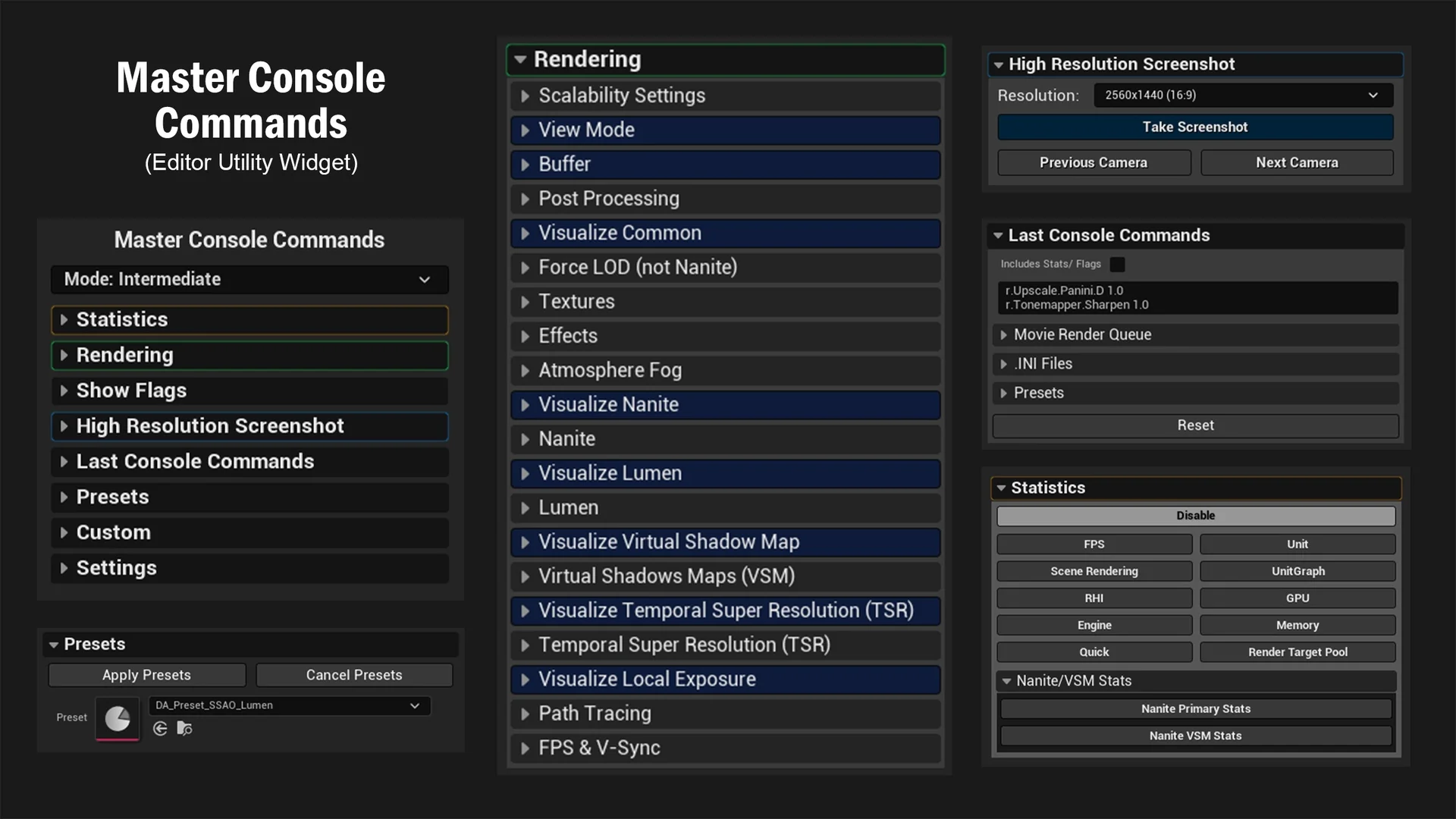
 Engine Tools
 Automations
 Automations