"fa182e0cd0a6ea73"{"id":"1001098","slug":"log-viewer","title":"Log Viewer","category":"Engine Tools","engine":"4.26 - 5.8","assetVersion":"Asset Version: 1.0 - 1.3484","engineVersion":"Engine Version: 4.26 - 5.8","tag":"Engine Tools","accent":"blue","visual":"mech","summary":"Log Viewer streamlines Unreal Engine log analysis with saved log tabs, one-click filters, color-coded entries, and Blueprint node logging.","platform":"Unreal Engine","publishedAt":"2026-09-06T02:50:47.480Z","updatedAt":"2026-09-06T02:50:47.480Z","sourceNotes":[],"fileContents":[],"compatibility":["Unreal Engine","Asset Version: 1.0 - 1.3484","Engine Version: 4.26 - 5.8"],"featuredImage":{"alt":"Log Viewer","src":"/wp-content/uploads/published/2026/09/6b80c9e4b2ab-ce0c394b-fe45-4c3c-8f1f-bfc565402bf5-455f4d372d.webp"},"hasDownloadLink":true,"downloads":0,"terms":[{"taxonomy":"category","slug":"engine-tools-tools-and-plugins","name":"Engine Tools"}],"galleryImages":[{"src":"/wp-content/uploads/published/2026/09/ba8028773148-eded88b0-d388-47ad-acf1-2ba0b549995a-603f02ec41.webp","alt":"Log Viewer"},{"src":"/wp-content/uploads/published/2026/09/53028ee627ee-dcf8fc07-f261-4f4a-9338-48270038e0e6-eb4971246f.webp","alt":"Log Viewer"},{"src":"/wp-content/uploads/published/2026/09/4aad88dbd2ab-b7701863-9ac6-4b48-9893-4806b8c69fed-f09ef59fe0.webp","alt":"Log Viewer"},{"src":"/wp-content/uploads/published/2026/09/eb809e61d8b7-2996641a-3214-4cb1-af93-d4804c6a798a-3c2ea0673c.webp","alt":"Log Viewer"},{"src":"/wp-content/uploads/published/2026/09/c7db37774792-371583c4-fe28-4fcf-816b-40119443bc42-cf6c7e9f2a.webp","alt":"Log Viewer"},{"src":"/wp-content/uploads/published/2026/09/e62d1bf7a10d-f4eaed35-b52f-421a-9efb-2da71e580f47-c5607e010d.webp","alt":"Log Viewer"},{"src":"/wp-content/uploads/published/2026/09/c2562613b580-a81c780e-9ea6-437b-82e2-6fa86b9b7c32-f39dfc3613.webp","alt":"Log Viewer"},{"src":"/wp-content/uploads/published/2026/09/136acca8f15f-bf20e8f3-5a97-4b9c-ad77-749642cabea5-87cab4f1c0.webp","alt":"Log Viewer"},{"src":"/wp-content/uploads/published/2026/09/570abdbb8a74-4efd32f1-18d9-46cb-83aa-2d218f3fdaef-9e0ee07b0f.webp","alt":"Log Viewer"}],"accessPanel":{"kind":"resource","title":"Download this resource","eyebrow":"Free Download","message":"Log in or create a free account to start your download.","fileName":"Log Viewer.7z","safetyNote":"Resources are manually reviewed before listing to improve quality and reduce obvious risks.","actionLabel":"Download Free","resourceType":"Resource archive"},"contentHtml":"\u003cp\u003eDuring a long development session, Unreal Engine's output log grows faster than anyone can read. Messages pile up, older saved logs lose their place, and the line between useful and noisy blurs. Log Viewer is a development tool that intentionally replaces that read-and-search loop with an editor-centered workflow. Its logging becomes part of the editor itself: saved files open on tabs, categories filter at one click, and scripts can write directly into structured log streams.\u003c/p\u003e \u003ch2\u003eA tabbed home for log files in the editor layout\u003c/h2\u003e\n\u003cp\u003eLog Viewer does not ask you to leave Unreal and open text files or regex tools. Instead, it can be docked wherever an editor tab fits, so it becomes part of the layout you already use. Saved logs remain open on different tabs, which makes long debugging sessions feel more like working with documents than with raw output.\u003c/p\u003e\n\u003cp\u003eMultiline entries are handled as single messages thanks to multiline parsing, so a traceback or a formatted block stays whole when it lands in the view. The developer also allows two tabs to sit near each other, which makes direct comparison possible. When the same issue appears to change depending on code path or timing, placing logs side by side helps isolate where the output diverges.\u003c/p\u003e \u003ch2\u003eCategory filters and color-coded entries that cut through noise\u003c/h2\u003e\n\u003cp\u003eThe always available filter works from one click. Instead of guessing which messages belong to a subsystem, you can pick a category and narrow the current log down to that part of the engine. A category filter panel sits ready, and clicking through categories reduces the scope of research without a single regex.\u003c/p\u003e\n\u003cp\u003eColor-coding is present to separate categories visually. This makes it easier to watch multiple logging channels at once, because each type of message has its own color in the output. When that view is not needed, the Settings menu can turn color-coding off and restore the legacy display. If the team has habits around specific channels, those preferences can become default categories; the same color-coding configuration then carries across tabs and helps every new log document look consistent.\u003c/p\u003e \u003ch2\u003eBlueprint logging that respects verbosity and predefined categories\u003c/h2\u003e\n\u003cp\u003eLogging culture should not stop at C++ or output reading. The tool includes Blueprint nodes that bring a runtime module into play, so Blueprints can log directly into categories and with selected verbosity levels. The goal is to avoid every developer building their own message formatting. With the dedicated node, scripts call existing categories and use verbosity levels that make noise and warning separate by design.\u003c/p\u003e\n\u003cp\u003eUpdates to the plugin have continued to expand these log nodes. A UI Log Category was added to the Blueprint log node, giving interface and UI-related messages a designated place in the log stream. That addition reinforces the original idea: if the categories are consistent, the filter panel becomes an effective lens for shared code.\u003c/p\u003e \u003ch2\u003ePersistence, PIE cleanup, and quick access\u003c/h2\u003e\n\u003cp\u003ePreferences in Log Viewer are not session-only. The configuration you like can be made the default and is preserved between engine restarts. The Default Categories shortcut follows from that: one click remembers the favorite categories and applies them to new tabs and opened documents. Developers focused on the same gameplay area for multiple days can keep that subset of logs on screen without reapplying settings.\u003c/p\u003e\n\u003cp\u003eA settings menu stores UI preferences across sessions, and font size is another adjustable option that responds without an engine restart. For PIE-heavy workflows, Clean Up Logs on PIE removes the engine output each time a new Play In Editor session begins, so the log window does not mix one test run into another.\u003c/p\u003e \u003cp\u003eStarting with Unreal Engine 5.0, the plugin was migrated to UE5 with small style changes to match the updated editor. Later releases also moved the tool to a dedicated location under Tools \u0026gt; Debug \u0026gt; LogViewer, and the editor toolbar gained a button for quick mouse access. If the keyboard is faster, Ctrl + Shift + L applies the hotkey and opens the viewer without moving through menus. Rather than treating Log Viewer as an external utility, the development history keeps pulling the tool closer to the engine, so it is one click away in the editor where the bug report starts.\u003c/p\u003e \u003cp\u003eLog Viewer comes from the development heritage of AAA production and large studio work. For developers who want a proper logging culture, it offers a concrete system: categories are shared, verbosity is meaningful, and logs stay readable long after the session closes. It suits production pipelines where bug fixing needs to be reproducible, and it keeps those debugging routines inside the editor instead of in external tools.\u003c/p\u003e\n\n\u003ch2\u003eMore From The Same Workflow\u003c/h2\u003e\n\u003cul\u003e\n\u003cli\u003e\u003ca href=\"https://3dcghub.com/pdf-viewer/\" title=\"PDF Viewer\"\u003ePDF Viewer\u003c/a\u003e\u003c/li\u003e\n\u003cli\u003e\u003ca href=\"https://3dcghub.com/stylized-log-cabin/\" title=\"Stylized Log Cabin\"\u003eStylized Log Cabin\u003c/a\u003e\u003c/li\u003e\n\u003cli\u003e\u003ca href=\"https://3dcghub.com/survival-forest-cabin-bundle-survival-environment-forest-house-log-house/\" title=\"Survival Forest Cabin Bundle (Survival Environment, Forest House, Log House )\"\u003eSurvival Forest Cabin Bundle (Survival Environment, Forest House, Log House )\u003c/a\u003e\u003c/li\u003e\n\u003cli\u003e\u003ca href=\"https://3dcghub.com/advanced-game-logging-gls/\" title=\"Advanced Game Logging (GLS)\"\u003eAdvanced Game Logging (GLS)\u003c/a\u003e\u003c/li\u003e\n\u003cli\u003e\u003ca href=\"https://3dcghub.com/electronic-nodes/\" title=\"Electronic Nodes\"\u003eElectronic Nodes\u003c/a\u003e\u003c/li\u003e\n\u003c/ul\u003e","contentTextLength":4916,"navigation":{"current":806,"total":3789,"previous":{"id":"1001099","slug":"ice-element-spell-vfx-pack","title":"Ice Element - Spell VFX Pack","category":"Spells \u0026 Combat","platform":"Unreal Engine","updatedAt":"2026-09-06T02:56:33.695Z"},"next":{"id":"1001097","slug":"zombie-shooter-kit-v2-12-unreal-engine-5-starter-pack","title":"Zombie Shooter Kit v2.12 - UNREAL ENGINE 5 Starter Pack","category":"Shooter","platform":"Unreal Engine","updatedAt":"2026-09-06T02:45:34.766Z"}},"relatedResources":[{"id":"1001320","slug":"clarus-viewer-base","title":"Clarus Viewer Base","category":"Engine Tools","engine":"5.3","assetVersion":"Asset Version: 1.0","engineVersion":"Engine Version: 5.3","tag":"Engine Tools","accent":"blue","visual":"mech","summary":"An Unreal Engine VR cursor template plugin providing desktop-style interaction, multi-state controller events, and OpenXR integration for immersive tools.","platform":"Unreal Engine","publishedAt":"2026-10-02T09:43:29.741Z","updatedAt":"2026-10-02T09:43:29.741Z","sourceNotes":[],"fileContents":[],"compatibility":["Unreal Engine","Asset Version: 1.0","Engine Version: 5.3"],"featuredImage":{"alt":"Clarus Viewer Base","src":"/wp-content/uploads/published/2026/10/e1036c203ffa-be885b04-3a0b-4a55-b5f7-fc40627788e8-14fba6f564.webp"},"hasDownloadLink":true,"downloads":0},{"id":"1001319","slug":"clarus-viewer-asset-support","title":"Clarus Viewer Asset Support","category":"Engine Tools","engine":"5.3","assetVersion":"Asset Version: 1.0","engineVersion":"Engine Version: 5.3","tag":"Engine Tools","accent":"blue","visual":"mech","summary":"Clarus Viewer Asset Support is an Unreal Engine 5 code utility plugin designed to discover classes from project directories and spawn actors dynamically at runt","platform":"Unreal Engine","publishedAt":"2026-10-02T09:40:18.315Z","updatedAt":"2026-10-02T09:40:18.315Z","sourceNotes":[],"fileContents":[],"compatibility":["Unreal Engine","Asset Version: 1.0","Engine Version: 5.3"],"featuredImage":{"alt":"Clarus Viewer Asset Support","src":"/wp-content/uploads/published/2026/10/a794613ae275-2d0a8e2f-d5dc-4e49-ae26-d4898b8a28f9-0ded70fcc3.webp"},"hasDownloadLink":true,"downloads":0},{"id":"14345","slug":"pdf-viewer","title":"PDF Viewer","category":"Engine Tools","engine":"5.0 - 5.3","assetVersion":"Engine version: 5.0 - 5.3","engineVersion":"5.0","tag":"Engine Tools","accent":"blue","visual":"mech","summary":"Integrate high-quality PDF documents into your Unreal Engine projects with ease. This plugin supports multiple platforms and offers both Blueprint and C++ compatibility for seamless workflow integration.","platform":"Unreal Engine","publishedAt":"2026-03-11T17:44:03.000Z","updatedAt":"2026-04-19T15:45:48.000Z","sourceNotes":[],"fileContents":[],"compatibility":["Unreal Engine","Engine version: 5.0 - 5.3"],"featuredImage":{"alt":"PDF Viewer","src":"https://3dcghub.com/wp-content/uploads/2026/03/089b9684-3e82-4832-b142-372a0d91ddd0.webp"},"hasDownloadLink":true,"downloads":0}]}
Engine Tools
Log Viewer
Log Viewer streamlines Unreal Engine log analysis with saved log tabs, one-click filters, color-coded entries, and Blueprint node logging.
During a long development session, Unreal Engine's output log grows faster than anyone can read. Messages pile up, older saved logs lose their place, and the line between useful and noisy blurs. Log Viewer is a development tool that intentionally replaces that read-and-search loop with an editor-centered workflow. Its logging becomes part of the editor itself: saved files open on tabs, categories filter at one click, and scripts can write directly into structured log streams.
A tabbed home for log files in the editor layout
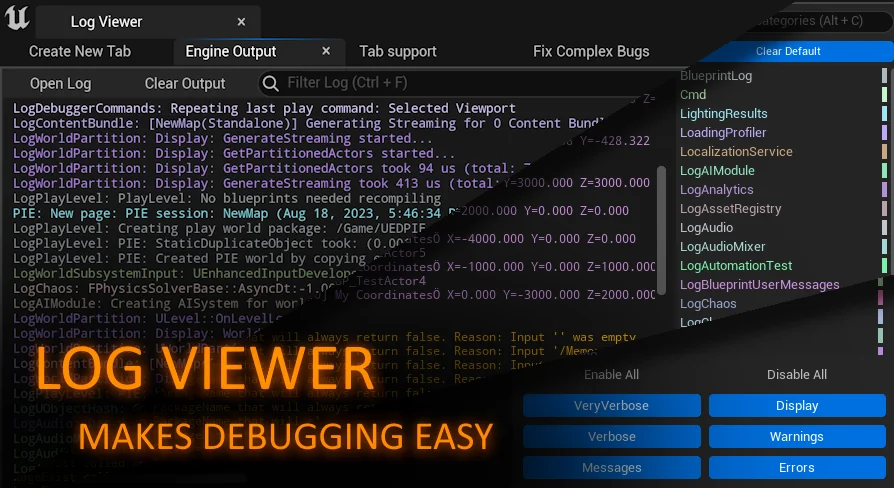
Log Viewer does not ask you to leave Unreal and open text files or regex tools. Instead, it can be docked wherever an editor tab fits, so it becomes part of the layout you already use. Saved logs remain open on different tabs, which makes long debugging sessions feel more like working with documents than with raw output.
Multiline entries are handled as single messages thanks to multiline parsing, so a traceback or a formatted block stays whole when it lands in the view. The developer also allows two tabs to sit near each other, which makes direct comparison possible. When the same issue appears to change depending on code path or timing, placing logs side by side helps isolate where the output diverges.
Category filters and color-coded entries that cut through noise
The always available filter works from one click. Instead of guessing which messages belong to a subsystem, you can pick a category and narrow the current log down to that part of the engine. A category filter panel sits ready, and clicking through categories reduces the scope of research without a single regex.
Color-coding is present to separate categories visually. This makes it easier to watch multiple logging channels at once, because each type of message has its own color in the output. When that view is not needed, the Settings menu can turn color-coding off and restore the legacy display. If the team has habits around specific channels, those preferences can become default categories; the same color-coding configuration then carries across tabs and helps every new log document look consistent.
Blueprint logging that respects verbosity and predefined categories
Logging culture should not stop at C++ or output reading. The tool includes Blueprint nodes that bring a runtime module into play, so Blueprints can log directly into categories and with selected verbosity levels. The goal is to avoid every developer building their own message formatting. With the dedicated node, scripts call existing categories and use verbosity levels that make noise and warning separate by design.
Updates to the plugin have continued to expand these log nodes. A UI Log Category was added to the Blueprint log node, giving interface and UI-related messages a designated place in the log stream. That addition reinforces the original idea: if the categories are consistent, the filter panel becomes an effective lens for shared code.
Persistence, PIE cleanup, and quick access
Preferences in Log Viewer are not session-only. The configuration you like can be made the default and is preserved between engine restarts. The Default Categories shortcut follows from that: one click remembers the favorite categories and applies them to new tabs and opened documents. Developers focused on the same gameplay area for multiple days can keep that subset of logs on screen without reapplying settings.
A settings menu stores UI preferences across sessions, and font size is another adjustable option that responds without an engine restart. For PIE-heavy workflows, Clean Up Logs on PIE removes the engine output each time a new Play In Editor session begins, so the log window does not mix one test run into another.
Starting with Unreal Engine 5.0, the plugin was migrated to UE5 with small style changes to match the updated editor. Later releases also moved the tool to a dedicated location under Tools > Debug > LogViewer, and the editor toolbar gained a button for quick mouse access. If the keyboard is faster, Ctrl + Shift + L applies the hotkey and opens the viewer without moving through menus. Rather than treating Log Viewer as an external utility, the development history keeps pulling the tool closer to the engine, so it is one click away in the editor where the bug report starts.
Log Viewer comes from the development heritage of AAA production and large studio work. For developers who want a proper logging culture, it offers a concrete system: categories are shared, verbosity is meaningful, and logs stay readable long after the session closes. It suits production pipelines where bug fixing needs to be reproducible, and it keeps those debugging routines inside the editor instead of in external tools.
 Engine Tools
 Engine Tools
 Engine Tools
 Engine Tools