"6f9bd6df1f44a86f"{"id":"1000789","slug":"advanced-texture-tool","title":"Advanced Texture Tool","category":"Automations","engine":"4.27,5.0+","assetVersion":"","engineVersion":"Engine Version: 4.27,5.0+","tag":"Automations","accent":"blue","visual":"luts","summary":"An Unreal Engine editor utility widget for resizing, generating, and editing textures directly in-engine, with channel packing, filters, and bulk operations.","platform":"Unreal Engine","indexPolicy":"index","publishedAt":"2026-07-30T12:34:19.535Z","updatedAt":"2026-07-30T12:34:19.535Z","sourceNotes":[],"fileContents":[],"compatibility":["Unreal Engine","Engine Version: 4.27,5.0+"],"featuredImage":{"alt":"Advanced Texture Tool","src":"/wp-content/uploads/published/2026/07/34b581fe962a-5c91cb5f-8425-4f3b-b5eb-18069223b399-b0f8c895b3.webp"},"hasDownloadLink":true,"downloads":0,"terms":[{"taxonomy":"category","slug":"automations-tools-and-plugins","name":"Automations"}],"galleryImages":[{"src":"/wp-content/uploads/published/2026/07/bfced8924ec3-79b453e5-c1a8-4618-b7fa-c83450bec765-1b408209c5.webp","alt":"Advanced Texture Tool"},{"src":"/wp-content/uploads/published/2026/07/902d5d5f6cc3-b589c437-9d6e-4a1b-858e-773d98948e30-9934b98080.webp","alt":"Advanced Texture Tool"},{"src":"/wp-content/uploads/published/2026/07/1d854db54566-02ba95a2-cdb2-46c9-8930-39bdbeed210c-305154a4a7.webp","alt":"Advanced Texture Tool"},{"src":"/wp-content/uploads/published/2026/07/8da21c99242b-8224b57c-6428-4370-86bd-eea5c65444e7-6dc2e3114e.webp","alt":"Advanced Texture Tool"},{"src":"/wp-content/uploads/published/2026/07/68aa423deae2-0b5dd56a-6297-4332-bbbb-af8236f70a66-ef0d2368ee.webp","alt":"Advanced Texture Tool"},{"src":"/wp-content/uploads/published/2026/07/ebb6431627ef-3369533e-14af-4e12-9830-c840ba0ca06a-7d20d8a790.webp","alt":"Advanced Texture Tool"},{"src":"/wp-content/uploads/published/2026/07/4c5708e6de83-af0a172c-7a9e-44e4-ba45-4035856ea248-bccccb0381.webp","alt":"Advanced Texture Tool"}],"accessPanel":{"kind":"resource","title":"Download this resource","eyebrow":"Free Download","message":"Log in or create a free account to start your download.","fileName":"AdvancedTextureTool.7z","safetyNote":"Resources are manually reviewed before listing to improve quality and reduce obvious risks.","actionLabel":"Download Free","resourceType":"Resource archive"},"contentHtml":"\u003cp\u003eWorking on detailed environments—urban streets, interior sets, or material-heavy props—often means juggling dozens of textures that need small adjustments before they fit a scene. Resizing, packing channels, fixing seams, or balancing color can interrupt iteration when each edit requires exporting to an external application and reimporting. \u003cem\u003eAdvanced Texture Tool\u003c/em\u003e addresses that gap by keeping the entire workflow inside Unreal Engine, so textures can be optimized, edited, or created without leaving the editor.\u003c/p\u003e\n\n\u003cp\u003eThe tool is part of the broader \u003cem\u003eAdvanced Assets Tool\u003c/em\u003e and is structured through an intuitive, simple editing UI suited to bulk operations. Its goal is to cut down the repetitive work that texture preparation adds to production, whether that means lowering the resolution of a large set or generating a new packed texture from existing inputs.\u003c/p\u003e\n\n\u003ch2\u003eRunning the Editor Utility Widget\u003c/h2\u003e\n\u003cp\u003e\u003cem\u003eAdvanced Texture Tool\u003c/em\u003e runs as an Editor Utility Widget. To open it, the user locates \u003ccode\u003eEUW_AdvancedTextureTool\u003c/code\u003e inside the \u003ccode\u003eBlueprints\u003c/code\u003e folder, right-clicks it, and selects \u003cstrong\u003eRun Editor Utility Widget\u003c/strong\u003e. Once open, the widget can be docked anywhere in the editor, making it accessible while working on Materials, levels, or asset folders.\u003c/p\u003e\n\n\u003cp\u003eBefore launching, the \u003cem\u003eEditor Scripting Utilities\u003c/em\u003e plugin must be enabled. If it is not active, the user enables it and restarts the editor. This plugin is a requirement for the tool to function.\u003c/p\u003e\n\n\u003ch2\u003eResize, sRGB, and Power of Two Controls\u003c/h2\u003e\n\u003cp\u003eOptimization is handled through several focused controls. Resize Textures uses \u003ccode\u003eLOD Bias\u003c/code\u003e rather than changing the actual dimensions of the source texture. The original resolution stays intact on disk, but the game renders the texture at a lower resolution based on the bias value. This approach preserves the original file while reducing in-game memory cost.\u003c/p\u003e\n\n\u003cp\u003ePad Power of Two Mode adjusts textures that do not conform to power-of-two dimensions, which matters for compression and mipmap generation. Disable sRGB gives control over color space handling, useful when working with data textures, masks, or non-color inputs where gamma correction should not apply.\u003c/p\u003e\n\n\u003ch2\u003eGenerate and Edit Texture Workflows\u003c/h2\u003e\n\u003cp\u003eThe Generate/Edit Texture section is where the tool moves beyond resizing into actual texture creation and modification. Three generation types are available: \u003ccode\u003eEdit Texture\u003c/code\u003e, \u003ccode\u003eConvert to Normal\u003c/code\u003e, and \u003ccode\u003eTexture Channel Packer\u003c/code\u003e.\u003c/p\u003e\n\n\u003cp\u003e\u003ccode\u003eEdit Texture\u003c/code\u003e provides a range of operations grouped into adjustments, UV manipulation, blending, and filters. These operations can be combined to reshape a texture inside the engine without round-tripping through an external image editor.\u003c/p\u003e\n\n\u003ch3\u003eUV Tiling, Rotation, and Seamless Tiling\u003c/h3\u003e\n\u003cp\u003eUV operations cover \u003ccode\u003eTiling\u003c/code\u003e, \u003ccode\u003eRotation\u003c/code\u003e, and \u003ccode\u003eShift\u003c/code\u003e, giving direct control over how a texture wraps across a surface. A \u003ccode\u003eForce Tileable Seamless\u003c/code\u003e option helps remove visible seams, which is useful for environment textures that need to repeat across large surfaces without obvious edges.\u003c/p\u003e\n\n\u003ch3\u003eAdjustments and Blended Textures\u003c/h3\u003e\n\u003cp\u003eColor and tone adjustments include \u003ccode\u003eBrightness\u003c/code\u003e, \u003ccode\u003eContrast\u003c/code\u003e, \u003ccode\u003eSaturation\u003c/code\u003e, and \u003ccode\u003eHue\u003c/code\u003e. These let the user match textures to a scene’s lighting or art direction without exporting.\u003c/p\u003e\n\n\u003cp\u003eBlended Textures support multiple blend modes: \u003ccode\u003eMultiply\u003c/code\u003e, \u003ccode\u003eScreen\u003c/code\u003e, \u003ccode\u003eAdd\u003c/code\u003e, and \u003ccode\u003ePin Light\u003c/code\u003e, among others. This makes it possible to combine textures inside the tool, layering detail or creating new variation maps from existing sources.\u003c/p\u003e\n\n\u003ch3\u003eFilters: Edge Detection, Toon Outline, Sharpen, Blur, Noise\u003c/h3\u003e\n\u003cp\u003eThe filter set covers \u003ccode\u003eEdge Detection\u003c/code\u003e, \u003ccode\u003eToon Outline Style\u003c/code\u003e, \u003ccode\u003eSharpen\u003c/code\u003e, \u003ccode\u003eBlur\u003c/code\u003e, \u003ccode\u003eMotion Blur\u003c/code\u003e, \u003ccode\u003ePixelate\u003c/code\u003e, and \u003ccode\u003eNoise\u003c/code\u003e. These can serve stylized projects—\u003ccode\u003eToon Outline Style\u003c/code\u003e, for example, fits non-photorealistic rendering—or technical needs like sharpening detail and adding noise for procedural variation.\u003c/p\u003e\n\n\u003cp\u003e\u003ccode\u003eConvert to Normal\u003c/code\u003e turns height or grayscale information into a Normal Map, and \u003ccode\u003eTexture Channel Packer\u003c/code\u003e combines multiple textures into the separate channels of a single texture, reducing the number of texture samples a Material needs.\u003c/p\u003e\n\n\u003ch2\u003eLevel of Detail and Bulk Editing\u003c/h2\u003e\n\u003cp\u003eLevel of Detail (LOD) control is included for managing how textures scale across mip levels. Combined with bulk editing, the tool can apply changes to many textures at once. The UI is suited to this kind of workflow, and the included tooltips explain most buttons and parameters on hover, so users can understand each option without leaving the widget.\u003c/p\u003e\n\n\u003cp\u003eBulk editing is where the time savings become concrete. Setting the maximum resolution of 100 textures can be done with a single click, and direct in-editor editing removes the export-import cycle for routine fixes.\u003c/p\u003e\n\n\u003ch2\u003eWhere the Tool Fits\u003c/h2\u003e\n\u003cp\u003e\u003cem\u003eAdvanced Texture Tool\u003c/em\u003e suits projects where texture preparation is a recurring task: environment art pipelines that rely on tiled materials, stylized games that need toon outlines and filtered looks, and production workflows that require channel-packed masks for material efficiency. Teams working with large texture libraries can use the bulk resize and \u003ccode\u003eLOD Bias\u003c/code\u003e features to manage memory without altering source files.\u003c/p\u003e\n\n\u003cp\u003eBecause it runs as a dockable Editor Utility Widget, it fits into existing editor layouts without disrupting the scene-building process. The requirement to enable \u003cem\u003eEditor Scripting Utilities\u003c/em\u003e is the only setup step before use.\u003c/p\u003e\n\n\u003cp\u003eFor developers who need to create, convert, pack, or adjust textures without leaving Unreal Engine, this tool keeps those operations in the editor and reduces the friction of external round-trips.\u003c/p\u003e\n\n\u003ch2\u003eExplore Similar Assets\u003c/h2\u003e\n\u003cul\u003e\n\u003cli\u003e\u003ca href=\"https://3dcghub.com/ultimate-engine-copilot-formerly-ultimate-blueprint-generator/\" rel=\"noopener noreferrer\"\u003eUltimate Engine CoPilot (formerly Ultimate Blueprint Generator)\u003c/a\u003e\u003c/li\u003e\n\u003cli\u003e\u003ca href=\"https://3dcghub.com/framecapture-screen-capture-and-video-recorder/\" rel=\"noopener noreferrer\"\u003eFrameCapture - Screen Capture and Video Recorder\u003c/a\u003e\u003c/li\u003e\n\u003cli\u003e\u003ca href=\"https://3dcghub.com/compiler-booster/\" rel=\"noopener noreferrer\"\u003eCompiler Booster\u003c/a\u003e\u003c/li\u003e\n\u003cli\u003e\u003ca href=\"https://3dcghub.com/pivot-tool/\" rel=\"noopener noreferrer\"\u003ePivot Tool\u003c/a\u003e\u003c/li\u003e\n\u003cli\u003e\u003ca href=\"https://3dcghub.com/psd2umg/\" rel=\"noopener noreferrer\"\u003ePSD2UMG\u003c/a\u003e\u003c/li\u003e\n\u003c/ul\u003e","contentTextLength":5609,"navigation":{"current":1575,"total":4218,"previous":{"id":"1000790","slug":"ui-design-for-games-by-grafit-studio","title":"UI Design for Games by Grafit Studio","category":"Unreal Engine","platform":"Unreal Engine","updatedAt":"2026-07-30T12:45:28.884Z"},"next":{"id":"1000788","slug":"advanced-interact-foliage-replace-instances-with-interactive-actors-and-effects","title":"Advanced Interact Foliage – Replace Instances with Interactive Actors \u0026 Effects","category":"Gameplay Features","platform":"Unreal Engine","updatedAt":"2026-07-30T12:27:45.556Z"}},"relatedResources":[{"id":"1000162","slug":"framecapture-screen-capture-and-video-recorder","title":"FrameCapture - Screen Capture and Video Recorder","category":"Automations","engine":"5.3","assetVersion":"Asset Version: 3.0","engineVersion":"Engine Version: 5.3","tag":"Automations","accent":"blue","visual":"mech","summary":"A C++ screen capture and recording library for grabbing viewport snapshots, recording gameplay, capturing UI, and turning screens into textures.","platform":"Unreal Engine","indexPolicy":"index","publishedAt":"2026-06-18T22:53:44.835Z","updatedAt":"2026-06-18T22:53:44.835Z","sourceNotes":[],"fileContents":[],"compatibility":["Unreal Engine","Asset Version: 3.0","Engine Version: 5.3"],"featuredImage":{"alt":"FrameCapture - Screen Capture and Video Recorder","src":"/wp-content/uploads/published/2026/06/2fa777136d75-e1e38ea1-f891-4786-8913-954857c7d5c2-26b0213550.webp"},"hasDownloadLink":true,"downloads":0},{"id":"13614","slug":"compiler-booster","title":"Compiler Booster","category":"Automations","engine":"1.1 - 1.2","assetVersion":"Engine version: 4.26 - 5.8","engineVersion":"Asset Version:1.1 - 1.2","tag":"Automations","accent":"blue","visual":"character","summary":"Compiler Booster is a powerful editor plugin designed to significantly reduce shader and light compile times by optimizing CPU priority within Unreal Engine.","platform":"Unreal Engine","indexPolicy":"index","publishedAt":"2026-03-11T09:15:50.000Z","updatedAt":"2026-08-25T07:36:59.621Z","sourceNotes":[],"fileContents":[],"compatibility":["Unreal Engine","Engine version: 4.26 - 5.8","Asset Version:1.1 - 1.2"],"featuredImage":{"alt":"Compiler Booster","src":"https://3dcghub.com/wp-content/uploads/2026/03/2cad4408-cc39-4d74-bc73-4ca5ee7e6d98.webp"},"hasDownloadLink":true,"downloads":1},{"id":"27256","slug":"ultimate-engine-copilot-formerly-ultimate-blueprint-generator","title":"Ultimate Engine CoPilot (formerly Ultimate Blueprint Generator)","category":"Automations","engine":"0.3.5 - 1.3.5","assetVersion":"Engine version: 5.4 - 5.7","engineVersion":"Asset Version:0.3.5 - 1.3.5","tag":"Automations","accent":"blue","visual":"city","summary":"Ultimate Engine CoPilot keeps Blueprint setup, VFX work, UI creation, and other editor tasks inside Unreal Engine. It responds to natural language, supports voice input, and can run multiple AI agents while you work.","platform":"Unreal Engine","indexPolicy":"index","publishedAt":"2026-04-23T06:55:26.000Z","updatedAt":"2026-07-05T09:41:32.225Z","sourceNotes":[],"fileContents":[],"compatibility":["Unreal Engine","Engine version: 5.4 - 5.7","Asset Version:0.3.5 - 1.3.5"],"featuredImage":{"alt":"Ultimate Engine CoPilot (formerly Ultimate Blueprint Generator)","src":"https://3dcghub.com/wp-content/uploads/2026/04/fd75d459aa77_025b3508-1406-4cd3-96bf-9537f34d3d5f.webp"},"hasDownloadLink":true,"downloads":23}]}
Automations
Advanced Texture Tool
An Unreal Engine editor utility widget for resizing, generating, and editing textures directly in-engine, with channel packing, filters, and bulk operations.
Working on detailed environments—urban streets, interior sets, or material-heavy props—often means juggling dozens of textures that need small adjustments before they fit a scene. Resizing, packing channels, fixing seams, or balancing color can interrupt iteration when each edit requires exporting to an external application and reimporting. Advanced Texture Tool addresses that gap by keeping the entire workflow inside Unreal Engine, so textures can be optimized, edited, or created without leaving the editor.
The tool is part of the broader Advanced Assets Tool and is structured through an intuitive, simple editing UI suited to bulk operations. Its goal is to cut down the repetitive work that texture preparation adds to production, whether that means lowering the resolution of a large set or generating a new packed texture from existing inputs.
Running the Editor Utility Widget
Advanced Texture Tool runs as an Editor Utility Widget. To open it, the user locates EUW_AdvancedTextureTool inside the Blueprints folder, right-clicks it, and selects Run Editor Utility Widget. Once open, the widget can be docked anywhere in the editor, making it accessible while working on Materials, levels, or asset folders.
Before launching, the Editor Scripting Utilities plugin must be enabled. If it is not active, the user enables it and restarts the editor. This plugin is a requirement for the tool to function.
Resize, sRGB, and Power of Two Controls
Optimization is handled through several focused controls. Resize Textures uses LOD Bias rather than changing the actual dimensions of the source texture. The original resolution stays intact on disk, but the game renders the texture at a lower resolution based on the bias value. This approach preserves the original file while reducing in-game memory cost.
Pad Power of Two Mode adjusts textures that do not conform to power-of-two dimensions, which matters for compression and mipmap generation. Disable sRGB gives control over color space handling, useful when working with data textures, masks, or non-color inputs where gamma correction should not apply.
Generate and Edit Texture Workflows
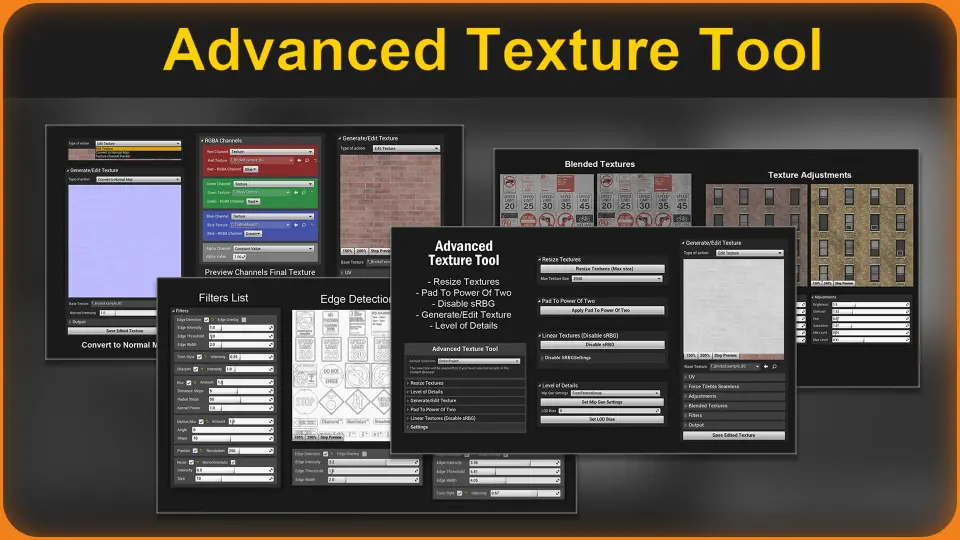
The Generate/Edit Texture section is where the tool moves beyond resizing into actual texture creation and modification. Three generation types are available: Edit Texture, Convert to Normal, and Texture Channel Packer.
Edit Texture provides a range of operations grouped into adjustments, UV manipulation, blending, and filters. These operations can be combined to reshape a texture inside the engine without round-tripping through an external image editor.
UV Tiling, Rotation, and Seamless Tiling
UV operations cover Tiling, Rotation, and Shift, giving direct control over how a texture wraps across a surface. A Force Tileable Seamless option helps remove visible seams, which is useful for environment textures that need to repeat across large surfaces without obvious edges.
Adjustments and Blended Textures
Color and tone adjustments include Brightness, Contrast, Saturation, and Hue. These let the user match textures to a scene’s lighting or art direction without exporting.
Blended Textures support multiple blend modes: Multiply, Screen, Add, and Pin Light, among others. This makes it possible to combine textures inside the tool, layering detail or creating new variation maps from existing sources.
The filter set covers Edge Detection, Toon Outline Style, Sharpen, Blur, Motion Blur, Pixelate, and Noise. These can serve stylized projects—Toon Outline Style, for example, fits non-photorealistic rendering—or technical needs like sharpening detail and adding noise for procedural variation.
Convert to Normal turns height or grayscale information into a Normal Map, and Texture Channel Packer combines multiple textures into the separate channels of a single texture, reducing the number of texture samples a Material needs.
Level of Detail and Bulk Editing
Level of Detail (LOD) control is included for managing how textures scale across mip levels. Combined with bulk editing, the tool can apply changes to many textures at once. The UI is suited to this kind of workflow, and the included tooltips explain most buttons and parameters on hover, so users can understand each option without leaving the widget.
Bulk editing is where the time savings become concrete. Setting the maximum resolution of 100 textures can be done with a single click, and direct in-editor editing removes the export-import cycle for routine fixes.
Where the Tool Fits
Advanced Texture Tool suits projects where texture preparation is a recurring task: environment art pipelines that rely on tiled materials, stylized games that need toon outlines and filtered looks, and production workflows that require channel-packed masks for material efficiency. Teams working with large texture libraries can use the bulk resize and LOD Bias features to manage memory without altering source files.
Because it runs as a dockable Editor Utility Widget, it fits into existing editor layouts without disrupting the scene-building process. The requirement to enable Editor Scripting Utilities is the only setup step before use.
For developers who need to create, convert, pack, or adjust textures without leaving Unreal Engine, this tool keeps those operations in the editor and reduces the friction of external round-trips.
 Automations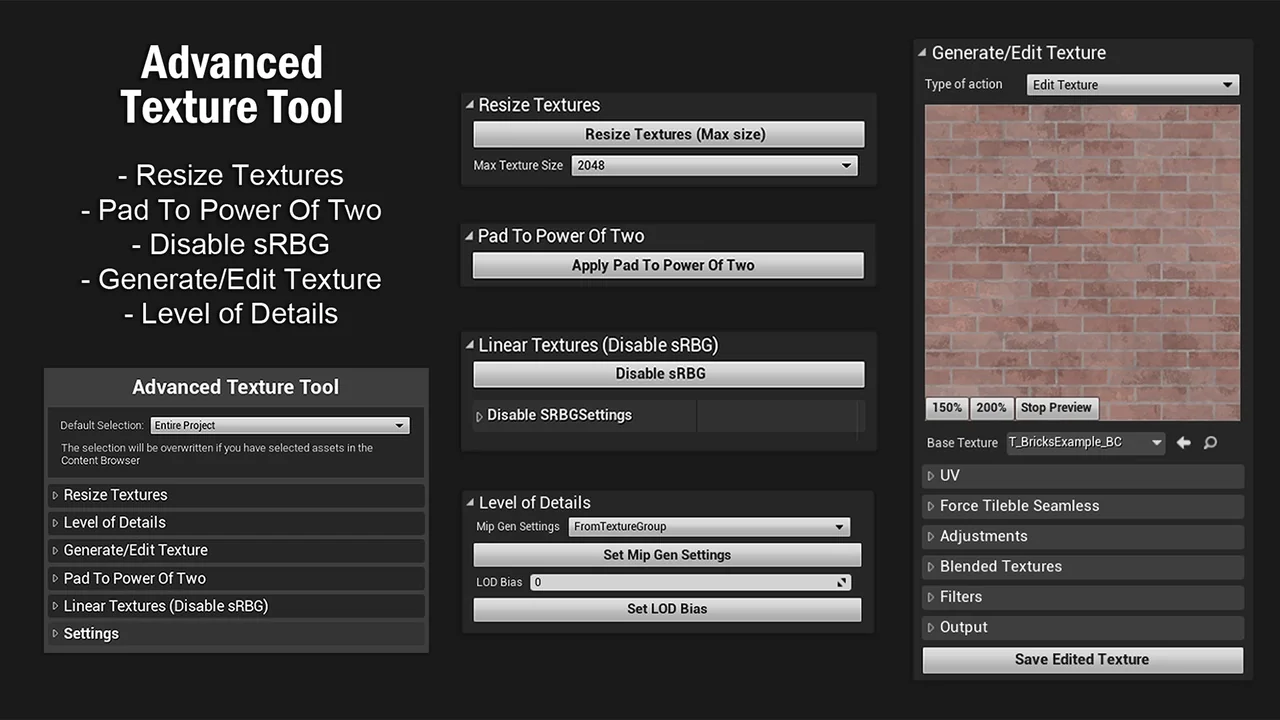
 Automations
 Automations
 Automations