"efaa631e936fd3ee"{"id":"1002275","slug":"zen-dev","title":"Zen Dev","category":"Engine Tools","engine":"5.0","assetVersion":"Asset Version: 1.13","engineVersion":"Engine Version: 5.0","tag":"Engine Tools","accent":"blue","visual":"mech","summary":"Zen Dev provides quality-of-life tools for Unreal Engine, featuring Zen Mode panel toggling, UE4 Content Drawer support, and single-click fullscreen PIE.","platform":"Unreal Engine","publishedAt":"2026-10-29T16:32:49.171Z","updatedAt":"2026-10-29T16:32:49.171Z","sourceNotes":[],"fileContents":[],"compatibility":["Unreal Engine","Asset Version: 1.13","Engine Version: 5.0"],"featuredImage":{"alt":"Zen Dev","src":"/wp-content/uploads/published/2026/10/6134590d3bdd-a7ee44a2-403c-4fbc-b904-977be50977ec-5a352eb255.webp"},"hasDownloadLink":true,"downloads":0,"terms":[{"taxonomy":"category","slug":"engine-tools-tools-and-plugins","name":"Engine Tools"}],"galleryImages":[{"src":"/wp-content/uploads/published/2026/10/29710a332bbd-4aa71b0e-0c96-46e4-8cb4-09c2c9bb537c-aa390a630e.webp","alt":"Zen Dev"},{"src":"/wp-content/uploads/published/2026/10/1bb3ea80b35f-91cc48f5-4992-4557-a1dd-950b6a1fcb90-87fa5bfec2.webp","alt":"Zen Dev"},{"src":"/wp-content/uploads/published/2026/10/f20b1dc67f50-2982d2da-8082-4034-a911-1d74445c65a4-e884fd7c89.webp","alt":"Zen Dev"},{"src":"/wp-content/uploads/published/2026/10/6735419436aa-003b1d60-9f45-4940-ab32-e464345f694f-0dba48ecdd.webp","alt":"Zen Dev"},{"src":"/wp-content/uploads/published/2026/10/4191b3bd9f57-dd827a0e-7e8e-4343-9a98-ab42b88d957d-b12d72abc3.webp","alt":"Zen Dev"}],"accessPanel":{"kind":"resource","title":"Download this resource","eyebrow":"Free Download","message":"Log in or create a free account to start your download.","fileName":"Zen Dev.7z","safetyNote":"Resources are manually reviewed before listing to improve quality and reduce obvious risks.","actionLabel":"Download Free","resourceType":"Resource archive"},"contentHtml":"\u003ch2\u003eMaximizing Graph Space with Zen Mode\u003c/h2\u003e\u003cp\u003eLarge Blueprint graphs naturally spread horizontally. As node networks expand from left to right, side panels such as My Blueprint, Components, and the Details panel occupy valuable screen territory, creating a cramped and claustrophobic graph view. Zen Dev tackles this interface friction through Zen Mode, an editor tool adapted from conventions found in modern code editors. Originally devised as an internal Unreal Engine 5 modification to reclaim horizontal canvas space, the tool is packaged to support both Unreal Engine 4 and Unreal Engine 5 workflows.\u003c/p\u003e\u003cp\u003eZen Mode allows developers to bind up to ten custom keyboard shortcuts, with the initial shortcut defaulting to the Z key. Triggering the shortcut clears peripheral panels instantly, giving visual priority to node networks, material graphs, or level viewports. By hiding or collapsing side interfaces with a keystroke, developers can focus on reading logic chains and placing actors without manually resizing dock boundaries.\u003c/p\u003e\u003cp\u003eBecause panel handling differs between engine generations, Zen Mode adjusts its underlying behavior based on the active Unreal version. In Unreal Engine 5, triggering Zen Mode docks and undocks interface tabs according to modern workspace docking logic. In Unreal Engine 4, where contemporary docking mechanisms are absent, the plugin completely hides and unhides the panels to achieve the same unobstructed working canvas.\u003c/p\u003e\u003ch2\u003eSupported Windows Across Technical and Creative Editors\u003c/h2\u003e\u003cp\u003eZen Mode is built to operate across a broad range of Unreal Engine windows rather than functioning solely inside standard Blueprint classes. Graph-heavy and asset-heavy editors throughout the pipeline share identical shortcut toggles to sustain consistent screen space management.\u003c/p\u003e\u003cp\u003eThe feature integrates directly into the following editors and tool windows:\u003c/p\u003e\u003cul\u003e\u003cli\u003eBlueprint Editor\u003c/li\u003e\u003cli\u003eLevel Editor\u003c/li\u003e\u003cli\u003eMaterial Editor\u003c/li\u003e\u003cli\u003eAnimation Blueprint Editor\u003c/li\u003e\u003cli\u003eUMG Widget Editor, functioning across both Design and Graph views\u003c/li\u003e\u003cli\u003eNiagara Script Editor\u003c/li\u003e\u003cli\u003eNiagara System Editor\u003c/li\u003e\u003cli\u003eContent Browsers\u003c/li\u003e\u003cli\u003eEditor Utility Widgets\u003c/li\u003e\u003cli\u003eLog Viewer and Log Viewer Pro (third-party plugins)\u003c/li\u003e\u003cli\u003eUAsset Browser (third-party plugin)\u003c/li\u003e\u003c/ul\u003e\u003cp\u003eExtending panel hiding to particle systems, interface layouts, and external browser utilities ensures that complex multi-panel windows can be flattened to full-screen viewports at any stage of asset creation.\u003c/p\u003e\u003ch2\u003ePorting the Content Drawer into UE4\u003c/h2\u003e\u003cp\u003eUnreal Engine 5 introduced the Content Drawer as an efficient way to summon and dismiss assets without keeping a persistent Content Browser window pinned to the layout. Zen Dev ports this exact workflow backward into Unreal Engine 4, granting older engine projects access to a floating, temporary asset browser that appears on demand.\u003c/p\u003e\u003cp\u003eIn Unreal Engine 5, the standard key combination for calling the drawer is Ctrl+Space. Due to hardcoded level editor bindings in Unreal Engine 4, that specific combination cannot be used. Zen Dev resolves this limitation by mapping the default Content Drawer shortcut to Ctrl+D on Windows and Linux, or Command+D on macOS. Users can summon the browser window directly via the keyboard shortcut or by clicking on it, pulling assets into the scene or checking folders before letting the window slide away automatically.\u003c/p\u003e\u003ch2\u003eTrue Fullscreen PIE from the Level Toolbar\u003c/h2\u003e\u003cp\u003eEvaluating gameplay feel often requires seeing the frame without the distraction of engine toolbars, menu ribbons, or surrounding editor chrome. Normally, achieving a borderless test view during Play In Editor sessions involves executing multiple manual shortcuts to expand the window and remove interface borders.\u003c/p\u003e\u003cp\u003eZen Dev integrates a dedicated Full Screen PIE button onto the level editor play toolbar. When pressed, the tool simulates entering Play In Editor alongside the native F11 and Shift+F11 commands simultaneously. This immediately launches the session in true fullscreen mode. Once the play session ends, the editor restores itself to its prior non-fullscreen window dimensions automatically.\u003c/p\u003e\u003cp\u003eDevelopers who prefer keyboard navigation can configure a custom shortcut for fullscreen playback. Searching for \"zen\" inside Editor Preferences exposes the command binding. Additionally, developers who prefer an uncluttered play toolbar can hide the dedicated button entirely by adjusting settings inside Editor Preferences \u0026gt; Zen Helpers.\u003c/p\u003e\u003ch2\u003eResolving Shortcut Registration and Focus Issues\u003c/h2\u003e\u003cp\u003eOperating custom editor shortcuts can occasionally run into engine tab focus interruptions, particularly right after launching the editor or opening an asset tab for the first time. If a configured Zen Dev keyboard shortcut fails to respond in an active tab, shifting focus between the current tab and another asset window—such as an open Blueprint or secondary tool—once or twice re-establishes the key listener. Once navigation cycles across tabs, the shortcut resumes normal operation for that editing session.\u003c/p\u003e\n\n\u003ch2\u003eMore From The Same Workflow\u003c/h2\u003e\n\u003cul\u003e\n\u003cli\u003e\u003ca href=\"https://3dcghub.com/blueprint-generator-ai-kibibyte-labs-engine-assistant/\" title=\"AI Engine Assistant - Kibibyte Labs (Blueprint Generator \u0026amp; More!)\"\u003eAI Engine Assistant - Kibibyte Labs (Blueprint Generator \u0026amp; More!)\u003c/a\u003e\u003c/li\u003e\n\u003cli\u003e\u003ca href=\"https://3dcghub.com/fps-multiplayer-template-6/\" title=\"FPS Multiplayer Template 6\"\u003eFPS Multiplayer Template 6\u003c/a\u003e\u003c/li\u003e\n\u003cli\u003e\u003ca href=\"https://3dcghub.com/bullet-impact-decals-vol-1-concrete/\" title=\"Bullet Impact Decals Vol. 1 - Concrete\"\u003eBullet Impact Decals Vol. 1 - Concrete\u003c/a\u003e\u003c/li\u003e\n\u003cli\u003e\u003ca href=\"https://3dcghub.com/shadersource-waterfall-tool-2/\" title=\"SHADERSOURCE - Waterfall Tool 2\"\u003eSHADERSOURCE - Waterfall Tool 2\u003c/a\u003e\u003c/li\u003e\n\u003cli\u003e\u003ca href=\"https://3dcghub.com/easy-pose/\" title=\"Easy Pose\"\u003eEasy Pose\u003c/a\u003e\u003c/li\u003e\n\u003c/ul\u003e","contentTextLength":5130,"navigation":{"current":10,"total":4209,"previous":{"id":"1002276","slug":"modular-scifi-interiors","title":"Modular SciFi: Interiors","category":"Sci-Fi","platform":"Unreal Engine","updatedAt":"2026-10-29T16:33:57.054Z"},"next":{"id":"1002274","slug":"world-event-scripted-events-simplified","title":"World Event - Scripted events simplified","category":"Gameplay Features","platform":"Unreal Engine","updatedAt":"2026-10-29T16:32:12.991Z"}},"relatedResources":[{"id":"13760","slug":"blueprint-generator-ai-kibibyte-labs-engine-assistant","title":"AI Engine Assistant - Kibibyte Labs (Blueprint Generator \u0026 More!)","category":"Engine Tools","engine":"0.1.4","assetVersion":"Engine version: 5.2 - 5.7","engineVersion":"Asset Version: 0.1.4","tag":"Engine Tools","accent":"blue","visual":"character","summary":"Blueprint Generator Ai - Kibibyte Labs (Engine Assistant) is a powerful tool designed to transform natural language into functional Unreal Engine Blueprints. It offers a suite of modules for generating logic, explaining complex nodes, and optimizing the dev...","platform":"Unreal Engine","publishedAt":"2026-03-11T09:58:02.000Z","updatedAt":"2026-07-09T21:24:04.089Z","sourceNotes":[],"fileContents":[],"compatibility":["Unreal Engine","Engine version: 5.2 - 5.7","Asset Version: 0.1.4"],"featuredImage":{"alt":"Blueprint Generator Ai - Kibibyte Labs (Engine Assistant)","src":"https://3dcghub.com/wp-content/uploads/2026/03/ff365004-07a8-4633-90ac-7c9a038cc81d.webp"},"hasDownloadLink":true,"downloads":2},{"id":"12044","slug":"fps-multiplayer-template-6","title":"FPS Multiplayer Template 6","category":"Shooter","engine":"5.5+","assetVersion":"Engine version: 5.5+","engineVersion":"4.21","tag":"Shooter","accent":"blue","visual":"city","summary":"Accelerate your development with the FPS Multiplayer Template 6. This 100% Blueprint project includes replicated game modes, a deep weapon loadout system, and professional HUD elements.","platform":"Unreal Engine","publishedAt":"2026-03-06T16:43:10.000Z","updatedAt":"2026-04-19T15:48:04.000Z","sourceNotes":[],"fileContents":[],"compatibility":["Unreal Engine","Engine version: 5.5+"],"featuredImage":{"alt":"FPS Multiplayer Template 6","src":"https://3dcghub.com/wp-content/uploads/2026/03/9cca2b10-3e51-4f10-8307-90f55801dd96.webp"},"hasDownloadLink":true,"downloads":8},{"id":"12454","slug":"bullet-impact-decals-vol-1-concrete","title":"Bullet Impact Decals Vol. 1 - Concrete","category":"Damage \u0026 Grunge","engine":"5.1+","assetVersion":"Engine version: 5.1+","engineVersion":"5.1","tag":"Damage \u0026 Grunge","accent":"blue","visual":"luts","summary":"Enhance your project with Bullet Impact Decals Vol. 1 - Concrete. This pack features realistic bullet damage with customizable depth effects and easy drag-and-drop implementation.","platform":"Unreal Engine","publishedAt":"2026-03-07T12:29:43.000Z","updatedAt":"2026-04-19T15:47:56.000Z","sourceNotes":[],"fileContents":[],"compatibility":["Unreal Engine","Engine version: 5.1+"],"featuredImage":{"alt":"Bullet Impact Decals Vol. 1 - Concrete","src":"https://3dcghub.com/wp-content/uploads/2026/03/dbdbc58d-5a93-4ae2-a81b-93895a615145.webp"},"hasDownloadLink":true,"downloads":2}]}
Engine Tools
Zen Dev
Zen Dev provides quality-of-life tools for Unreal Engine, featuring Zen Mode panel toggling, UE4 Content Drawer support, and single-click fullscreen PIE.
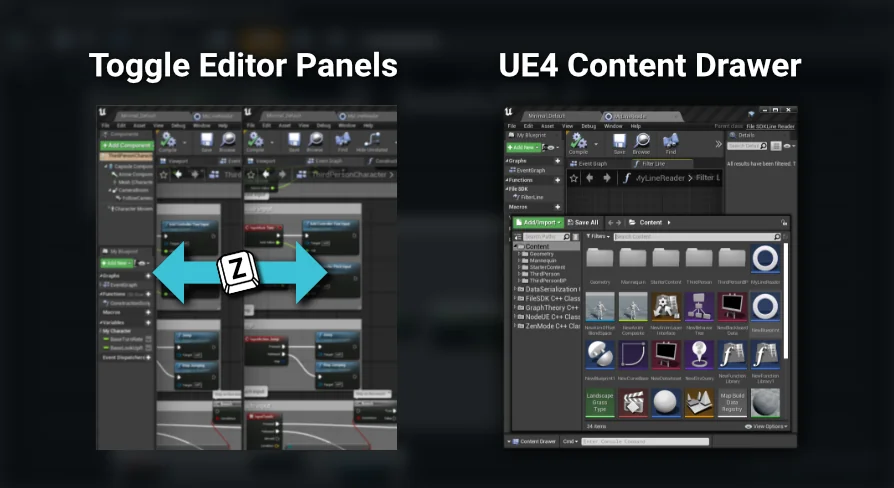
Large Blueprint graphs naturally spread horizontally. As node networks expand from left to right, side panels such as My Blueprint, Components, and the Details panel occupy valuable screen territory, creating a cramped and claustrophobic graph view. Zen Dev tackles this interface friction through Zen Mode, an editor tool adapted from conventions found in modern code editors. Originally devised as an internal Unreal Engine 5 modification to reclaim horizontal canvas space, the tool is packaged to support both Unreal Engine 4 and Unreal Engine 5 workflows.
Zen Mode allows developers to bind up to ten custom keyboard shortcuts, with the initial shortcut defaulting to the Z key. Triggering the shortcut clears peripheral panels instantly, giving visual priority to node networks, material graphs, or level viewports. By hiding or collapsing side interfaces with a keystroke, developers can focus on reading logic chains and placing actors without manually resizing dock boundaries.
Because panel handling differs between engine generations, Zen Mode adjusts its underlying behavior based on the active Unreal version. In Unreal Engine 5, triggering Zen Mode docks and undocks interface tabs according to modern workspace docking logic. In Unreal Engine 4, where contemporary docking mechanisms are absent, the plugin completely hides and unhides the panels to achieve the same unobstructed working canvas.
Supported Windows Across Technical and Creative Editors
Zen Mode is built to operate across a broad range of Unreal Engine windows rather than functioning solely inside standard Blueprint classes. Graph-heavy and asset-heavy editors throughout the pipeline share identical shortcut toggles to sustain consistent screen space management.
The feature integrates directly into the following editors and tool windows:
Blueprint Editor
Level Editor
Material Editor
Animation Blueprint Editor
UMG Widget Editor, functioning across both Design and Graph views
Niagara Script Editor
Niagara System Editor
Content Browsers
Editor Utility Widgets
Log Viewer and Log Viewer Pro (third-party plugins)
UAsset Browser (third-party plugin)
Extending panel hiding to particle systems, interface layouts, and external browser utilities ensures that complex multi-panel windows can be flattened to full-screen viewports at any stage of asset creation.
Porting the Content Drawer into UE4
Unreal Engine 5 introduced the Content Drawer as an efficient way to summon and dismiss assets without keeping a persistent Content Browser window pinned to the layout. Zen Dev ports this exact workflow backward into Unreal Engine 4, granting older engine projects access to a floating, temporary asset browser that appears on demand.
In Unreal Engine 5, the standard key combination for calling the drawer is Ctrl+Space. Due to hardcoded level editor bindings in Unreal Engine 4, that specific combination cannot be used. Zen Dev resolves this limitation by mapping the default Content Drawer shortcut to Ctrl+D on Windows and Linux, or Command+D on macOS. Users can summon the browser window directly via the keyboard shortcut or by clicking on it, pulling assets into the scene or checking folders before letting the window slide away automatically.
True Fullscreen PIE from the Level Toolbar
Evaluating gameplay feel often requires seeing the frame without the distraction of engine toolbars, menu ribbons, or surrounding editor chrome. Normally, achieving a borderless test view during Play In Editor sessions involves executing multiple manual shortcuts to expand the window and remove interface borders.
Zen Dev integrates a dedicated Full Screen PIE button onto the level editor play toolbar. When pressed, the tool simulates entering Play In Editor alongside the native F11 and Shift+F11 commands simultaneously. This immediately launches the session in true fullscreen mode. Once the play session ends, the editor restores itself to its prior non-fullscreen window dimensions automatically.
Developers who prefer keyboard navigation can configure a custom shortcut for fullscreen playback. Searching for "zen" inside Editor Preferences exposes the command binding. Additionally, developers who prefer an uncluttered play toolbar can hide the dedicated button entirely by adjusting settings inside Editor Preferences > Zen Helpers.
Resolving Shortcut Registration and Focus Issues
Operating custom editor shortcuts can occasionally run into engine tab focus interruptions, particularly right after launching the editor or opening an asset tab for the first time. If a configured Zen Dev keyboard shortcut fails to respond in an active tab, shifting focus between the current tab and another asset window—such as an open Blueprint or secondary tool—once or twice re-establishes the key listener. Once navigation cycles across tabs, the shortcut resumes normal operation for that editing session.
 Engine Tools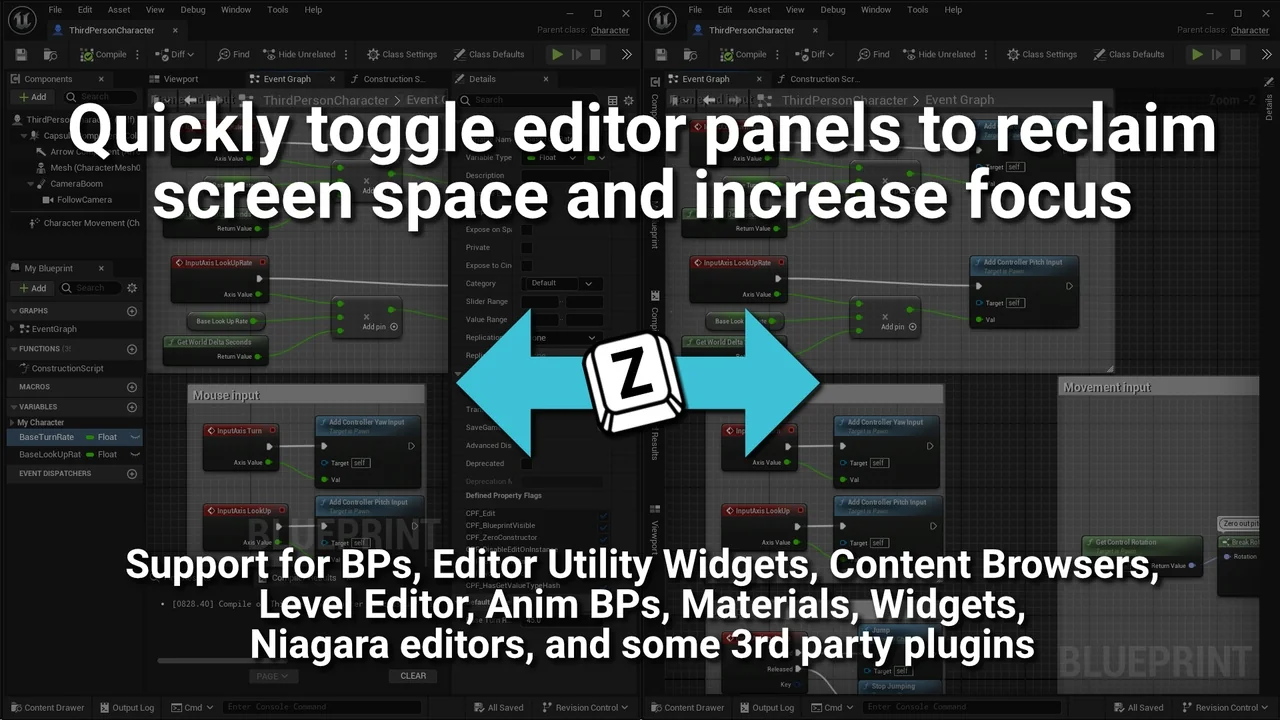
 Engine Tools
 Shooter
 Damage & Grunge