"bf0aee18c0cf03b0"{"id":"1002140","slug":"physics-based-mesh-placement","title":"Physics Based Mesh Placement","category":"Gameplay Features","engine":"4.26+,5.0+","assetVersion":"Asset Version: 1.0","engineVersion":"Engine Version: 4.26+,5.0+","tag":"Gameplay Features","accent":"blue","visual":"mech","summary":"Scatter and settle scene props naturally using BP_PhysSpawnerVolume, simulation state caching, dual-mesh collision substitution, and Instanced Static Meshes.","platform":"Unreal Engine","publishedAt":"2026-10-29T09:46:21.814Z","updatedAt":"2026-10-29T09:46:21.814Z","sourceNotes":[],"fileContents":[],"compatibility":["Unreal Engine","Asset Version: 1.0","Engine Version: 4.26+,5.0+"],"featuredImage":{"alt":"Physics Based Mesh Placement","src":"/wp-content/uploads/published/2026/10/e1faa45ef2e2-c6976601-c284-472c-aa28-2eb19a351aea-c3a3f2e9ce.webp"},"hasDownloadLink":true,"downloads":0,"terms":[{"taxonomy":"category","slug":"gameplay-features","name":"Gameplay Features"}],"galleryImages":[{"src":"/wp-content/uploads/published/2026/10/40e3f50e11df-c4cf76bc-7a2a-4420-9046-e783e92deb75-a87b110ccb.webp","alt":"Physics Based Mesh Placement"},{"src":"/wp-content/uploads/published/2026/10/a53ca5fd459c-9078f9b9-6a5b-4600-b03c-1b82ab5a2085-9636e243ac.webp","alt":"Physics Based Mesh Placement"},{"src":"/wp-content/uploads/published/2026/10/cfc5a837bf5a-d0a86b8c-dea7-4a6f-a1a6-61480d08cc82-0a66008538.webp","alt":"Physics Based Mesh Placement"},{"src":"/wp-content/uploads/published/2026/10/37469187070a-f80be200-4f04-4840-b832-ec1d280b1a08-8570806c98.webp","alt":"Physics Based Mesh Placement"}],"accessPanel":{"kind":"resource","title":"Download this resource","eyebrow":"Free Download","message":"Log in or create a free account to start your download.","fileName":"Physics Based Mesh Placement.7z","safetyNote":"Resources are manually reviewed before listing to improve quality and reduce obvious risks.","actionLabel":"Download Free","resourceType":"Resource archive"},"contentHtml":"\u003ch2\u003eDeploying BP_PhysSpawnerVolume in the Scene\u003c/h2\u003e\n\u003cp\u003ePlacing objects naturally across complex terrain, uneven geometry, or cluttered interior floors often requires significant manual adjustment. Physics Based Mesh Placement approaches this task by utilizing Unreal Engine physics simulation inside the editor viewport to resolve object resting positions automatically. The workflow begins by dragging the \u003ccode\u003eBP_PhysSpawnerVolume\u003c/code\u003e Actor straight into the scene and positioning it over the target area where objects need to fall and settle.\u003c/p\u003e\n\u003cp\u003eOnce the volume is situated, the actor details panel exposes the primary controls required to prepare the generation sequence. Users configure the specific spawn parameters directly within the volume settings to define how items are distributed before dropping. Clicking the dedicated Fill Volume button inside the actor details tab populates the interior of the volume boundary with the designated meshes, staging them in mid-air above the collision surfaces below.\u003c/p\u003e \u003ch2\u003eThe Simulate, Save, and Load Objects Loop\u003c/h2\u003e\n\u003cp\u003eAfter filling the spawner boundary, physical dynamics take over the layout process. The user triggers Play \u0026rarr; Simulate in the editor, allowing gravity, mass, and environmental collision to resolve the orientation of every spawned item simultaneously. Objects tumble, collide with one another, slide across landscape slopes, and nestle into crevices until motion ceases.\u003c/p\u003e\n\u003cp\u003eWhile the simulation is running and the objects have settled into their final resting configurations, the user clicks the Save Objects button directly within the details tab of \u003ccode\u003eBP_PhysSpawnerVolume\u003c/code\u003e. This caches the precise world-space transform data of every simulated mesh. The user can then immediately stop the editor play session without losing the layout data. Selecting the spawner volume in the standard editor view and hitting the Load Objects button restores the saved positions, recreating the exact physical arrangement as permanent scene components.\u003c/p\u003e \u003ch2\u003eManual Transform Adjustments and ISM Conversion\u003c/h2\u003e\n\u003cp\u003eThe placement utility provides flexible output modes depending on performance requirements and whether individual props need artistic tweaking. When meshes are restored via the Load Objects operation, they can initially exist as individual mesh components. This intermediate state allows environment artists to inspect the results, select individual pieces, and adjust transforms manually to resolve minor clipping, rotate aesthetic focal points, or delete unwanted debris before committing the layout.\u003c/p\u003e\n\u003cp\u003eOnce manual transform adjustments are complete, additional buttons within the actor details panel convert the placed meshes directly into Instanced Static Mesh (ISM) instances. Combining distinct static meshes into ISM instances reduces draw calls across heavily populated environments. For scenarios where manual adjustment is unnecessary, the blueprint also includes an option to bypass individual editing and load the saved simulation data straight into ISM instances immediately.\u003c/p\u003e \u003ch2\u003eDual Collision Mesh Strategy for Simulation and Performance\u003c/h2\u003e\n\u003cp\u003eA persistent challenge in physics-driven scene population is balancing collision accuracy during active simulation against lightweight collision during runtime gameplay. Complex, highly detailed hulls prevent meshes from interpenetrating or floating unnaturally during dynamic calculation, but retaining heavy collision on hundreds of background props harms runtime efficiency.\u003c/p\u003e\n\u003cp\u003eTo address this balance, \u003ccode\u003eBP_PhysSpawnerVolume\u003c/code\u003e Incorporates a dual-mesh workflow:\u003c/p\u003e\n\u003cul\u003e \u003cli\u003e\u003cstrong\u003eAccurate Collision Mesh:\u003c/strong\u003e Utilized strictly during the physics simulation phase to calculate realistic contact points, prevent edge snagging, and avoid interpenetration while objects roll and settle.\u003c/li\u003e \u003cli\u003e\u003cstrong\u003eOptimised Collision Mesh:\u003c/strong\u003e Automatically replaces the simulation mesh when final objects are loaded into the scene or converted to ISM instances, preserving runtime performance without degrading the physical placement authenticity.\u003c/li\u003e\n\u003c/ul\u003e\n\u003cp\u003eThis automated swap ensures that the visual clutter rests precisely against surfaces while leaving behind clean, efficient collision boundaries for gameplay.\u003c/p\u003e \u003ch2\u003eHeightmap Compatibility and Production Integration\u003c/h2\u003e\n\u003cp\u003eThe system integrates smoothly into larger world-building pipelines, offering verified compatibility with procedural generation setups such as Procedural Level Generator from Perlin Noise and Curve Heightmap. When working alongside procedural landscape systems, hand-placing scattered rocks, fallen branches, architectural rubble, or dynamic loot piles across procedurally generated hills often leads to floating or deeply buried assets due to fluctuating contour lines.\u003c/p\u003e\n\u003cp\u003eBy dropping \u003ccode\u003eBP_PhysSpawnerVolume\u003c/code\u003e Above procedural heightmap surfaces, the physical solver automatically handles complex surface topology. The meshes drop directly onto the generated Perlin noise contours and curve-driven elevations, resting flush against slopes without requiring custom raycast alignment or manual placement per vertex. The companion video tutorial demonstrates the complete procedural step-by-step flow, verifying the process from boundary positioning to final ISM baking.\u003c/p\u003e\n\n\u003ch2\u003eMore From The Same Workflow\u003c/h2\u003e\n\u003cul\u003e\n\u003cli\u003e\u003ca href=\"https://3dcghub.com/grid-based-builder/\" title=\"Grid-Based Builder\"\u003eGrid-Based Builder\u003c/a\u003e\u003c/li\u003e\n\u003cli\u003e\u003ca href=\"https://3dcghub.com/fluid-pumping-hose-system/\" title=\"Fluid Pumping \u0026amp; Hose System\"\u003eFluid Pumping \u0026amp; Hose System\u003c/a\u003e\u003c/li\u003e\n\u003cli\u003e\u003ca href=\"https://3dcghub.com/physics-collision-sound/\" title=\"Physics Collision Sound\"\u003ePhysics Collision Sound\u003c/a\u003e\u003c/li\u003e\n\u003cli\u003e\u003ca href=\"https://3dcghub.com/inventory-system-pro/\" title=\"Inventory System Pro\"\u003eInventory System Pro\u003c/a\u003e\u003c/li\u003e\n\u003cli\u003e\u003ca href=\"https://3dcghub.com/vehicles-gravity-template-vgt/\" title=\"Vehicles Gravity Template - VGT\"\u003eVehicles Gravity Template - VGT\u003c/a\u003e\u003c/li\u003e\n\u003c/ul\u003e","contentTextLength":5282,"navigation":{"current":70,"total":4135,"previous":{"id":"1002141","slug":"physics-based-destructible-vehicle-trailer","title":"Physics-Based Destructible Vehicle Trailer","category":"Cars \u0026 Trucks","platform":"Unreal Engine","updatedAt":"2026-10-29T09:47:10.086Z"},"next":{"id":"1002139","slug":"phoenyx-anim-pack-1","title":"Phoenyx Anim Pack 1","category":"Variety","platform":"Unreal Engine","updatedAt":"2026-10-29T09:40:57.660Z"}},"relatedResources":[{"id":"10893","slug":"grid-based-builder","title":"Grid-Based Builder","category":"Gameplay Features","engine":"4.26+,5.0+","assetVersion":"Engine version: 4.26+,5.0+","engineVersion":"4.26","tag":"Gameplay Features","accent":"blue","visual":"luts","summary":"Discover the Grid-Based Builder, a powerful Blueprint-driven asset that enables precise object placement with terrain awareness, resource systems, and customizable grid constraints.","platform":"Unreal Engine","publishedAt":"2026-03-03T16:27:50.000Z","updatedAt":"2026-04-19T15:49:54.000Z","sourceNotes":[],"fileContents":[],"compatibility":["Unreal Engine","Engine version: 4.26+,5.0+"],"featuredImage":{"alt":"Grid-Based Builder","src":"https://3dcghub.com/wp-content/uploads/2026/03/04828648-3a95-44cd-91bb-a8d2e479b7da.webp"},"hasDownloadLink":true,"downloads":4},{"id":"10844","slug":"fluid-pumping-hose-system","title":"Fluid Pumping \u0026 Hose System","category":"Gameplay Features","engine":"4.26+,5.0+","assetVersion":"Engine version: 4.26+,5.0+","engineVersion":"4.25","tag":"Gameplay Features","accent":"blue","visual":"luts","summary":"Manage complex fluid transfers with the Fluid Pumping \u0026 Hose System. This tool features configurable containers, adjustable pump rates, and physics-based hose mechanics for realistic gameplay.","platform":"Unreal Engine","publishedAt":"2026-03-03T16:22:21.000Z","updatedAt":"2026-04-19T15:49:55.000Z","sourceNotes":[],"fileContents":[],"compatibility":["Unreal Engine","Engine version: 4.26+,5.0+"],"featuredImage":{"alt":"Fluid Pumping \u0026 Hose System","src":"https://3dcghub.com/wp-content/uploads/2026/03/248588f7-e0c4-4dac-b392-8a13c816d038.webp"},"hasDownloadLink":true,"downloads":0},{"id":"1001063","slug":"physics-collision-sound","title":"Physics Collision Sound","category":"Gameplay Features","engine":"5.3+","assetVersion":"","engineVersion":"Engine Version: 5.3+","tag":"Gameplay Features","accent":"blue","visual":"mech","summary":"Physics Collision Sound adds material-aware hit, slide, roll, and water audio to any Unreal mesh with a simple drag-and-drop Blueprint workflow.","platform":"Unreal Engine","publishedAt":"2026-09-03T13:17:54.533Z","updatedAt":"2026-09-03T13:17:54.533Z","sourceNotes":[],"fileContents":[],"compatibility":["Audio","Engine Version: 5.3+"],"featuredImage":{"alt":"Physics Collision Sound","src":"/wp-content/uploads/published/2026/09/05c916db7e98-eff97865-a529-4495-b2bb-27b0ce374707-e1e1376bbe.webp"},"hasDownloadLink":true,"downloads":1}]}
Gameplay Features
Physics Based Mesh Placement
Scatter and settle scene props naturally using BP_PhysSpawnerVolume, simulation state caching, dual-mesh collision substitution, and Instanced Static Meshes.
Placing objects naturally across complex terrain, uneven geometry, or cluttered interior floors often requires significant manual adjustment. Physics Based Mesh Placement approaches this task by utilizing Unreal Engine physics simulation inside the editor viewport to resolve object resting positions automatically. The workflow begins by dragging the BP_PhysSpawnerVolume Actor straight into the scene and positioning it over the target area where objects need to fall and settle.
Once the volume is situated, the actor details panel exposes the primary controls required to prepare the generation sequence. Users configure the specific spawn parameters directly within the volume settings to define how items are distributed before dropping. Clicking the dedicated Fill Volume button inside the actor details tab populates the interior of the volume boundary with the designated meshes, staging them in mid-air above the collision surfaces below.
The Simulate, Save, and Load Objects Loop
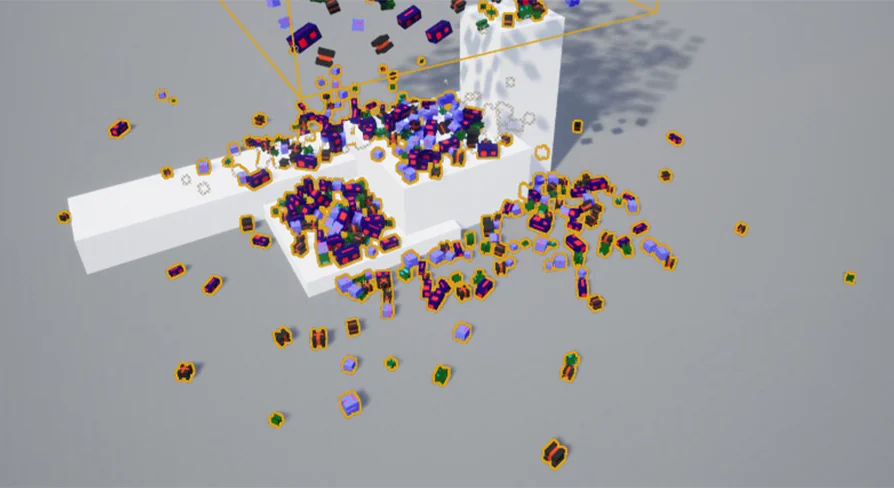
After filling the spawner boundary, physical dynamics take over the layout process. The user triggers Play → Simulate in the editor, allowing gravity, mass, and environmental collision to resolve the orientation of every spawned item simultaneously. Objects tumble, collide with one another, slide across landscape slopes, and nestle into crevices until motion ceases.
While the simulation is running and the objects have settled into their final resting configurations, the user clicks the Save Objects button directly within the details tab of BP_PhysSpawnerVolume. This caches the precise world-space transform data of every simulated mesh. The user can then immediately stop the editor play session without losing the layout data. Selecting the spawner volume in the standard editor view and hitting the Load Objects button restores the saved positions, recreating the exact physical arrangement as permanent scene components.
Manual Transform Adjustments and ISM Conversion
The placement utility provides flexible output modes depending on performance requirements and whether individual props need artistic tweaking. When meshes are restored via the Load Objects operation, they can initially exist as individual mesh components. This intermediate state allows environment artists to inspect the results, select individual pieces, and adjust transforms manually to resolve minor clipping, rotate aesthetic focal points, or delete unwanted debris before committing the layout.
Once manual transform adjustments are complete, additional buttons within the actor details panel convert the placed meshes directly into Instanced Static Mesh (ISM) instances. Combining distinct static meshes into ISM instances reduces draw calls across heavily populated environments. For scenarios where manual adjustment is unnecessary, the blueprint also includes an option to bypass individual editing and load the saved simulation data straight into ISM instances immediately.
Dual Collision Mesh Strategy for Simulation and Performance
A persistent challenge in physics-driven scene population is balancing collision accuracy during active simulation against lightweight collision during runtime gameplay. Complex, highly detailed hulls prevent meshes from interpenetrating or floating unnaturally during dynamic calculation, but retaining heavy collision on hundreds of background props harms runtime efficiency.
To address this balance, BP_PhysSpawnerVolume Incorporates a dual-mesh workflow:
Accurate Collision Mesh: Utilized strictly during the physics simulation phase to calculate realistic contact points, prevent edge snagging, and avoid interpenetration while objects roll and settle.
Optimised Collision Mesh: Automatically replaces the simulation mesh when final objects are loaded into the scene or converted to ISM instances, preserving runtime performance without degrading the physical placement authenticity.
This automated swap ensures that the visual clutter rests precisely against surfaces while leaving behind clean, efficient collision boundaries for gameplay.
Heightmap Compatibility and Production Integration
The system integrates smoothly into larger world-building pipelines, offering verified compatibility with procedural generation setups such as Procedural Level Generator from Perlin Noise and Curve Heightmap. When working alongside procedural landscape systems, hand-placing scattered rocks, fallen branches, architectural rubble, or dynamic loot piles across procedurally generated hills often leads to floating or deeply buried assets due to fluctuating contour lines.
By dropping BP_PhysSpawnerVolume Above procedural heightmap surfaces, the physical solver automatically handles complex surface topology. The meshes drop directly onto the generated Perlin noise contours and curve-driven elevations, resting flush against slopes without requiring custom raycast alignment or manual placement per vertex. The companion video tutorial demonstrates the complete procedural step-by-step flow, verifying the process from boundary positioning to final ISM baking.
 Gameplay Features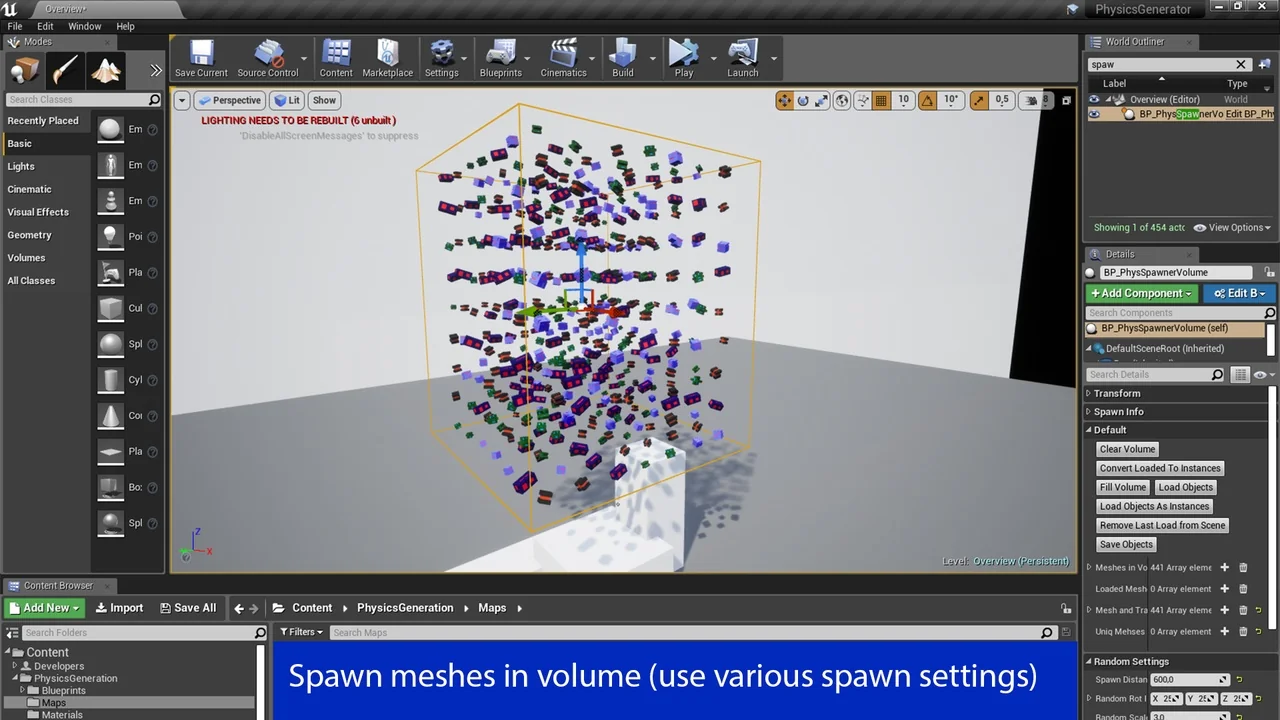
 Gameplay Features
 Gameplay Features
 Gameplay Features