"14d0887eb8be9e9e"{"id":"1002135","slug":"orbit-camera","title":"Orbit Camera","category":"Gameplay Features","engine":"5.1+","assetVersion":"","engineVersion":"Engine Version: 5.1+","tag":"Gameplay Features","accent":"blue","visual":"mech","summary":"Explore the Orbit Camera pawn blueprint, featuring custom pivot targeting, dolly zooms, camera switching transitions, and a clean screenshot album.","platform":"Unreal Engine","publishedAt":"2026-10-29T09:23:20.322Z","updatedAt":"2026-10-29T09:23:20.322Z","sourceNotes":[],"fileContents":[],"compatibility":["Unreal Engine","Engine Version: 5.1+"],"featuredImage":{"alt":"Orbit Camera","src":"/wp-content/uploads/published/2026/10/e324a714a1c3-3b75bef2-164f-4162-916b-96dc9e94da5f-912c0b74b8.webp"},"hasDownloadLink":true,"downloads":0,"terms":[{"taxonomy":"category","slug":"gameplay-features","name":"Gameplay Features"}],"galleryImages":[{"src":"/wp-content/uploads/published/2026/10/1093115ef1b4-928d8f94-91f0-47bd-80ed-cd539a06e4e2-17d5aa0477.webp","alt":"Orbit Camera"},{"src":"/wp-content/uploads/published/2026/10/05ce0f5ec2b2-18b50926-bb1e-486a-9286-fa90e72fd292-21a2b45a9f.webp","alt":"Orbit Camera"},{"src":"/wp-content/uploads/published/2026/10/369402bfe0af-4b7a7c38-914f-43fd-b1d3-2b49dbc7b0b2-448746950a.webp","alt":"Orbit Camera"},{"src":"/wp-content/uploads/published/2026/10/974bf2076e77-76a346a1-292e-463b-948e-3881b1f88cc6-9b11f3c2a9.webp","alt":"Orbit Camera"}],"accessPanel":{"kind":"resource","title":"Download this resource","eyebrow":"Free Download","message":"Log in or create a free account to start your download.","fileName":"Content.7z","safetyNote":"Resources are manually reviewed before listing to improve quality and reduce obvious risks.","actionLabel":"Download Free","resourceType":"Resource archive"},"contentHtml":"\u003ch2\u003eTargeting Pivots, Centers, and Touch Points in Space\u003c/h2\u003e\u003cp\u003ePositioning a viewpoint around a 3D asset requires immediate clarity over where the visual anchor lies. In this orbit camera system, focal lock is not bound to a single rigid mechanic. Instead, focus can align directly with the precise click point on a mesh, a touch point registered from a touch interface, the geometric center of an object, or an actor's native pivot point. This flexible targeting ensures that inspection remains intuitive whether an operator inspects broad object envelopes or tight mechanical details.\u003c/p\u003e\u003cp\u003eOrbiting behavior circumnavigates the selected target while maintaining deliberate spatial relationships. Users can freely rotate around the chosen target point, circle around an object's boundary, or maintain an orbit locked purely to the core actor transform. Because inputs can originate from standard pointer clicks or direct touch interactions, the framing responds naturally across standard workstation setups and touch-enabled displays.\u003c/p\u003e\u003ch2\u003eZoom Mechanics: Distance, Focal Length, and the Dolly Effect\u003c/h2\u003e\u003cp\u003eAdjusting the frame composition involves more than simple forward and backward stepping. The system supports three distinct zooming methodologies, each altering the scene's spatial perception in fundamentally different ways:\u003c/p\u003e\u003cul\u003e\u003cli\u003e\u003cstrong\u003eCamera Distance:\u003c/strong\u003e Physically slides the camera closer to or farther from the focal anchor, shifting parallax without modifying lens distortion.\u003c/li\u003e\u003cli\u003e\u003cstrong\u003eFocal Length:\u003c/strong\u003e Adjusts the field of view directly on the camera lens, flattening or exaggerating perspective while holding physical distance constant.\u003c/li\u003e\u003cli\u003e\u003cstrong\u003eClassic Dolly Effect:\u003c/strong\u003e Combines physical translation with inverse focal length adjustments simultaneously, producing a dramatic perspective shift while maintaining subject framing.\u003c/li\u003e\u003c/ul\u003e\u003cp\u003eComplementing these framing controls is depth of field (DOF) configuration. Adjusting depth of field allows specific target planes to stand out sharply against blurred foregrounds or backgrounds, emphasizing visual hierarchy during runtime presentation or detailed asset review.\u003c/p\u003e\u003ch2\u003eConstraining Rotation Ranges and Pan Boundaries\u003c/h2\u003e\u003cp\u003eUnrestricted orbital movement can cause cameras to clip into floors, flip upside down, or drift away from key presentation subjects. To prevent these issues, rotation can be confined within explicit angular ranges. Pitch, yaw, and roll limits can be specified to keep the viewpoint inside an approved operational window, ensuring users remain focused on the relevant surfaces of a model.\u003c/p\u003e\u003cp\u003ePanning operates with similar spatial protections. Rather than letting horizontal or vertical camera translation drift indefinitely, pan movement can be limited to a defined spatial volume. Velocity is never locked into a single rigid curve; speed for rotation and pan movement can be adjusted individually. Decoupling translation speed from orbital rotation speed allows fine-tuning for lightweight objects, industrial machinery, or broad environment layouts without one control overpowering the other.\u003c/p\u003e\u003ch2\u003eMulti-Camera Switching with Blurs and Fades\u003c/h2\u003e\u003cp\u003eProjects rarely depend on a lone viewpoint when presenting complex scenes or detailed assemblies. The system natively supports setups utilizing one or multiple cameras placed strategically throughout a scene. Operators can switch between different camera positions using an included camera switch widget, eliminating the need to manually construct external interface selectors.\u003c/p\u003e\u003cp\u003eSwapping between camera actors does not require jarring instantaneous cuts. The toolset features built-in smooth transitions, pairing spatial movement with customizable fade transitions and blur effects. These transitions preserve viewer orientation as the viewpoint travels from an exterior wide shot to an interior inspection camera, making the perspective shift feel deliberate and cohesive.\u003c/p\u003e\u003ch2\u003ePawn Blueprint Possession and Real-Time Debug Controls\u003c/h2\u003e\u003cp\u003eThe Orbit Camera is structured specifically as a pawn blueprint. Utilizing the system requires a controller to possess the pawn in the scene, which routes control inputs directly into the camera's orbital logic. This architectural choice makes integration predictable within standard game modes and interactive projects that rely on standard pawn possession workflows.\u003c/p\u003e\u003cp\u003eDialing in movement limits, pan speeds, and optical properties does not demand constant stopping and restarting of the application. The system integrates a real-time debug menu directly into the runtime environment. Through this interface, adjustments to rotation constraints, panning volumes, speeds, and camera behaviors can be tested immediately, providing direct feedback while actively moving through the scene.\u003c/p\u003e\u003ch2\u003eUI-Free Screenshot Capture and Album Visualization\u003c/h2\u003e\u003cp\u003eCapturing the final framing of an object is handled through an integrated screenshot utility. Triggering the capture function records the current camera view cleanly without rendering user interface elements, debug widgets, or interactive prompts into the image. This ensures high-fidelity visual documentation suitable for portfolio rendering, industrial review, or gameplay photography modes compatible with advanced photo workflows.\u003c/p\u003e\u003cp\u003eCaptured images do not vanish into hidden system directories; they feed directly into an included in-engine album. Users can open the album widget at runtime to inspect previous captures, assess angles, and compare different framing setups. By pairing camera constraints, varied zoom optics, clean image capture, and an accessible review album, the blueprint functions as a comprehensive viewing and presentation suite.\u003c/p\u003e\n\n\u003ch2\u003eMore From The Same Workflow\u003c/h2\u003e\n\u003cul\u003e\n\u003cli\u003e\u003ca href=\"https://3dcghub.com/customizable-bodycam-component/\" title=\"Customizable Bodycam Component\"\u003eCustomizable Bodycam Component\u003c/a\u003e\u003c/li\u003e\n\u003cli\u003e\u003ca href=\"https://3dcghub.com/advanced-bodycam-vhs-body-camera-component-with-video-effects/\" title=\"Advanced BodyCam / VHS - Body Camera Component with Video Effects\"\u003eAdvanced BodyCam / VHS - Body Camera Component with Video Effects\u003c/a\u003e\u003c/li\u003e\n\u003cli\u003e\u003ca href=\"https://3dcghub.com/cine-cam/\" title=\"Cine Cam\"\u003eCine Cam\u003c/a\u003e\u003c/li\u003e\n\u003cli\u003e\u003ca href=\"https://3dcghub.com/advanced-photo-mode/\" title=\"Advanced Photo Mode\"\u003eAdvanced Photo Mode\u003c/a\u003e\u003c/li\u003e\n\u003cli\u003e\u003ca href=\"https://3dcghub.com/black-eye-camera-powerful-procedural-camera-system-for-gameplay-and-cinematics/\" title=\"Black Eye Camera - Powerful Procedural Camera System for Gameplay and Cinematics\"\u003eBlack Eye Camera - Powerful Procedural Camera System for Gameplay and Cinematics\u003c/a\u003e\u003c/li\u003e\n\u003c/ul\u003e","contentTextLength":5798,"navigation":{"current":37,"total":4097,"previous":{"id":"1002136","slug":"oriental-spear-animset","title":"Oriental Spear AnimSet","category":"Combat","platform":"Unreal Engine","updatedAt":"2026-10-29T09:24:33.302Z"},"next":{"id":"1002134","slug":"old-kitchen","title":"Old Kitchen","category":"Tools, Objects \u0026 Decor","platform":"Unreal Engine","updatedAt":"2026-10-29T09:18:56.146Z"}},"relatedResources":[{"id":"1000048","slug":"customizable-bodycam-component","title":"Customizable Bodycam Component","category":"Gameplay Features","engine":"5.1+","assetVersion":"","engineVersion":"Engine Version: 5.1+","tag":"Gameplay Features","accent":"blue","visual":"mech","summary":"A Blueprint-driven camera component designed to deliver photorealistic, character-mirrored motion, exposed material parameters, and customizable VHS effects.","platform":"Unreal Engine","publishedAt":"2026-05-22T11:03:34.875Z","updatedAt":"2026-10-24T07:39:32.861Z","sourceNotes":[],"fileContents":[],"compatibility":["Unreal Engine","Engine Version: 5.1+"],"featuredImage":{"alt":"Customizable Bodycam Component","src":"/wp-content/uploads/published/2026/05/a8f60f9cccc0-8a5f4ac1-11c7-49f2-9fb6-a21c09403ba4-65699f7637.webp"},"hasDownloadLink":true,"downloads":5},{"id":"1001935","slug":"advanced-bodycam-vhs-body-camera-component-with-video-effects","title":"Advanced BodyCam / VHS - Body Camera Component with Video Effects","category":"Gameplay Features","engine":"5.0+","assetVersion":"","engineVersion":"Engine Version: 5.0+","tag":"Gameplay Features","accent":"blue","visual":"mech","summary":"Add realistic body camera and VHS visual effects to character rigs using the drag-and-drop BPC_BodyCamComponent with exposed optical and motion settings.","platform":"Unreal Engine","publishedAt":"2026-10-24T11:12:27.777Z","updatedAt":"2026-10-24T11:12:27.777Z","sourceNotes":[],"fileContents":[],"compatibility":["Unreal Engine","Engine Version: 5.0+"],"featuredImage":{"alt":"Advanced BodyCam / VHS - Body Camera Component with Video Effects","src":"/wp-content/uploads/published/2026/10/6e34fe42e6f6-4f31419b-4b67-4d04-91d2-22b0beff1d20-a41ea00718.webp"},"hasDownloadLink":true,"downloads":0},{"id":"1001299","slug":"cine-cam","title":"Cine Cam","category":"Gameplay Features","engine":"5.0+","assetVersion":"","engineVersion":"Engine Version: 5.0+","tag":"Gameplay Features","accent":"blue","visual":"mech","summary":"Explore Cine Cam for Unreal Engine 5, a runtime virtual camera rig featuring four focus modes, aperture control, customizable keybindings, and smooth movement.","platform":"Unreal Engine","publishedAt":"2026-10-02T06:01:01.399Z","updatedAt":"2026-10-02T06:01:01.399Z","sourceNotes":[],"fileContents":[],"compatibility":["Unreal Engine","Engine Version: 5.0+"],"featuredImage":{"alt":"Cine Cam","src":"/wp-content/uploads/published/2026/10/a8f5ad26ef61-c8a95d6e-4c3e-4721-b9bf-9c2e603902c7-ed5f883bed.webp"},"hasDownloadLink":true,"downloads":0}]}
Gameplay Features
Orbit Camera
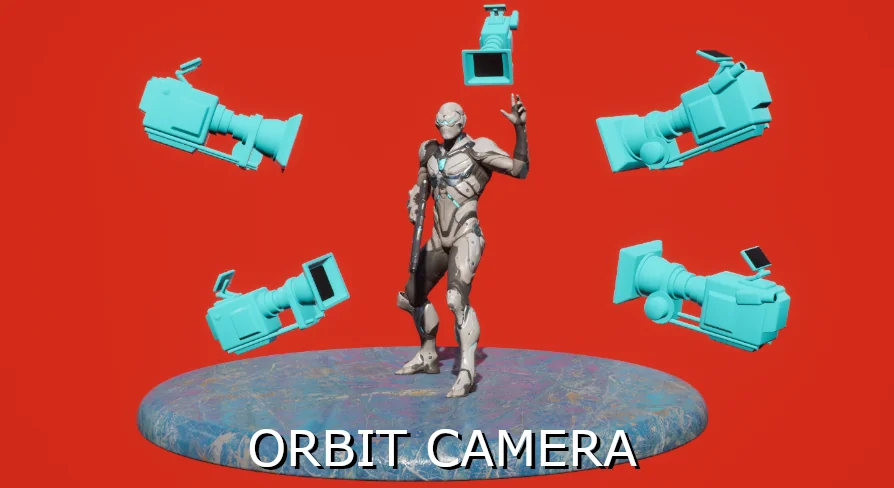
Explore the Orbit Camera pawn blueprint, featuring custom pivot targeting, dolly zooms, camera switching transitions, and a clean screenshot album.
Targeting Pivots, Centers, and Touch Points in Space
Positioning a viewpoint around a 3D asset requires immediate clarity over where the visual anchor lies. In this orbit camera system, focal lock is not bound to a single rigid mechanic. Instead, focus can align directly with the precise click point on a mesh, a touch point registered from a touch interface, the geometric center of an object, or an actor's native pivot point. This flexible targeting ensures that inspection remains intuitive whether an operator inspects broad object envelopes or tight mechanical details.
Orbiting behavior circumnavigates the selected target while maintaining deliberate spatial relationships. Users can freely rotate around the chosen target point, circle around an object's boundary, or maintain an orbit locked purely to the core actor transform. Because inputs can originate from standard pointer clicks or direct touch interactions, the framing responds naturally across standard workstation setups and touch-enabled displays.
Zoom Mechanics: Distance, Focal Length, and the Dolly Effect
Adjusting the frame composition involves more than simple forward and backward stepping. The system supports three distinct zooming methodologies, each altering the scene's spatial perception in fundamentally different ways:
Camera Distance: Physically slides the camera closer to or farther from the focal anchor, shifting parallax without modifying lens distortion.
Focal Length: Adjusts the field of view directly on the camera lens, flattening or exaggerating perspective while holding physical distance constant.
Classic Dolly Effect: Combines physical translation with inverse focal length adjustments simultaneously, producing a dramatic perspective shift while maintaining subject framing.
Complementing these framing controls is depth of field (DOF) configuration. Adjusting depth of field allows specific target planes to stand out sharply against blurred foregrounds or backgrounds, emphasizing visual hierarchy during runtime presentation or detailed asset review.
Constraining Rotation Ranges and Pan Boundaries
Unrestricted orbital movement can cause cameras to clip into floors, flip upside down, or drift away from key presentation subjects. To prevent these issues, rotation can be confined within explicit angular ranges. Pitch, yaw, and roll limits can be specified to keep the viewpoint inside an approved operational window, ensuring users remain focused on the relevant surfaces of a model.
Panning operates with similar spatial protections. Rather than letting horizontal or vertical camera translation drift indefinitely, pan movement can be limited to a defined spatial volume. Velocity is never locked into a single rigid curve; speed for rotation and pan movement can be adjusted individually. Decoupling translation speed from orbital rotation speed allows fine-tuning for lightweight objects, industrial machinery, or broad environment layouts without one control overpowering the other.
Multi-Camera Switching with Blurs and Fades
Projects rarely depend on a lone viewpoint when presenting complex scenes or detailed assemblies. The system natively supports setups utilizing one or multiple cameras placed strategically throughout a scene. Operators can switch between different camera positions using an included camera switch widget, eliminating the need to manually construct external interface selectors.
Swapping between camera actors does not require jarring instantaneous cuts. The toolset features built-in smooth transitions, pairing spatial movement with customizable fade transitions and blur effects. These transitions preserve viewer orientation as the viewpoint travels from an exterior wide shot to an interior inspection camera, making the perspective shift feel deliberate and cohesive.
Pawn Blueprint Possession and Real-Time Debug Controls
The Orbit Camera is structured specifically as a pawn blueprint. Utilizing the system requires a controller to possess the pawn in the scene, which routes control inputs directly into the camera's orbital logic. This architectural choice makes integration predictable within standard game modes and interactive projects that rely on standard pawn possession workflows.
Dialing in movement limits, pan speeds, and optical properties does not demand constant stopping and restarting of the application. The system integrates a real-time debug menu directly into the runtime environment. Through this interface, adjustments to rotation constraints, panning volumes, speeds, and camera behaviors can be tested immediately, providing direct feedback while actively moving through the scene.
UI-Free Screenshot Capture and Album Visualization
Capturing the final framing of an object is handled through an integrated screenshot utility. Triggering the capture function records the current camera view cleanly without rendering user interface elements, debug widgets, or interactive prompts into the image. This ensures high-fidelity visual documentation suitable for portfolio rendering, industrial review, or gameplay photography modes compatible with advanced photo workflows.
Captured images do not vanish into hidden system directories; they feed directly into an included in-engine album. Users can open the album widget at runtime to inspect previous captures, assess angles, and compare different framing setups. By pairing camera constraints, varied zoom optics, clean image capture, and an accessible review album, the blueprint functions as a comprehensive viewing and presentation suite.
 Gameplay Features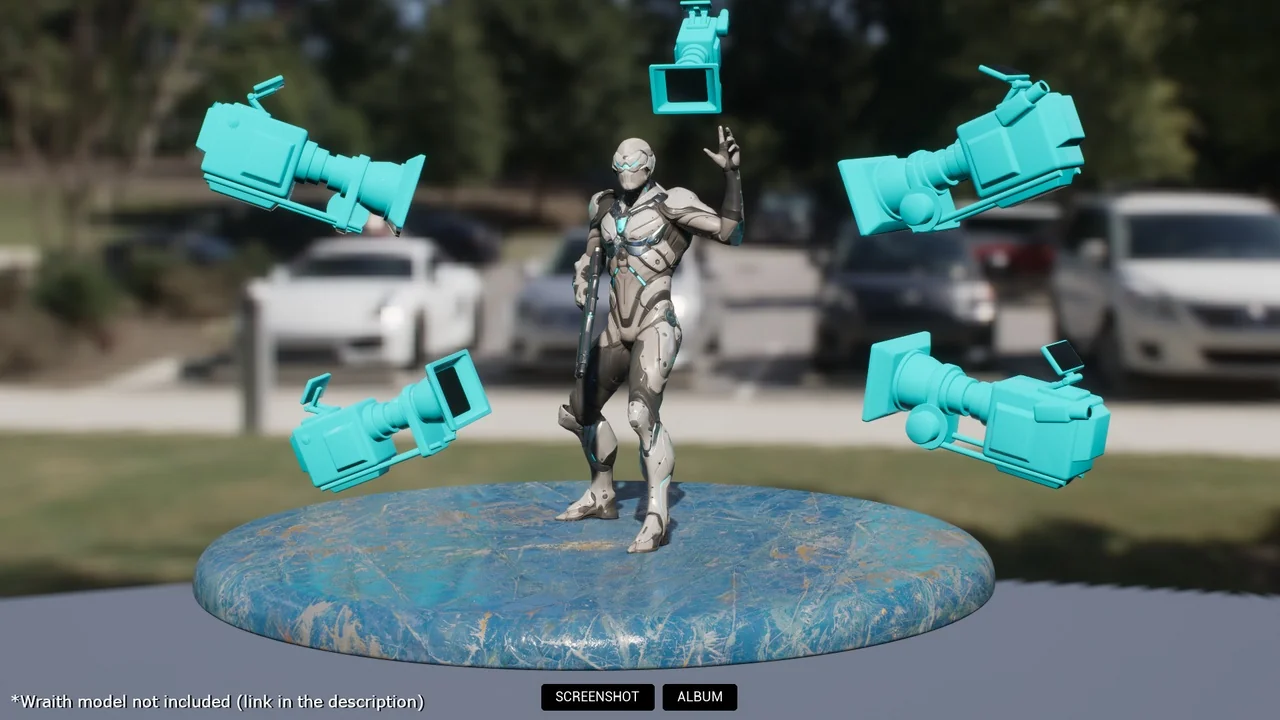
 Gameplay Features
 Gameplay Features
 Gameplay Features