"7e6fc58c410f2894"{"id":"23652","slug":"build-report-tool","title":"Build Report Tool","category":"Utilities","engine":"Original Unity version: 4.6.5","assetVersion":"Original Unity version: 4.6.5","engineVersion":"Asset Version:3.11.11","tag":"Utilities","accent":"cyan","visual":"luts","summary":"Build Report Tool turns Unityâs build info into a readable report, showing which assets are included and how much space each one uses. It also tracks unused assets, project settings, and managed DLLs, while noting that Asset Bundles and Addressables are n...","platform":"Unity","publishedAt":"2026-04-10T17:08:30.000Z","updatedAt":"2026-04-19T15:35:17.000Z","sourceNotes":[],"fileContents":[],"compatibility":["Unity","Original Unity version: 4.6.5","Asset Version: 3.11.11"],"featuredImage":{"alt":"Build Report Tool","src":"https://3dcghub.com/wp-content/uploads/2026/04/e4ac5bff9a2c_cbf8a053-aa26-4e05-9c26-589468b2ce4b_1280x720_stretch.webp"},"hasDownloadLink":true,"downloads":1,"terms":[{"taxonomy":"category","slug":"utilities","name":"Utilities"},{"taxonomy":"post_tag","slug":"plugins","name":"Plugins"},{"taxonomy":"post_tag","slug":"tools","name":"Tools"},{"taxonomy":"post_tag","slug":"unity","name":"Unity"}],"galleryImages":[{"src":"https://3dcghub.com/wp-content/uploads/2026/04/7942e4bf9e61_f72fd029-775c-4b4f-ab16-fe4dd58f0741_scaled.webp","alt":"Build Report Tool"},{"src":"https://3dcghub.com/wp-content/uploads/2026/04/46d16c118333_122acb95-28a5-427e-a3fc-daf06c0e48cd_scaled.webp","alt":"Build Report Tool"},{"src":"https://3dcghub.com/wp-content/uploads/2026/04/26557edd9509_a74b567e-b0ee-4bcb-8a2e-d33ad22b06da_scaled.webp","alt":"Build Report Tool"},{"src":"https://3dcghub.com/wp-content/uploads/2026/04/6af0b6634f60_925b0652-a885-416b-aee4-5e4e15168150_scaled.webp","alt":"Build Report Tool"},{"src":"https://3dcghub.com/wp-content/uploads/2026/04/3eb76a72e927_0443b84e-e1e8-4187-91a8-98b8ac0e1c6f_scaled-1.webp","alt":"Build Report Tool"},{"src":"https://3dcghub.com/wp-content/uploads/2026/04/580a19bc2359_2df79ce4-e51a-426c-87b8-7b1d5aff6b64_scaled-1.webp","alt":"Build Report Tool"},{"src":"https://3dcghub.com/wp-content/uploads/2026/04/8a83321b7afa_98a44efa-8ce0-4e88-abe3-306695adf2a6_scaled-1.webp","alt":"Build Report Tool"},{"src":"https://3dcghub.com/wp-content/uploads/2026/04/245fbcee18be_029a4948-44df-4994-9b0a-75191a3e19ad_scaled-1.webp","alt":"Build Report Tool"}],"accessPanel":{"kind":"resource","title":"Access this resource","eyebrow":"Free Download","message":"Log in or create a free account to start your download.","fileName":"Build Report Tool v3.11.11.7z","safetyNote":"All resources are 100% manually reviewed to eliminate all risks.","actionLabel":"Download Free","resourceType":"Resource archive"},"contentHtml":"\u003ch2\u003eWhat shows up when the build is inspected\u003c/h2\u003e \u003cp\u003eBuild Report Tool puts Unityâs build information into a front-end that is easier to read than the default build output. Once a project is built, it shows the assets that were included and how much storage space each one takes. That makes it useful when a project needs close attention on build size, especially if the goal is to keep a build small or identify which files are taking up the most room.\u003c/p\u003e \u003cp\u003eThe tool is focused on the contents of the build itself. Instead of presenting build data as something hidden inside Unityâs internal reporting, it surfaces the included assets in a way that can be checked directly. That makes the report more practical when the main question is not just whether the build succeeded, but what actually went into it.\u003c/p\u003e \u003cp\u003eThere is also a clear limitation worth keeping in mind: the plugin does not detect the building of Asset Bundles or Addressables. That includes usage of plugins like VRWorld Toolkit. For projects that rely on those systems, the report will not cover that part of the pipeline, so the tool is strongest when the build content is coming through Unityâs regular build process.\u003c/p\u003e \u003ch2\u003eAsset usage, dependencies, and unused files\u003c/h2\u003e \u003cp\u003eOne of the most concrete parts of the tool is the Asset Usage/Dependencies view. It shows which asset is using which, so it becomes easier to understand why something is being included in the build. That matters when an asset appears in the output unexpectedly, because the dependency chain gives a direct way to trace the inclusion back to its related files.\u003c/p\u003e \u003cp\u003eThe Unused Assets List serves the opposite purpose. It highlights files that are not included in the build, which helps when a project has material that is no longer being used. That can be especially helpful in larger projects where old assets may remain in the folder structure long after they stop being part of the active build.\u003c/p\u003e \u003cp\u003eThese two views work as a pair. The dependency side answers why something is present, while the unused list points to what is not making it into the build at all. Together they give a clearer picture of the projectâs asset footprint without needing to guess where the extra content is coming from.\u003c/p\u003e \u003cul\u003e \u003cli\u003e\u003cstrong\u003eAsset Usage/Dependencies:\u003c/strong\u003e Shows which asset depends on which other asset and why it ends up in the build.\u003c/li\u003e \u003cli\u003e\u003cstrong\u003eUnused Assets List:\u003c/strong\u003e Identifies files that are not included in the build.\u003c/li\u003e \u003c/ul\u003e \u003ch2\u003eReports you can save and settings you can review\u003c/h2\u003e \u003cp\u003eThe Save to XML option lets build reports be stored as XML files. That makes it possible to keep multiple reports for reference instead of relying on a single snapshot. It also gives teams a way to pass the data along to teammates without needing to re-run the same build report each time.\u003c/p\u003e \u003cp\u003eProject Settings are another part of the report. The tool shows which build settings were used on the project at the time of building. That is especially relevant for Continuous Integration systems, where automated builds may need to be checked after the fact and compared against the settings that produced them.\u003c/p\u003e \u003cp\u003eThe DLL List adds another layer of visibility by showing exactly which managed DLLs are being included in the build and how much space they take. That is useful when a project depends on managed code and the build needs to be checked for what is actually being packaged. The DLL List also works on Personal Edition and mobile, which broadens the range of project setups where it can be used.\u003c/p\u003e \u003ch2\u003eVersion history and compatibility notes\u003c/h2\u003e \u003cp\u003eThe package is listed as a unitypackage and is compact in size at 567.3 KB, with an asset count of 238. The latest version is 3.13.5, and the first publication dates back to Apr 17, 2013. The latest release date shown is Feb 11, 2026.\u003c/p\u003e \u003cp\u003eCompatibility is tied to Unity versions as well. The original Unity version is 4.6.5, and the supported versions list includes 4.6.5, 5.0.4, 2017.4.40, 2018.4.36, and 2019.4.41. A note attached to the current release says that all new versions require at least Unity 2019.4. If an older Unity version is needed, the note says a special package can be created.\u003c/p\u003e \u003cp\u003eThe release notes for version 3.13.5 mention a fix for upcoming breaking changes in Unity 6.5 involving Application.consoleLogPath, along with a fix for Reveal in File Browser on Linux. They also note that the plugin has no MonoBehaviour or ScriptableObject classes, so it is safe to delete when it is being replaced.\u003c/p\u003e \u003cp\u003eFor teams that need a direct audit of what enters a Unity build, this tool gives a readable report on included assets, dependencies, unused files, build settings, and managed DLLs in one place.\u003c/p\u003e\n\n\u003ch2\u003eRelated Resources Worth Checking\u003c/h2\u003e\n\u003cul\u003e\n\u003cli\u003e\u003ca href=\"https://3dcghub.com/toolkit-for-unity-physics-2026/\" title=\"Toolkit for Unity Physics 2026\"\u003eToolkit for Unity Physics 2026\u003c/a\u003e\u003c/li\u003e\n\u003cli\u003e\u003ca href=\"https://3dcghub.com/opencv-for-unity/\" title=\"OpenCV for Unity\"\u003eOpenCV for Unity\u003c/a\u003e\u003c/li\u003e\n\u003cli\u003e\u003ca href=\"https://3dcghub.com/exporter-for-unreal-to-for-unity-2026/\" title=\"Exporter for Unreal to/for Unity 2026\"\u003eExporter for Unreal to/for Unity 2026\u003c/a\u003e\u003c/li\u003e\n\u003cli\u003e\u003ca href=\"https://3dcghub.com/dialogue-system-for-unity/\" title=\"Dialogue System for Unity\"\u003eDialogue System for Unity\u003c/a\u003e\u003c/li\u003e\n\u003cli\u003e\u003ca href=\"https://3dcghub.com/ambient-sounds-interactive-soundscapes-for-unity-6/\" title=\"Ambient Sounds – Interactive Soundscapes for Unity 6\"\u003eAmbient Sounds – Interactive Soundscapes for Unity 6\u003c/a\u003e\u003c/li\u003e\n\u003c/ul\u003e","contentTextLength":4816,"navigation":{"current":3553,"total":3618,"previous":{"id":"23658","slug":"component-names","title":"Component Names","category":"Utilities","platform":"Unity","updatedAt":"2026-04-19T15:35:17.000Z"},"next":{"id":"23635","slug":"asset-cleaner-pro-clean-find-references","title":"Asset Cleaner PRO - Clean | Find References","category":"Utilities","platform":"Unity","updatedAt":"2026-04-19T15:35:17.000Z"}},"relatedResources":[{"id":"23658","slug":"component-names","title":"Component Names","category":"Utilities","engine":"Original Unity version: 2021.3.45","assetVersion":"Original Unity version: 2021.3.45","engineVersion":"Asset Version:1.2.1","tag":"Utilities","accent":"cyan","visual":"city","summary":"Component Names adds in-Inspector renaming for Unity components, along with custom suffixes, tooltips, and clearer labels in Object fields and UnityEvents. It also includes code helpers for reading and setting names while keeping the custom data out of builds.","platform":"Unity","publishedAt":"2026-04-10T17:11:20.000Z","updatedAt":"2026-04-19T15:35:17.000Z","sourceNotes":[],"fileContents":[],"compatibility":["Unity","Original Unity version: 2021.3.45","Asset Version: 1.2.1"],"featuredImage":{"alt":"Component Names","src":"https://3dcghub.com/wp-content/uploads/2026/04/4728cc689c71_ee09c304-1c7a-414d-8c01-2da004386eda_1280x720_stretch.webp"},"hasDownloadLink":true,"downloads":0},{"id":"23628","slug":"amplify-impostors","title":"Amplify Impostors","category":"Utilities","engine":"Original Unity version: 2019.4.31","assetVersion":"Original Unity version: 2019.4.31","engineVersion":"","tag":"Utilities","accent":"cyan","visual":"character","summary":"Amplify Impostors turns complex models into simplified impostors with 1-click baking, octahedron and spherical shapes, and a billboard shape editor. It also includes smart blending, depth-write intersections, and support for forward and deferred rendering a...","platform":"Unity","publishedAt":"2026-04-10T16:57:43.000Z","updatedAt":"2026-04-19T15:35:18.000Z","sourceNotes":[],"fileContents":[],"compatibility":["Unity","Original Unity version: 2019.4.31"],"featuredImage":{"alt":"Amplify Impostors","src":"https://3dcghub.com/wp-content/uploads/2026/04/36bc9e806878_f5dc3cdc-1baf-422b-828d-acf24937e624_1280x720_stretch.webp"},"hasDownloadLink":true,"downloads":2},{"id":"23635","slug":"asset-cleaner-pro-clean-find-references","title":"Asset Cleaner PRO - Clean | Find References","category":"Utilities","engine":"Original Unity version: 2022.3.50","assetVersion":"Original Unity version: 2022.3.50","engineVersion":"Asset Version:1.33","tag":"Utilities","accent":"cyan","visual":"animation","summary":"Unused files turn red in the Project view, folder counters show where clutter is growing, and reference changes appear instantly while you inspect dependencies. Asset Cleaner PRO brings cleanup and reference tracing into one Unity editor workflow. It is aim...","platform":"Unity","publishedAt":"2026-04-10T17:01:25.000Z","updatedAt":"2026-04-19T15:35:17.000Z","sourceNotes":[],"fileContents":[],"compatibility":["Unity","Original Unity version: 2022.3.50","Asset Version: 1.33"],"featuredImage":{"alt":"Asset Cleaner PRO - Clean | Find References","src":"https://3dcghub.com/wp-content/uploads/2026/04/b423dabc9983_3991b84d-c11d-4ed4-a24f-a4ae547e38c9_1280x720_stretch.webp"},"hasDownloadLink":true,"downloads":0}]}
Utilities
Build Report Tool
Build Report Tool turns Unityâs build info into a readable report, showing which assets are included and how much space each one uses. It also tracks unused assets, project settings, and managed DLLs, while noting that Asset Bundles and Addressables are n...
Build Report Tool puts Unityâs build information into a front-end that is easier to read than the default build output. Once a project is built, it shows the assets that were included and how much storage space each one takes. That makes it useful when a project needs close attention on build size, especially if the goal is to keep a build small or identify which files are taking up the most room.
The tool is focused on the contents of the build itself. Instead of presenting build data as something hidden inside Unityâs internal reporting, it surfaces the included assets in a way that can be checked directly. That makes the report more practical when the main question is not just whether the build succeeded, but what actually went into it.
There is also a clear limitation worth keeping in mind: the plugin does not detect the building of Asset Bundles or Addressables. That includes usage of plugins like VRWorld Toolkit. For projects that rely on those systems, the report will not cover that part of the pipeline, so the tool is strongest when the build content is coming through Unityâs regular build process.
Asset usage, dependencies, and unused files
One of the most concrete parts of the tool is the Asset Usage/Dependencies view. It shows which asset is using which, so it becomes easier to understand why something is being included in the build. That matters when an asset appears in the output unexpectedly, because the dependency chain gives a direct way to trace the inclusion back to its related files.
The Unused Assets List serves the opposite purpose. It highlights files that are not included in the build, which helps when a project has material that is no longer being used. That can be especially helpful in larger projects where old assets may remain in the folder structure long after they stop being part of the active build.
These two views work as a pair. The dependency side answers why something is present, while the unused list points to what is not making it into the build at all. Together they give a clearer picture of the projectâs asset footprint without needing to guess where the extra content is coming from.
Asset Usage/Dependencies: Shows which asset depends on which other asset and why it ends up in the build.
Unused Assets List: Identifies files that are not included in the build.
Reports you can save and settings you can review
The Save to XML option lets build reports be stored as XML files. That makes it possible to keep multiple reports for reference instead of relying on a single snapshot. It also gives teams a way to pass the data along to teammates without needing to re-run the same build report each time.
Project Settings are another part of the report. The tool shows which build settings were used on the project at the time of building. That is especially relevant for Continuous Integration systems, where automated builds may need to be checked after the fact and compared against the settings that produced them.
The DLL List adds another layer of visibility by showing exactly which managed DLLs are being included in the build and how much space they take. That is useful when a project depends on managed code and the build needs to be checked for what is actually being packaged. The DLL List also works on Personal Edition and mobile, which broadens the range of project setups where it can be used.
Version history and compatibility notes
The package is listed as a unitypackage and is compact in size at 567.3 KB, with an asset count of 238. The latest version is 3.13.5, and the first publication dates back to Apr 17, 2013. The latest release date shown is Feb 11, 2026.
Compatibility is tied to Unity versions as well. The original Unity version is 4.6.5, and the supported versions list includes 4.6.5, 5.0.4, 2017.4.40, 2018.4.36, and 2019.4.41. A note attached to the current release says that all new versions require at least Unity 2019.4. If an older Unity version is needed, the note says a special package can be created.
The release notes for version 3.13.5 mention a fix for upcoming breaking changes in Unity 6.5 involving Application.consoleLogPath, along with a fix for Reveal in File Browser on Linux. They also note that the plugin has no MonoBehaviour or ScriptableObject classes, so it is safe to delete when it is being replaced.
For teams that need a direct audit of what enters a Unity build, this tool gives a readable report on included assets, dependencies, unused files, build settings, and managed DLLs in one place.
 Utilities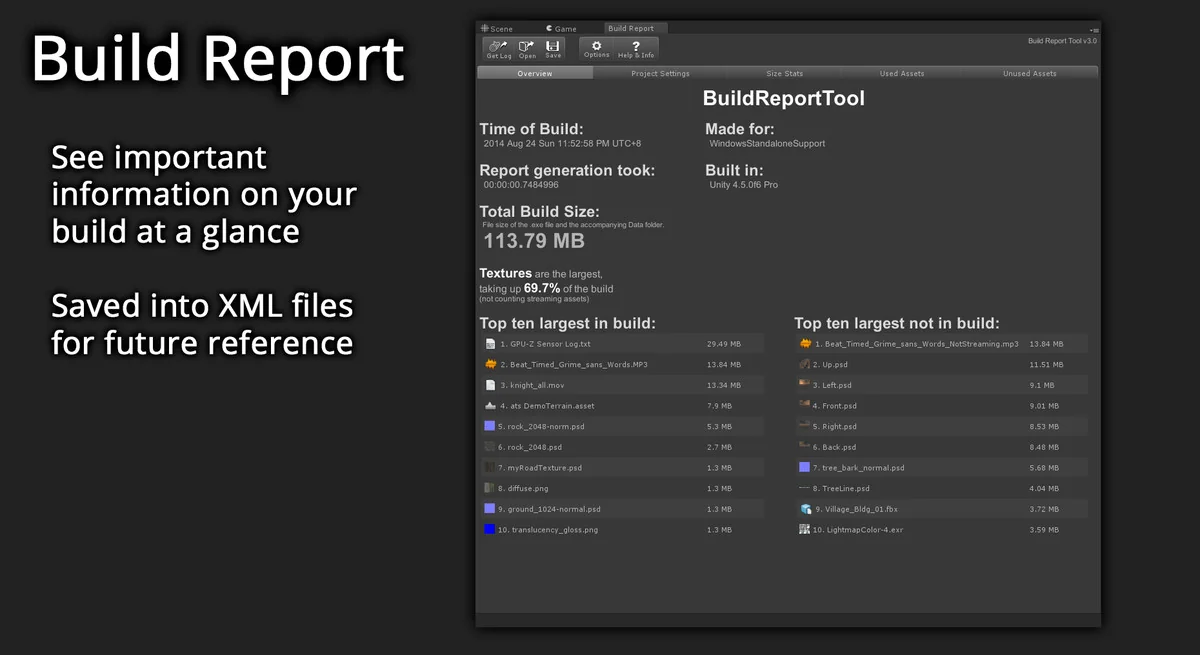
 Utilities
 Utilities
 Utilities