"efaa631e936fd3ee"{"id":"1002232","slug":"texture-resize-sc","title":"Texture Resize SC","category":"Engine Tools","engine":"5.0","assetVersion":"Asset Version: 1.0","engineVersion":"Engine Version: 5.0","tag":"Engine Tools","accent":"blue","visual":"luts","summary":"Texture Resize SC provides lightweight in-editor texture resizing for Unreal Engine, featuring scripted actions, power of 2 sizing, and simple undo steps.","platform":"Unreal Engine","publishedAt":"2026-10-29T15:35:06.805Z","updatedAt":"2026-10-29T15:35:06.805Z","sourceNotes":[],"fileContents":[],"compatibility":["Unreal Engine","Asset Version: 1.0","Engine Version: 5.0"],"featuredImage":{"alt":"Texture Resize SC","src":"/wp-content/uploads/published/2026/10/0092284a8bd8-3ebf507a-bfc6-413f-8a30-5759afd1bf8b-f9163f419f.webp"},"hasDownloadLink":true,"downloads":0,"terms":[{"taxonomy":"category","slug":"engine-tools-tools-and-plugins","name":"Engine Tools"}],"galleryImages":[],"accessPanel":{"kind":"resource","title":"Download this resource","eyebrow":"Free Download","message":"Log in or create a free account to start your download.","fileName":"Texture Resize SC.7z","safetyNote":"Resources are manually reviewed before listing to improve quality and reduce obvious risks.","actionLabel":"Download Free","resourceType":"Resource archive"},"contentHtml":"\u003ch2\u003eIn-Editor Texture Resizing Without External Image Tools\u003c/h2\u003e\u003cp\u003eAdjusting asset resolutions usually interrupts production by forcing artists to leave the game engine and open external image editing packages.\u003c/p\u003e\u003cp\u003eTexture Resize SC functions as a lightweight editor tool built to modify texture files directly within the project environment. Rather than setting up external batch export scripts or re-importing altered image files manually, developers can adjust image dimensions on the fly. The tool works directly inside the editor interface, keeping file optimization steps contained inside standard project directories and reducing the overhead typically associated with fine-tuning asset footprints.\u003c/p\u003e\u003ch2\u003eExecuting Scripted Actions Inside the Content Browser\u003c/h2\u003e\u003cp\u003eRunning the tool involves enabling the plugin and accessing its functions from existing editor menus.\u003c/p\u003e\u003cp\u003eOnce the plugin is enabled in the engine settings, its commands become available through the standard Content Browser context menu. Users simply highlight any texture file or choose multiple texture assets simultaneously, then right-click to reveal the options list. Hovering over the Scripted Actions submenu exposes the texture operations provided by the tool, letting developers apply dimensional changes immediately to the entire active selection without navigating supplementary interface windows or separate configuration panels.\u003c/p\u003e\u003ch2\u003eConforming File Resolutions to Power of 2 Dimensions\u003c/h2\u003e\u003cp\u003eThe utility specifically targets standard power of 2 dimensions for texture assets.\u003c/p\u003e\u003cp\u003eReal-time rendering systems rely on power of 2 resolutions to properly compute mipmaps, manage memory footprints, and support hardware streaming routines. When selecting a command through the Scripted Actions menu, users pick their desired power of 2 target size to resize the targeted texture files. The plugin processes the conversion directly on the selected assets, ensuring that single maps or broader texture sets match the exact power of 2 values required by the project's technical specifications.\u003c/p\u003e\u003ch2\u003eRolling Back Modifications with Reload from Disk and Unreal Engine 5 Undo\u003c/h2\u003e\u003cp\u003eTesting different resolution thresholds is non-destructive prior to saving changes.\u003c/p\u003e\u003cp\u003eShould a resized texture lose critical detail or fail to match visual expectations, reverting the change is straightforward. Projects running in Unreal Engine 5 can use the standard Undo command by pressing Ctrl + Z to immediately reverse the sizing action. For alternative recovery or earlier project versions, users can right-click the texture file in the Content Browser and select the command to reload the file from disk, pulling the original source state back into memory before any permanent overwrite takes place.\u003c/p\u003e\u003ch2\u003eSaving Asset Changes and Pairing with Texture Packer SC\u003c/h2\u003e\u003cp\u003eResized files are permanently written to the project only when the developer chooses to save them.\u003c/p\u003e\u003cp\u003eAfter confirming that the new power of 2 dimensions satisfy quality requirements, saving the modified assets locks the altered texture files into the project. The utility functions as an independent, lightweight code tool for dimension management and also maintains compatibility with Texture Packer SC. Working with both tools alongside one another establishes a coordinated in-editor asset setup, allowing creators to pack texture channels and resize final maps without relying on third-party graphics software.\u003c/p\u003e\n\n\u003ch2\u003eRelated Resources Worth Checking\u003c/h2\u003e\n\u003cul\u003e\n\u003cli\u003e\u003ca href=\"https://3dcghub.com/ase-importer/\" title=\"Ase Importer\"\u003eAse Importer\u003c/a\u003e\u003c/li\u003e\n\u003cli\u003e\u003ca href=\"https://3dcghub.com/externaltextureplugin/\" title=\"ExternalTexturePlugin\"\u003eExternalTexturePlugin\u003c/a\u003e\u003c/li\u003e\n\u003cli\u003e\u003ca href=\"https://3dcghub.com/overcrowd-massive-crowd-simulation/\" title=\"OverCrowd - Massive Crowd Simulation\"\u003eOverCrowd - Massive Crowd Simulation\u003c/a\u003e\u003c/li\u003e\n\u003cli\u003e\u003ca href=\"https://3dcghub.com/voxel-weaver-advanced-voxel-plugin/\" title=\"Voxel Weaver | Advanced Voxel Plugin\"\u003eVoxel Weaver | Advanced Voxel Plugin\u003c/a\u003e\u003c/li\u003e\n\u003cli\u003e\u003ca href=\"https://3dcghub.com/duplicate-cleaner/\" title=\"Duplicate Cleaner\"\u003eDuplicate Cleaner\u003c/a\u003e\u003c/li\u003e\n\u003c/ul\u003e","contentTextLength":3534,"navigation":{"current":53,"total":4209,"previous":{"id":"1002233","slug":"timeless-gothic-furniture","title":"Timeless Gothic Furniture","category":"Home","platform":"Unreal Engine","updatedAt":"2026-10-29T15:37:15.956Z"},"next":{"id":"1002231","slug":"terrain-models-pack-vol-3","title":"Terrain Models Pack Vol. 3","category":"Nature \u0026 Plants","platform":"Unreal Engine","updatedAt":"2026-10-29T15:34:00.934Z"}},"relatedResources":[{"id":"13682","slug":"ase-importer","title":"Ase Importer","category":"Engine Tools","engine":"5.1,5.3 - 5.5","assetVersion":"Asset Version: 1.0","engineVersion":"Engine version: 5.1,5.3 - 5.5","tag":"Engine Tools","accent":"blue","visual":"character","summary":"The Ase Importer plugin streamlines the process of bringing pixel art into your project. It automatically converts .aseprite files into texture atlases and PaperFlipbooks with a simple drag-and-drop action.","platform":"Unreal Engine","publishedAt":"2026-03-11T09:35:57.000Z","updatedAt":"2026-09-30T05:37:33.311Z","sourceNotes":[],"fileContents":[],"compatibility":["Unreal Engine","Asset Version: 1.0","Engine version: 5.1,5.3 - 5.5"],"featuredImage":{"alt":"Ase Importer","src":"https://3dcghub.com/wp-content/uploads/2026/03/c4b21ae8-3546-46af-9639-02081461927a.webp"},"hasDownloadLink":true,"downloads":1},{"id":"13982","slug":"externaltextureplugin","title":"ExternalTexturePlugin","category":"Engine Tools","engine":"5.0 - 5.8","assetVersion":"Asset Version:1.0.1 - 1.0.2","engineVersion":"Engine version: 5.0 - 5.8","tag":"Engine Tools","accent":"blue","visual":"luts","summary":"The ExternalTexturePlugin provides a seamless way to integrate local and network-based images into your project at runtime using Blueprints. It supports standard formats like JPG, PNG, TGA, and BMP.","platform":"Unreal Engine","publishedAt":"2026-03-11T10:54:44.000Z","updatedAt":"2026-09-29T09:03:01.541Z","sourceNotes":[],"fileContents":[],"compatibility":["Unreal Engine","Asset Version:1.0.1 - 1.0.2","Engine version: 5.0 - 5.8"],"featuredImage":{"alt":"ExternalTexturePlugin","src":"https://3dcghub.com/wp-content/uploads/2026/03/cf5764e9-fff8-49cf-b24b-274e326c864f.webp"},"hasDownloadLink":true,"downloads":1},{"id":"28127","slug":"overcrowd-massive-crowd-simulation","title":"OverCrowd - Massive Crowd Simulation","category":"Engine Tools","engine":"5.6","assetVersion":"Engine version: 5.6","engineVersion":"Asset Version:1.0","tag":"Engine Tools","accent":"blue","visual":"audio","summary":"Scenes fill quickly with thousands of animated characters, from stadium seats to battle lines, while keeping the workflow inside Unreal Engine 5. OverCrowd focuses on modular character setup, VAT conversion, Niagara-driven behaviors, and tools that scale fr...","platform":"Unreal Engine","publishedAt":"2026-05-04T14:28:50.000Z","updatedAt":"2026-05-04T14:28:51.000Z","sourceNotes":[],"fileContents":[],"compatibility":["Unreal Engine","Engine version: 5.6","Asset Version: 1.0"],"featuredImage":{"alt":"OverCrowd - Massive Crowd Simulation","src":"https://3dcghub.com/wp-content/uploads/2026/05/69c20c2d1a6b_2ac5b60b-5a52-4074-a01c-5f549185dbe2.webp"},"hasDownloadLink":true,"downloads":3}]}
Engine Tools
Texture Resize SC
Texture Resize SC provides lightweight in-editor texture resizing for Unreal Engine, featuring scripted actions, power of 2 sizing, and simple undo steps.
In-Editor Texture Resizing Without External Image Tools
Adjusting asset resolutions usually interrupts production by forcing artists to leave the game engine and open external image editing packages.
Texture Resize SC functions as a lightweight editor tool built to modify texture files directly within the project environment. Rather than setting up external batch export scripts or re-importing altered image files manually, developers can adjust image dimensions on the fly. The tool works directly inside the editor interface, keeping file optimization steps contained inside standard project directories and reducing the overhead typically associated with fine-tuning asset footprints.
Executing Scripted Actions Inside the Content Browser
Running the tool involves enabling the plugin and accessing its functions from existing editor menus.
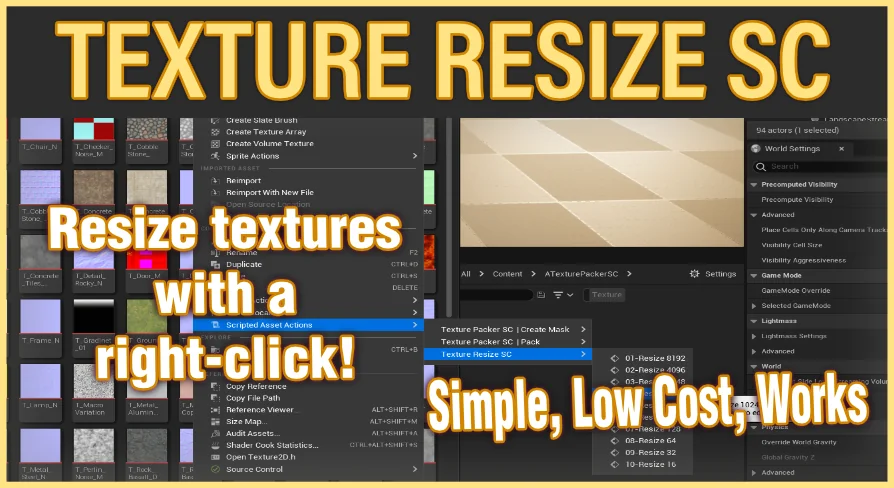
Once the plugin is enabled in the engine settings, its commands become available through the standard Content Browser context menu. Users simply highlight any texture file or choose multiple texture assets simultaneously, then right-click to reveal the options list. Hovering over the Scripted Actions submenu exposes the texture operations provided by the tool, letting developers apply dimensional changes immediately to the entire active selection without navigating supplementary interface windows or separate configuration panels.
Conforming File Resolutions to Power of 2 Dimensions
The utility specifically targets standard power of 2 dimensions for texture assets.
Real-time rendering systems rely on power of 2 resolutions to properly compute mipmaps, manage memory footprints, and support hardware streaming routines. When selecting a command through the Scripted Actions menu, users pick their desired power of 2 target size to resize the targeted texture files. The plugin processes the conversion directly on the selected assets, ensuring that single maps or broader texture sets match the exact power of 2 values required by the project's technical specifications.
Rolling Back Modifications with Reload from Disk and Unreal Engine 5 Undo
Testing different resolution thresholds is non-destructive prior to saving changes.
Should a resized texture lose critical detail or fail to match visual expectations, reverting the change is straightforward. Projects running in Unreal Engine 5 can use the standard Undo command by pressing Ctrl + Z to immediately reverse the sizing action. For alternative recovery or earlier project versions, users can right-click the texture file in the Content Browser and select the command to reload the file from disk, pulling the original source state back into memory before any permanent overwrite takes place.
Saving Asset Changes and Pairing with Texture Packer SC
Resized files are permanently written to the project only when the developer chooses to save them.
After confirming that the new power of 2 dimensions satisfy quality requirements, saving the modified assets locks the altered texture files into the project. The utility functions as an independent, lightweight code tool for dimension management and also maintains compatibility with Texture Packer SC. Working with both tools alongside one another establishes a coordinated in-editor asset setup, allowing creators to pack texture channels and resize final maps without relying on third-party graphics software.
 Engine Tools
 Engine Tools
 Engine Tools
 Engine Tools