"216a1d817ec3ca8a"{"id":"1000892","slug":"stylized-landscape-5-biomes-stylized-low-poly-forest-orasot-bundle","title":"Stylized Landscape 5 Biomes + Stylized + Low poly forest : Orasot Bundle","category":"Forest \u0026 Jungle","engine":"5.2+","assetVersion":"","engineVersion":"Engine Version: 5.2+","tag":"Forest \u0026 Jungle","accent":"blue","visual":"city","summary":"This bundle merges stylized forest, five-biome landscape, and low-poly forest assets with a practical exposure fix for DefaultEngine.ini and virtual texture set","platform":"Unreal Engine","indexPolicy":"index","publishedAt":"2026-08-06T04:37:15.039Z","updatedAt":"2026-08-06T04:37:15.039Z","sourceNotes":[],"fileContents":[],"compatibility":["Unreal Engine","Engine Version: 5.2+"],"featuredImage":{"alt":"Stylized Landscape 5 Biomes + Stylized + Low poly forest : Orasot Bundle","src":"/wp-content/uploads/published/2026/08/d7e4432aba24-96cbb20e-4693-449f-94da-c2b94b1eecfe-b7d03925eb.webp"},"hasDownloadLink":true,"downloads":3,"terms":[{"taxonomy":"category","slug":"forest-and-jungle","name":"Forest \u0026 Jungle"}],"galleryImages":[{"src":"/wp-content/uploads/published/2026/08/24ace3c837e8-d09aa336-8fdf-4673-8836-10ee8aa0672e-61b25911dc.webp","alt":"Stylized Landscape 5 Biomes + Stylized + Low poly forest : Orasot Bundle"},{"src":"/wp-content/uploads/published/2026/08/fbef48ebbd85-1c9cc023-39e3-4d81-b269-7ab0a71c342d-ddfdc14cd2.webp","alt":"Stylized Landscape 5 Biomes + Stylized + Low poly forest : Orasot Bundle"},{"src":"/wp-content/uploads/published/2026/08/0bcd2fefaf32-55cb0e1e-827c-411e-a8b4-6f927358ddda-8b726da4cf.webp","alt":"Stylized Landscape 5 Biomes + Stylized + Low poly forest : Orasot Bundle"},{"src":"/wp-content/uploads/published/2026/08/682e8675992e-acdfe250-5097-4bd3-97b8-0141baa7101e-59a12c3199.webp","alt":"Stylized Landscape 5 Biomes + Stylized + Low poly forest : Orasot Bundle"},{"src":"/wp-content/uploads/published/2026/08/51700b02455e-89b18ae5-b6bb-4550-a837-c878e1c38470-910c0c7b44.webp","alt":"Stylized Landscape 5 Biomes + Stylized + Low poly forest : Orasot Bundle"},{"src":"/wp-content/uploads/published/2026/08/9d3d43629ba1-c2fd165b-c999-4b50-8dbf-5aea9b73533e-b80c7bb3b4.webp","alt":"Stylized Landscape 5 Biomes + Stylized + Low poly forest : Orasot Bundle"},{"src":"/wp-content/uploads/published/2026/08/bf0b1bf97d6e-f60728d5-e80d-4e7a-b3c5-1eb252a3c4c2-dd6009e99a.webp","alt":"Stylized Landscape 5 Biomes + Stylized + Low poly forest : Orasot Bundle"},{"src":"/wp-content/uploads/published/2026/08/f7f0d6bc3782-f731b7d2-2168-4f78-b741-c3f050075d1d-a616270d5b.webp","alt":"Stylized Landscape 5 Biomes + Stylized + Low poly forest : Orasot Bundle"},{"src":"/wp-content/uploads/published/2026/08/5f9fb1b4a918-c59df891-714f-4634-a77f-6c9fa08ac9ac-d36d7105cb.webp","alt":"Stylized Landscape 5 Biomes + Stylized + Low poly forest : Orasot Bundle"},{"src":"/wp-content/uploads/published/2026/08/764ab0211629-2a621968-d284-4f8f-839c-23517c995530-3ed0d255e5.webp","alt":"Stylized Landscape 5 Biomes + Stylized + Low poly forest : Orasot Bundle"}],"accessPanel":{"kind":"resource","title":"Get this resource","eyebrow":"Free resource","message":"3DCGHUB is the service provider for this listing. Access is fulfilled through the official publisher channel.","fileName":"Content.7z","safetyNote":"Resources are manually reviewed before listing to improve quality and reduce obvious risks.","actionLabel":"Get this resource","resourceType":"Resource archive","versions":[]},"contentHtml":"\u003cp\u003eWhen a stylized landscape starts to look washed out, the issue often isn't the art itself but the Auto-Exposure range. \u003cem\u003eThe Orasot Bundle\u003c/em\u003e addresses that directly, and it does so while folding 3 separate packs into 1 project-ready setup. Instead of piecing together terrain, forest, and vegetation kits, 1 single bundle gives you the pieces needed to start building a stylized Low-Poly environment from the ground up.\u003c/p\u003e\n\n\u003cp\u003eThe bundle combines \u003cem\u003eStylized Forest Landscape\u003c/em\u003e, \u003cem\u003eStylized Landscape - 5 Bioms\u003c/em\u003e, and \u003cem\u003eLow Poly Forest Vol. 2\u003c/em\u003e. Each component retains its own focus, which makes the combination more flexible than 1 monolithic pack. The forest landscape handles the wooded side of the scene, the 5-biome landscape expands the range of environments, and the Low-Poly forest adds the tree and vegetation coverage that brings the terrain to life. Together, they cover a wider slice of environment construction than any of the 3 would alone.\u003c/p\u003e\n\n\u003ch2\u003eA 3-Pack Starting Point for Stylized Terrain\u003c/h2\u003e\n\n\u003cp\u003eFor anyone who needs to populate a stylized outdoor scene without assembling a dozen different assets manually, this bundle works as a shortcut. \u003cem\u003eStylized Forest Landscape\u003c/em\u003e is the cornerstone for any wooded setting, while \u003cem\u003eStylized Landscape - 5 Bioms\u003c/em\u003e offers variety across 5 distinct biomes. \u003cem\u003eLow Poly Forest Vol. 2\u003c/em\u003e fills in the organic detail with Low-Poly trees and vegetation that match the overall aesthetic.\u003c/p\u003e\n\n\u003cp\u003eThat division of labor matters when you're blocking out a Level early. You can lay down the terrain from the 5-biome set, switch to the forest landscape for the primary wooded area, and then scatter the Low-Poly forest assets to add density. The naming structure makes it easy to know where each asset is meant to go, reducing the time spent searching through folders.\u003c/p\u003e\n\n\u003ch2\u003eFixing Overexposed Maps with \u003ccode\u003eDefaultEngine.ini\u003c/code\u003e\u003c/h2\u003e\n\n\u003cp\u003e1 of the practical details in the bundle documentation is a specific fix for maps that appear overexposed. The developers recommend adding a line to your \u003ccode\u003eDefaultEngine.ini\u003c/code\u003e file and then restarting the Engine for the change to take effect:\u003c/p\u003e\n\n\u003cpre\u003e\u003ccode\u003e[/Script/Engine.RendererSettings]\nr.DefaultFeature.AutoExposure.ExtendDefaultLuminanceRange=True\u003c/code\u003e\u003c/pre\u003e\n\n\u003cp\u003eThis setting extends the default luminance range used by the Auto-Exposure system. For stylized and Low-Poly scenes, which often use bright, saturated Materials, the default range can clip highlights and make everything look blown out. Adding this line tells the Engine to handle a wider range of brightness values, so the scene retains its intended contrast instead of flattening out.\u003c/p\u003e\n\n\u003cp\u003eIt's a small edit, but it's the difference between a map that reads as vibrant and 1 that feels washed out. The instruction to restart the Engine is also worth following. Some rendering settings apply immediately, but this 1 is tied to the renderer's initialization, so a restart is required before the change is properly loaded.\u003c/p\u003e\n\n\u003ch2\u003eWhy Virtual Textures Need to Be Turned On\u003c/h2\u003e\n\n\u003cp\u003eThe bundle documentation also asks users to enable \u003ccode\u003eVirtual Textures\u003c/code\u003e in \u003ccode\u003eProject Settings\u003c/code\u003e before using the pack. This is a rendering feature that helps with Texture memory and streaming, particularly when a scene uses many Materials or has a Landscape that blends multiple Textures.\u003c/p\u003e\n\n\u003cp\u003eWith Virtual Texturing enabled, the Engine only loads the Texture data that is actually visible on screen, rather than keeping every Texture fully resolved in memory. That makes a difference in stylized environments, where terrain might blend together large color patches and foliage Textures across distant areas. The pack likely relies on this mechanism to keep performance consistent, especially when the Landscape spans multiple biomes and the camera moves quickly over a large area.\u003c/p\u003e\n\n\u003cp\u003eA guide for properly setting up Virtual Textures accompanies the bundle, so the process is not left to guesswork. This type of setup step is easy to overlook, but it influences how the pack is rendered from the 1st scene you open.\u003c/p\u003e\n\n\u003ch2\u003eWhere the Bundle Fits in a Project Workflow\u003c/h2\u003e\n\n\u003cp\u003eBecause the bundle merges terrain and vegetation into 1 package, it works best during the Level-building and environment-layout stages. You can use the 5-biome landscape to establish the base ground cover, drop in the stylized forest elements to frame the composition, and then rely on the Low-Poly forest assets to add individual trees, bushes, and other plant life.\u003c/p\u003e\n\n\u003cp\u003eThis setup suits projects where a stylish, hand-crafted look is more important than physical realism. Low-Poly and stylized art styles are popular in indie games, stylized visualizations, and any production that needs to run well without heavy Texture budgets. The bundle gives you the environment-oriented pieces to get a scene running quickly, so you can focus on layout and art direction rather than sourcing individual assets from multiple packs.\u003c/p\u003e\n\n\u003cp\u003eThe combined nature of the bundle also makes it easier to keep a consistent aesthetic. When terrain and vegetation come from the same overall style family, you avoid the jarring mismatch that can happen when mixing packs from different creators. The 3 component packs were built to support the same stylized visual language, and the documentation treats them as 1 working set.\u003c/p\u003e\n\n\u003ch2\u003eWho Should Pick This Up\u003c/h2\u003e\n\n\u003cp\u003eTeams and solo creators who need to block out a stylized outdoor Level without spending days on asset hunting will get the most from this bundle. The 3-package approach covers the essential environment blocks: multi-biome terrain, forest scenery, and Low-Poly vegetation. The included exposure fix and Virtual Texture guidance also show that the bundle was made to be used in real projects, not just as a static collection of models.\u003c/p\u003e\n\n\u003cp\u003eIf your project leans on stylized visuals and Low-Poly performance, and you'd rather start from a combined base than assemble your own mix, this bundle gives you a direct on-ramp. The settings advice alone is worth having, and the 3 landscape-focused packs give you the raw material to start shaping a stylized world.\u003c/p\u003e\n\n\u003ch2\u003eContinue Browsing Similar Packs\u003c/h2\u003e\n\u003cul\u003e\n\u003cli\u003e\u003ca href=\"https://3dcghub.com/red-pine-biome/\" rel=\"noopener noreferrer\"\u003eRed Pine Biome\u003c/a\u003e\u003c/li\u003e\n\u003cli\u003e\u003ca href=\"https://3dcghub.com/stylized-nature-vol-1-stylized-environment-bundle/\" rel=\"noopener noreferrer\"\u003eStylized Nature Vol. 1 | Stylized Environment Bundle\u003c/a\u003e\u003c/li\u003e\n\u003cli\u003e\u003ca href=\"https://3dcghub.com/procedural-biomes/\" rel=\"noopener noreferrer\"\u003eProcedural Biomes\u003c/a\u003e\u003c/li\u003e\n\u003cli\u003e\u003ca href=\"https://3dcghub.com/wildlands-stylized-nature-pine-forest-trees-foliage-nature-forest-biome/\" rel=\"noopener noreferrer\"\u003eWildlands: Stylized Nature (Pine Forest, Trees, Foliage, Nature, Forest, Biome)\u003c/a\u003e\u003c/li\u003e\n\u003cli\u003e\u003ca href=\"https://3dcghub.com/stylized-summer-forest/\" rel=\"noopener noreferrer\"\u003eStylized Summer Forest\u003c/a\u003e\u003c/li\u003e\n\u003c/ul\u003e","contentTextLength":6134,"navigation":{"current":1482,"total":4230,"previous":{"id":"1000893","slug":"stylized-swordslinger-skill-set-niagara-vfx","title":"Stylized Swordslinger Skill Set (Niagara Vfx)","category":"Spells \u0026 Combat","platform":"Unreal Engine","updatedAt":"2026-08-06T04:40:43.645Z"},"next":{"id":"1000891","slug":"stylized-interior-set","title":"Stylized Interior Set","category":"Furniture \u0026 Fixtures","platform":"Unreal Engine","updatedAt":"2026-08-06T04:33:10.678Z"}},"relatedResources":[{"id":"1001848","slug":"forest-environment-riverside-forest-with-pine-and-tropical-trees","title":"Forest Environment ( Riverside Forest with Pine and Tropical Trees )","category":"Forest \u0026 Jungle","engine":"5.0+","assetVersion":"","engineVersion":"Engine Version: 5.0+","tag":"Forest \u0026 Jungle","accent":"blue","visual":"city","summary":"Explore the Forest Environment pack featuring pine and tropical trees, procedural rock and tree generation, auto landscape materials, and pivot painter wind.","platform":"Unreal Engine","indexPolicy":"index","publishedAt":"2026-10-21T08:39:46.495Z","updatedAt":"2026-10-21T08:39:46.495Z","sourceNotes":[],"fileContents":[],"compatibility":["Unreal Engine","Engine Version: 5.0+"],"featuredImage":{"alt":"Forest Environment ( Riverside Forest with Pine and Tropical Trees )","src":"/wp-content/uploads/published/2026/10/2f78926ae744-e7f77afd-d678-4a31-ad5f-9c463e3aca9d-1fc817319c.webp"},"hasDownloadLink":true,"downloads":1},{"id":"1001544","slug":"pine-forest-photogrammetry-based-high-poly-biome","title":"Pine forest - Photogrammetry based High poly Biome","category":"Forest \u0026 Jungle","engine":"5.1+","assetVersion":"","engineVersion":"Engine Version: 5.1+","tag":"Forest \u0026 Jungle","accent":"blue","visual":"mech","summary":"Explore the Pine forest photogrammetry biome, featuring 95 procedural assets, 8K terrain support, RHA texture maps, and high-fidelity wind animation.","platform":"Unreal Engine","indexPolicy":"index","publishedAt":"2026-10-10T03:08:19.926Z","updatedAt":"2026-10-10T03:08:19.926Z","sourceNotes":[],"fileContents":[],"compatibility":["Unreal Engine","Engine Version: 5.1+"],"featuredImage":{"alt":"Pine forest - Photogrammetry based High poly Biome","src":"/wp-content/uploads/published/2026/10/82885d3ff947-ab7d61f5-70cf-4902-a8eb-c017c5314e67-95b32130bb.webp"},"hasDownloadLink":true,"downloads":0},{"id":"1000481","slug":"stylized-nature-vol-1-stylized-environment-bundle","title":"Stylized Nature Vol. 1 | Stylized Environment Bundle","category":"Forest \u0026 Jungle","engine":"5.2+","assetVersion":"","engineVersion":"Engine Version: 5.2+","tag":"Forest \u0026 Jungle","accent":"blue","visual":"city","summary":"A stylized environment bundle for Unreal Engine featuring landscape tools for cliffs, grass distribution, runtime virtual textures, interactive foliage, and dyn","platform":"Unreal Engine","indexPolicy":"index","publishedAt":"2026-07-12T06:08:17.870Z","updatedAt":"2026-07-12T06:08:17.870Z","sourceNotes":[],"fileContents":[],"compatibility":["Unreal Engine","Engine Version: 5.2+"],"featuredImage":{"alt":"Stylized Nature Vol. 1 | Stylized Environment Bundle","src":"/wp-content/uploads/published/2026/07/26ef167c9a89-bc3026b6-a0c9-4dcc-82d5-8ee5de21e891-9887ed431f.webp"},"hasDownloadLink":true,"downloads":3}]}
This bundle merges stylized forest, five-biome landscape, and low-poly forest assets with a practical exposure fix for DefaultEngine.ini and virtual texture set
When a stylized landscape starts to look washed out, the issue often isn't the art itself but the Auto-Exposure range. The Orasot Bundle addresses that directly, and it does so while folding 3 separate packs into 1 project-ready setup. Instead of piecing together terrain, forest, and vegetation kits, 1 single bundle gives you the pieces needed to start building a stylized Low-Poly environment from the ground up.
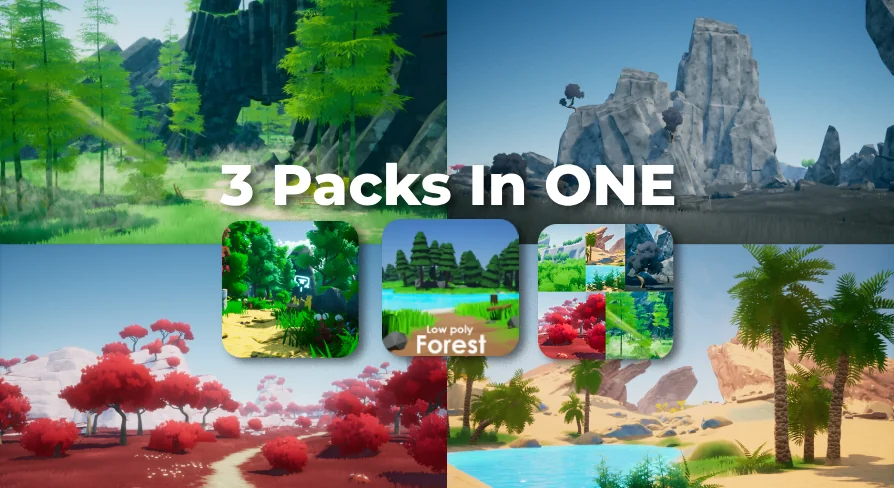
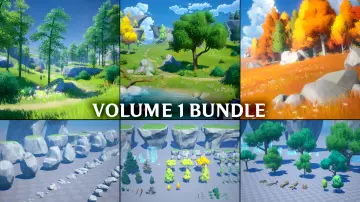
The bundle combines Stylized Forest Landscape, Stylized Landscape - 5 Bioms, and Low Poly Forest Vol. 2. Each component retains its own focus, which makes the combination more flexible than 1 monolithic pack. The forest landscape handles the wooded side of the scene, the 5-biome landscape expands the range of environments, and the Low-Poly forest adds the tree and vegetation coverage that brings the terrain to life. Together, they cover a wider slice of environment construction than any of the 3 would alone.
A 3-Pack Starting Point for Stylized Terrain
For anyone who needs to populate a stylized outdoor scene without assembling a dozen different assets manually, this bundle works as a shortcut. Stylized Forest Landscape is the cornerstone for any wooded setting, while Stylized Landscape - 5 Bioms offers variety across 5 distinct biomes. Low Poly Forest Vol. 2 fills in the organic detail with Low-Poly trees and vegetation that match the overall aesthetic.
That division of labor matters when you're blocking out a Level early. You can lay down the terrain from the 5-biome set, switch to the forest landscape for the primary wooded area, and then scatter the Low-Poly forest assets to add density. The naming structure makes it easy to know where each asset is meant to go, reducing the time spent searching through folders.
Fixing Overexposed Maps with DefaultEngine.ini
1 of the practical details in the bundle documentation is a specific fix for maps that appear overexposed. The developers recommend adding a line to your DefaultEngine.ini file and then restarting the Engine for the change to take effect:
This setting extends the default luminance range used by the Auto-Exposure system. For stylized and Low-Poly scenes, which often use bright, saturated Materials, the default range can clip highlights and make everything look blown out. Adding this line tells the Engine to handle a wider range of brightness values, so the scene retains its intended contrast instead of flattening out.
It's a small edit, but it's the difference between a map that reads as vibrant and 1 that feels washed out. The instruction to restart the Engine is also worth following. Some rendering settings apply immediately, but this 1 is tied to the renderer's initialization, so a restart is required before the change is properly loaded.
Why Virtual Textures Need to Be Turned On
The bundle documentation also asks users to enable Virtual Textures in Project Settings before using the pack. This is a rendering feature that helps with Texture memory and streaming, particularly when a scene uses many Materials or has a Landscape that blends multiple Textures.
With Virtual Texturing enabled, the Engine only loads the Texture data that is actually visible on screen, rather than keeping every Texture fully resolved in memory. That makes a difference in stylized environments, where terrain might blend together large color patches and foliage Textures across distant areas. The pack likely relies on this mechanism to keep performance consistent, especially when the Landscape spans multiple biomes and the camera moves quickly over a large area.
A guide for properly setting up Virtual Textures accompanies the bundle, so the process is not left to guesswork. This type of setup step is easy to overlook, but it influences how the pack is rendered from the 1st scene you open.
Where the Bundle Fits in a Project Workflow
Because the bundle merges terrain and vegetation into 1 package, it works best during the Level-building and environment-layout stages. You can use the 5-biome landscape to establish the base ground cover, drop in the stylized forest elements to frame the composition, and then rely on the Low-Poly forest assets to add individual trees, bushes, and other plant life.
This setup suits projects where a stylish, hand-crafted look is more important than physical realism. Low-Poly and stylized art styles are popular in indie games, stylized visualizations, and any production that needs to run well without heavy Texture budgets. The bundle gives you the environment-oriented pieces to get a scene running quickly, so you can focus on layout and art direction rather than sourcing individual assets from multiple packs.
The combined nature of the bundle also makes it easier to keep a consistent aesthetic. When terrain and vegetation come from the same overall style family, you avoid the jarring mismatch that can happen when mixing packs from different creators. The 3 component packs were built to support the same stylized visual language, and the documentation treats them as 1 working set.
Who Should Pick This Up
Teams and solo creators who need to block out a stylized outdoor Level without spending days on asset hunting will get the most from this bundle. The 3-package approach covers the essential environment blocks: multi-biome terrain, forest scenery, and Low-Poly vegetation. The included exposure fix and Virtual Texture guidance also show that the bundle was made to be used in real projects, not just as a static collection of models.
If your project leans on stylized visuals and Low-Poly performance, and you'd rather start from a combined base than assemble your own mix, this bundle gives you a direct on-ramp. The settings advice alone is worth having, and the 3 landscape-focused packs give you the raw material to start shaping a stylized world.
 Forest & Jungle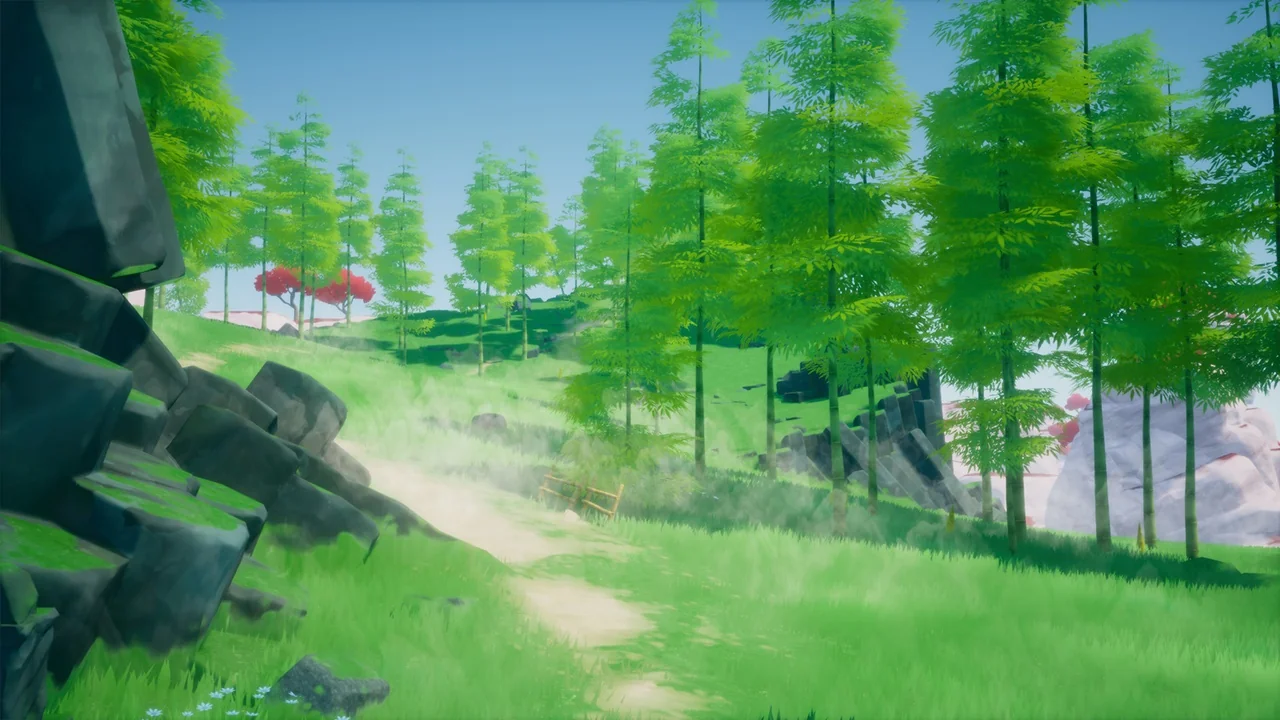
 Forest & Jungle
 Forest & Jungle
 Forest & Jungle