Caves, tunnels, and overhangs inside the Unity terrain workflow
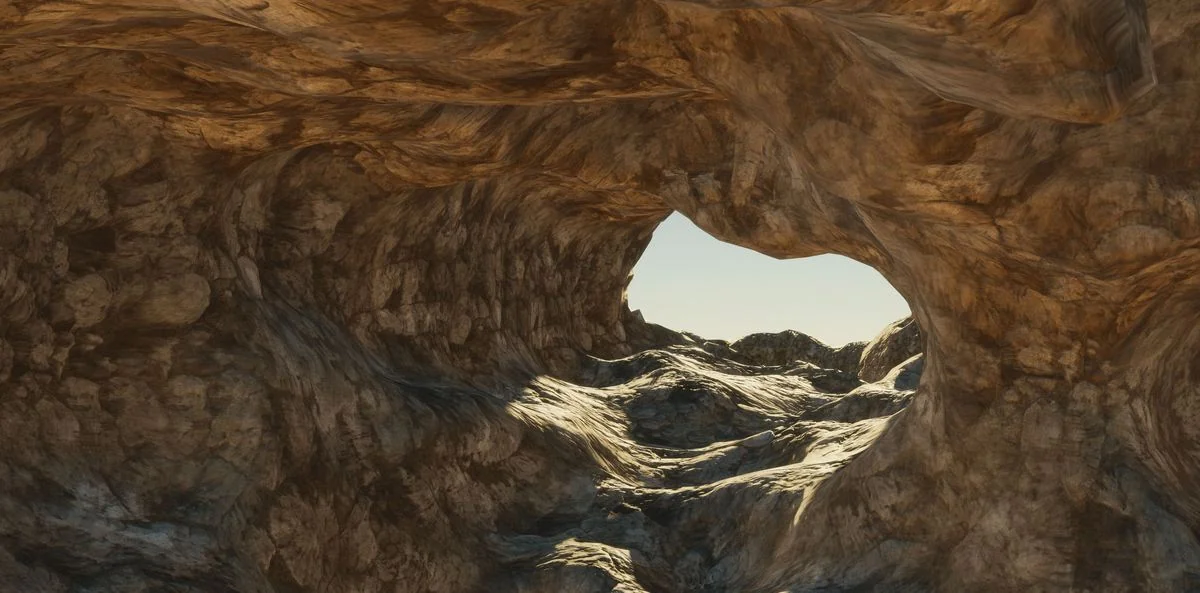
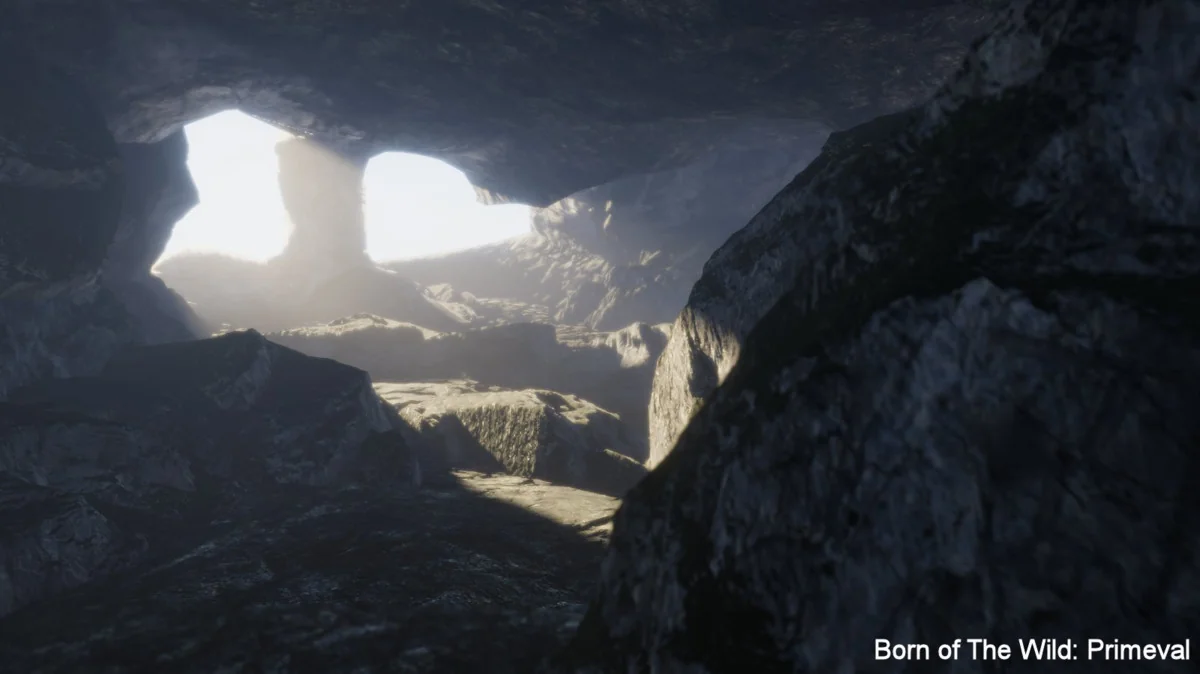
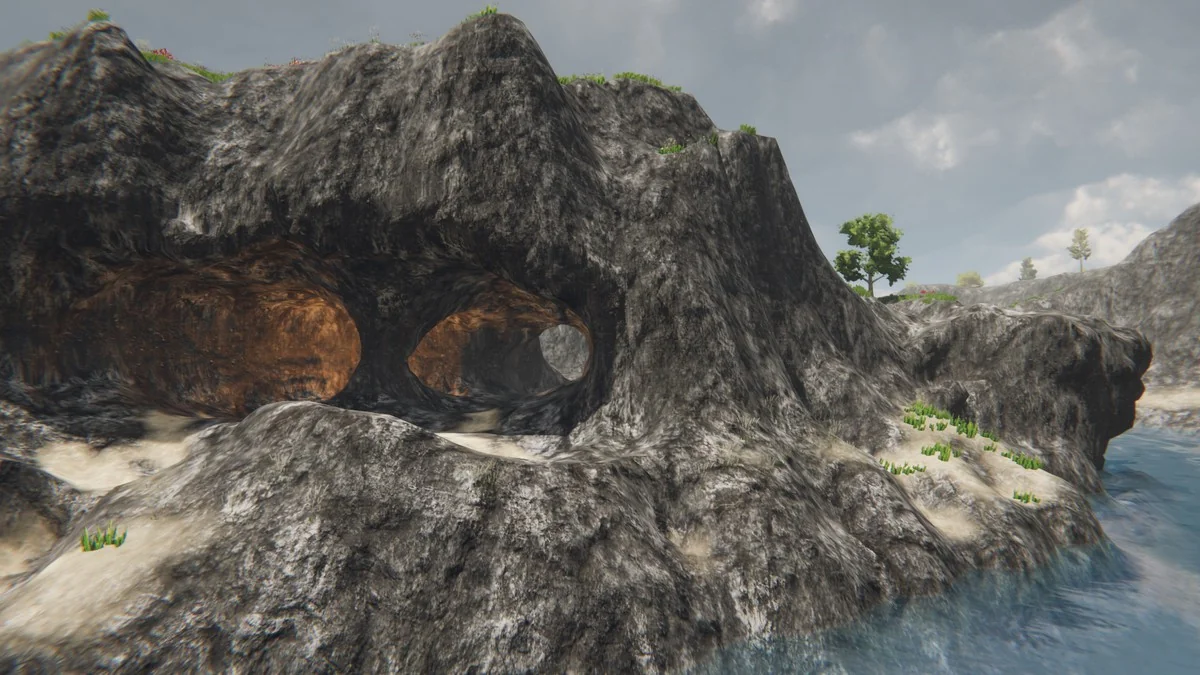
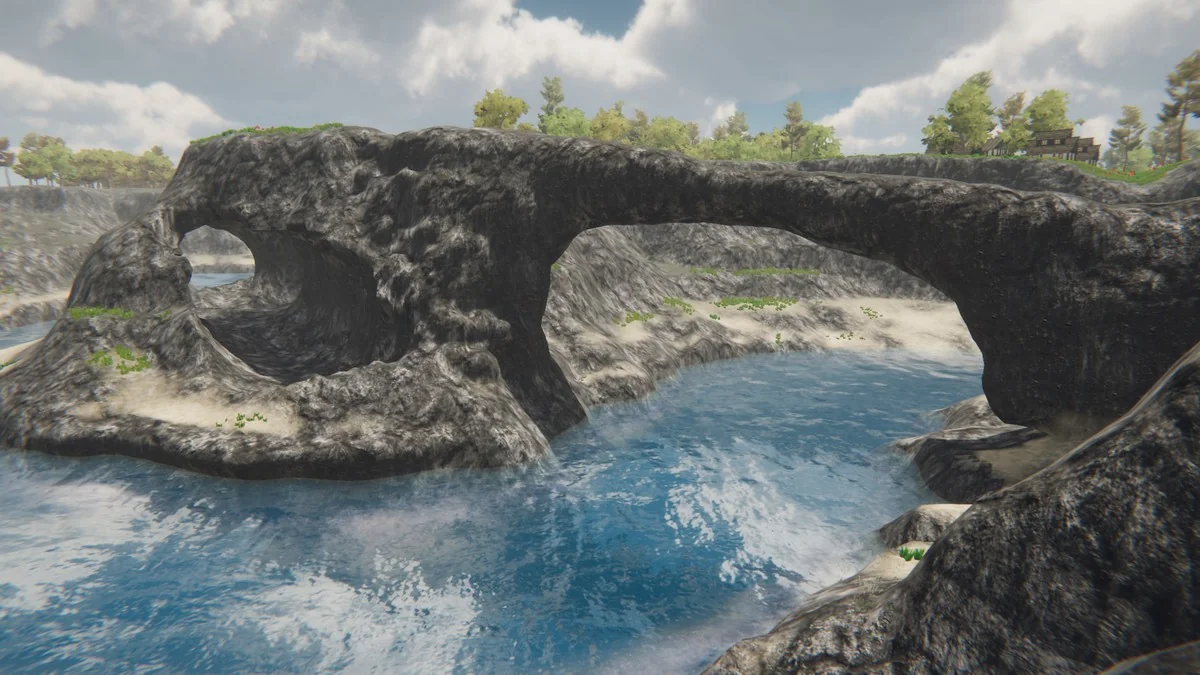
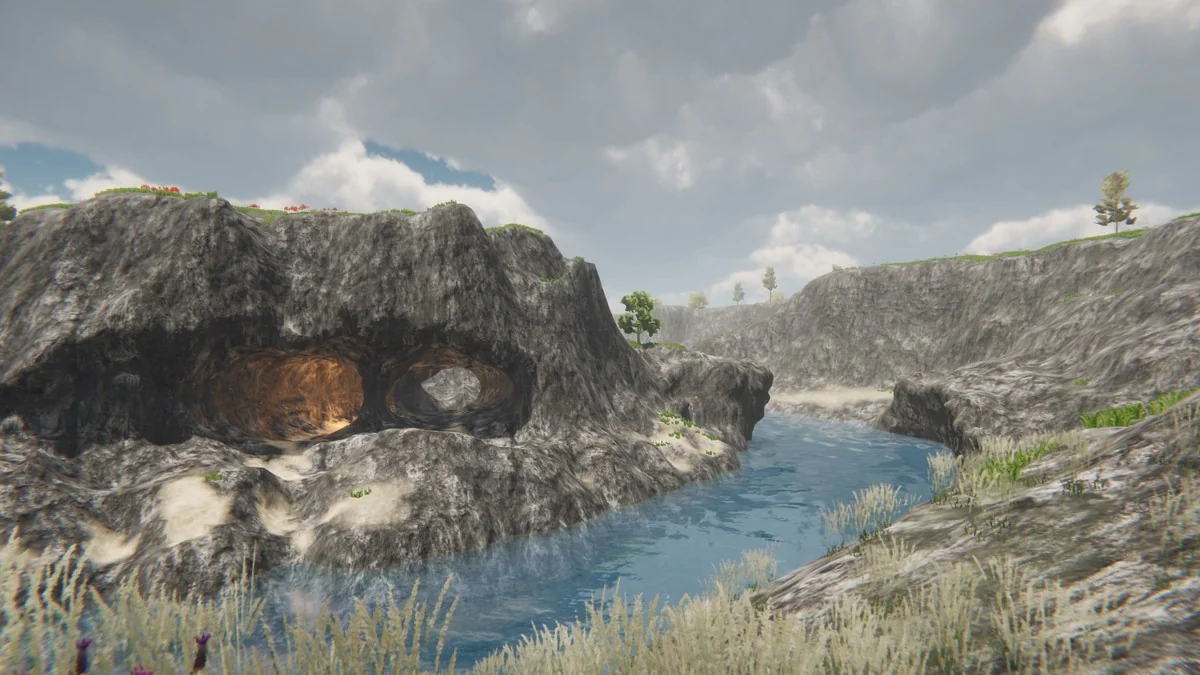
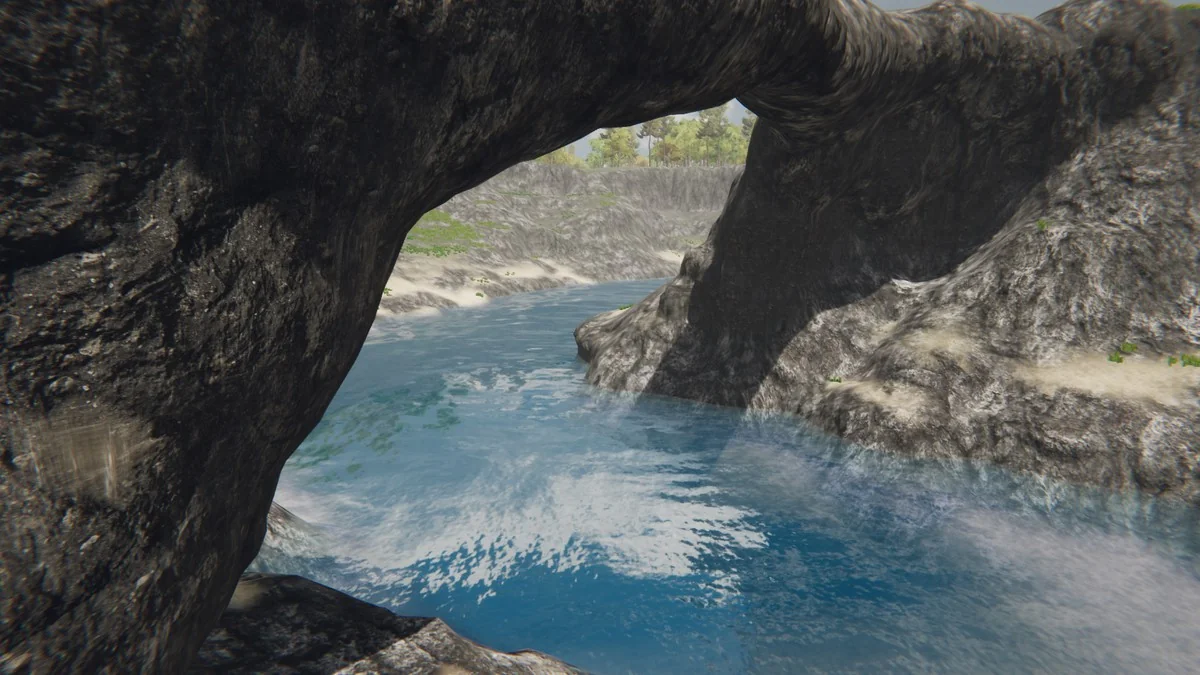
Projects that need more than a flat landscape can use Digger to shape caves, tunnels, and overhangs directly in the Unity editor. The workflow stays inside the scene view, so terrain changes can be made without moving to external tools. That matters when a level needs underground passages, carved openings, or cliffs that hang above the ground instead of stopping at a clean edge.
Digger gives the impression of a voxel terrain while keeping the standard Unity terrain system in place. Rather than replacing the terrain with a fully voxel-based setup, it blends the two approaches and generates cave and overhang meshes only where they are needed. Under the hood, it uses voxels and Marching Cubes to build those meshes.
The result is a terrain workflow that stays familiar, but adds the parts that regular terrain tools usually do not handle on their own.
Working in the scene view
The main appeal is direct editing. Caves and overhangs can be integrated into the terrain with a few simple clicks, which keeps the process close to the scene being built. That fits projects where terrain changes need to stay visible while the level is being assembled, rather than being authored in a separate pipeline and brought in later.
Digger is also meant to streamline the process of adding depth to environments. Games increasingly include cutaways, underground routes, and broken terrain forms for realism and variety, and this tool addresses that specific need without forcing a switch away from Unity terrain.
It is aimed at editor-side sculpting. For runtime digging, the separate Digger PRO version is required.
How terrain, voxels, and meshes are combined
Instead of fully converting a project to voxel terrain, Digger keeps the reliable Unity terrain system and fills in the missing geometry where the terrain is dug into. That blended approach is central to how it works. The terrain remains the base, and the cave or overhang mesh is generated only in the carved areas.
This makes the tool useful when the surrounding world still needs standard terrain behavior, but selected areas need a carved interior or a suspended edge. The combination of Unity terrain and generated meshes keeps the environment from feeling like two disconnected systems.
Because the tool works with standard terrains, it can be used on terrains made by hand or with Gaia, MapMagic, TerrainComposer, or any other tool.
Textures, meshes, and underground detail
Digger is not limited to shaping holes in terrain. It also lets textures be painted on cave meshes, which helps the underground portions of a level match the rest of the environment. When a cave entrance, interior wall, or overhang needs a different surface treatment, those textures can be applied directly to the generated geometry.
There is also support for painting and unpainting holes on cave meshes, which makes it possible to integrate custom underground meshes into the terrain setup. That gives projects a way to combine carved terrain with their own cave structures instead of relying on terrain alone.
The tool can also use a custom mesh as a brush. That gives another way to shape terrain changes when a project needs a specific form rather than a generic carve.
What changed in version 8.0
The 8.0 update introduces a configurable voxel generation system. The voxel pipeline has been redesigned so generation strategies can be swapped through ScriptableObjects. It also includes a new Advanced Generator with depth and noise-based layering, and the system can be extended through the IVoxelGenerator API.
Voxel behavior now includes destructibility control. Every voxel can be set as destructible by default or marked indestructible, which gives more direct control over how the terrain responds. A new auto-remove floating voxels system also cleans up unsupported voxel clusters through a connectivity-based cleanup process, helping the generated terrain stay consistent after carving.
These changes push the terrain authoring process toward more control over how the generated space behaves, not just how it looks.
Compatibility and project support
Digger includes support for automatic LOD group creation, lightmapping, multi-terrain setups, and full NavMesh support. It can be used with any Unity terrain, which keeps it flexible across a range of terrain-building workflows.
Lightmapping is supported, with the exception noted for MicroSplat integration. That detail matters for teams that already rely on lighting workflows and want carved terrain to fit into them without special handling.
For runtime digging, the separate Digger PRO version is the option used at runtime. The main focus here stays on editor-time sculpting and terrain generation.
Where it fits best
Digger is a practical fit for projects that need caves, tunnels, and overhangs without abandoning Unity terrain. It suits level work that needs underground space, terrain breaks, and carved forms while staying inside the editor. The tool also makes sense when the project already uses Unity terrain and needs to extend it rather than replace it.
Teams that want direct scene-view editing, texture control on cave surfaces, support for custom underground meshes, and a voxel-style result without a full voxel terrain swap will get the clearest use from it. The main benefit is simple: it keeps terrain authoring in one place while adding the missing geometry for carved environments.
Asset Gallery
Protected download
Access this resource
All resources are 100% manually reviewed to eliminate all risks.