"95fdaf16012263fa"{"id":"1002313","slug":"cute-hamsters","title":"Cute Hamsters","category":"Animals","engine":"4.20+,5.0+","assetVersion":"","engineVersion":"Engine Version: 4.20+,5.0+","tag":"Animals","accent":"blue","visual":"mech","summary":"Cute Hamsters packs 31 hamster characters and 12 animations, with a Unity3D animation example and a UE version that omits the script and Toon shader.","platform":"Unreal Engine","indexPolicy":"index","publishedAt":"2026-11-06T06:15:37.558Z","updatedAt":"2026-11-06T06:15:37.558Z","sourceNotes":[],"fileContents":[],"compatibility":["Unreal Engine","Engine Version: 4.20+,5.0+"],"featuredImage":{"alt":"Cute Hamsters","src":"/wp-content/uploads/published/2026/11/cd85b9463262-766c2630-3b0e-416b-a94d-4f2be305d982-f7b99950c0.webp"},"hasDownloadLink":true,"downloads":0,"terms":[{"taxonomy":"category","slug":"animals","name":"Animals"}],"galleryImages":[{"src":"/wp-content/uploads/published/2026/11/24934c33a767-a9276a65-841f-48e4-b674-0c861bba9a86-e41d4aa181.webp","alt":"Cute Hamsters"},{"src":"/wp-content/uploads/published/2026/11/ea6e7f687673-0cd1285e-464c-4777-b4dc-c38745bf4d0b-94b9ae4a1b.webp","alt":"Cute Hamsters"},{"src":"/wp-content/uploads/published/2026/11/3524fc9bbec1-743a5832-204f-4b11-8aa8-3efc71c9a50c-e01679ddef.webp","alt":"Cute Hamsters"},{"src":"/wp-content/uploads/published/2026/11/ee17937fd2e7-43f041d4-c371-4d6b-98d8-a7be0957ea77-7ac97e6822.webp","alt":"Cute Hamsters"}],"accessPanel":{"kind":"resource","title":"Get this resource","eyebrow":"Free resource","message":"3DCGHUB is the service provider for this listing. Access is fulfilled through the official publisher channel.","fileName":"Cute Hamsters.7z","safetyNote":"Resources are manually reviewed before listing to improve quality and reduce obvious risks.","actionLabel":"Get this resource","resourceType":"Resource archive","versions":[]},"contentHtml":"\u003cp\u003eSetting up Cute Hamsters begins with the animation example, which is shown in Unity3D. That example is the reference for how the 12 animations sit on the 31 hamsters. If you work in Unity, you can follow the example directly. In Unreal Engine, the package behaves differently: the UE version does not come with the script and Toon shader. Knowing that before you start saves a pass later.\u003c/p\u003e \u003ch2\u003eWhat the 31 Hamsters and 12 Animations Cover\u003c/h2\u003e\n\u003cp\u003eCute Hamsters is a character asset with a cast of 31 hamsters and a set of 12 animations. The numbers matter for scene planning: 31 hamsters let you place more than one character without duplicating the same model everywhere, and 12 animations give the cast a motion set to draw from. The asset supports cute game production, so the hamsters are the core content and the animations are the movement layer that brings them into play.\u003c/p\u003e\n\u003cp\u003eThe animation example is shown in Unity3D. That example is where the 12 animations are demonstrated against the hamster models, and it is the clearest reference for how the pieces fit together. If you are building a cute scene with several hamster characters, the combination of 31 models and 12 animations means you can vary both the look of the cast and the motion they use.\u003c/p\u003e \u003ch2\u003eRunning the Animation Example in Unity3D\u003c/h2\u003e\n\u003cp\u003eUnity3D is the environment used for the animation example. That makes Unity the most direct route for checking how the 12 animations apply to the 31 hamsters. The example shows the animations on the hamster models, which helps you see how each character reads in motion. For a Unity project, the example acts as a starting scene you can study before building your own setup around the hamsters.\u003c/p\u003e\n\u003cp\u003eThe UE version does not come with the script and Toon shader. That splits the two engine paths: the Unity3D example demonstrates the animations, while the UE version leaves out those two components. If your project is in Unity, the example gives you a reference for animation playback and shading. If your project is in Unreal Engine, you will need to handle the script and toon shading yourself.\u003c/p\u003e \u003ch2\u003eThe UE Version Without the Script and Toon Shader\u003c/h2\u003e\n\u003cp\u003eIn Unreal Engine, the missing script and Toon shader are the first production detail to plan around. The hamsters and the 12 animations are the asset's core, but the UE version does not include the script that drives the example or the Toon shader that gives the characters their look. That means animation logic and shading become your responsibility. It is not a blocker, but it changes the setup order: you will spend time on those two pieces before the hamsters move and render the way the Unity3D example shows.\u003c/p\u003e\n\u003cp\u003eIf you are comparing engines for a cute game, the split is straightforward. Unity3D has the animation example to follow. UE has the same note attached to it: no script, no Toon shader. Teams working in UE should plan to supply their own animation logic and toon shading. Teams working in Unity can start from the example and adjust from there.\u003c/p\u003e \u003ch2\u003eHow the Tags Describe the Hamster Style\u003c/h2\u003e\n\u003cp\u003eThe tags attached to Cute Hamsters are Hamster, Anime, Cartoon, Toy, Monster, Animal, and Cat. They describe a visual direction rather than a realistic animal pack. Anime and Cartoon point to a stylized look. Toy suggests simplified, readable shapes. Monster and Animal widen the character range beyond a single hamster type. Cat appears among the tags alongside Hamster, which makes the tag set broader than the cast name alone.\u003c/p\u003e\n\u003cp\u003eThose tags are useful when you are matching an asset to a scene. A cute game with cartoon or anime styling is the obvious fit. A project that needs toy-like characters or a monster-and-animal mix can also use the hamsters as part of a larger cast. The tags do not promise specific rigging or animation names; they set expectations for the look and the audience.\u003c/p\u003e \u003ch2\u003eWhere the Hamsters Fit in a Cute Game Scene\u003c/h2\u003e\n\u003cp\u003eThe 31 hamsters and 12 animations support cute game production. You can use the cast to populate a scene with multiple hamster characters, assign the 12 animations across them, and keep the motion from feeling identical on every model. The animation example in Unity3D shows how the set is meant to read, which helps when you are blocking out a scene or building a prototype.\u003c/p\u003e\n\u003cp\u003eFor a Unity3D project, the flow is to open the animation example, study how the 12 animations are applied, then place the 31 hamsters in your own scene. For a UE project, the flow starts with the missing script and Toon shader: decide how you will drive the animations and how you will shade the hamsters before you place them. The asset is the same cast in both cases, but the setup work is not.\u003c/p\u003e \u003ch2\u003eProduction Notes Before You Integrate\u003c/h2\u003e\n\u003cp\u003eThe practical takeaway is to match the engine path to the content you need. Unity3D gives you the animation example as a reference, so the 12 animations are easier to inspect and reuse. UE gives you the hamsters without the script and Toon shader, so you should plan for custom animation logic and custom shading. Neither path changes the 31 hamsters or the 12 animations; it changes how much setup sits between the asset and a playable scene.\u003c/p\u003e\n\u003cp\u003eIf your cute game depends on a ready-made animation reference, the Unity3D example is the stronger starting point. If your project is already in UE, treat the missing script and Toon shader as known gaps and schedule them early. The asset's core is the cast and the animation set; the engine-specific pieces are the part to verify before you build around them.\u003c/p\u003e\n\n\u003ch2\u003eContinue Browsing Similar Packs\u003c/h2\u003e\n\u003cul\u003e\n\u003cli\u003e\u003ca href=\"https://3dcghub.com/spiders-pack/\" rel=\"noopener noreferrer\"\u003eSpiders pack\u003c/a\u003e\u003c/li\u003e\n\u003cli\u003e\u003ca href=\"https://3dcghub.com/royal-crab-king-sebastian-rock-land-creature-red-crustacean-monster-18/\" rel=\"noopener noreferrer\"\u003eRoyal Crab - King Sebastian - Rock Land Creature - Red Crustacean Monster- #18\u003c/a\u003e\u003c/li\u003e\n\u003cli\u003e\u003ca href=\"https://3dcghub.com/stylized-fantasy-creatures-bundle/\" rel=\"noopener noreferrer\"\u003eStylized Fantasy Creatures Bundle\u003c/a\u003e\u003c/li\u003e\n\u003cli\u003e\u003ca href=\"https://3dcghub.com/panthers-pack/\" rel=\"noopener noreferrer\"\u003ePanthers pack\u003c/a\u003e\u003c/li\u003e\n\u003cli\u003e\u003ca href=\"https://3dcghub.com/rog-creatures-mammoth/\" rel=\"noopener noreferrer\"\u003eROG Creatures: Mammoth\u003c/a\u003e\u003c/li\u003e\n\u003c/ul\u003e","contentTextLength":5674,"navigation":{"current":55,"total":4291,"previous":{"id":"1002314","slug":"cyberpunk-alley-storefronts-pack","title":"Cyberpunk Alley Storefronts Pack","category":"Cyberpunk","platform":"Unreal Engine","updatedAt":"2026-11-06T06:16:19.579Z"},"next":{"id":"1002312","slug":"crash-test-robot-dummy","title":"Crash Test Robot Dummy","category":"Characters \u0026 Creatures","platform":"Unreal Engine","updatedAt":"2026-11-06T06:15:02.722Z"}},"relatedResources":[{"id":"1001364","slug":"spiders-pack","title":"Spiders pack","category":"Animals","engine":"4.23+,5.0+","assetVersion":"","engineVersion":"Engine Version: 4.23+,5.0+","tag":"Animals","accent":"blue","visual":"mech","summary":"Explore Spiders pack, featuring three unique meshes, six materials, and thirteen animations for cave, forest, and swamp fantasy creature encounters.","platform":"Unreal Engine","indexPolicy":"index","publishedAt":"2026-10-04T10:33:17.972Z","updatedAt":"2026-10-04T10:33:17.972Z","sourceNotes":[],"fileContents":[],"compatibility":["Unreal Engine","Engine Version: 4.23+,5.0+"],"featuredImage":{"alt":"Spiders pack","src":"/wp-content/uploads/published/2026/10/7fa8ce563f7a-bbb98fb7-f42c-41e4-b9bd-2282c79826c7-486fdee7a2.webp"},"hasDownloadLink":true,"downloads":3},{"id":"1002178","slug":"royal-crab-king-sebastian-rock-land-creature-red-crustacean-monster-18","title":"Royal Crab - King Sebastian - Rock Land Creature - Red Crustacean Monster- #18","category":"Animals","engine":"4.26+,5.0+","assetVersion":"","engineVersion":"Engine Version: 4.26+,5.0+","tag":"Animals","accent":"blue","visual":"character","summary":"Explore the Royal Crab King Sebastian asset, featuring 4K PBR textures, 30 custom animations, multi-software rigs, and Unreal Engine blueprint control.","platform":"Unreal Engine","indexPolicy":"index","publishedAt":"2026-10-29T14:19:55.812Z","updatedAt":"2026-10-29T14:19:55.812Z","sourceNotes":[],"fileContents":[],"compatibility":["Unreal Engine","Engine Version: 4.26+,5.0+"],"featuredImage":{"alt":"Royal Crab - King Sebastian - Rock Land Creature - Red Crustacean Monster- #18","src":"/wp-content/uploads/published/2026/10/980ee7efa3a6-b488c286-6cb2-4c07-9db7-06abcbe51f73-cd3f2676f4.webp"},"hasDownloadLink":true,"downloads":0},{"id":"1001604","slug":"stylized-fantasy-creatures-bundle","title":"Stylized Fantasy Creatures Bundle","category":"Animals","engine":"4.18+,5.0+","assetVersion":"","engineVersion":"Engine Version: 4.18+,5.0+","tag":"Animals","accent":"blue","visual":"character","summary":"A deep look at the Stylized Fantasy Creatures Bundle, detailing its 21 beasts, modular mechanics, blend shapes, and dedicated engine texture maps.","platform":"Unreal Engine","indexPolicy":"index","publishedAt":"2026-10-10T16:29:20.837Z","updatedAt":"2026-10-10T16:29:20.837Z","sourceNotes":[],"fileContents":[],"compatibility":["Unreal Engine","Engine Version: 4.18+,5.0+"],"featuredImage":{"alt":"Stylized Fantasy Creatures Bundle","src":"/wp-content/uploads/published/2026/10/4ce43d63aca8-255d8d16-4dae-48a6-9430-e767fabb165a-17b0baf57f.webp"},"hasDownloadLink":true,"downloads":2}]}
Animals
Cute Hamsters
Cute Hamsters packs 31 hamster characters and 12 animations, with a Unity3D animation example and a UE version that omits the script and Toon shader.
Category:Unreal Engine,AnimalsPlatform: Unreal EngineEngine Version: 4.20+,5.0+Published: Nov 6, 2026
Animals
Resource overview
Setting up Cute Hamsters begins with the animation example, which is shown in Unity3D. That example is the reference for how the 12 animations sit on the 31 hamsters. If you work in Unity, you can follow the example directly. In Unreal Engine, the package behaves differently: the UE version does not come with the script and Toon shader. Knowing that before you start saves a pass later.
What the 31 Hamsters and 12 Animations Cover
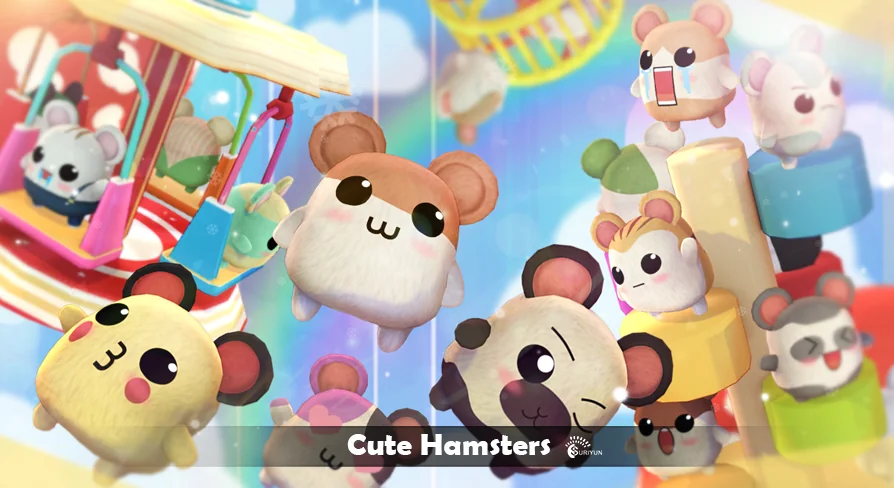
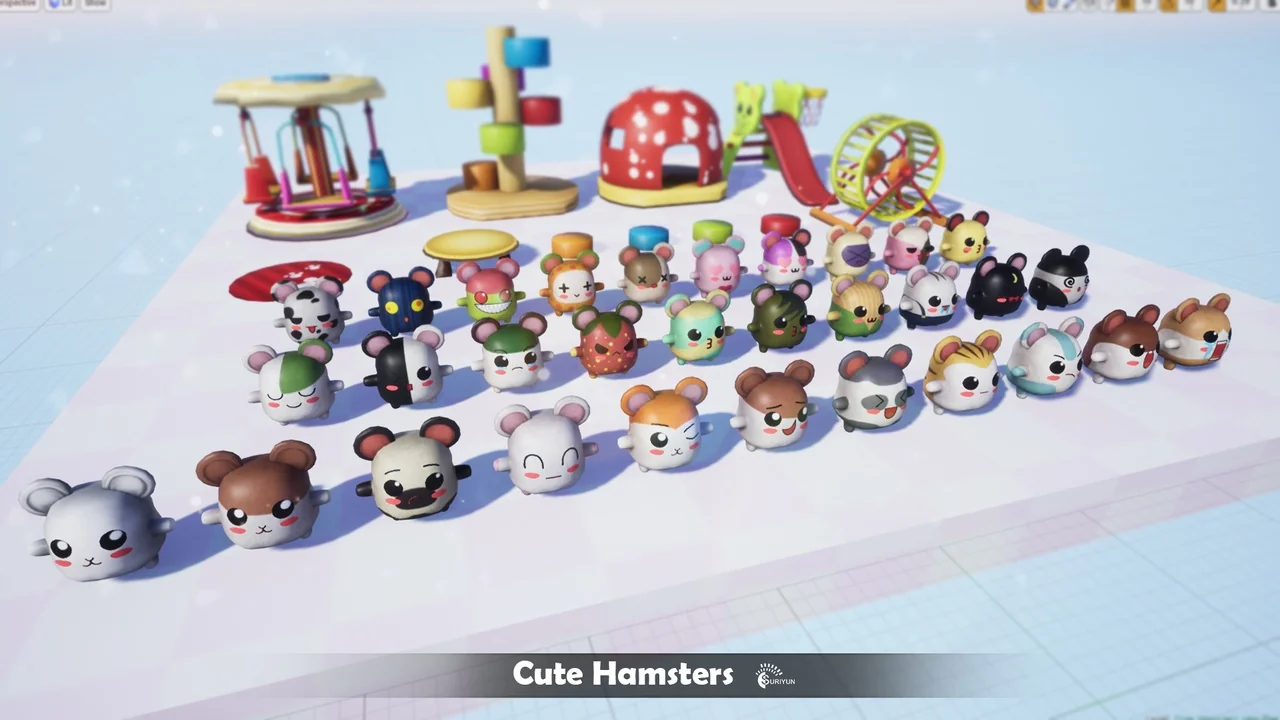
Cute Hamsters is a character asset with a cast of 31 hamsters and a set of 12 animations. The numbers matter for scene planning: 31 hamsters let you place more than one character without duplicating the same model everywhere, and 12 animations give the cast a motion set to draw from. The asset supports cute game production, so the hamsters are the core content and the animations are the movement layer that brings them into play.
The animation example is shown in Unity3D. That example is where the 12 animations are demonstrated against the hamster models, and it is the clearest reference for how the pieces fit together. If you are building a cute scene with several hamster characters, the combination of 31 models and 12 animations means you can vary both the look of the cast and the motion they use.
Running the Animation Example in Unity3D
Unity3D is the environment used for the animation example. That makes Unity the most direct route for checking how the 12 animations apply to the 31 hamsters. The example shows the animations on the hamster models, which helps you see how each character reads in motion. For a Unity project, the example acts as a starting scene you can study before building your own setup around the hamsters.
The UE version does not come with the script and Toon shader. That splits the two engine paths: the Unity3D example demonstrates the animations, while the UE version leaves out those two components. If your project is in Unity, the example gives you a reference for animation playback and shading. If your project is in Unreal Engine, you will need to handle the script and toon shading yourself.
The UE Version Without the Script and Toon Shader
In Unreal Engine, the missing script and Toon shader are the first production detail to plan around. The hamsters and the 12 animations are the asset's core, but the UE version does not include the script that drives the example or the Toon shader that gives the characters their look. That means animation logic and shading become your responsibility. It is not a blocker, but it changes the setup order: you will spend time on those two pieces before the hamsters move and render the way the Unity3D example shows.
If you are comparing engines for a cute game, the split is straightforward. Unity3D has the animation example to follow. UE has the same note attached to it: no script, no Toon shader. Teams working in UE should plan to supply their own animation logic and toon shading. Teams working in Unity can start from the example and adjust from there.
How the Tags Describe the Hamster Style
The tags attached to Cute Hamsters are Hamster, Anime, Cartoon, Toy, Monster, Animal, and Cat. They describe a visual direction rather than a realistic animal pack. Anime and Cartoon point to a stylized look. Toy suggests simplified, readable shapes. Monster and Animal widen the character range beyond a single hamster type. Cat appears among the tags alongside Hamster, which makes the tag set broader than the cast name alone.
Those tags are useful when you are matching an asset to a scene. A cute game with cartoon or anime styling is the obvious fit. A project that needs toy-like characters or a monster-and-animal mix can also use the hamsters as part of a larger cast. The tags do not promise specific rigging or animation names; they set expectations for the look and the audience.
Where the Hamsters Fit in a Cute Game Scene
The 31 hamsters and 12 animations support cute game production. You can use the cast to populate a scene with multiple hamster characters, assign the 12 animations across them, and keep the motion from feeling identical on every model. The animation example in Unity3D shows how the set is meant to read, which helps when you are blocking out a scene or building a prototype.
For a Unity3D project, the flow is to open the animation example, study how the 12 animations are applied, then place the 31 hamsters in your own scene. For a UE project, the flow starts with the missing script and Toon shader: decide how you will drive the animations and how you will shade the hamsters before you place them. The asset is the same cast in both cases, but the setup work is not.
Production Notes Before You Integrate
The practical takeaway is to match the engine path to the content you need. Unity3D gives you the animation example as a reference, so the 12 animations are easier to inspect and reuse. UE gives you the hamsters without the script and Toon shader, so you should plan for custom animation logic and custom shading. Neither path changes the 31 hamsters or the 12 animations; it changes how much setup sits between the asset and a playable scene.
If your cute game depends on a ready-made animation reference, the Unity3D example is the stronger starting point. If your project is already in UE, treat the missing script and Toon shader as known gaps and schedule them early. The asset's core is the cast and the animation set; the engine-specific pieces are the part to verify before you build around them.
 Animals
 Animals
 Animals
 Animals