"059e11fbf316ed56"{"id":"1001282","slug":"serlo-developer-tools","title":"SERLO Developer Tools","category":"Game Systems","engine":"5.0+","assetVersion":"","engineVersion":"Engine Version: 5.0+","tag":"Game Systems","accent":"blue","visual":"mech","summary":"SERLO Developer Tools speeds up Unreal Engine workflows with batch renaming, Substance Painter texture setup, mesh material assignment, and socket spawning.","platform":"Unreal Engine","publishedAt":"2026-10-01T11:59:35.020Z","updatedAt":"2026-10-01T11:59:35.020Z","sourceNotes":[],"fileContents":[],"compatibility":["Unreal Engine","Engine Version: 5.0+"],"featuredImage":{"alt":"SERLO Developer Tools","src":"/wp-content/uploads/published/2026/10/2082132d2f0e-3119068a-f48c-4b4c-8b41-cd61e82facca-c9061bf0e5.webp"},"hasDownloadLink":true,"downloads":0,"terms":[{"taxonomy":"category","slug":"game-systems","name":"Game Systems"}],"galleryImages":[{"src":"/wp-content/uploads/published/2026/10/482950169fb2-f7ed4820-6537-46f0-a8b6-10340a261023-867986a0ad.webp","alt":"SERLO Developer Tools"},{"src":"/wp-content/uploads/published/2026/10/7b65d8b08b15-5aca816a-6904-435f-8dc3-e565f8881daf-85c5524996.webp","alt":"SERLO Developer Tools"}],"accessPanel":{"kind":"resource","title":"Download this resource","eyebrow":"Free Download","message":"Log in or create a free account to start your download.","fileName":"Content.7z","safetyNote":"Resources are manually reviewed before listing to improve quality and reduce obvious risks.","actionLabel":"Download Free","resourceType":"Resource archive"},"contentHtml":"\u003cp\u003eOrganizing asset libraries and populating level geometry often creates significant operational friction during production. Large environment builds, modular architectural sets, and prop-heavy scenes quickly lead to cluttered Content Browser folders, inconsistent naming structures, and repetitive material assignments. SERLO Developer Tools addresses these exact points of friction. The toolkit focuses on essential, time-saving operations that function directly across both project assets in the Content Browser and active actors within the viewport.\u003c/p\u003e \u003ch2\u003eBatch Renaming in the Content Browser and Viewport\u003c/h2\u003e\n\u003cp\u003eNaming conventions are vital for maintaining order across mid-sized and large Unreal Engine projects. When multiple artists touch the same directory or when external packs are merged into an existing project structure, asset naming quickly fragments. SERLO Developer Tools provides several distinct mechanisms to standardize names without opening separate property dialogs or manually adjusting labels one by one.\u003c/p\u003e \u003cp\u003eThe Fast Rename utility handles broad structural changes in a single click. Instead of having to define complex parsing rules, you simply specify an initial starting index. When applied across a selected group of actors or assets, the tool automatically renames them sequentially, generating patterns such as Tree_01, Tree_02, and onward. This proves particularly useful when organizing duplicated scene instances or bringing freshly organized static mesh assets into a clean sequence.\u003c/p\u003e \u003cp\u003eTargeted adjustments are handled through the Replace tool, which substitutes specific substrings in selected actor or asset names. If an art pass requires shifting a naming taxonomy—for instance, changing occurrences of \"Rock\" to \"Stone\" across a dozen modular pieces—the tool scans the selection and swaps the text directly. Alongside string replacement, dedicated Add Prefix and Add Postfix functions let you tag batches of assets with functional indicators. Adding an \"Env_\" prefix marks out environment categories like Env_Rock and Env_Tree, while appending postfixes such as \"_V1\" establishes version tracking across groups of assets.\u003c/p\u003e \u003ch2\u003eHandling Substance 3D Painter Textures with Sub T Rename\u003c/h2\u003e\n\u003cp\u003eImporting texture sets from external texturing software frequently introduces tedious setup steps before materials can be authored properly. Substance 3D Painter exports texture maps with distinct naming patterns, which then require standard Unreal Engine prefixes, suffixes, and specific compression or color channel settings.\u003c/p\u003e \u003cp\u003eThe Sub T Rename feature automates this transition. It maps imported texture sets against common Unreal Engine texture presets, handling BaseColor, Normal, Emissive, and OcclusionRoughnessMetallic (ORM) maps. Entering an asset identifier such as \"Wall\" allows the tool to immediately reorganize and format the incoming set into standardized structures such as T_Wall_A for the color map and T_Wall_N for the normal map.\u003c/p\u003e \u003cp\u003eBeyond string manipulation, Sub T Rename manages crucial texture import parameters. The tool automatically unchecks the sRGB flag for both Emissive and OcclusionRoughnessMetallic maps. In Unreal Engine, packed channel textures like ORM maps store non-color data—ambient occlusion, roughness, and metalness packed into separate color channels—which produce incorrect roughness responses and metallic calculations if sampled in sRGB color space. By automatically switching these textures to linear space upon renaming, the tool eliminates a common source of shading errors that can go unnoticed until lighting is finalized.\u003c/p\u003e \u003ch2\u003eBatch Material Assignment on Static Meshes\u003c/h2\u003e\n\u003cp\u003eAssigning materials across numerous modular static meshes usually requires double-clicking each mesh in the Content Browser, finding the relevant material slot, assigning the asset, and saving. Across hundreds of structural pieces, this manual repetition introduces substantial project overhead. SERLO Developer Tools includes two distinct options to speed up static mesh material application.\u003c/p\u003e \u003cp\u003eSet SM Material allows you to apply a single material asset across a designated material slot on multiple static meshes at once. When working with greybox meshes, modular walls that share a master trim sheet, or structural props that use a single shared material instance, this function applies the assignment without requiring you to open individual static mesh editors.\u003c/p\u003e \u003cp\u003eWhen meshes require individual, distinct materials not just one unified shader, Multi SM Materials provides a consolidated interface. Instead of loading multiple asset tabs across your editor workspace, you can configure and assign unique materials to multiple static meshes directly within the tool window. This centralizes material assignments in one unified panel, making it practical to review and update entire kits of modular assets in a single step.\u003c/p\u003e \u003ch2\u003eSocket-Based Object Placement in Scenes\u003c/h2\u003e\n\u003cp\u003ePlacing props and secondary actors across complex environment geometry often requires meticulous coordinate alignment. Attaching items like torches to wall sconces, streetlamps to poles, or small clutter items onto larger hero pieces manually in the viewport can lead to misalignments or slow down scene assembly.\u003c/p\u003e \u003cp\u003eThe Spawn by Socket feature uses mesh socket architecture to speed up scene population. By defining sockets on base static meshes, you can use the tool to instantiate and snap secondary objects directly into position with a single click. This socket-driven workflow streamlines the population of lights, functional gameplay props, or visual set dressing, ensuring objects attach precisely to designated pivot points on the parent mesh.\u003c/p\u003e \u003ch2\u003eEngine Compatibility and Production Roles\u003c/h2\u003e\n\u003cp\u003eWhile several utilities in the suite function across multiple versions of Unreal Engine, specific advanced tools require modern engine features. The Replace utility, Spawn by Socket, and Multi SM Materials functions are not compatible with Unreal Engine versions below 5.1. Teams working on 5.0 or legacy versions can still use the standard prefix, postfix, Fast Rename, and baseline material assignment features, but the complete toolset requires version 5.1 or newer.\u003c/p\u003e \u003cp\u003eEnvironment artists, technical artists, and level designers handling extensive asset libraries and rapid set dressing benefit most from this toolkit. By removing the repetitive manual steps involved in naming texture passes, re-tagging scene actors, configuring linear texture channels, and populating socket attachments, the package allows artists to spend less time managing file housekeeping and more time shaping environments.\u003c/p\u003e\n\n\u003ch2\u003eRelated Resources Worth Checking\u003c/h2\u003e\n\u003cul\u003e\n\u003cli\u003e\u003ca href=\"https://3dcghub.com/unreal-engine-5-blueprints-game-developer-masterclass/\" title=\"Unreal Engine 5 - Blueprints Game Developer Masterclass\"\u003eUnreal Engine 5 - Blueprints Game Developer Masterclass\u003c/a\u003e\u003c/li\u003e\n\u003cli\u003e\u003ca href=\"https://3dcghub.com/customizable-survival-man/\" title=\"Customizable Survival Man\"\u003eCustomizable Survival Man\u003c/a\u003e\u003c/li\u003e\n\u003cli\u003e\u003ca href=\"https://3dcghub.com/sky-creator/\" title=\"Sky Creator\"\u003eSky Creator\u003c/a\u003e\u003c/li\u003e\n\u003cli\u003e\u003ca href=\"https://3dcghub.com/simple-tree-generator/\" title=\"Simple Tree Generator\"\u003eSimple Tree Generator\u003c/a\u003e\u003c/li\u003e\n\u003cli\u003e\u003ca href=\"https://3dcghub.com/hand-tracking-plugin/\" title=\"Hand Tracking Plugin\"\u003eHand Tracking Plugin\u003c/a\u003e\u003c/li\u003e\n\u003c/ul\u003e","contentTextLength":6738,"navigation":{"current":15,"total":3238,"previous":{"id":"1001283","slug":"dunpix-ultimate-weapon-customization-system-stylized-futuristic-set","title":"Dunpix Ultimate Weapon Customization System + Stylized Futuristic Set","category":"Game Systems","platform":"Unreal Engine","updatedAt":"2026-10-01T12:00:12.740Z"},"next":{"id":"1001281","slug":"environments-bundle-6-maps","title":"Environments Bundle 6 Maps","category":"Action-Adventure","platform":"Unreal Engine","updatedAt":"2026-10-01T04:22:12.880Z"}},"relatedResources":[{"id":"1000178","slug":"unreal-engine-5-blueprints-game-developer-masterclass","title":"Unreal Engine 5 - Blueprints Game Developer Masterclass","category":"Unreal Engine","engine":"File Content: video + English subtitles","assetVersion":"Video Language: English","engineVersion":"File Content: video + English subtitles","tag":"Unreal Engine","accent":"blue","visual":"mech","summary":"A 14h 28m Unreal Engine course focused on Blueprints, gameplay logic, FPS character setup, UI, materials, and complete game creation.","platform":"Unreal Engine","publishedAt":"2026-06-20T07:37:16.401Z","updatedAt":"2026-06-20T07:37:16.401Z","sourceNotes":[],"fileContents":[],"compatibility":["Unreal Engine","Video Language: English","File Content: video + English subtitles"],"featuredImage":{"alt":"Unreal Engine 5 - Blueprints Game Developer Masterclass","src":"/wp-content/uploads/published/2026/06/71070a1b9e4a-4856352-728a-6-9312b9b506.webp"},"hasDownloadLink":true,"downloads":0},{"id":"2142","slug":"customizable-survival-man","title":"Customizable Survival Man","category":"Characters \u0026 Creatures","engine":"5.0+","assetVersion":"Engine version: 5.0+","engineVersion":"4.19","tag":"Characters","accent":"blue","visual":"character","summary":"Enhance your project with a modular Survival Man character for Unreal Engine. Features 4K PBR textures, Apple Blendshapes, and fully customizable clothing.","platform":"Unreal Engine","publishedAt":"2026-02-07T07:58:32.000Z","updatedAt":"2026-04-19T15:58:06.000Z","sourceNotes":[],"fileContents":[],"compatibility":["Unreal Engine","Engine version: 5.0+"],"featuredImage":{"alt":"Customizable Survival Man","src":"https://3dcghub.com/wp-content/uploads/2026/02/b0ab389c-33c2-447a-9e5a-a7830258e7d5.webp"},"hasDownloadLink":true,"downloads":1},{"id":"1001285","slug":"creating-portal-to-another-reality","title":"Creating Portal To Another Reality","category":"Game Systems","engine":"5.0+","assetVersion":"","engineVersion":"Engine Version: 5.0+","tag":"Game Systems","accent":"blue","visual":"mech","summary":"Explore Creating Portal To Another Reality, a material-driven portal system for seamless world shifts, non-Euclidean spaces, and VR puzzles without teleportatio","platform":"Unreal Engine","publishedAt":"2026-10-01T12:53:49.247Z","updatedAt":"2026-10-01T12:53:49.247Z","sourceNotes":[],"fileContents":[],"compatibility":["Unreal Engine","Engine Version: 5.0+"],"featuredImage":{"alt":"Creating Portal To Another Reality","src":"/wp-content/uploads/published/2026/10/87be95b67b7e-782a43e3-93ff-4466-866f-fd56ad48d620-73752b9395.webp"},"hasDownloadLink":true,"downloads":0}]}
Game Systems
SERLO Developer Tools
SERLO Developer Tools speeds up Unreal Engine workflows with batch renaming, Substance Painter texture setup, mesh material assignment, and socket spawning.
Category:Unreal Engine,Game SystemsPlatform: Unreal EngineEngine Version: 5.0+Published: Oct 1, 2026
Game Systems
Resource overview
Organizing asset libraries and populating level geometry often creates significant operational friction during production. Large environment builds, modular architectural sets, and prop-heavy scenes quickly lead to cluttered Content Browser folders, inconsistent naming structures, and repetitive material assignments. SERLO Developer Tools addresses these exact points of friction. The toolkit focuses on essential, time-saving operations that function directly across both project assets in the Content Browser and active actors within the viewport.
Batch Renaming in the Content Browser and Viewport
Naming conventions are vital for maintaining order across mid-sized and large Unreal Engine projects. When multiple artists touch the same directory or when external packs are merged into an existing project structure, asset naming quickly fragments. SERLO Developer Tools provides several distinct mechanisms to standardize names without opening separate property dialogs or manually adjusting labels one by one.
The Fast Rename utility handles broad structural changes in a single click. Instead of having to define complex parsing rules, you simply specify an initial starting index. When applied across a selected group of actors or assets, the tool automatically renames them sequentially, generating patterns such as Tree_01, Tree_02, and onward. This proves particularly useful when organizing duplicated scene instances or bringing freshly organized static mesh assets into a clean sequence.
Targeted adjustments are handled through the Replace tool, which substitutes specific substrings in selected actor or asset names. If an art pass requires shifting a naming taxonomy—for instance, changing occurrences of "Rock" to "Stone" across a dozen modular pieces—the tool scans the selection and swaps the text directly. Alongside string replacement, dedicated Add Prefix and Add Postfix functions let you tag batches of assets with functional indicators. Adding an "Env_" prefix marks out environment categories like Env_Rock and Env_Tree, while appending postfixes such as "_V1" establishes version tracking across groups of assets.
Handling Substance 3D Painter Textures with Sub T Rename
Importing texture sets from external texturing software frequently introduces tedious setup steps before materials can be authored properly. Substance 3D Painter exports texture maps with distinct naming patterns, which then require standard Unreal Engine prefixes, suffixes, and specific compression or color channel settings.
The Sub T Rename feature automates this transition. It maps imported texture sets against common Unreal Engine texture presets, handling BaseColor, Normal, Emissive, and OcclusionRoughnessMetallic (ORM) maps. Entering an asset identifier such as "Wall" allows the tool to immediately reorganize and format the incoming set into standardized structures such as T_Wall_A for the color map and T_Wall_N for the normal map.
Beyond string manipulation, Sub T Rename manages crucial texture import parameters. The tool automatically unchecks the sRGB flag for both Emissive and OcclusionRoughnessMetallic maps. In Unreal Engine, packed channel textures like ORM maps store non-color data—ambient occlusion, roughness, and metalness packed into separate color channels—which produce incorrect roughness responses and metallic calculations if sampled in sRGB color space. By automatically switching these textures to linear space upon renaming, the tool eliminates a common source of shading errors that can go unnoticed until lighting is finalized.
Batch Material Assignment on Static Meshes
Assigning materials across numerous modular static meshes usually requires double-clicking each mesh in the Content Browser, finding the relevant material slot, assigning the asset, and saving. Across hundreds of structural pieces, this manual repetition introduces substantial project overhead. SERLO Developer Tools includes two distinct options to speed up static mesh material application.
Set SM Material allows you to apply a single material asset across a designated material slot on multiple static meshes at once. When working with greybox meshes, modular walls that share a master trim sheet, or structural props that use a single shared material instance, this function applies the assignment without requiring you to open individual static mesh editors.
When meshes require individual, distinct materials not just one unified shader, Multi SM Materials provides a consolidated interface. Instead of loading multiple asset tabs across your editor workspace, you can configure and assign unique materials to multiple static meshes directly within the tool window. This centralizes material assignments in one unified panel, making it practical to review and update entire kits of modular assets in a single step.
Socket-Based Object Placement in Scenes
Placing props and secondary actors across complex environment geometry often requires meticulous coordinate alignment. Attaching items like torches to wall sconces, streetlamps to poles, or small clutter items onto larger hero pieces manually in the viewport can lead to misalignments or slow down scene assembly.
The Spawn by Socket feature uses mesh socket architecture to speed up scene population. By defining sockets on base static meshes, you can use the tool to instantiate and snap secondary objects directly into position with a single click. This socket-driven workflow streamlines the population of lights, functional gameplay props, or visual set dressing, ensuring objects attach precisely to designated pivot points on the parent mesh.
Engine Compatibility and Production Roles
While several utilities in the suite function across multiple versions of Unreal Engine, specific advanced tools require modern engine features. The Replace utility, Spawn by Socket, and Multi SM Materials functions are not compatible with Unreal Engine versions below 5.1. Teams working on 5.0 or legacy versions can still use the standard prefix, postfix, Fast Rename, and baseline material assignment features, but the complete toolset requires version 5.1 or newer.
Environment artists, technical artists, and level designers handling extensive asset libraries and rapid set dressing benefit most from this toolkit. By removing the repetitive manual steps involved in naming texture passes, re-tagging scene actors, configuring linear texture channels, and populating socket attachments, the package allows artists to spend less time managing file housekeeping and more time shaping environments.
 Game Systems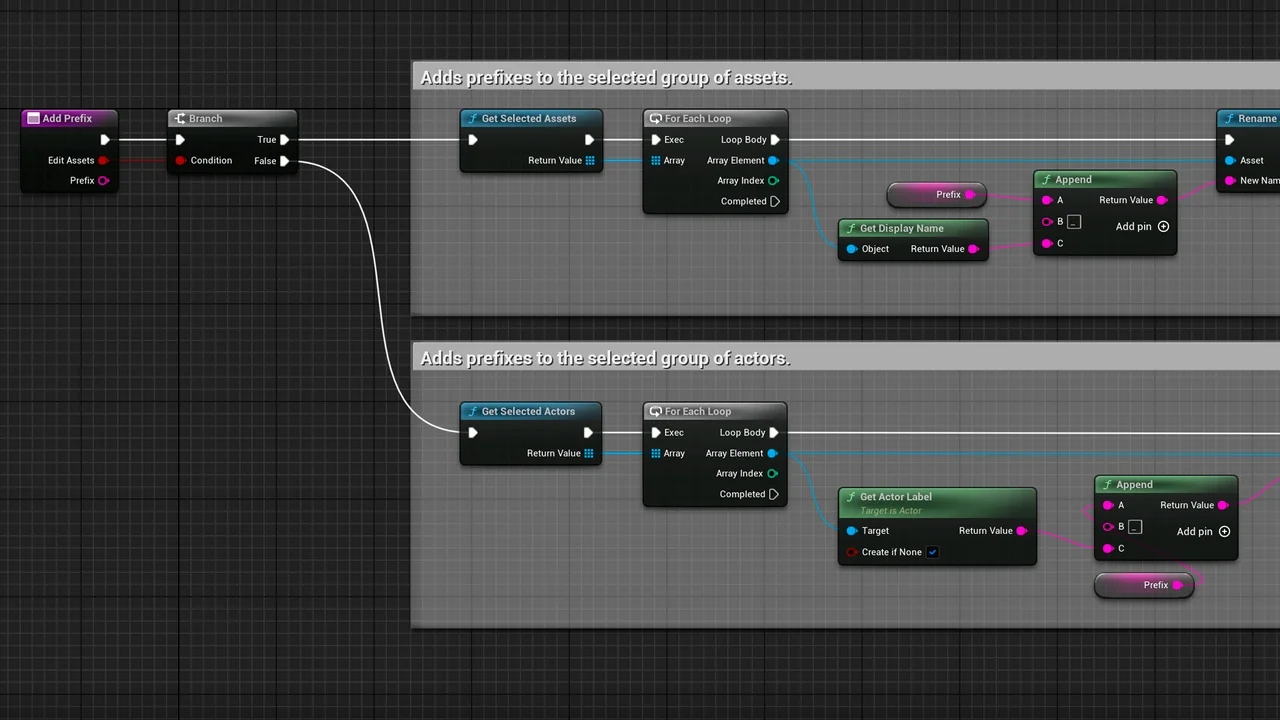
 Unreal Engine
 Characters
 Game Systems