"7066dd76da796369"{"id":"1000123","slug":"lens-flares","title":"Lens Flares","category":"Shaders","engine":"4.26+,5.0+","assetVersion":"","engineVersion":"Engine Version: 4.26+,5.0+","tag":"Shaders","accent":"blue","visual":"mech","summary":"A GPU-based lens flare effect with world space and screen space materials, material instances, texture controls, and smooth occlusion fades.","platform":"Unreal Engine","publishedAt":"2026-06-11T09:42:24.762Z","updatedAt":"2026-06-11T09:42:24.762Z","sourceNotes":[],"fileContents":[],"compatibility":["Unreal Engine","Engine Version: 4.26+,5.0+"],"featuredImage":{"alt":"Lens Flares","src":"/wp-content/uploads/published/2026/06/3f2a559ae89c-df446426-bc70-4f45-a786-e2d9d3b61ff6-de4e94aa79.webp"},"hasDownloadLink":true,"downloads":0,"terms":[{"taxonomy":"category","slug":"shaders","name":"Shaders"}],"galleryImages":[{"src":"/wp-content/uploads/published/2026/06/b8cdd94adc48-0f54799a-9057-4a1b-8b4c-b8d23741d5a8-aa54cfe1e0.webp","alt":"Lens Flares"},{"src":"/wp-content/uploads/published/2026/06/2020c6df7559-ba36f37e-a30e-4278-88c4-4619b10d626d-1ba42a615a.webp","alt":"Lens Flares"},{"src":"/wp-content/uploads/published/2026/06/8f661ec38e82-29d5d8ef-627d-43ec-b150-1e9d83d8c575-7e01f333da.webp","alt":"Lens Flares"},{"src":"/wp-content/uploads/published/2026/06/1288f69d4922-7391ceed-8e77-4dfd-bde0-f0c2a944a6e1-03a55949c2.webp","alt":"Lens Flares"},{"src":"/wp-content/uploads/published/2026/06/4ab9e72b7477-106e43e1-8ca5-487b-b02f-5ddd80691468-02cf815145.webp","alt":"Lens Flares"},{"src":"/wp-content/uploads/published/2026/06/12a6417367be-62048c69-1ae0-4b93-be02-614752d2c082-553e96588e.webp","alt":"Lens Flares"},{"src":"/wp-content/uploads/published/2026/06/f4ec5e6b88b2-a6ff1f9a-807b-4fb8-b8b8-131f040e1287-446c6997f6.webp","alt":"Lens Flares"},{"src":"/wp-content/uploads/published/2026/06/c1dc1bfb49aa-21ae81f2-b84f-4bea-b658-9ad204b0cc5c-4606be6669.webp","alt":"Lens Flares"},{"src":"/wp-content/uploads/published/2026/06/486dd343c7fa-13cf8dc3-c33c-4dac-bae0-659852b66a4c-a8e4f871ad.webp","alt":"Lens Flares"},{"src":"/wp-content/uploads/published/2026/06/a130162ae3c6-3076aaf7-c1ae-4fcb-b07e-c630777eba22-895e3b6510.webp","alt":"Lens Flares"}],"accessPanel":{"kind":"resource","title":"Access this resource","eyebrow":"Free Download","message":"Log in or create a free account to start your download.","fileName":"Content.7z","safetyNote":"Resources are manually reviewed before listing to improve quality and reduce obvious risks.","actionLabel":"Download Free","resourceType":"Resource archive"},"contentHtml":"\u003cp\u003eScenes with strong light sources often need more than brightness alone. They need a flare effect that feels intentional as the camera moves, as objects pass in front of the light, and as the effect nears the edge of the frame. \u003cstrong\u003eLens Flares\u003c/strong\u003e Addresses that part of the visual workflow with a set of materials and material instances focused on controllable flare behavior not just one fixed look.\u003c/p\u003e\n\u003cp\u003eThe current update moves the visual effect to a fully GPU-based approach. That change sits at the center of how this resource is presented. Alongside that update, it includes two new materials for world space and one for screen space. Several material instances are also included, backed by a solid set of textures. The setup leaves room for both immediate use and further adjustment, especially through texture parameters that make it easier to substitute custom images when a project needs a different flare shape or visual character.\u003c/p\u003e \u003ch2\u003eLens Flares in scenes with moving light and camera framing\u003c/h2\u003e\n\u003cp\u003eThe most practical strength here is how the effect behaves under common scene conditions. Lens flares are most noticeable when a bright light source becomes a focal point, but they also become distracting very quickly if they snap on and off, clip harshly, or hold too rigidly to the frame. This resource directly addresses that with material behavior aimed at smoother transitions.\u003c/p\u003e\n\u003cp\u003eAll included materials provide a controllable smooth transition when the light source goes behind an object. That detail matters because it shifts the flare response away from abrupt visibility changes. Instead of the effect reading as a hard binary state, the transition can be managed in a way that better matches the visual rhythm of an occluded light source.\u003c/p\u003e\n\u003cp\u003eThe same attention appears at the edge of the screen. The flare also fades smoothly as it approaches the screen boundary. For camera-driven work, that kind of fade is often what keeps a flare from feeling detached from the image. The effect does not simply persist at full strength until the last moment. It softens as framing pushes it outward, which makes the motion across the frame read more naturally.\u003c/p\u003e \u003ch2\u003eFully GPU based: what changed in the update\u003c/h2\u003e\n\u003cp\u003eThe update turns the visual effect into a fully GPU-based system. Even without adding claims beyond that statement, it establishes the technical identity of the resource more clearly than a purely aesthetic description would. The flare effect is not just a collection of static visuals. It is a GPU-driven effect with its own material setup and behavior rules.\u003c/p\u003e\n\u003cp\u003eThat technical shift also helps explain the rest of the package structure. Rather than presenting one monolithic effect, the resource separates its implementation into distinct materials for different spatial contexts. Two are intended for world space, while one is intended for screen space. This split suggests a workflow where flare placement and flare response can be matched more closely to how a scene or shot is being built.\u003c/p\u003e\n\u003cp\u003eWorld space and screen space do not serve the same visual purpose, so having both available expands how the effect can be staged. A project may need flare behavior that lives more directly in relation to the scene, or it may call for behavior tied more closely to the final frame. The inclusion of both approaches gives the creator a way to choose between those visual relationships instead of forcing one method across every use case.\u003c/p\u003e \u003ch2\u003eWorld space and screen space materials\u003c/h2\u003e\n\u003cp\u003eThe material breakdown is one of the clearest implementation details in this resource. There are \u003cstrong\u003eTwo new materials for world space\u003c/strong\u003e And \u003cstrong\u003eOne for screen space\u003c/strong\u003e. That is a small count, but it is also focused. The pack does not present an undefined collection of effects. It defines three material routes for handling flare behavior in specific ways.\u003c/p\u003e\n\u003cp\u003eThe two world space materials suggest variation within scene-based flare placement rather than treating world space as a single fixed option. Even without inventing what separates those two materials, the important point is that there is more than one world space path available. For creators building shots around lighting, reflective surfaces, or camera movement through geometry, that distinction can matter because it leaves room to choose between different world-oriented treatments.\u003c/p\u003e\n\u003cp\u003eThe dedicated screen space material gives the effect a separate frame-based option. That makes the package less narrow than a resource that only handles one kind of placement logic. In use, the user is not locked into a single spatial interpretation of lens flare behavior. The materials already divide the effect into scene-related and screen-related approaches, which is often where implementation choices begin.\u003c/p\u003e \u003ch2\u003eMaterial instances, textures, and using your own images\u003c/h2\u003e\n\u003cp\u003eBeyond the base materials, the resource includes several material instances and a solid set of textures. This is where setup becomes more flexible. Material instances make it easier to work from prepared variations instead of rebuilding a flare from scratch every time. The included textures provide immediate visual material to work with, while the parameter-driven structure opens the door to customization.\u003c/p\u003e\n\u003cp\u003eThe most important customization detail is straightforward: the texture parameters in the instance make it easy to use your own images. That means the flare effect is not limited to the included texture set. If a project needs a different flare shape, a different pattern, or a different image-driven character, the material instance can accommodate that through its texture controls.\u003c/p\u003e\n\u003cp\u003eThis part of the workflow gives the resource a modular feel. A creator can start from the supplied material instances, use the included textures, and then decide whether the default visual language fits the scene. If it does, the setup is already in place. If it does not, custom images can be brought into the same parameter structure rather than forcing a separate effect path.\u003c/p\u003e\n\u003cp\u003eThere is also a practical support note attached to that process: texture import settings are covered in the tutorial video. That is useful because custom-image workflows often depend on the image being brought in correctly before the material can behave as expected. The resource does not stop at saying custom images are supported; it also points users toward the import side of that setup.\u003c/p\u003e \u003ch2\u003eSmooth transitions when light goes behind an object\u003c/h2\u003e\n\u003cp\u003eThe occlusion behavior deserves separate attention because it is one of the clearest quality markers in the pack. When a light source moves behind an object, lens flares can break immersion if they disappear too suddenly or linger too aggressively. Here, the materials provide a \u003cstrong\u003eControllable smooth transition\u003c/strong\u003e For that moment.\u003c/p\u003e\n\u003cp\u003eControl is the key word in that description. The transition is not only smooth; it is controllable. That implies the user can shape how the flare responds as geometry interrupts the light source. In scene-building terms, this supports a more intentional look. A heavily stylized flare response and a restrained one do not need to be treated as the same event, and the material behavior reflects that.\u003c/p\u003e\n\u003cp\u003eThe second smoothing behavior appears as the flare approaches the edge of the screen. Instead of a hard cutoff, the effect fades. For shots where framing constantly shifts, this can help preserve visual continuity. The flare remains part of the shot language while still respecting the limits of the frame.\u003c/p\u003e\n\u003cp\u003eTogether, those two behaviors define the resource more strongly than a simple texture pack would. The flare is not only about imagery. It is about how imagery reacts to occlusion and screen position. That makes the resource useful for creators who care about the motion and transition qualities of a lighting effect, not just its static appearance.\u003c/p\u003e \u003ch2\u003eWhere Lens Flares fits best\u003c/h2\u003e\n\u003cp\u003eThis resource fits projects that need lens flare treatment as part of lighting presentation rather than as an afterthought. Its structure supports implementation choices first: GPU-based operation, separate world space and screen space materials, multiple material instances, and texture-parameter customization. Its most distinctive visual behavior lies in smooth handling when a light source passes behind objects and when a flare moves toward the edge of the frame.\u003c/p\u003e\n\u003cp\u003eFor teams or solo creators deciding whether it matches a scene, the main question is less about quantity and more about workflow fit. If the project benefits from choosing between world space and screen space flare setups, adjusting flare imagery through texture parameters, and maintaining softer transitions during occlusion and edge-of-screen movement, \u003cstrong\u003eLens Flares\u003c/strong\u003e Is aligned with that need.\u003c/p\u003e\n\n\u003ch2\u003eMore From The Same Workflow\u003c/h2\u003e\n\u003cul\u003e\n\u003cli\u003e\u003ca href=\"https://3dcghub.com/wall-fx-pack/\" title=\"Wall FX pack\"\u003eWall FX pack\u003c/a\u003e\u003c/li\u003e\n\u003cli\u003e\u003ca href=\"https://3dcghub.com/lasers-with-shadows/\" title=\"Lasers with shadows\"\u003eLasers with shadows\u003c/a\u003e\u003c/li\u003e\n\u003cli\u003e\u003ca href=\"https://3dcghub.com/mk-glow-bloom-lens-glare/\" title=\"MK Glow - Bloom \u0026amp; Lens \u0026amp; Glare\"\u003eMK Glow - Bloom \u0026amp; Lens \u0026amp; Glare\u003c/a\u003e\u003c/li\u003e\n\u003cli\u003e\u003ca href=\"https://3dcghub.com/cyberpunk-fx-pack/\" title=\"Cyberpunk FX Pack\"\u003eCyberpunk FX Pack\u003c/a\u003e\u003c/li\u003e\n\u003cli\u003e\u003ca href=\"https://3dcghub.com/custom-motion-blur/\" title=\"Custom Motion Blur\"\u003eCustom Motion Blur\u003c/a\u003e\u003c/li\u003e\n\u003c/ul\u003e","contentTextLength":8791,"navigation":{"current":2042,"total":4016,"previous":{"id":"1000124","slug":"level-transition-system","title":"Level Transition System","category":"Gameplay Features","platform":"Unreal Engine","updatedAt":"2026-06-11T09:47:27.283Z"},"next":{"id":"1000122","slug":"kickstart-blueprint-library","title":"Kickstart Blueprint Library","category":"Engine Tools","platform":"Unreal Engine","updatedAt":"2026-06-11T09:28:29.080Z"}},"relatedResources":[{"id":"1001000","slug":"lens-and-film-post-process","title":"Lens and Film Post Process","category":"Shaders","engine":"5.1+","assetVersion":"","engineVersion":"Engine Version: 5.1+","tag":"Shaders","accent":"blue","visual":"mech","summary":"Customizable post-processing effect for blur, lens distortion, chromatic aberration, film grain, light leaks, and more. Includes disk blur types and cinematic r","platform":"Unreal Engine","publishedAt":"2026-08-20T09:55:15.932Z","updatedAt":"2026-08-20T09:55:15.932Z","sourceNotes":[],"fileContents":[],"compatibility":["Unreal Engine","Engine Version: 5.1+"],"featuredImage":{"alt":"Lens and Film Post Process","src":"/wp-content/uploads/published/2026/08/9f516287e615-b76a2f41-7419-402c-9096-7d1b7d173679-78137b7b8c.webp"},"hasDownloadLink":true,"downloads":0},{"id":"1001644","slug":"cyberpunk-fx-pack-2-neon-panels-and-screens","title":"Cyberpunk FX Pack 2 - Neon Panels and Screens","category":"Shaders","engine":"4.20+,5.0+","assetVersion":"","engineVersion":"Engine Version: 4.20+,5.0+","tag":"Shaders","accent":"blue","visual":"mech","summary":"Implement deformable neon signs, parallax 3D effect textures, hologram screens, and hologram globes from Cyberpunk FX Pack 2 into custom environments.","platform":"Unreal Engine","publishedAt":"2026-10-13T02:28:20.229Z","updatedAt":"2026-10-13T02:28:20.229Z","sourceNotes":[],"fileContents":[],"compatibility":["Unreal Engine","Engine Version: 4.20+,5.0+"],"featuredImage":{"alt":"Cyberpunk FX Pack 2 - Neon Panels and Screens","src":"/wp-content/uploads/published/2026/10/420306a50bfd-06b12c54-c578-4a0e-9f69-4f4069add9a2-0df00049ea.webp"},"hasDownloadLink":true,"downloads":0},{"id":"1001994","slug":"cy-bloom-kernel-bundle","title":"Cy Bloom Kernel Bundle","category":"Shaders","engine":"4.25+,5.0+","assetVersion":"","engineVersion":"Engine Version: 4.25+,5.0+","tag":"Shaders","accent":"blue","visual":"mech","summary":"Technical guide to implementing the Cy Bloom Kernel Bundle in Unreal Engine via convolution bloom, camera settings, and lensflare billboard setups.","platform":"Unreal Engine","publishedAt":"2026-10-26T12:13:11.939Z","updatedAt":"2026-10-26T12:13:11.939Z","sourceNotes":[],"fileContents":[],"compatibility":["Unreal Engine","Engine Version: 4.25+,5.0+"],"featuredImage":{"alt":"Cy Bloom Kernel Bundle","src":"/wp-content/uploads/published/2026/10/209cbe1fedf0-a604382e-08ac-4574-a04d-640f5565989a-efb9d3f0dc.webp"},"hasDownloadLink":true,"downloads":0}]}
Shaders
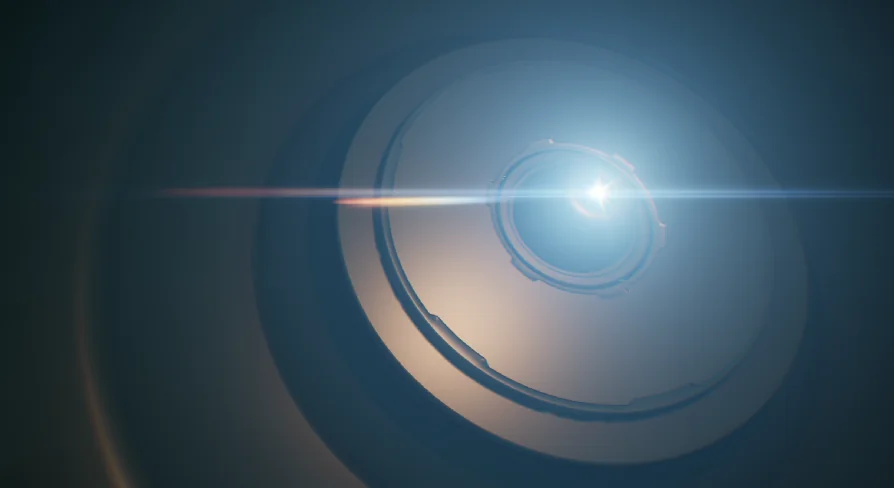
Lens Flares
A GPU-based lens flare effect with world space and screen space materials, material instances, texture controls, and smooth occlusion fades.
Category:Unreal Engine,ShadersPlatform: Unreal EngineEngine Version: 4.26+,5.0+Published: Jun 11, 2026
Shaders
Resource overview
Scenes with strong light sources often need more than brightness alone. They need a flare effect that feels intentional as the camera moves, as objects pass in front of the light, and as the effect nears the edge of the frame. Lens Flares Addresses that part of the visual workflow with a set of materials and material instances focused on controllable flare behavior not just one fixed look.
The current update moves the visual effect to a fully GPU-based approach. That change sits at the center of how this resource is presented. Alongside that update, it includes two new materials for world space and one for screen space. Several material instances are also included, backed by a solid set of textures. The setup leaves room for both immediate use and further adjustment, especially through texture parameters that make it easier to substitute custom images when a project needs a different flare shape or visual character.
Lens Flares in scenes with moving light and camera framing
The most practical strength here is how the effect behaves under common scene conditions. Lens flares are most noticeable when a bright light source becomes a focal point, but they also become distracting very quickly if they snap on and off, clip harshly, or hold too rigidly to the frame. This resource directly addresses that with material behavior aimed at smoother transitions.
All included materials provide a controllable smooth transition when the light source goes behind an object. That detail matters because it shifts the flare response away from abrupt visibility changes. Instead of the effect reading as a hard binary state, the transition can be managed in a way that better matches the visual rhythm of an occluded light source.
The same attention appears at the edge of the screen. The flare also fades smoothly as it approaches the screen boundary. For camera-driven work, that kind of fade is often what keeps a flare from feeling detached from the image. The effect does not simply persist at full strength until the last moment. It softens as framing pushes it outward, which makes the motion across the frame read more naturally.
Fully GPU based: what changed in the update
The update turns the visual effect into a fully GPU-based system. Even without adding claims beyond that statement, it establishes the technical identity of the resource more clearly than a purely aesthetic description would. The flare effect is not just a collection of static visuals. It is a GPU-driven effect with its own material setup and behavior rules.
That technical shift also helps explain the rest of the package structure. Rather than presenting one monolithic effect, the resource separates its implementation into distinct materials for different spatial contexts. Two are intended for world space, while one is intended for screen space. This split suggests a workflow where flare placement and flare response can be matched more closely to how a scene or shot is being built.
World space and screen space do not serve the same visual purpose, so having both available expands how the effect can be staged. A project may need flare behavior that lives more directly in relation to the scene, or it may call for behavior tied more closely to the final frame. The inclusion of both approaches gives the creator a way to choose between those visual relationships instead of forcing one method across every use case.
World space and screen space materials
The material breakdown is one of the clearest implementation details in this resource. There are Two new materials for world space And One for screen space. That is a small count, but it is also focused. The pack does not present an undefined collection of effects. It defines three material routes for handling flare behavior in specific ways.
The two world space materials suggest variation within scene-based flare placement rather than treating world space as a single fixed option. Even without inventing what separates those two materials, the important point is that there is more than one world space path available. For creators building shots around lighting, reflective surfaces, or camera movement through geometry, that distinction can matter because it leaves room to choose between different world-oriented treatments.
The dedicated screen space material gives the effect a separate frame-based option. That makes the package less narrow than a resource that only handles one kind of placement logic. In use, the user is not locked into a single spatial interpretation of lens flare behavior. The materials already divide the effect into scene-related and screen-related approaches, which is often where implementation choices begin.
Material instances, textures, and using your own images
Beyond the base materials, the resource includes several material instances and a solid set of textures. This is where setup becomes more flexible. Material instances make it easier to work from prepared variations instead of rebuilding a flare from scratch every time. The included textures provide immediate visual material to work with, while the parameter-driven structure opens the door to customization.
The most important customization detail is straightforward: the texture parameters in the instance make it easy to use your own images. That means the flare effect is not limited to the included texture set. If a project needs a different flare shape, a different pattern, or a different image-driven character, the material instance can accommodate that through its texture controls.
This part of the workflow gives the resource a modular feel. A creator can start from the supplied material instances, use the included textures, and then decide whether the default visual language fits the scene. If it does, the setup is already in place. If it does not, custom images can be brought into the same parameter structure rather than forcing a separate effect path.
There is also a practical support note attached to that process: texture import settings are covered in the tutorial video. That is useful because custom-image workflows often depend on the image being brought in correctly before the material can behave as expected. The resource does not stop at saying custom images are supported; it also points users toward the import side of that setup.
Smooth transitions when light goes behind an object
The occlusion behavior deserves separate attention because it is one of the clearest quality markers in the pack. When a light source moves behind an object, lens flares can break immersion if they disappear too suddenly or linger too aggressively. Here, the materials provide a Controllable smooth transition For that moment.
Control is the key word in that description. The transition is not only smooth; it is controllable. That implies the user can shape how the flare responds as geometry interrupts the light source. In scene-building terms, this supports a more intentional look. A heavily stylized flare response and a restrained one do not need to be treated as the same event, and the material behavior reflects that.
The second smoothing behavior appears as the flare approaches the edge of the screen. Instead of a hard cutoff, the effect fades. For shots where framing constantly shifts, this can help preserve visual continuity. The flare remains part of the shot language while still respecting the limits of the frame.
Together, those two behaviors define the resource more strongly than a simple texture pack would. The flare is not only about imagery. It is about how imagery reacts to occlusion and screen position. That makes the resource useful for creators who care about the motion and transition qualities of a lighting effect, not just its static appearance.
Where Lens Flares fits best
This resource fits projects that need lens flare treatment as part of lighting presentation rather than as an afterthought. Its structure supports implementation choices first: GPU-based operation, separate world space and screen space materials, multiple material instances, and texture-parameter customization. Its most distinctive visual behavior lies in smooth handling when a light source passes behind objects and when a flare moves toward the edge of the frame.
For teams or solo creators deciding whether it matches a scene, the main question is less about quantity and more about workflow fit. If the project benefits from choosing between world space and screen space flare setups, adjusting flare imagery through texture parameters, and maintaining softer transitions during occlusion and edge-of-screen movement, Lens Flares Is aligned with that need.
 Shaders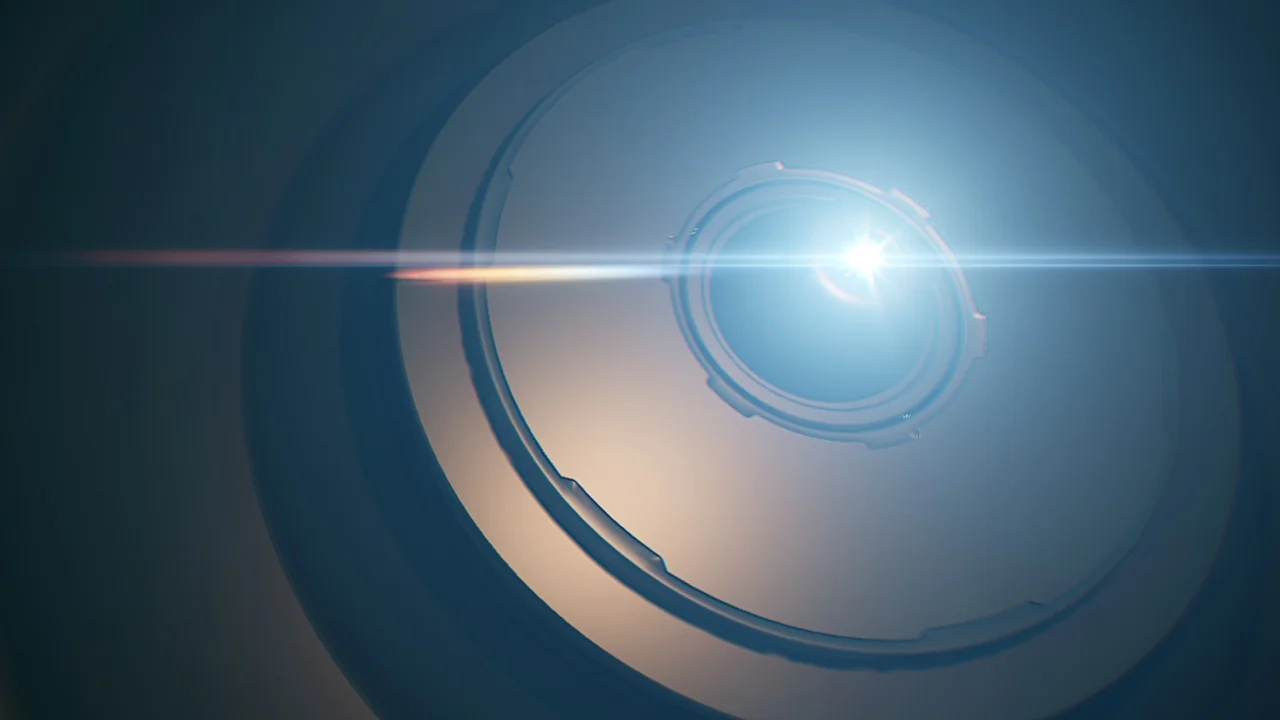
 Shaders
 Shaders
 Shaders